Apartment Wi-Fi Problems: What Makes Signal and Speed Worse
Struggling with wifi weak in apartment? Learn how to boost your signal and improve internet speed with our expert tips and tricks.
Many renters notice slow loading, buffering, and dropped video calls even when their internet plan promises fast speeds. Neighboring networks, dozens of devices, and heavy building materials can crowd the radio airspace and cut usable coverage where you need it most.
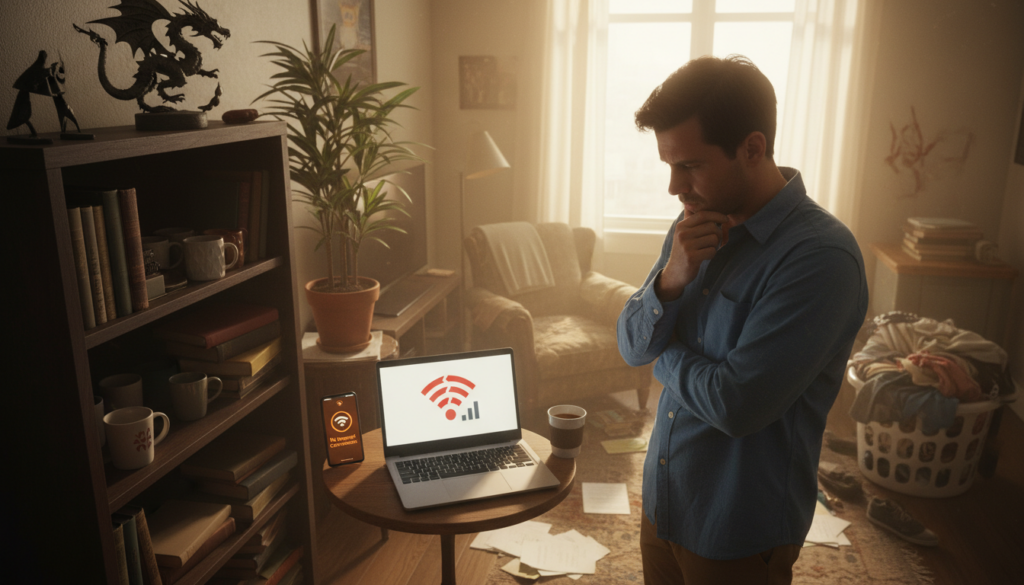
Poor router placement can push your signal toward a neighbor’s unit instead of your home office or living room. That creates rooms where the service feels weak and speeds drop during peak hours.
This guide explains why the internet coming to your door is not the same as the wireless connection inside your home. You will learn quick checks, placement fixes, and setting tweaks to improve signal and stabilize speeds without buying costly gear first.
Key Takeaways
- Interference from nearby networks and many devices is a top cause of problems.
- Building materials and metal beams block signals and create dead spots.
- Simple placement and settings changes often improve speed and stability.
- Start with baseline tests and restarts before spending on extenders or mesh.
- The guide focuses on fixes renters can control with common consumer routers.
Why apartment Wi-Fi gets worse than you expect
High-rise living brings extra wireless traffic and physical barriers that cut into real-world speeds.
Crowded airspace and too many devices
Your router shares a limited radio lane with dozens of nearby networks and other routers. That means your connection can slow even if you aren’t actively downloading much.
Laptops, phones, smart speakers, TVs, and game consoles all compete for bandwidth and router processing power. More devices equals more contention and reduced throughput for each gadget.
What Else Would You Like to Know?
Choose below:
Building materials that block coverage
Thick plaster, concrete, brick, metal studs, elevators, and mirrors all reduce signal strength. Floors and ceilings add extra loss, so a router tucked low or in a corner struggles to reach every room.
This physical interference creates dead spots where walls stop a usable connection.
What “slow” looks like
Users see buffering during streaming, dropped or “unstable network” warnings on calls, and lag spikes in games. Sometimes slow means low download speeds; other times it’s high latency or jitter. Both can break video meetings and online play.
Next step: measure speeds and map problem areas before changing hardware or settings.
Run quick checks before you change anything
Before changing settings or buying gear, run a few quick checks to set a clear baseline. These simple steps tell you whether the problem is local or affects the whole service. Do the tests first so you can compare results after any change.
Use an internet speed test to set a baseline
Run a speed test near the router and again in the most problematic room. Record download, upload, and latency.
- Test both throughput and latency — good download numbers can hide high ping or jitter.
- Repeat tests at different times of day to spot peak-time slowdowns versus constant faults.
Restart your router and modem to rule out simple system glitches
Power-cycle the modem first, then the router. Wait until both show a full reconnection to the service before testing again.
Why this helps: restarts clear memory leaks, force a new channel scan, and fix temporary handshake problems with the ISP.
Compare performance by room to map coverage and dead zones
Test living room, bedroom, and work area. Note bars and real speeds, not just signal icons.
If only one room shows dramatic drops, focus on placement or an extender. If problems appear everywhere, investigate settings, congestion, or contact your provider about broader issues.
wifi weak in apartment: the biggest signal killers to look for
Signal trouble usually comes from simple sources: nearby electronics, poor router location, and peak-time congestion. Spotting the cause first makes fixes faster and cheaper.
Interference from electronics
Microwaves and some cordless phones operate on the same bands as many home networks, especially affecting 2.4 GHz performance. Bluetooth hubs, baby monitors, and dense electronics can cause intermittent drops or slower throughput.
Router location problems
Routed units hidden behind TVs, tucked in cabinets, or placed on the floor often lose range. An off-center placement can send most of the signal into a hallway or a neighbor’s unit instead of your bedroom or office.
Peak-time congestion and channel crowding
Evenings and weekends bring heavy streaming, gaming, and video meetings across buildings. Multiple routers on the same channel act like clogged lanes, causing collisions and retries that shave off usable bandwidth.
- Kitchen interference: large metal appliances plus a running microwave often trigger random drops near that room.
- Placement red flags: router inside a cabinet, behind furniture, or on the floor.
- Symptom guide: nightly slowdowns = congestion; one-room loss = placement/walls; random kitchen drops = interference.
| Cause | Common Signs | Quick Fix | When to escalate |
|---|---|---|---|
| Microwave / cordless phones | Random drops near kitchen | Move router away; use 5 GHz for nearby devices | Still drops after relocation |
| Poor router location | One-room dead zone; strong signal toward hallway | Elevate and center router; avoid cabinets | Large apartment or thick walls |
| Channel congestion | Nightly slowdowns, low throughput | Scan and switch channels; reduce crowded bands | Multiple neighbors share same channel |
Next: the following section walks through band and channel settings first, then placement tips, and finally hardware upgrades if needed.
Fix interference and channel congestion with smarter router settings
Smarter router configuration helps avoid noisy channels and keeps critical devices fast.
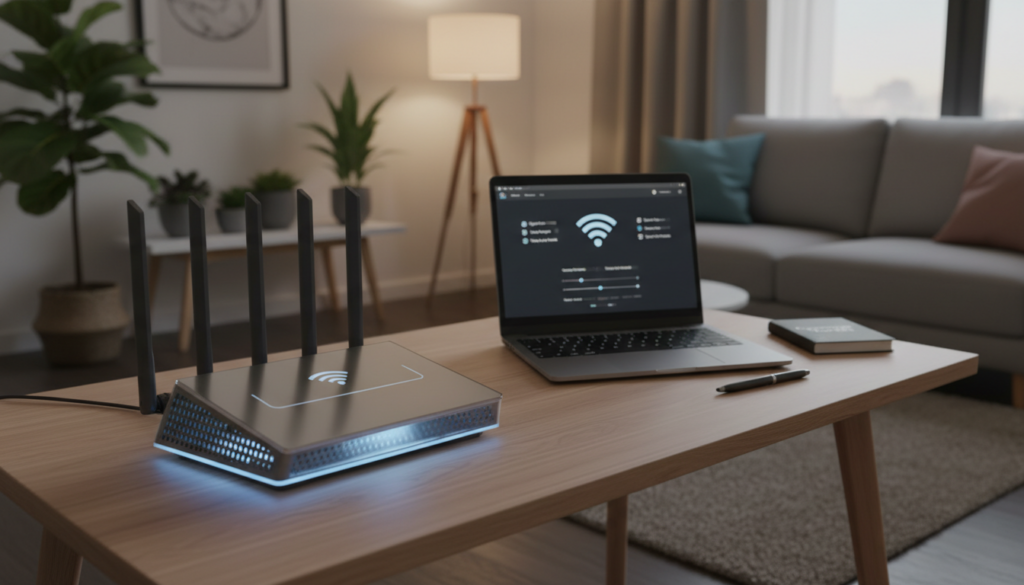
Switch bands based on range versus speed
2.4 GHz reaches farther and penetrates walls better. Use it for meters-away devices or rooms behind many barriers.
5 GHz is faster at close range but loses power through walls. Put work laptops, game consoles, and streaming boxes on 5 GHz when they sit near the router.
Scan and pick the clearest channels
Open your router app or web dashboard (via the local IP) and run a channel scan. Pick the least used channel for each band rather than leaving the router on a crowded lane.
Use a Wi‑Fi analyzer app to visualize channel crowding in dense buildings. If “auto” keeps hopping to busy channels, manually select one and test.
Check channel width, split traffic, and secure access
Wider channels (40/80 MHz) can boost speeds but invite more interference. Try 20 MHz where many neighbors share spectrum.
Separate SSIDs or enable band steering so high-priority traffic uses the best band. Keep only trusted devices with access to reduce needless congestion and improve security.
- Speed-test after each change and note results.
- Repeat tests at peak hours to confirm real gains.
Improve router placement for better signal coverage across your apartment
Where you place your router can change signal reach more than a new device can. A few simple moves often lift coverage and improve connection quality across common rooms.
Choose a central, elevated, open location to reduce dead zones
Rule of thumb: pick the center of your home, on a shelf or console height or higher. Elevation reduces obstacles at floor level and gives a clearer line-of-sight to devices.
Keep distance from kitchens, large metal appliances, and high-demand electronics
Microwaves and big metal cabinets reflect and absorb signals. Keep the router away from these and from clustered gadgets like smart TVs, consoles, and soundbars.
- Prioritize the bedroom/office/living room triangle for best everyday coverage.
- If thick walls split the unit, place the router on the inside of the barrier rather than behind it.
- Spread high-demand devices away from the router to reduce local interference.
| Placement issue | Why it matters | Quick fix |
|---|---|---|
| Router tucked in closet | Signal blocked by doors and furniture | Move to an open shelf near center of home |
| Near kitchen or microwave | Interference and reflected signals | Relocate at least several feet away, elevate |
| Behind thick walls | Severe attenuation between rooms | Place on inside face of wall or closer to room triangle |
Test after moving: repeat your speed and latency checks in each room to confirm gains. If dead zones remain due to structure, the next step is an extender or mesh system.
When a single router isn’t enough: extenders, mesh systems, and building-wide options
When a single router can’t cover every room, targeted hardware can bridge the gap without a full replacement.
Wi‑Fi extenders for stubborn dead zones
Extenders are low-cost fixes (roughly $30–$100) for one stubborn dead zone when you cannot move the main unit.
Place the extender where it still receives a strong signal, not deep inside the dead zone. Test speeds after setup and adjust placement for best results.
Mesh systems for larger layouts and high bandwidth needs
Mesh systems use multiple nodes to create seamless coverage across rooms and floors.
They improve roaming and stability for streaming and gaming, and are the right choice for households with many devices and heavy bandwidth demands.
Hardware and standards to consider now
Look for Wi‑Fi 6E or Wi‑Fi 7 support and multigig Ethernet ports if you plan to upgrade your internet service. These standards add spectrum and capacity for future needs.
Managed building WiFi and professional options
Managed networks use strategic access point placement, channel management, load balancing, and 24/7 monitoring to cut neighbor interference and reduce dead zones.
Security features like WPA3, regular firmware updates, and firewalling protect residents and keep connectivity stable.
When to call your internet service provider
Contact your ISP or service provider for repeated outages, modem-level speeds far below your plan, or persistent inconsistency that local fixes don’t solve.
| Option | Best for | Cost | Key benefit |
|---|---|---|---|
| Extenders | Single dead zones, fixed router location | $30–$100 | Targets coverage without replacing main unit |
| Mesh systems | Large layouts, heavy streaming/gaming | $150–$400+ | Seamless roaming and stronger overall coverage |
| Managed building WiFi | Multiple units, shared interference | Varies (often included or paid to provider) | Professional placement, monitoring, and stronger security |
Conclusion
A short checklist—measure, move, tweak—often fixes most home connection problems.
Start with baseline tests, including latency, then restart equipment to clear simple glitches.
Next, scan channels, switch bands, and move the router away from major interference sources to improve signal and speeds.
Change one setting at a time and re-test at the same time of day so you can compare results and keep what works.
If one room shows trouble, focus on placement or an extender; if the whole unit is unstable, review network settings, hardware, or call providers for service checks.
Manage devices, secure access with strong passwords, and scale with mesh or managed systems for broader coverage and a better streaming experience.
Try one solution today—a channel scan, a router move, or adding a node—and measure again to confirm the improvement.
FAQ
What causes poor signal and slower speeds in an apartment?
How can I tell if my internet is actually slow or just a temporary hiccup?
Should I restart my modem or router when performance drops?
How do building materials affect wireless coverage?
What household electronics interfere with my network?
When should I switch between 2.4 GHz and 5 GHz bands?
Can changing channels reduce congestion in dense buildings?
Will moving my router improve coverage?
Are extenders or mesh systems better for larger apartments or split layouts?
What hardware and standards should I consider when upgrading?
How can I split traffic so critical devices get priority?
When should I contact my internet service provider (ISP)?
What is managed Wi‑Fi in apartment buildings and why does it help?
How can I map dead zones and prioritize fixes?
Why Wi-Fi Struggles Upstairs and How to Improve It
» See exclusive tips for your home