Why Streaming Buffers on Wi-Fi and How to Stop It
Struggling with wifi buffering streaming? Our guide provides easy-to-follow steps to identify and resolve the problem, ensuring a smooth streaming experience.
Playback pauses, spinning loaders, and sudden drops in picture quality are common signs that your network can’t keep up with the data a video player needs. This piece explains why that happens and how to fix it.
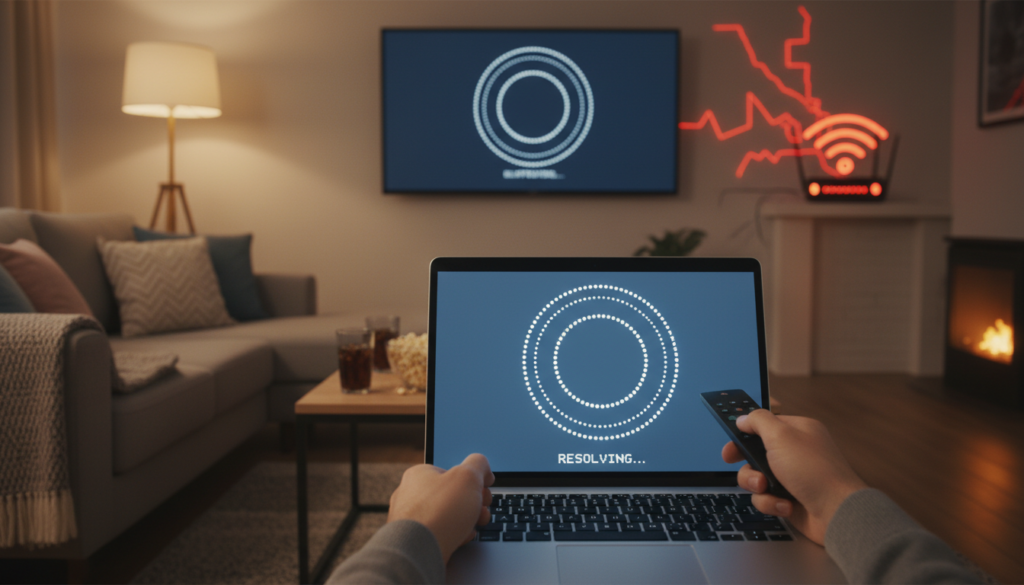
Buffering occurs when the connection can’t deliver data fast enough to match playback. The usual culprits are slow speeds, weak Wi‑Fi coverage, and too many devices sharing the same link. Even a fast plan can look slow if the local wireless signal or a device is the bottleneck.
This short guide starts with quick checks you can do now, then moves to deeper fixes: simple resets, cutting bandwidth demand, using Ethernet, cleaning up devices, and optimizing the home network. The goal is not a single magic setting but removing choke points across the device, router, and connection so you get fewer interruptions in HD or 4K video and steadier performance during busy hours.
Key Takeaways
- Playback pauses mean data isn’t delivered fast enough to the player.
- Start with quick resets and checks before trying advanced fixes.
- Distinguish slow internet plans from local wireless or device issues.
- Main fixes: reduce demand, use wired links, and improve coverage.
- Improvements benefit video most, but apply to music and live feeds too.
What buffering really means during streaming video
Video interruptions are usually a simple mismatch between how fast data arrives and how fast the player consumes it. Video buffering is the device preloading a short cushion of content so playback stays smooth when delivery is steady.
How a video buffer works and why playback pauses
The player stores incoming data in a small buffer. When that preload drops below what the player needs, playback pauses while the buffer refills.
Adaptive delivery can raise quality mid-play, which raises the required bitrate. Congestion from other household devices can then drain the buffer and cause stalls.
What Else Would You Like to Know?
Choose below:
Why HD and 4K buffer more often
Higher resolution means higher bitrate. HD usually needs about 5 Mbps, while 4K often needs ~25 Mbps+. If connection speeds or stability wobble, higher quality fails first.
- Multiple streams, downloads, or backups compete for data.
- Main failure points: device limits, signal range, router capacity, or ISP constraints.
- Lowering quality reduces required data rate and is a quick fix.
Quick checks before you start troubleshooting
Do the fastest checks first to pinpoint where problems begin. These steps rule out temporary app glitches and platform outages before you touch the router.
Reload the stream or restart the app
Refresh once, then fully close and reopen the app or browser. A restart clears failed handshakes and cached playback errors that cause short pauses.
Rule out service outages and peak-event slowdowns
Check the streaming service status page or the provider’s support site. Use Downdetector during big events to see if others report problems.
Major finales or big games can overload a platform. If only that title stalls, wait or try different content to confirm a service-side issue.
Test on a second device to narrow the fault
Play the same content on another device—switch from a Smart TV to a phone without moving locations. If only one device has trouble, focus on that device. If all devices struggle, move on to home network or connection fixes.
Tip: Note whether the issue affects one service or multiple services. This helps separate app problems from connection limits before deeper troubleshooting.
Common causes of streaming buffering on Wi-Fi
Not all interruptions come from your service plan; many start inside the house. Below are the frequent causes so you know where to look.
Slow internet speed vs. unstable connection
Slow speed means the plan can’t meet the bitrate required for high-quality content. Unstable connection happens when throughput drops or jitters even if peak test results look good.
That difference matters: a fast test can mask repeated brief drops that stop playback.
Weak Wi‑Fi signal from distance, walls, and interference
Distance, thick walls, and radio interference from neighbors or microwaves reduce Wi‑Fi signal strength. The result is packet loss and uneven delivery across your home network.
Too many devices and background apps competing for bandwidth
Multiple devices streaming, gaming, or running backups can overload a connection. Background apps and automatic updates also steal capacity and drain the player’s buffer.
ISP throttling, data limits, and peak-hour congestion
Providers may slow traffic during busy hours or after a data cap. Peak-hour congestion can make an otherwise adequate plan feel slow for high-bitrate content.
Outdated routers, streaming devices, and apps
Older router hardware and aging streaming device firmware can bottleneck throughput. Apps with old codecs or pending updates may also struggle to play modern high-res video.
VPNs and browser settings that can slow streaming
VPN encryption adds latency and cuts throughput. Heavy browser cache, restrictive extensions, or corrupted cookies can also cause stalls.
Next: Each cause maps to a fix category: verify speed, restart gear, lower quality, test with Ethernet, clean up devices, and tune Wi‑Fi.
wifi buffering streaming fixes you can do right now
Try several fast checks now to isolate whether the problem is your home gear or the internet. These steps move from quick tests to simple changes you can make without technical skills.
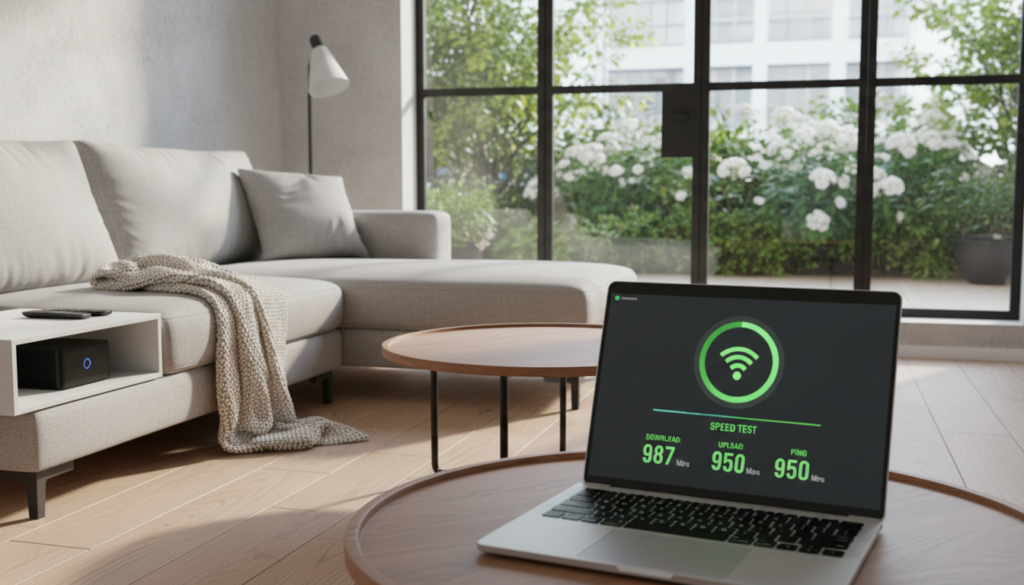
Run a speed test and compare to the video you want
Run a reputable speed test and note the download number. For HD aim for ~5 mbps. For 4K target ~25 mbps or more.
If results jump around, that suggests instability even if peak numbers look OK.
Power-cycle the router
Unplug the router, wait 20–30 seconds, then plug it back in. Wait for lights to stabilize before retesting.
Restart the streaming device or computer
Fully reboot your TV, stick, console, or computer. A restart clears memory and background tasks that hurt playback.
Lower video quality and pause heavy downloads
Use the app’s gear or settings icon to drop resolution from 4K to HD. Then pause game downloads, OS updates, and cloud backups on all devices to free up bandwidth.
Try a wired Ethernet test and clear browser data
Connect an ethernet cable to rule out wireless issues. On a computer, clear cache and cookies, then restart the browser.
| Action | How to do it | Expected result |
|---|---|---|
| Speed test | Use a reputable site; check download Mbps | Shows if plan meets video needs |
| Router power-cycle | Unplug 20–30 sec, plug back in | Clears temporary glitches |
| Device restart | Full reboot of TV/stick/PC | Frees memory, stops background data |
| Ethernet cable test | Plug cable directly into device | Better stability and higher throughput |
Quick retest: After each change, play the same video to confirm which fix improved performance. Repeat until playback is steady.
Device-specific steps that stop buffering faster
Tackle the gadget playing the content first. Many fixes are quick and avoid router changes. Try these device-focused checks to find a fast win.
Smartphones and tablets
Toggle your network off and on, or switch from Wi‑Fi to cellular on the phone to compare stability. Close background apps and pause heavy downloads.
Clear the app cache inside the streaming app when available. Also watch for Bluetooth or low-power modes that can indirectly affect playback.
Smart TVs and streaming sticks
Update firmware, then reboot the streaming device to clear stalled services. If possible, connect the TV with an Ethernet cable to remove wireless variability.
Older sticks may struggle with 4K; an update or reduced resolution often improves playback.
Gaming consoles
Pause game downloads and installs that run in the background. Use the console’s built-in network test to check speed and latency, then retest video performance.
Computers
Close extra tabs and bandwidth-heavy apps. Update your browser and GPU or network drivers.
Open Task Manager (Windows) or Activity Monitor (macOS) to check CPU and RAM. High utilization can mimic network faults and hurt performance.
Optimize your home Wi‑Fi network for consistent streaming performance
A few practical adjustments at home can greatly boost signal reach and overall network performance.
https://www.youtube.com/watch?v=HdI3ACShskI
Improve router placement and cut interference
Place the router centrally and elevated in a typical US home. Keep it away from thick walls, metal appliances, and clutter that block the signal.
Nearby apartment networks, microwaves, and old electronics create interference. Moving the router often helps more than software tweaks.
Pick the right band and change crowded channels
Use 5 GHz for higher speeds when the device sits close to the router. Choose 2.4 GHz when range matters most.
In dense buildings, change channels to avoid collisions that degrade performance and make the connection feel slow.
Upgrade and extend wisely
Wi‑Fi 6 improves efficiency when many devices share the internet in a busy home.
| Option | Best for | Benefit |
|---|---|---|
| Mesh system | Whole-home coverage | Seamless signal and fewer dead zones |
| Repeater | Single dead zone | Low-cost spot boost |
| Powerline adapter | No Ethernet runs | Stable wired-like link over existing wiring |
Secure and verify
Update your password, use WPA2/WPA3, and remove unknown devices so bandwidth stays for your own use.
After changes, retest speeds in the main viewing room and play the same content on the same device to confirm improved performance.
Conclusion
,Start by separating service limits from home issues so you know where to focus fixes. When the connection can’t meet a video’s needs, stalls follow; isolating the fault makes fixes faster and more lasting.
Fast wins: reload or restart the app, check internet status pages, run a speed test, reboot the router and device, then lower quality or use Ethernet if needed. These steps often restore smooth playback.
For prevention, limit parallel activity during prime viewing and schedule large downloads for off-hours. Aim for ~5 Mbps per HD stream and ~25 Mbps for 4K as a rule of thumb.
Quick tips: prefer 5 GHz when close, change crowded channels in apartments, secure the network, and remove unknown devices. If problems only appear during major events or confirmed outages, the issue is likely with the service and waiting or switching content is the realistic next step.
FAQ
What does buffering really mean during video playback?
How does a video buffer work and why does playback pause?
Why do HD and 4K videos pause more often than lower resolutions?
What quick checks should I run before troubleshooting further?
How can I tell if the issue is slow speed or an unstable connection?
How does distance, walls, and interference weaken the signal?
Can too many devices and background apps cause playback problems?
Could my internet provider be limiting my streaming performance?
Do old routers, devices, or apps cause these problems?
Can VPNs or browser settings slow down playback?
What fixes can I do right now to improve playback?
Why should I try an Ethernet connection?
How does clearing browser cache help on computers?
What device-specific steps help stop pauses faster?
How can I improve home network placement and reduce interference?
When should I switch to 5 GHz or upgrade to newer equipment?
What are effective ways to extend coverage for larger homes?
How do I secure my network so others don’t consume bandwidth?
Why Wi-Fi Gets Slow During Video Calls and How to Fix It Fast
» See exclusive tips for your home