Wi-Fi Speed Capped at the Same Number Every Test: What Causes It
Discover why your wifi speed capped at the same number every test. Learn the causes and potential solutions to improve your wifi speed.
Seeing a repeated test result near the same number is frustrating. A common pattern looks like a Windows PC that always lands around ~170–190 Mbps on 5 GHz, while a phone and a wired Ethernet link reach ~450–500 Mbps. Upload stays near ~50 Mbps. Windows may show a high connection speed (link rate) like 650–836 Mbps, yet actual download throughput is lower.
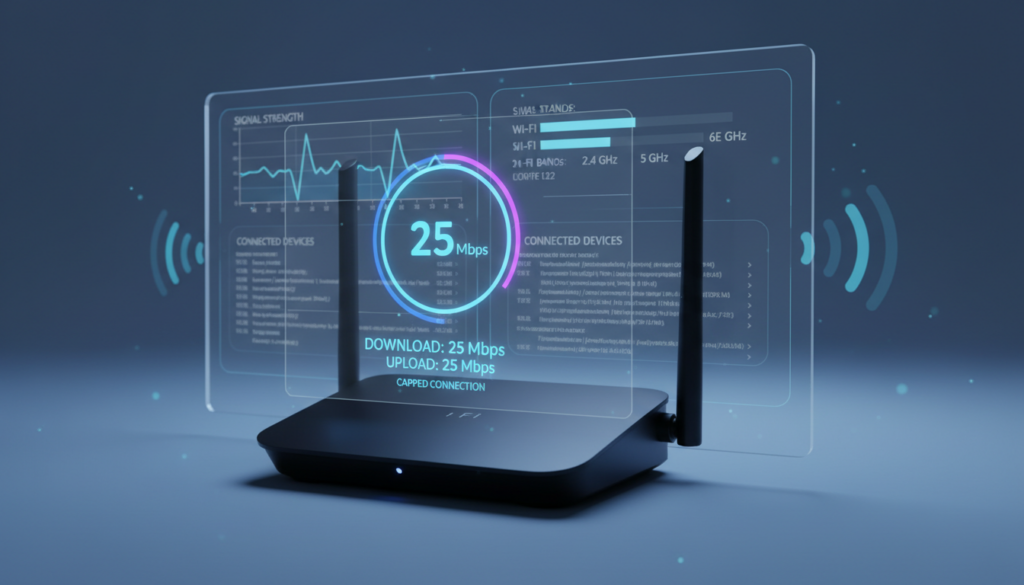
This intro sets expectations: we will define the cap pattern, show why the link rate does not equal real throughput, and outline where the fault may lie. Causes often include old wireless generations, adapter or USB bottlenecks, misconfigured router settings, or Ethernet ports and cables negotiating down.
Why this matters: people working from home, gamers, and anyone copying large files need steady download numbers, not just a high reported link rate. The guide that follows will confirm the cap with repeatable tests, establish a wired baseline at the modem, and isolate the variable by swapping device, band, router port, cable, or settings.
Key Takeaways
- Consistent test values that cluster around one number usually mean a client, path, or setting is limiting throughput.
- Windows link rate can be much higher than real measured download results; they are not the same.
- Start troubleshooting with a wired baseline at the modem, then change one variable at a time.
- Common culprits: adapter limits, USB bottlenecks, router QoS or band steering, and Ethernet port/cable negotiation issues.
- For home work, gaming, and big downloads, verify both real throughput and low latency to confirm usable performance.
Confirm the cap is real with repeatable speed test results
Validate the pattern before changing hardware or calling support. Confirm the limit by running the same speed test multiple times, at different times of day, and logging download and upload numbers in Mbps. Small variations are normal; a true plateau repeats across tests.
Compare multiple test servers and tools. Use different nearby servers and an alternate testing site or app to rule out a single overloaded endpoint. Browser, VPN, or security filters can distort results, so try more than one method.
Establish a wired baseline at the modem
Connect a computer directly to the modem with Ethernet and run a full speed test. NETGEAR guidance: the router cannot deliver more than the ISP sends. If the direct-to-modem test matches your plan, the problem is inside your home network.
What Else Would You Like to Know?
Choose below:
Use upload vs download patterns to narrow causes
If upload remains near expected levels (for example ~50 Mbps) while download is flattened (~170–190 Mbps), that points to a client or router throughput limit rather than an ISP outage. Document environmental changes too, since placement and interference can produce repeatable ceilings.
Why a single device hits a ceiling while others don’t
A single client can hit a hard ceiling while nearby devices run full throttle — and the cause is often the client itself.
Wi‑Fi generation, link rate, and real throughput
Windows may show a high connection speed (for example, a 650–836 Mbps PHY rate), yet real downloads can sit near ~180 mbps. That mismatch happens because link rate is the raw radio layer. Throughput falls due to protocol overhead, retransmits, and chipset limits.
Adapter and USB bottlenecks on desktops
USB adapters can be limited by the USB port version, thermal throttling, or poor antenna placement inside a PC case. A TP‑Link Archer T4U swap may not fix the plateau if the port or power profile restricts throughput.
Drivers and OS network stack
Outdated drivers, vendor utilities, or power-saving features in Windows often impose a steady ceiling. Update the adapter driver from the chipset vendor and test with default network settings before seeking support.
Quick isolation test
- Same SSID and location: test another laptop or phone with hotspot off.
- If the cap follows the original device, focus on its hardware/drivers.
- If multiple devices hit the same limit, investigate the network side.

wifi speed capped by router, modem, or Ethernet negotiation
Before you assume a client fault, inspect the wired path. A modem-to-router link that negotiates at 100 Mbps will make every device look limited, even if the ISP plan is faster. Check the physical chain first.
Router WAN/LAN port types and negotiation
Confirm your router has gigabit (10/100/1000) WAN and LAN ports. Some budget routers only offer 10/100 hardware and cannot pass more than ~100 Mbps to the home network.
How to verify link speed in the web UI
Log into the router web interface and find the Ethernet or WAN status. Validate it reports 1000 Mbps full duplex. If it shows 100 Mbps, set negotiation to 1000 or reboot after swapping the cable.
Cable and port checks
Replace unknown or old Cat5 leads with Cat5e or Cat6 between modem and router and between router and clients. Try alternate ports on both devices; damaged ports or marginal cables can silently force a 100 Mbps link.
Firmware and reset guidance
Update router firmware—vendors like NETGEAR and TP‑Link publish fixes that restore throughput and stability. If configuration drift (old QoS or odd VLAN rules) persists, a factory reset and clean settings often remove hidden limits.
“A single 100 Mbps link upstream can mask as a wireless problem.”
Band selection and signal conditions that reduce wireless performance
Your device’s observed ceiling often comes down to which frequency band it’s using and what’s between it and the router. High bands (5/6 GHz) give higher throughput but lose range through walls and floors. NETGEAR guidance: 2.4 GHz trades raw range for lower real throughput.
Confirm you’re truly on 5 GHz or 6 GHz
Check the client list in your OS or the router web UI to see the connected band. Make sure Smart Connect or band steering is not steering the device back to 2.4 GHz.
Router placement, walls, and interference
Good bars show signal strength, not link quality. Reflections, neighbors, and appliances cause retransmits that cut real throughput.
Elevate the router, avoid closets or metal enclosures, and keep it clear of microwaves and cordless phone bases.
Channel width and apartment congestion
Wider channels can yield higher peak rates but fail in dense buildings. Try narrower channels or different DFS options if nearby networks overlap.
Quick test: move the laptop closer to the router and run a test. If measured mbps jump, the issue is RF/placement, not a device cap.
Settings that throttle: QoS, bandwidth limits, and “helpful” features
Router features and preset policies can quietly throttle client throughput without obvious signs. Many consumer devices include traffic shaping, per-device rules, and scanning functions that affect measurable performance.
How QoS can flatten download numbers: Some QoS implementations prioritize latency and reserve capacity for real-time apps. That shaping can “flatten” headline results and produce a repeatable test ceiling.
Check QoS and traffic prioritization
Temporarily disable any QoS or traffic meter options in your router’s settings. Rerun tests after each change to see if results rise.
Per-device controls and security scanning
Look for bandwidth limits, parental controls, or built-in scanning that apply to a single MAC or user. These features can create the exact symptom where only one computer shows a persistent limit.
Smart Connect and band steering behavior
Smart Connect can silently move a client between bands. Use separate SSIDs for 2.4 GHz and 5 GHz (and 6 GHz if available) to force a specific connection during troubleshooting.
Troubleshooting checklist:
- Disable QoS or traffic meter, then test.
- Turn off per-device caps and retry.
- Split SSIDs to remove steering, then compare results.
- Change one setting at a time and document outcomes.
“Custom configuration can throttle throughput; a reset of client Wi‑Fi settings may be required.” — NETGEAR guidance
Conclusion
Conclude with a clear test plan to tell if the problem is the ISP, router, or a single client.
Start by confirming repeatable results, then run a direct test at the modem over Ethernet to set an ISP baseline. If the modem test is good, check router WAN/LAN negotiation, firmware, and cables.
Focus on whether the limit follows one device or affects multiple devices. Common causes include client adapter or driver limits, a negotiated 100 Mbps link on the router or port, RF placement and band issues, and QoS or per‑device caps.
Practical next steps: (1) modem baseline, (2) verify router negotiation, (3) force the correct band/SSID, (4) update drivers and firmware, (5) disable QoS/limits, (6) factory reset if needed. Escalate to your ISP if the direct modem test is slow; otherwise target the router or the single device for fixes.
FAQ
How do I confirm the cap is real with repeatable speed test results?
Why should I compare multiple test servers and tools to rule out artifacts?
How does connecting a computer directly to the modem via Ethernet help establish a baseline?
How can I use separate download and upload patterns to narrow the cause?
Why does a single device hit a ceiling while others don’t?
How do Wi‑Fi generation limits and “link rate” in Windows affect throughput?
What adapter bottlenecks and USB constraints should I check on desktops?
How can driver and OS network stack issues create a consistent plateau?
What is a quick isolation test using the same network and location but a different client?
How can a router, modem, or Ethernet negotiation cause a capped result?
How do I check negotiated link speed in the router web UI and what should it show?
Could Ethernet cables force 100 Mbps and how do I spot that?
Can firmware updates restore performance and fix throughput issues?
When is a factory reset warranted after configuration drift?
How does band selection and signal condition reduce wireless performance?
How do I confirm I’m truly on 5 GHz or 6 GHz and not falling back to 2.4 GHz?
Why do router placement, walls, and interference lower throughput despite good signal bars?
How do channel width and congestion affect performance in US apartments?
What settings commonly throttle performance: QoS, bandwidth limits, and “helpful” features?
How can QoS and traffic prioritization flatten download values?
Where do per-device limits, parental controls, or security filters impose caps?
How do Smart Connect and band steering create inconsistent performance?
Why Wi-Fi Gets Slow During Video Calls and How to Fix It Fast
» See exclusive tips for your home