Wi-Fi Range Too Short: Causes and Real Fixes
Wifi range too short? Don't worry. Our guide provides the causes and effective fixes to enhance your wifi network's range and performance.
Facing weak signal or dead spots at home? Many people blame their internet plan, but coverage problems often come from placement, interference, or device settings. Start with no-cost troubleshooting before buying extenders or new hardware.
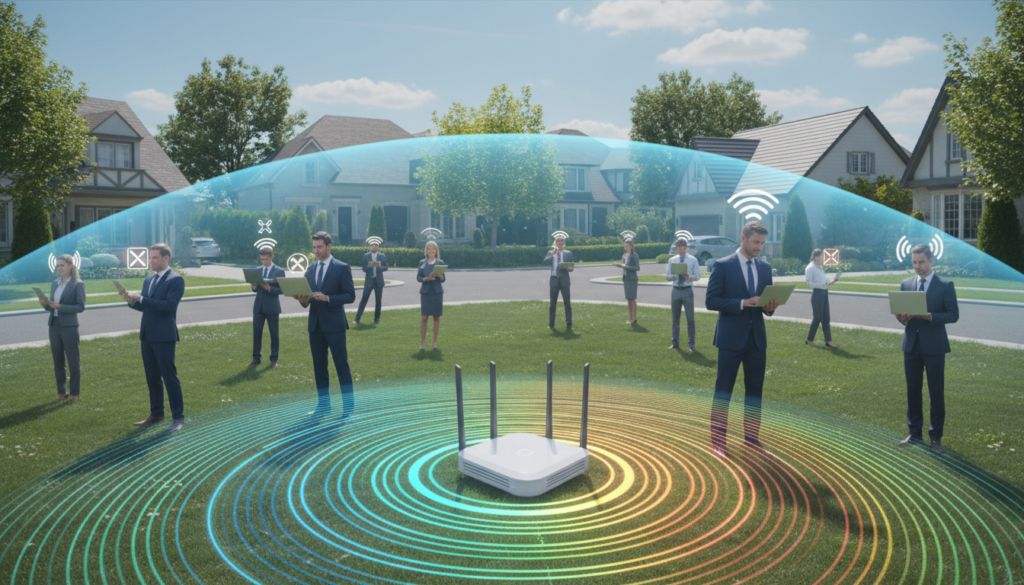
Real fixes focus on router placement, firmware updates, and band or channel changes. These simple steps can improve whole-house coverage and steady connection quality, not just a faster speed test in one room.
Common causes include building materials, nearby electronics, outdated settings, and congestion from many devices. Older routers can fail to keep up, and heavy bandwidth use can make the range feel small even when service is fine.
Security note: expanding coverage may expose access outside your home, so secure passwords and updated encryption should be part of any plan.
Key Takeaways
- Start with free fixes: placement, firmware, and channel changes.
- Test coverage across rooms before buying add-ons.
- Address interference, device congestion, and aging routers.
- Goal: reliable whole-home connection, not just a higher speed number.
- Keep security tight when you extend coverage.
Signs Your Wi-Fi Range Is Too Short and What “Range” Really Means
You can tell coverage is lacking when devices lose contact in certain rooms or show very slow downloads.
Dead zones are areas with no connection at all. Slow zones let devices connect but deliver low speeds. Dropouts mean the link cuts in and out, which hurts streaming and calls.
What Else Would You Like to Know?
Choose below:
Define range as the usable area where devices keep a stable signal, not the farthest theoretical distance printed on a router box. Usable coverage matters more than marketing numbers.
Higher-frequency bands trade distance for speed. 2.4 GHz usually travels farther and goes through walls better but faces more interference. 5 GHz gives faster speed with less reach. 6 GHz can be fastest and less crowded yet often has the shortest indoor coverage.
| Band | Typical Indoor Reach | Typical Speed | Interference |
|---|---|---|---|
| 2.4 GHz | Longest | Lower | High |
| 5 GHz | Moderate | Higher | Moderate |
| 6 GHz | Shortest | Highest | Low |
Common household factors that shrink coverage include layout, thick walls, appliance placement, and many active devices on the same networks. Apartments often suffer channel clashes from neighbors.
Quick checklist:
- Floor plan and router placement
- Construction materials (brick, concrete, metal)
- Nearby electronics and appliances
- Number and type of connected devices
Next: before changing settings, test whether your internet service is actually slow or if the problem is local coverage.
Confirm the Problem Isn’t Your Internet Service Before You Change Anything
A quick wired test can tell you if the issue sits with your provider or inside your home network.
Connect a laptop to the router using ethernet. If your device lacks a port, try a USB-to-Ethernet adapter. Run a speed test while wired to measure true incoming internet speeds.
Test with an Ethernet Connection to the Router
Record the wired result. If the wired speed is far below your plan, the problem is likely the ISP, modem, or line. Contact your provider when service consistently under-delivers.
Run a Speed Test Near the Router, Then Compare Across Rooms
Next, run a speed test while standing near the router. If near-router speeds match the wired baseline, but distant rooms show low speeds, local coverage is the issue.
When to Contact Your ISP or Consider a Faster Plan
Call your ISP for recurring outages, throttling, or if wired speeds are below the plan. Upgrading plans only helps if the wired baseline limits performance. Make sure you separate ISP issues from home coverage before buying hardware.
“Verify the incoming connection first; it saves time and money.”
| Test | What to expect | Next step |
|---|---|---|
| Wired to router (Ethernet) | True incoming internet speeds | Call ISP if below plan |
| Wireless near router | Close to wired speeds if coverage is good | Check router settings or placement |
| Room-by-room tests | Map dropoffs and low speeds | Plan extenders, mesh, or APs if needed |
Fix Router Placement to Improve Wi‑Fi Signal and Coverage
Where you place networking equipment has a big impact on signal reach inside a house.
Best placement: set the router in open air, elevated, and near the center of your home. Off the floor and away from walls cuts the number of obstructions between the router and devices. A quick move to a shelf or wall mount often boosts performance within minutes.

Materials and obstacles that block signals
Brick, concrete, and metal surfaces absorb or reflect signals. Even one fewer wall can make a measurable difference in coverage.
Common interference sources
Keep the router clear of microwaves, baby monitors, and dense Bluetooth speaker clusters. These items share bands or create electrical noise that weakens device connections.
Antenna orientation and small adjustments
For routers with external antennas, start with them vertical. If you need multi-story coverage, angle one antenna horizontally to cover another floor. Small tweaks can help where a device sits consistently weak.
| Action | Why it helps | How to verify |
|---|---|---|
| Move to center and raise | Fewer walls, better line-of-sight | Retest speed in the weak room |
| Avoid cabinets | Prevents absorption and overheating | Check device stability after relocation |
| Separate from appliances | Reduces interference from shared frequencies | Power appliance briefly and watch for improvements |
Quick test: move the router, then rerun a speed or connectivity check in the problem area. If the signal improves, placement was the likely issue. Start with these low-cost tips before buying extra equipment.
Update Router Firmware for Better Stability, Compatibility, and Security
A timely firmware update can stop frequent disconnects and improve how your router manages devices.
Why firmware matters: Manufacturers patch security holes, fix bugs, and add improvements that reduce dropouts and improve performance. Updates help the router coordinate multiple devices and modern standards.
Accessing router admin settings
Find the router IP printed on the device or in its manual. Type that IP into a browser, log in with admin credentials, and open the firmware or updates area in settings.
What updates can and cannot do
Updates can improve stability, compatibility, and security. They cannot increase radio power beyond the equipment’s hardware limits.
“Keep firmware current—it’s one of the easiest ways to maintain security and steady performance.”
| Situation | Expected benefit | Action |
|---|---|---|
| ISP-managed modem/router | Auto updates, less manual work | Check ISP app or contact support |
| Older third-party router | Manual download/upload required | Match model number, follow vendor steps |
| During update | Risk of bricking if interrupted | Do not cut power; back up settings |
Final cautions: confirm model numbers before installing firmware. Avoid interrupting power during updates. Outdated firmware plus weak security settings raises risks, especially when extending coverage with more equipment.
Switch Wi‑Fi Bands and Settings to Match Range and Performance Needs
Match your device needs to the router’s bands and settings to improve signal behavior where you use devices most.
Choose the right band for coverage or speed
2.4 ghz offers longer range and better wall penetration but slower speeds and more interference. Use it for distant rooms and older devices that prioritize stable connection over top throughput.
5 ghz delivers faster speeds and cleaner airwaves but with less reach. Keep this band for laptops, streaming devices, and gaming near the router. 6 GHz is even faster and less crowded but has the shortest indoor reach.
Name SSIDs so devices pick the correct band
Give each band a distinct SSID, for example HomeNet-2.4GHz and HomeNet-5GHz. This prevents devices from sticking to the wrong band and helps you control where a device connects.
How band choice affects bandwidth, interference, and compatibility
2.4 ghz trades raw bandwidth for penetration and device compatibility. It is more prone to household interference from other electronics.
5/6 GHz offer better performance and less congestion for modern devices. Make sure older smart devices can still join before disabling 2.4 ghz.
- Quick test: switch a device to the other band in a problem room, then compare speeds and stability.
- If performance improves, lock that device to the preferred SSID or update router settings accordingly.
| Band | Best use | Trade-off |
|---|---|---|
| 2.4 ghz | Longer reach, older devices | Lower bandwidth, more interference |
| 5 ghz | High speeds near router | Shorter reach |
| 6 ghz | Fastest, least congested | Shortest indoor coverage |
Change Wi‑Fi Channels to Reduce Congestion and Improve Connection Quality
Think of channels like lanes on a highway. When many networks use the same lane, traffic jams form. That shows up as buffering, slowdowns, and inconsistent speeds that can feel like a weak signal.
How channel traffic creates slowdowns
Overlapping channels cause collisions and retries. Devices spend time resending data instead of moving it, which hurts overall performance.
Recommended channel choices
2.4 GHz: stick to 1, 6, or 11 to avoid overlap.
5 GHz: try 36, 40, or 44 for basic home use.
6 GHz: consider 37, 117, or 213 where supported.
Check and change channels
On Windows, run netsh wlan show all to see nearby channels. Many router admin pages also list neighbor activity.
- Open router settings and log in.
- Find wireless or channel settings.
- Select a less crowded channel from the list.
- Apply changes and retest speeds in problem rooms.
Auto vs. manual selection
Auto works on many modern routers. Manual helps when older or budget routers repeatedly pick crowded channels.
“Recheck channels periodically—neighborhood traffic changes over time.”
| Band | Recommended Channels | When to change |
|---|---|---|
| 2.4 GHz | 1, 6, 11 | Neighbor overlap or persistent slowdowns |
| 5 GHz | 36, 40, 44 | Interference or mid-home dead spots |
| 6 GHz | 37, 117, 213 | New devices and low local congestion |
wifi range too short: Real Fixes That Extend Coverage Without Replacing Your Whole Network
When free tweaks can’t fill dead spots, adding targeted hardware is the next practical step.
Extenders and repeaters capture your router signal and rebroadcast it. Place one roughly halfway between the router and the dead zone so the unit still receives a strong feed. Start with a single extender to measure impact; multiple units can cause overlap and lower throughput.
Mesh systems vs. simple rebroadcast
Mesh uses multiple nodes that coordinate to form a single network name and smoother roaming. Nodes should be close enough to maintain a solid backhaul link, yet spaced to cover problem rooms. Use Ethernet backhaul where possible for best stability.
Powerline adapters
Powerline adapters send data over your home electrical wiring. Set one adapter beside the router and connect it via Ethernet. Plug the second adapter in the target room and pair them. You can then attach a device by cable or add a small access point for local wireless.
Adding an access point with Ethernet
For large or multi-story homes, an access point on Ethernet offers the strongest option. Run cable to the distant area, configure SSID and security, and the AP becomes a full-strength source of connection. This is the cleanest way to extend coverage when wiring is feasible.
| Option | Best use | Pros | Cons |
|---|---|---|---|
| Extender / Repeater | Small dead zones | Low cost, easy setup | May halve throughput if wireless backhaul |
| Mesh | Whole-home seamless coverage | Unified network, smooth roaming | Higher cost; needs good node placement |
| Powerline Adapter | Rooms without cable runs | No new Wi‑Fi equipment wiring; simple | Performance varies by wiring quality |
| Ethernet + Access Point | Large or multi-story homes | Best stability and speed | May require running cable or hiring help |
“Pick the method that fits your floor plan and budget; the right equipment often fixes coverage without replacing your whole router.”
Upgrade Hardware When the Router or Devices Are the Offer Limiting
When software tweaks stop improving performance, it’s usually the equipment that’s holding things back.
Know the hardware ceiling. Replace a router if it overheats, drops connections often, or is several Wi‑Fi generations old. These signs mean firmware and placement fixes will only go so far.
When to replace your router
Look for repeated dropouts, heat buildup, or poor near-router speeds after tuning. Very old routers that lack Wi‑Fi 6/6E support can cap real-world throughput.
What to look for when buying
Match new routers to your plan speeds and home size. Prioritize models with modern bands, MU‑MIMO, and solid security. A good router improves both coverage and device coordination.
Device upgrades and antennas
Old phones or a computer with an outdated adapter can limit speeds even with a strong router. Consider USB adapters or internal cards before replacing a whole computer.
Antennas: omnidirectional units cover rooms evenly; directional or high-gain antennas focus signal along long or narrow homes.
“Upgrade one component at a time and retest to see which change truly improves stability.”
Reduce Network Traffic Issues That Make Range Feel Worse
Network congestion often mimics poor signal, especially for devices far from the router.
Why it happens: when many downloads, streams, or background updates saturate bandwidth, distant devices and low-powered gadgets feel the impact first. That creates lag, buffering, and the sense that the -fi signal is weak.
Restart the modem and router
Power-cycle routine: unplug the modem, wait 30 seconds, plug it back in, then restart the router after the modem is online. This clears temporary glitches and re-establishes device connections.
Disconnect or audit idle devices
Open router settings to see connected devices. Remove or pause any unused devices so active users get more bandwidth.
Note: this improves performance for users but does not physically extend coverage.
Use QoS to prioritize important traffic
Enable Quality of Service in your router settings to favor video calls, work apps, or gaming. Prioritizing critical traffic keeps key tasks smooth when others download large files.
Scan for malware and check intruders
Run reputable antivirus scans on devices. Malware can consume internet bandwidth silently and degrade network performance.
Also check for unknown devices in the router client list. Remove intruders, change the network password, and use WPA2 or WPA3 for better security.
“After each change, run the same room-by-room speed test to confirm which step fixed the issue.”
| Action | Why | Verify |
|---|---|---|
| Reboot modem/router | Clears glitches, renews connections | Retest in problem room |
| Disconnect idle devices | Frees bandwidth for active users | Check speeds during peak use |
| Enable QoS | Prioritizes calls and work traffic | Monitor call stability and latency |
| Scan for malware / change password | Removes hidden bandwidth hogs and intruders | Verify lower background traffic in router tools |
Conclusion
<!– meta: –>
Work through fixes in sequence so you find the true cause before spending on new gear.
First, confirm your incoming service. Next, optimize placement, update firmware, and tune bands and channels. Only then add extenders, mesh nodes, powerline adapters, or wired access points if needed.
Remember: 2.4 GHz often improves signal and coverage, while 5 GHz/6 GHz boost speeds close to the router. Choose based on layout and device use.
Top no-cost tips: center and raise the router, keep firmware current, pick the right band, and clear crowded channels. When adding hardware, match the solution to the problem—single extender for one spot, mesh for whole-home consistency, powerline or APs for wired extensions.
Security reminder: use strong passwords and current encryption (WPA2/WPA3) and retest each room after changes to confirm better connection and speeds.
FAQ
What are the main causes when my Wi‑Fi signal doesn’t reach parts of my home?
How can I tell if the problem is my internet service or my router and home network?
Where is the best place to put my router to maximize coverage?
Should I update my router’s firmware and how do I do it safely?
When should I use 2.4 GHz versus 5 GHz or 6 GHz bands?
How do I stop channel congestion on my wireless network?
Will a repeater, extender, or mesh system improve coverage without replacing my whole network?
Are powerline adapters a good option for extending my network?
When should I replace my router instead of trying fixes?
How can I improve performance without new hardware?
What device‑side issues can limit wireless performance even if the router is fine?
Can antenna orientation make a measurable difference?
How do I secure my network while trying to improve coverage?
When is it worth hiring a professional or contacting my ISP?
Apartment Wi-Fi Problems: What Makes Signal and Speed Worse
» See exclusive tips for your home