Why Wi-Fi Is Slow Far From the Router
Learn how to fix wifi slow far from router with our step-by-step guide. Improve your wireless network's performance and enjoy seamless internet browsing.
Buffering in a bedroom, choppy video calls in a back office, or lag on a console are signs that wireless coverage is uneven in a house. Many people assume they need a pricier internet plan, but placement and settings often matter more than monthly cost.

Signal loss happens when waves hit walls, cabinets, or common appliances. That interference reduces effective speeds as you move around a US home — apartments, single-family houses, and multi-story layouts all feel it. Simple, zero-cost tweaks can widen coverage and stabilize connections without buying new gear.
This guide will help you tell if the issue is range versus slow internet from your provider. You’ll learn to test speed, improve placement, tweak settings, and map dead zones. If needed, it shows when to add Ethernet, mesh, or powerline gear.
Key Takeaways
- Placement and settings often fix poor coverage before upgrading service.
- Obstacles and interference cut signal strength and lower speeds.
- Run speed tests to separate provider issues from range limits.
- Start with no-cost moves, then consider targeted hardware if needed.
- Goal: smoother streaming, fewer dropped calls, and better gaming across the home.
Confirm the slowdown and isolate whether it’s Wi‑Fi range or overall slow internet
Start by checking speeds in multiple rooms to decide if the issue is local coverage or a provider problem. Run speed tests next to your access point, then repeat in the room where performance feels poor. Compare download, upload, and ping to spot differences.
Run speed tests close vs. in the problem room
If results are strong near the equipment but drop in the other room, that points to a coverage or interference issue rather than slow internet service. Test at different times (evening vs. midday) to catch possible neighborhood congestion.
Test with an ethernet cable at the modem
For a clean baseline, unplug the wireless gear and connect a laptop to the modem with an ethernet cable. Run tests to known servers to confirm your plan delivers expected internet speeds. Keep this direct test short—browsing without a router removes firewall and NAT protections.
What Else Would You Like to Know?
Choose below:
Watch for high latency in gaming and streaming
Latency shows as delayed movement in gaming, robotic audio in calls, or resolution drops during streaming. Test at least two different devices (phone and laptop) because a single device can cap performance.
Decision point: If the modem delivers plan-level speeds, concentrate on improving coverage and connection quality around the house.
Understand what weak Wi‑Fi signal looks like in real homes
You can have high plan speeds at the modem yet still lose usable coverage in parts of the house. That mismatch is the telltale sign of a weak in‑home link rather than a slow internet plan.
How distance, walls, and building materials reduce signal strength
Distance matters: signals grow weaker the farther they travel, and every wall they cross cuts strength further. Materials like plaster, brick, concrete, tile, and metal-backed insulation absorb or reflect radio waves.
Bulky furniture, large TVs, metal objects and even aquariums (water blocks signals) add extra attenuation. Simple layouts often hide the path loss until a room becomes unusable.
Why “dead zones” happen even when you pay for fast internet speeds
Fewer bars usually means lower modulation rates, more retransmissions, and reduced speeds—especially on higher bands at longer range. Your internet plan still reaches the modem, but the wireless link is the bottleneck across walls and floors.
Dead zones are areas where the connection drops or is unreliable, not just a small speed dip. They form when distance and obstacles combine with local interference like kitchen microwaves, dense furniture, or big-screen TVs.
Next steps: Once you recognize these symptoms, start with better placement, then tweak settings, and only add hardware if needed to restore full coverage.
Fix wifi slow far from router by relocating the router for better coverage
Moving the router to a better spot can immediately improve coverage without new hardware. A central location gives more even signal reach than a corner, closet, or cabinet.
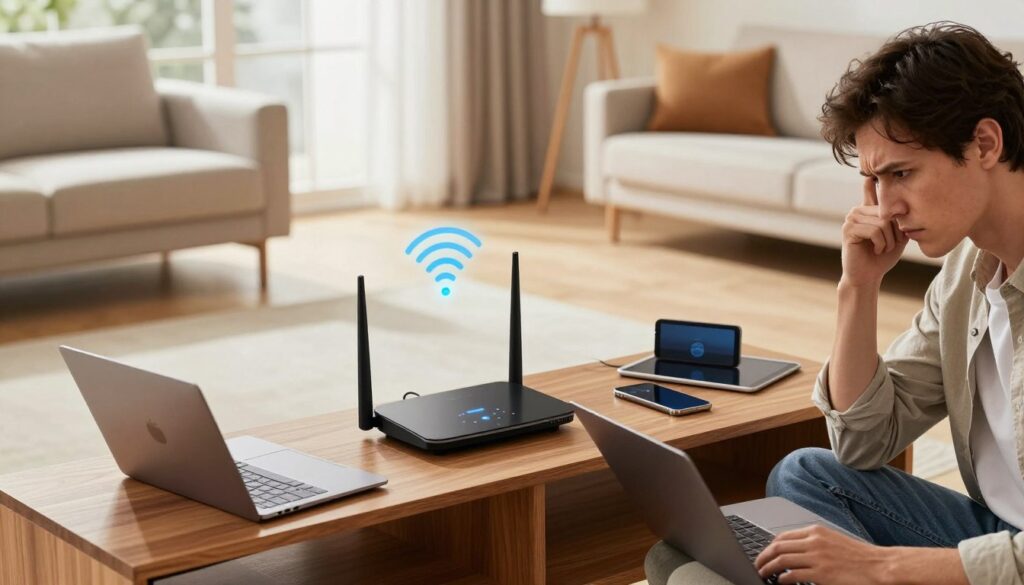
Elevation helps. Mount the device on a shelf or wall so signals clear furniture and travel downward into rooms. Higher placement improves range across a single story and between floors.
Avoid interference. Keep the unit away from microwaves, large TVs, baby monitors, and heavy electronics that use electromagnetic waves. Those devices can block or distort wireless connections.
If the modem sits by an exterior wall, you can still move the router. Run a longer Ethernet cable along baseboards or inside a cable raceway to place the unit centrally. When cable runs are impractical, use powerline adapters to carry a network link over the home’s electrical wiring.
Quick validation
After you move the router, re-run speed tests in the problem room to confirm improved coverage before buying new gear.
| Action | Why it helps | When to use |
|---|---|---|
| Central placement | Reduces walls and evens coverage | First, zero-cost step |
| Raise unit | Clears furniture and improves downward reach | Single/multi-story homes |
| Longer Ethernet cable | Places router where it works best | When modem location is fixed |
| Powerline adapters | Avoids long cable runs using home power lines | When running cable is difficult |
Adjust router settings that directly affect wireless speeds at long range
Config changes can trade peak speeds for steadier reach. Start by picking the right wi‑fi bands for each device. Use 2.4 GHz when you need range through walls. Use 5 GHz or 6 GHz for top speeds when a device is close.
Switch bands for the best balance of speed and range
Try a device on 2.4 GHz if its performance drops on a higher band. Expect lower peak speeds but fewer disconnects. For streaming or gaming near the unit, prefer 5 GHz or 6 GHz when available.
Change the channel to reduce neighbor congestion
Competing networks cause interference. On 2.4 GHz try channels 1, 6, or 11 first because they overlap less. Scan for the quietest channel, apply it, then test speeds in the problem room.
Split SSIDs when band steering hurts stability
Split SSIDs means giving each band its own network name so you can force a device onto 2.4 GHz or a faster band. Use this when automatic steering keeps a device on a weak 5 GHz link.
Quick workflow: change a setting, run a speed test, and verify streaming and call quality in the target room. Repeat until the in‑home network meets your needs.
Reposition router antennas to improve signals across rooms and floors
Adjusting external antenna angles often boosts reach without new gear.
If your unit has two or more external antennas, orientation changes the coverage pattern. Small moves can improve signal in distant rooms and cut retries on devices.
Use perpendicular angles to spread coverage more evenly
Baseline: Set one antenna vertical and one horizontal. This covers different planes and helps devices that sit at different angles in the home.
Tune orientation for single‑story vs. multi‑story homes
- Single‑story: try mostly vertical antennas to promote broad, flat coverage across the same level.
- Multi‑story: angle one antenna horizontal or tilt it upward to improve reception above or below the device.
Test one change at a time. Change a single antenna, then run a quick speed and latency check in the problem room. Repeat until you see measurable gains.
| When it matters | Recommended antenna setup | Expected effect |
|---|---|---|
| 2+ external antennas | Perpendicular (vertical + horizontal) | Wider coverage across planes |
| Single‑story home | Mostly vertical | Stronger flat coverage in rooms |
| Multi‑story home | One angled/horizontal | Better reach to other floors |
Practical reminder: Antenna tuning can boost signal but won’t fix heavy interference or an ISP issue. Use this after confirming upstream speeds.
Map your Wi‑Fi coverage to pinpoint dead zones before buying hardware
Visual coverage tools turn guesswork into data so you spend money only when needed. Mapping shows exactly where signal drops and whether placement or settings fix the problem.
Use mapping software to create a heatmap
Walk room to room with a laptop and mapping app (NetSpot is a common choice) to build a visual heatmap. Record key metrics at each spot: download and upload speeds, ping, and which band the device uses.
What to do with the map
- Compare maps before and after moves or channel changes to verify gains.
- Use the heatmap to pick the best place for a mesh node, an Ethernet drop, or a powerline adapter.
- Match weak areas on the map to rooms where calls drop or streaming buffers to confirm real‑world impact.
Tip: Map once, make a single change, then map again. Repeat until the network performance and speeds meet your needs. This prevents wasted spending on unnecessary hardware.
Use Ethernet where it matters most for stable speeds
When stability matters, a wired connection often fixes jitter and buffering faster than any wireless tweak. Ethernet avoids radio interference and delivers more consistent throughput and lower latency than a wireless link.
Best devices to hardwire for faster internet and lower lag
Hardwire devices that need steady performance. Typical candidates include gaming consoles and desktop PCs used for competitive play.
Also connect work laptops on docks, smart TVs and streaming boxes, and any device used for video calls. These get the biggest practical benefit.
Practical setup tips
Use available ethernet ports on your main modem or routers to attach nearby gear. Run a flat ethernet cable along baseboards or inside cord channels for a neat install.
Keep cable lengths reasonable and label ends so you can manage connections easily. If a wall run is required, use a patch panel or wall jacks for a clean finish.
How Ethernet backhaul helps mesh systems
When you connect mesh nodes with an ethernet cable, the mesh system frees its wireless radios for client traffic. That improves overall speeds and makes roaming seamless across the home.
Hybrid strategy: Hardwire priority devices, then rely on wireless for phones, tablets, and low‑bandwidth smart home kit. This mix gives the best balance of performance and convenience.
Expand range the right way with mesh networking or powerline connections
Large or multi‑story homes often need more than placement tweaks to reach every room reliably.
Set a clear upgrade trigger: if placement and settings don’t eliminate dead zones, consider whole‑home solutions. These work best when single units can’t cover distance or penetrate floors.
When a mesh system is the best fix for whole‑home coverage
Mesh scales by adding nodes to fill gaps. A well‑chosen mesh system delivers seamless coverage across multiple rooms and floors and simplifies roaming for phones and laptops.
Deploy the main mesh unit centrally, then add a node near—but not inside—the weak area so it still sees a strong signal to relay.
When powerline networking is a practical alternative to running cable
Powerline kits carry a network over household electrical wiring to create a wired or wireless outlet in another room. Expect some speed drop compared with Ethernet, but enjoy simpler installation when running cable is impractical.
Use power adapters if you must avoid wall or floor runs and need reliable links for a bedroom office or an upstairs TV.
Why basic extenders can be poor value compared to mesh
Simple extenders may cost nearly as much as entry mesh hardware yet often deliver weaker performance and more setup headaches. For whole‑home reliability, choose mesh‑capable routers or proven mesh systems sized to your square footage and layout.
- Buy by layout: pick hardware based on house size and levels, not just “up to” range claims.
- Test and expand: add nodes only where the map shows real need.
Reduce congestion and security issues that can make Wi‑Fi feel slow
Household network congestion can make even a strong signal feel unusable during prime time. Many performance complaints are caused by too many active connections or heavy background downloads, not the internet plan itself.
Use QoS to prioritize streaming, work calls, or gaming traffic
Enable Quality of Service in your settings to give priority to video calls, streaming, or gaming. Set profiles for critical apps so they keep stable bandwidth when the house is busy.
Remove unused devices and manage background downloads
Check the connected devices list and remove or block equipment you no longer use. Disconnect gadgets that constantly update.
- Schedule game and OS updates for off‑peak hours.
- Pause cloud backups during meetings or prime‑time streaming.
Protect bandwidth with strong security and a guest network
Lock down the network with a strong password and AES encryption so neighbors or intruders can’t steal capacity. Create a guest network for visitors and IoT gadgets to isolate traffic.
“Tightening security and trimming active connections often fixes intermittent performance better than hardware changes.”
Conclusion
,Close with a practical workflow: test the modem, test next to your device, and test in the troubling room.
Start small: try no‑cost fixes first. Move the router centrally, raise it up, and remove nearby electronics that cause interference. Re-run quick speed checks after each change.
Adjust settings next: pick the best band for the situation, switch to a less crowded channel, and split SSIDs to lock devices onto the right band.
Tune antenna angles as a low-effort win. Map coverage before buying hardware so you place mesh nodes or powerline adapters where they actually help.
Final takeaway: hardwired Ethernet still gives the steadiest speeds for gaming, work PCs, and streaming. If layout limits wireless reach, a mesh system or powerline kit usually fixes stubborn zones.
Keep security tight, enable QoS, and re-test after each change to confirm real gains.
FAQ
How can I confirm whether the issue is a weak wireless signal or a problem with my internet service?
What steps should I take to compare plan speeds versus my home network performance?
How do distance, walls, and building materials affect signal strength in real homes?
Why do “dead zones” occur even when my internet plan shows high speeds?
Where should I place the gateway to maximize coverage across my home?
Will simply raising the device or moving it a few feet make a real difference?
What household electronics commonly cause interference and how do I avoid them?
When is using longer Ethernet cabling or powerline adapters a good option?
How should I adjust router settings to improve performance at range?
What channel and band choices give the best balance of speed and range?
How can I use antenna positioning to spread coverage more evenly across rooms and floors?
What tools can I use to map coverage and find dead zones before buying upgrades?
Which devices should I hardwire for the most benefit?
How does Ethernet backhaul improve mesh system performance?
When is a mesh Wi‑Fi system the best solution for coverage?
When are powerline adapters a practical alternative to running long Ethernet cables?
Are basic wireless extenders a good value compared to mesh systems?
How can I reduce congestion and protect bandwidth on my home network?
What security settings help prevent unwanted devices from using my bandwidth?
Apartment Wi-Fi Problems: What Makes Signal and Speed Worse
» See exclusive tips for your home