Why 5GHz Wi-Fi Can Still Be Slow
Is your wifi slow on 5ghz? Learn why 5GHz Wi-Fi can be slow and find practical tips to optimize your network's performance.
Seeing a 220 Mbps download but stuttering video and lagging pages is maddening. Many US homes run modern gear like the Netgear Nighthawk AX12 RAX120 and Wi‑Fi 6 laptops such as the Microsoft Surface Pro 7 or Asus Zenbook Pro Duo, yet real apps feel worse than speed tests suggest.

This guide will help you set expectations and walk through quick baseline checks. You will learn how to tell if the problem comes from the wireless signal, the router configuration, device drivers, or the internet service itself.
Typical causes include range and wall attenuation, interference and channel congestion, channel width settings, Wi‑Fi 6 compatibility quirks, and other devices competing for bandwidth. These factors can make peak speed numbers misleading.
Our aim is to isolate the root cause and apply targeted fixes that improve consistency, not just peak speed. That makes everyday browsing, streaming, and remote work feel reliably fast in crowded home networks.
Key Takeaways
- Good speed test results can mask real-world buffering and lag.
- Check range, interference, channel settings, and device drivers first.
- Isolate whether the issue is the signal, router, device, or internet side.
- Small configuration fixes often improve consistency more than raw speed.
- Shared household and neighbor networks can amplify weak spots.
What “slow on 5GHz” really means in real life
Real-world lag often looks very different from a single speed test number. A device may show ~220 Mbps on a speed site, yet streamed video drops to 480p, pages take extra seconds to start, and calls stutter.
Why Mbps can look fine while video buffers
Throughput is the sustained data rate (Mbps). It measures how much data can flow when conditions are steady.
What Else Would You Like to Know?
Choose below:
Throughput vs latency vs packet loss
Latency is the time a packet takes to travel. Spikes cause pauses in playback even if throughput is high.
Packet loss forces retransmits and creates gaps that video players reduce by lowering quality.
| Metric | Symptom | Effect on video | Typical cause |
|---|---|---|---|
| Throughput | High Mbps reading | Allows high quality if steady | Bandwidth capacity |
| Latency | Intermittent stalls | Buffering, rebuffers | Interference, roaming |
| Packet loss | Glitches, retries | Lowered resolution | Collisions, poor signal |
When the network is the problem, not the internet service
Rule of thumb: if wired connections stay steady but the 5GHz band drops randomly, the issue is the local network layer. Collect clear information first: device model, room location, time stamps, and symptoms before changing settings.
Confirm the issue with a quick speed test and a simple baseline
Run a quick set of tests around the house to map where download performance changes. Pick one device and use the same speed test app or web tool in each room to keep results comparable.
Test download speed in multiple rooms
Run the same speed test in the room closest to the router, then in living areas and bedrooms. Record the Mbps for each room so you can spot where speeds collapse.
If download speed is high near the router but falls sharply one or two rooms away, that pattern points to distance or walls as the main issue.
Compare 5ghz band vs 2.4 ghz band vs wired
Repeat the test on the 5ghz band and the 2.4 ghz band in the same room. The 2.4 ghz band usually reaches farther through obstacles while the 5ghz band gives higher peak speeds but less range.
Finally, do a wired check via Ethernet. If a wired test holds steady while wireless speeds drop, the problem is the local network, not the internet link.
- Tip: Note rooms, device models, timestamps, and measured Mbps so later changes show measurable improvement.
- Similar Mbps readings but bad real-world behavior often mean latency or packet loss, not raw throughput limits.
Common reasons wifi slow on 5ghz happens at home
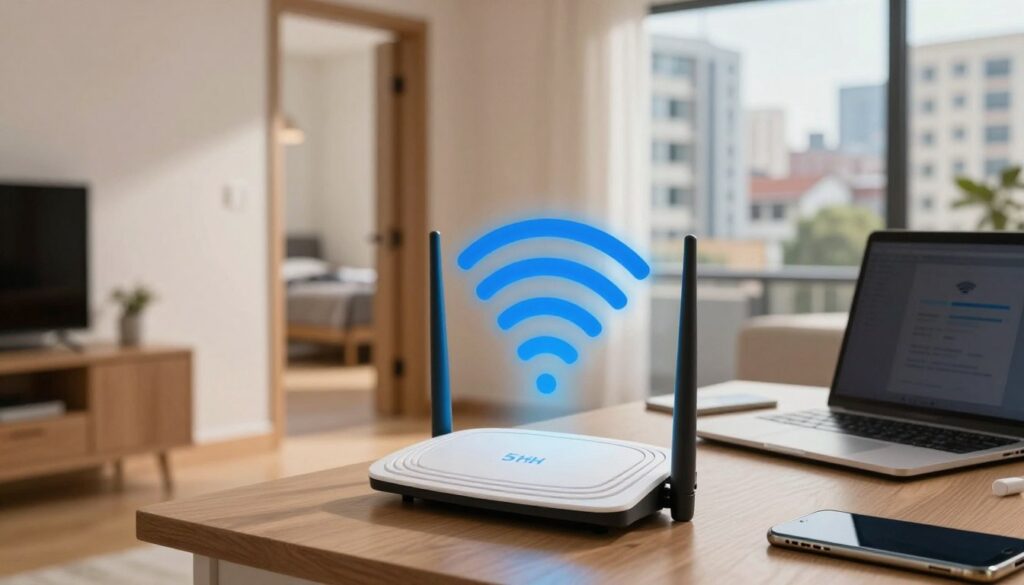
Higher-frequency signals often give great speed close to the router, but they lose strength much faster across a house. The 5ghz band trades range for throughput, while the 2.4 ghz band reaches farther through obstacles.
How walls and materials cut signal power
Radio waves weaken when they pass through dense objects. Concrete, brick, metal ductwork, low‑E glass, mirrors, and even large aquariums reduce signal more than drywall.
Interference from devices and nearby networks
Many household electronics use similar bands — Bluetooth gear, cordless phones, and microwaves can add noise. Outside the home, routers from neighbors create crowded signals that act like traffic.
Why slowdowns can seem random
Environmental changes and peak usage times make issues appear intermittent. In the evening, many neighbors put heavy load on the same channels and the problem gets worse.
If your baseline tests show high Mbps near the router but trouble elsewhere, prioritize placement and channel fixes next.
Router placement and signal quality fixes that usually work
Simple moves and a clear line of sight can dramatically improve in-home signal behavior.
Move the router toward the center of the home
Placing the router centrally cuts the distance to most rooms. This reduces dead zones and lowers retries, which stabilizes real-world performance for streaming and browsing.
Avoid common blockers
Keep the router away from large appliances, mirrors, metal shelving, concrete walls, and aquariums. These materials absorb or reflect signal and degrade the connection.
Adjust antenna orientation by layout
For one-story homes, point antennas vertically for broad horizontal coverage. For multi-story layouts, angle one or two antennas horizontally to push coverage upstairs and downstairs.
- Why this helps: Better placement improves signal quality and reduces packet loss, often giving bigger gains than software tweaks.
- Quick checklist — make sure: the router is stable, has good ventilation, and devices reconnect to the intended band after moving.
- Re-test the same rooms after each change so you can measure improvement and avoid needless setting changes.
5GHz channel and channel width settings that can make speeds drop
Channel choices and bandwidth settings can turn a fast connection into a jittery mess when many nearby networks compete.
Why crowding feels like a traffic jam
Even with good signal strength, too many devices using the same channel create collisions. Think of it as lanes on a road: if every neighbor uses lane 36, packets wait their turn and latency spikes.
Auto channel vs manual selection
Start with Auto channel selection for simplicity. Many routers do a decent job during setup.
If your router keeps picking popular defaults (36/40/44/48) and performance drops at busy times, switch to a manual channel that shows less overlap.
When wider MHz helps—and when it hurts
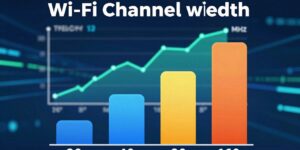
Wider widths like 80 MHz or 160 MHz give higher peak throughput in clean environments. But in dense areas, wide channels overlap more neighbors and increase retries.
Rule of thumb: use wider MHz when few networks are nearby; drop to 20–40 MHz in apartments or crowded suburbs for steadier performance.
How to find a clearer channel with an analyzer
Use a wireless analyzer (for example, NetSpot) to scan. Identify strong neighboring signals and pick a channel with minimal overlap. Apply the new setting and rerun your room tests at the same times to confirm improvement.
| Step | What to check | Why it matters |
|---|---|---|
| Scan | Neighboring channel usage | Shows overlap and busy lanes |
| Choose | Least crowded channel | Reduces collisions |
| Adjust | Set channel width (MHz) | Balance peak speed vs stability |
Wi‑Fi 6, device compatibility, and settings that can cause 5GHz issues
New routers and laptops sometimes struggle to negotiate features, causing uneven performance at home. In a typical US household, a Netgear Nighthawk AX12 RAX120 and laptops like the Surface Pro 7 or Asus Zenbook Pro Duo may report good numbers yet deliver jerky streams.
Why “Wi‑Fi 6 supported” doesn’t always mean optimized
Support is not the same as mature implementation. Driver maturity, router firmware, and power‑saving negotiation all affect how a device performs.
Those system-level mismatches can create packet loss or roaming glitches that hurt perceived internet speeds and cause intermittent issues.
Band steering and separate SSIDs
Band steering can help, but it can also make a device cling to a weaker 5GHz channel or bounce between bands. That behavior reduces real-world internet speeds.
If your wifi network randomly feels worse, split the 2.4 GHz and 5GHz names so you control which band each device uses.
Update drivers and system software
On Windows, update the network adapter driver via Device Manager. On Apple systems, use Software Update to keep the system current.
After updates or SSID changes, make sure the device reconnects to the intended band and rerun room tests to compare results.
- Check firmware and client driver versions.
- Temporarily split SSIDs to force band choice for key devices.
- Re-test to confirm improved internet speeds.
Bandwidth limits, devices connected, and why 5GHz can slow down first
In busy homes, the shared radio channel becomes a limited resource that every device fights over. When many gadgets transfer data at once, the available bandwidth per device falls and interactive apps feel worse.
How too many devices on one band reduces speeds for everyone
Shared airtime means the band divides its capacity among active devices. If one device streams 4K or runs large backups, others wait in line and latency rises.
Reserve the band for high-priority devices
Practical rule: keep streaming boxes, your work computer, and gaming consoles on the faster band. Move smart-home gear and low-priority devices to the other band to cut contention.
Find bandwidth hogs with router tools
Open the router’s “connected devices” list to spot which devices connected use the most traffic. Where available, enable per-device traffic stats or a traffic monitor to see continuous data use.
High-demand activities that trigger slowdowns
- 4K video streams and multiple simultaneous streams
- Large downloads or cloud backups
- Video conference calls and live game streaming
Test fixes by pausing a suspected heavy transfer and replaying the affected video or call. If performance improves immediately, you found the bandwidth hog and can reassign or schedule its activity.
Internet plan, modem, and provider factors that affect your WiFi speeds
Your internet plan and the modem in your home can quietly cap real-world performance even when local gear looks modern. Start by checking what your provider advertises, then compare that to wired tests at the modem and router.
When your plan is the bottleneck (what typical US needs look like)
Many US households receive around ~100 Mbps. That is enough for one or two light users, but it can feel constrained with several 4K streams, cloud backups, or remote work sessions.
Tip: Families with multiple active streams should consider plans in the 300–500+ Mbps range to avoid contention and buffering.
Check modem-to-router wiring and cable rating if speeds cap under 100 Mbps
If wired tests repeatedly top out below ~100 Mbps, inspect the modem-to-router Ethernet cable. Use Cat 6 or better to avoid a cable-induced cap.
Also confirm modem model and firmware, and that the router’s WAN port matches the modem link speed.
ISP congestion and routing: why problems can be intermittent
Provider-side congestion and routing paths change by time of day. Peak evening loads or upstream routing issues can make speeds vary between tests.
Gather evidence—timestamps, wired versus wireless results, affected devices—before contacting support so the provider can reproduce the data problem.
| Check | How to test | Why it matters |
|---|---|---|
| Plan cap | Speed test at modem via Ethernet | Shows true internet speeds |
| Wiring | Replace Ethernet with Cat 6+ | Prevents cable speed limits |
| Provider issues | Run tests at different times | Reveals congestion or routing faults |
Conclusion
Practical, repeatable tests and small changes deliver the best results for everyday streaming and calls. If your wifi feels slow despite high headline speeds, the issue is usually stability — latency, packet loss, or channel contention — not raw Mbps. A clear checklist beats chasing a single number.
Follow the order: baseline tests → placement and signal tweaks → channel and MHz width tuning → split bands and SSIDs → update drivers on the computer → manage connected devices → check internet plan and modem. Prioritize 5 GHz for high‑priority devices and 2.4 ghz for low‑demand gear to reduce contention.
Change one variable at a time and re-test so the data points point to the real cause. If wired links stay steady but the 5 GHz band keeps acting up after adjustments, consider advanced analysis or router firmware review; if both wired and wireless fluctuate, contact your internet provider.
Keep a short routine of checks every few months. A few disciplined settings and simple monitoring save time and keep a busy home network working well as devices and neighbors change.
FAQ
Why can a 5GHz band still be slow even when the router shows strong signal?
What does “slow on 5GHz” actually look like in daily use?
How can a speed test show good Mbps yet YouTube buffers?
What’s the difference between throughput, latency, and packet loss for home networks?
How do I tell if the problem is my local network or the internet service?
What quick speed tests should I run to confirm a 5GHz issue?
Why test download speed in multiple rooms?
How does comparing 5GHz, 2.4 GHz, and wired connections isolate the cause?
Why does 5GHz have shorter range than 2.4 GHz?
Which household materials weaken the 5GHz signal most?
Can other electronics or neighbors cause 5GHz interference?
Why do wireless speeds drop at certain times of day?
How should I place my router to reduce dead zones?
Which household items should I keep the router away from?
Does antenna orientation matter for single-story versus multi-story homes?
How does channel crowding affect the 5GHz band?
Should I use Auto channel selection or pick a channel manually?
When do wider channel widths (40/80/160 MHz) help or hurt?
How can I find the least congested channel with a wireless analyzer?
Why might a Wi‑Fi 6 router and Wi‑Fi 6 device still perform poorly together?
Should I split 2.4 GHz and 5GHz SSIDs or use band steering?
How important are driver and firmware updates for consistent performance?
How does the number of devices on a band affect performance?
Which devices should I reserve for the 5GHz band?
How can I find which device is hogging bandwidth?
What activities most often trigger visible slowdowns?
How do my internet plan, modem, and ISP influence wireless performance?
When is my internet plan the bottleneck for home usage?
Why should I check modem-to-router wiring and Ethernet cable ratings?
What causes intermittent ISP congestion and routing problems?
Why Wi-Fi Gets Slow During Video Calls and How to Fix It Fast
» See exclusive tips for your home