Wi-Fi Disconnects When You Move Around the House
Struggling with wifi disconnects when moving around? Our how-to guide provides solutions to improve your wifi connection and prevent disconnections
This guide explains why your wireless link drops as you walk from room to room and gives a clear, step-by-step troubleshooting plan that fits typical U.S. homes.

First, we will define the problem: is the wireless signal actually failing, or is the internet service dropping while the router stays online? The fix differs depending on whether the issue is the link, the router, or the ISP.
Next, you will test common causes in order: router glitches, weak signal or dead zones, interference from appliances or walls, crowded channels, many devices sharing bandwidth, device-specific faults, and possible ISP or cabling problems.
Moving through rooms triggers drops because devices roam between bands or access points, signals fade behind structures, and some rooms hide interference sources.
You will need router admin access, a phone or laptop for speed tests, and ideally an Ethernet cable to separate wireless problems from true internet outages. Follow a change one thing at a time approach so you can identify the fix without creating new network problems.
Key Takeaways
- Start by checking whether the wireless link or the internet service is failing.
- Test router settings, signal strength, interference, and device behavior in order.
- Have router login, a test device, and an Ethernet cable on hand.
- Moving rooms causes roaming, signal loss, and room-specific interference.
- Change one setting at a time to track what actually fixes the problem.
- Many fixes are simple and work in typical U.S. homes without new hardware.
Confirm the pattern before you change settings
Begin with a quick check to see which devices and spots are affected. This simple step saves time and prevents unnecessary changes.
What Else Would You Like to Know?
Choose below:
Check whether drops happen on all devices or only one device
Keep one phone and one laptop connected and walk through the house. Note if both lose internet access at the same time or if only one device drops out.
Note the exact spots where the signal fails
Map the home by listing locations: hallway, upstairs landing, garage area, or bathroom. Dead zones are often consistent and distance-related.
Look for clues that a connection is present but online access is failing
Use the device icon and open a simple webpage. If the device shows connected but pages won’t load, the issue differs from an actual network drop. Log the time of day and the activity (streaming, gaming, calls) to spot patterns like peak-hour slowdowns.
Next steps
If all devices lose service, start with router and modem checks. If only one device has issues, jump to device troubleshooting like driver updates and power settings.
| Observed Result | Likely Cause | Recommended Next Step |
|---|---|---|
| All devices lose internet at same spots | Router range or household dead zones | Check router placement; run signal map |
| Only one device drops in multiple rooms | Device adapter, driver, or power settings | Update drivers; adjust sleep settings |
| Device shows connected but no pages load | ISP outage or DNS/problem with gateway | Test with Ethernet or check provider status |
Restart your modem and router the right way
Many simple internet problems vanish after a clean power-cycle of your gear. A correct restart clears short-lived faults and re-syncs the modem with your provider before the router rebuilds the home network.
Power-cycle steps that clear common router/modem glitches
Follow this exact sequence:
- Unplug power from both the modem/gateway and the router.
- Wait 60 seconds to let capacitors discharge and caches clear.
- Plug the modem back in first and wait for its online lights to stabilize.
- Then power on the router and wait for its status lights to show a stable link.
Watch status lights: the modem must show a solid online/receive light before the router starts. Test connectivity only after both devices report normal status.
Reboot vs. factory reset so you don’t erase your network settings
A soft reboot via the app or web UI restarts the router without changing configuration. A physical power-cycle is often better for clearing link errors between devices and provider equipment.
A factory reset is different. Do not press the reset pin unless you are ready to re-enter SSID, password, and custom settings. A factory reset wipes saved settings and can disrupt service until you reconfigure.
After restarting, walk the same route that causes drops and confirm stability. If the restart only helps briefly, the real cause may be interference, weak signal, congestion, outdated firmware, or failing hardware—covered in later sections.
Fix weak Wi‑Fi signal and dead zones caused by distance
A quick signal survey with a phone or laptop shows where coverage falls short.
Use your device’s signal meter to map weak areas
Walk the route that triggers drops and watch the device indicator or a simple signal meter app. Note rooms and transition points with low bars so you can compare results after changes.
Place the router for better range
Move the router to a central, elevated location on a shelf or high cabinet. Keep it out in the open and avoid tucking it behind furniture or inside closets.
Avoid common signal blockers
Stone fireplaces, metal appliances, tiled bathrooms, and large aquariums absorb signals and shrink effective range. Don’t place the router behind metal or near water-heavy areas.
Extend coverage for multi-floor homes
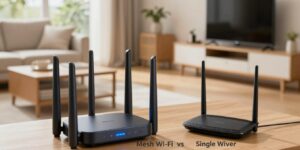
Test two or three router locations and retest the same walking path. If coverage gaps remain, choose extenders for a single dead zone or a mesh system for multi-floor and long-hall layouts. Mesh systems handle roaming more smoothly across the home.
Practical tip: Try one change at a time and record the result so you can see which location or device improves the signal most.
Reduce interference from electronics and nearby networks
Interference can look like a normal connection while speeds and stability drop in specific rooms. It differs from a weak signal because the device stays linked but throughput falls when competing radio activity spikes.
How interference differs from range problems
With range issues, bars fall and the link drops outright. With interference, the device may show connected while pages lag or calls jitter.
Common household culprits
- Microwaves in the kitchen and cordless baby monitors near nurseries.
- Garage door openers and older cordless phones near entries.
- Large TVs, speaker systems, and dense furniture that trap signals.
Placement, security, and quick test steps
Move the router away from big electronics and metal. Elevate it and avoid hiding it in cabinets. Then secure access to cut unwanted load on the network.
| Action | Why it helps | Quick result |
|---|---|---|
| Relocate router to open, central spot | Reduces absorption by furniture and appliances | Better coverage and fewer interference spikes |
| Enable WPA2 or WPA3; disable WEP | Blocks unauthorized devices that add congestion | Lowered load on internet and network |
| Change admin password and SSID passphrase | Prevents casual access and rogue devices | Improved performance and security |
“FCC recommends WPA2/WPA3 encryption for home networks to protect privacy and reduce unauthorized access.”
Retest: Walk the same path and note if previously bad spots now stay stable. Repeat changes one at a time to identify the fix.
Switch bands and adjust wireless settings for more stable roaming
Switching your device’s radio band can stop brief drops and smooth roaming across rooms.
5 GHz often gives better speed and lower latency near the router. It is less crowded and resists some interference.
2.4 GHz reaches farther through walls and covers larger areas. Choose 2.4 GHz for distant rooms and 5 GHz for close, high-demand use.
Stop unwanted auto-switching
Devices can auto-join saved networks or extenders and cause short disconnects. Disable auto-join on old networks you no longer use.
Split SSIDs if your router supports it: give each band its own name so you can pick the best network for each area.
Change crowded channels
Neighbor overlap can cause slow internet even though the router shows online. A channel change often fixes this.
- Use a Wi‑Fi analyzer app to see local channel use.
- Pick a less-crowded channel in your router wireless settings.
- Apply changes and retest the same rooms and hallways.
| Adjustment | Why it helps | Result to expect |
|---|---|---|
| Select 5 GHz for close devices | More speed, less interference | Smoother streaming and lower latency |
| Select 2.4 GHz for far rooms | Better penetration through walls | Fewer drops in distant areas |
| Split SSIDs and forget old networks | Prevents auto-switch and roaming confusion | Stable attachments to the intended network |
| Change channels after analysis | Reduces neighbor overlap in dense areas | Improved throughput and fewer brief outages |
Quick checklist: split SSIDs, forget unused networks, disable auto-join on non-preferred entries, use an analyzer app, change channel, then test by walking through the same rooms.
Resolve network congestion when you have many devices connected
A crowded household network often looks like an unstable connection even when hardware is online. Congestion makes pages stall, streams buffer, and calls drop as the router and internet compete to share capacity.
Quick troubleshooting:
- Temporarily disconnect inactive devices or turn off wireless on spare gadgets to see if stability improves.
- Watch for immediate gains while walking through problem rooms.

Know the limits of your router
Budget routers handle far fewer simultaneous clients. If dropouts rise as more devices connect, the router may be overheating or hitting its connection cap.
Check your internet plan and long-term fixes
Use a rule of thumb: reserve ~100 Mbps per person. A 500 Mbps plan usually serves five adults. If Ethernet speed to the modem is high but Wi‑Fi collapses under load, upgrade the router or move to mesh for capacity and coverage.
| Problem | Likely fix | Result |
|---|---|---|
| Many devices slow everything | Disconnect inactive devices; check plan | Immediate stability test |
| Wi‑Fi fails under load | Upgrade router/mesh | More simultaneous connections |
| All devices slow | Raise internet plan or contact ISP | Higher baseline bandwidth |
Troubleshoot device-side connectivity problems (Windows, phones, smart TVs)
Device-side faults often hide behind ordinary-looking network behavior; check the client first.
Focus here if only one device drops while other devices stay stable. That pattern points to the network adapter, drivers, or device settings rather than the router.
Update drivers using Device Manager
On Windows: Start > Device Manager > Network Adapters. Right-click the adapter, choose Update driver, then select Search automatically. Restart the computer after the update to apply changes.
Network reset and power settings
Use Network reset as a last resort: Settings > Network and internet > Advanced network settings > Network reset. This removes saved networks and may require passwords and VPN reconfiguration.
Disable power-saving that lets the computer turn off the adapter. That prevents the OS from pausing the radio to save battery.
Forget and reconnect; keep software current
Forget the network profile on phones, laptops, and smart TVs, then reconnect to rebuild authentication. Keep OS and firmware updates current — many stability fixes arrive in regular updates and patch dates.
Tip: If problems persist after these steps, focus on the adapter hardware or driver rollback options before replacing the device.
Test your connection to isolate Wi‑Fi issues from internet service problems
Start by testing your internet path at the source to separate provider outages from local network faults. A clear baseline prevents wasted changes to router settings.
Run multiple speed tests at different times
Test at least three times across the day: morning, evening peak, and late night. Record download, upload, and latency numbers for each time.
Why it matters: repeated tests reveal peak-hour slowdowns and recurring issues that a single test will miss.
Use Ethernet to bypass the router
Connect a laptop directly to the modem with an Ethernet cable. If the wired internet connection stays stable while wireless drops, the router or coverage is the likely cause.
Watch for packet loss and latency spikes
Packet loss and jitter feel like sudden freezes, buffering, or call cutouts even though the device shows connected. Run a ping test or traceroute during a problem to catch these signs.
| Test | What to record | Interpretation |
|---|---|---|
| Speed tests (3+ times) | Download, upload, latency | Time-based congestion if evening results worse |
| Wired test to modem | Stability, packet loss | Wired stable → focus on wireless setup |
| Ping/traceroute | Loss %, max latency | High loss → ISP, cabling, or modem fault |
Escalation rule: If wired tests also fail, contact the provider and inspect modem/cables. If wired is fine, continue with coverage, interference, and device troubleshooting.
Escalate when the problem is your equipment or your internet provider
If basic fixes fail, it’s time to determine whether the fault lies with your gear or the company that supplies your internet. This step avoids repeated troubleshooting and points you to the right next action.
Escalation triggers: multiple devices lose service, wired tests also fail, or the issue returns quickly after every reset or reboot. Those signs usually mean equipment failure or provider-side instability, not a simple coverage problem.
Check for outages and contact support
Use your internet provider’s app or web portal to view outage maps and reported incidents. Call support if the app is unclear — reps can confirm area outages and share history that explains recurring service interruptions.
Firmware and modem checks
Update router firmware through the admin UI and, for standalone models, confirm versions on the manufacturer website. Ask support: “Is my modem registered, compatible, and communicating properly?” Registration or authentication failures can cause intermittent internet loss.
Cable inspection and hardware life
Inspect coax and Ethernet: coax should be snug at wall and modem; Ethernet should click firmly. Look for kinks, chew marks, or loose ends. Open coax lines in the home can introduce noise and other issues.
Replace or schedule a technician
Routers often degrade after 3–5 years. Replacing aging router/modem gear can resolve chronic connectivity problems more cheaply than repeated fixes.
Schedule a technician if drops persist after all checks, if outside wiring seems suspect, or if signal levels need professional measurement and repair. A tech can test line levels and repair external faults safely.
Conclusion
Wrap up your troubleshooting by following a short, repeatable checklist that saves time and points to the real cause.
Confirm the pattern first, restart modem and router correctly, and improve router location to boost range and signals. Reduce interference, adjust bands and channel settings, and cut device congestion to stabilize the connection.
If every device drops, focus on the network, router, or your internet provider. If a single device keeps disconnecting, check adapters, drivers, power-saving, and re‑join the network profile.
Most common wins: central elevated router placement, switch between 2.4 GHz and 5 GHz by area, enable WPA2/WPA3, and disconnect unused devices. Walk the same route to validate fixes.
If problems persist, your gear may need replacement or the ISP may need to inspect lines. Bookmark this checklist so you can repeat the steps quickly next time your wifi keeps disconnecting.
FAQ
What should I do first if my Wi-Fi drops as I move around the house?
How can I tell if the problem affects all devices or only one?
How do I check for cases where Wi-Fi shows connected but the internet won’t load?
What is the correct way to restart my modem and router?
When should I reboot versus factory resetting my router?
How do I map weak-coverage areas in my home?
Where is the best place to put my router for broader coverage?
What materials cause the most signal blockage?
When should I add mesh equipment or a range extender?
What household electronics commonly interfere with the signal?
How can I reduce interference from other electronics?
Why should I secure my network with WPA2 or WPA3?
How do I decide between 2.4 GHz and 5 GHz bands?
How do I stop a device from auto-switching between saved networks?
When should I change my router’s channel?
How do I reduce network congestion with many connected devices?
How do I know my router can’t handle the number of devices?
Should I check my internet plan for bandwidth issues?
What device-side steps fix persistent connectivity drops?
How do I update wireless drivers on a Windows PC?
When should I test with an Ethernet cable?
What do packet loss and latency spikes indicate?
How can I check for ISP outages or account problems?
What should I inspect on my modem and router cables?
When is it time to replace old networking hardware?
When should I call a technician or my ISP for a site visit?
Apartment Wi-Fi Problems: What Makes Signal and Speed Worse
» See exclusive tips for your home