Why Rebooting the Router ‘Fixes’ Wi-Fi and How to Make It Stay Fixed
Discover why a router reboot fixes WiFi issues and learn how to keep your connection stable. Follow our step-by-step guide to resolve common WiFi problems with a simple router reboot.
Slow speeds, dropped signals, or devices that won’t stay linked can make home networking feel unpredictable. Many people find a quick power cycle seems to help, and that is not magic.
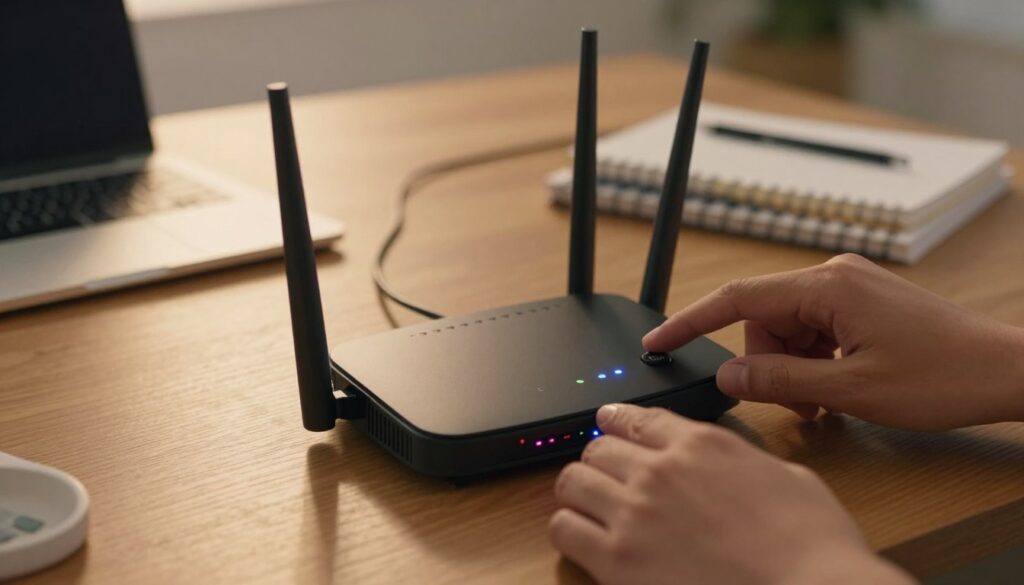
A proper restart clears temporary glitches and can refresh the IP address a device uses for internet access. This often restores normal performance without changing your plan speed.
That said, a restart won’t help if upstream gear shows error lights or your service provider has an outage. Learn what a simple reboot can and can’t do, and when to look at the modem, ONT, or your ISP.
This guide walks you through checks in the right order: inspect upstream equipment, restart devices correctly, confirm the result, then apply longer-term settings and placement tweaks. It also defines restart versus reset so you avoid wiping your settings.
Key Takeaways
- Restarting clears temporary faults and can restore service quickly.
- Check the modem or ISP status before blaming local gear.
- Use the right restart steps to avoid a full factory reset.
- Placement and settings often stop repeat drops for good.
- This guide is tailored for US homes with most brands and setups.
Why a Router Restart Often “Fixes” Wi‑Fi Problems
A simple restart often clears short-lived software glitches that build up inside home networking gear.
What changes: volatile memory and temporary caches are wiped, and any stuck processes get a clean start. That rebuilds the device’s working state and often removes the small errors that cause lag spikes or gradual slowdowns.
What Else Would You Like to Know?
Choose below:
Many people notice things run fine right after they restart router hardware. That pattern points to cache and background services getting overloaded over days. A restart router cycle refreshes those services and can reduce intermittent dropouts.
Renewing an IP lease from your ISP can also restore an internet connection that looks “connected” but has no traffic. After outages or provider maintenance, a full reboot router sequence forces that handshake.
Finally, a restart may trigger a fresh channel scan so the device moves off a crowded band. That can improve local throughput, though it does not change the actual speeds set by your plan.
Note: Use a proper power cycle to fully clear hardware state. These local steps help only if upstream modem or ONT equipment is healthy.
Check Your Modem or ONT First So You Don’t Waste Time
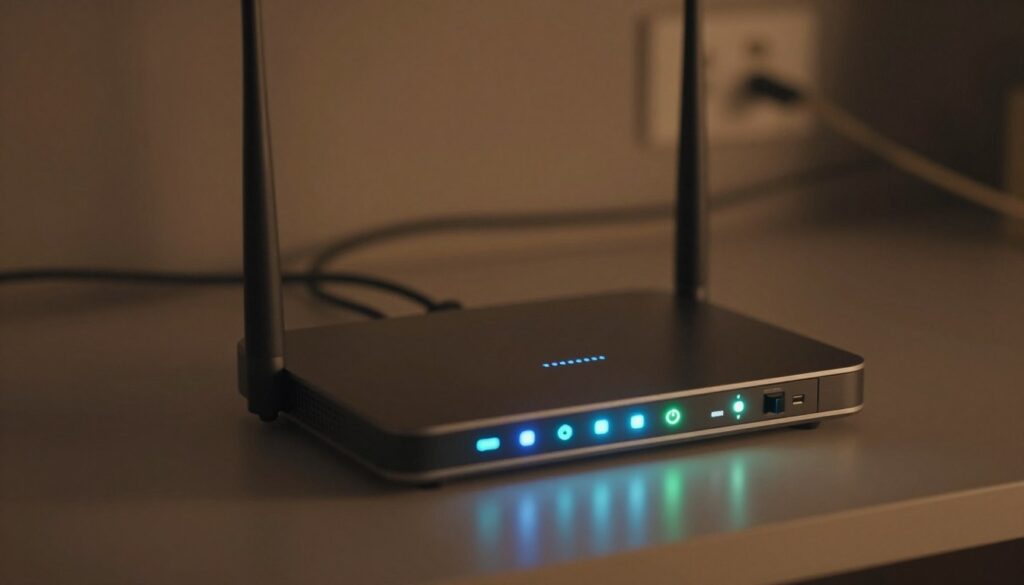
If devices lose internet, the modem or fiber ONT usually shows the first clues via its status lights.
Start at the source. The modem or ONT connects your home to the ISP network, so line faults or outages show up there first. Look at the power, downstream/upstream, online/internet, and alarm/LOS indicators.
Healthy lights typically stay solid or follow a quick boot pattern. Bad signs include red or amber colors, flashing patterns that never stabilize, or an “online” lamp that never locks.
Quick decision tree
- If the modem/ONT is not online, focus on that device and your ISP instead of changing local settings.
- Document the lights for a few minutes — timing and color help an agent locate the fault.
- Common upstream issues: neighborhood outage, maintenance, coax signal loss, fiber LOS, or provisioning after a plan change.
When to restart the modem or ONT
Power-cycle the modem/ONT after brief outages, when error lights appear, or when the online indicator won’t lock even though local devices look normal.
Efficient troubleshooting: Confirm the upstream connection is healthy before you spend time on local device settings or channel changes.
How to Properly Power Cycle a Router or Gateway
A clean power cycle clears stored charge and often removes the background glitches that slow home networking gear.
Why unplug instead of using the power button: unplugging forces a full power drain. A soft press may leave some subsystems running and can fail to clear locked processes.
Step-by-step power cycle
- Unplug the device’s power cable from the outlet.
- Wait 60 seconds so residual charge drains — this pause matters.
- Plug the power back in and let the unit boot without touching it.
What to expect: a full boot can take 3–20 minutes. Lights will blink and change color, then stabilize when the internet link and LAN ports are active.
Verify the result
Run a speed test, then do a real-world check: start a video call, stream HD, or load several websites on a separate device via ethernet or wireless.
“If an app can’t reach the device, a physical power cycle is the quickest way to restore local control.”
App-based reboot and edge cases
Local management apps work over LAN and can restart the unit. Cloud-only apps often fail when internet is down, so unplugging is the more reliable way—especially for a modem router gateway, which may take longer to reinitialize.
| Action | Expected time | When to use |
|---|---|---|
| Unplug + wait 60 seconds | 3–20 minutes boot | First, reliable power cycle for any unit |
| Power button (soft) | 1–5 minutes | Quick restart when logged in locally |
| Manage from app (local) | 2–10 minutes | Convenient if device reachable on the LAN |
router reboot fixes wifi, But Restart and Reset Aren’t the Same
Before pressing any recessed button, understand that a restart and a reset do very different things to your device.
Restarting simply powers the unit off and on. It preserves your current network name (SSID), password, and most configuration. Use this as the first, low-risk step when connections act flaky.
Resetting returns the unit to factory condition. That wipe deletes custom settings and forces you to set the -fi network up again from scratch.
What a factory reset removes:
- SSID and -fi password
- Port forwards, parental controls, and band steering
- Custom DNS, firewall rules, and admin credentials
A factory restore rarely speeds a connection by itself. It clears configuration but does not boost your internet plan. Resetting usually adds setup work and can break provider-specific options.
When to use the reset button: suspected compromise, lost admin password, or persistent freezes after repeated restarts. The reset button is often recessed on the back to prevent accidental wipes.
Caution: If you lease equipment from your ISP, contact support before a factory reset. They may need to re-provision the unit to get services like phone or TV back online.
Note: If a unit is many years old and needs frequent resets, replacement is often the better long-term choice.
Rebooting a Modem and Router Together for Tough Connection Issues
For persistent problems that survive a single device restart, a coordinated power cycle of both modem and access box clears WAN address and link issues.
When to power cycle both
Do this if you get repeated “no internet” errors, see WAN IP conflicts, or instability continues after restarting only the local device.
Correct order and why it matters
- Unplug both devices, then wait about a minute.
- Plug the modem back in first. Wait until its online indicator is stable — this can take several minutes depending on service.
- Then power the router. It will request a fresh WAN lease from the modem and the ISP.
If you power the access box before the modem, it often boots faster and fails the WAN handshake. That makes it appear broken until it retries.
Gateway vs. separate modem + router
With a single gateway, just power-cycle that one device and wait for all lights to stabilize. For separate units, follow the modem-first order above.
If the modem never reaches online, the fault is likely upstream — contact your ISP before changing local settings.
Safe checklist: unplug both, wait, power modem first, wait for a stable link, then power the access box. These repeatable steps restore an internet connection quickly without advanced changes.
How to Make the Fix Last: Settings and Home Network Tweaks That Prevent Repeat Drops
Small, targeted changes stop repeat dropouts more reliably than repeated restarts. Treat the cause: interference, weak coverage, congested channels, damaged cables, or insufficient bandwidth.
Placement matters. Elevate the unit, avoid floors and closets, and keep it out in the open near the home’s center. Clear sight lines help devices across rooms perform more evenly.
Pick the right band for each device. Use 2.4 GHz for long-range smart home gear, 5 GHz for phones, laptops, and consoles, and 6 GHz (if supported) for the fastest short-range links. Disable Smart Connect or split SSIDs when a device needs a forced band.
Quick cable checklist (two minutes)
- Confirm coax or phone line is snug and untwisted.
- Ensure fiber modules are fully seated and locked.
- Click the ethernet cable into the WAN/Internet port; replace if frayed or kinked.
Channel and channel width matters
Use a spectrum analyzer before changing channels. On 5 GHz, wide 80 MHz bonds can collide; moving to the 149–161 band often reduces interference and stops intermittent drops.
- Make one change at a time.
- Run a speed test, then try a real device in problem rooms.
- If many people stream or game simultaneously, check your plan — upgrading service may be the only lasting solution.
Verification is the final step: test, observe, and repeat until stability is proven.
Conclusion
Start small and systematic. Unplug the device, wait about 60 seconds, then restore power. This short pause clears volatile state and often restores normal connection within a few minutes.
Do the checks in order: confirm modem or ONT lights first, then perform a coordinated power cycle when needed. Allow the full boot time and verify results with a speed test and a real-world task such as a video call.
Remember: a restart preserves settings; a factory reset erases them. Reserve resets for lost credentials or stubborn faults.
For long-term stability, improve placement, pick appropriate bands, clean cabling, and tune channels. If repeated restarting continues, contact your ISP or consider replacing aging equipment.
FAQ
Why does restarting a router often restore my wireless connection?
Should I check my modem or ONT before restarting the network device?
What’s the proper way to power cycle a gateway or separate units?
How long should I wait for devices to come back online after a restart?
Can I reboot the device from a mobile app instead of unplugging it?
What’s the difference between restarting and factory resetting the unit?
When is a factory reset appropriate, and when should I contact my ISP?
If I have separate modem and gateway, what order should I reboot them in?
How long should I wait between powering the modem and powering the gateway back on?
What’s the right approach for gateway (combined modem/router) setups vs. separate devices?
How can I reduce repeated disconnections so restarts are less frequent?
How do I decide which Wi‑Fi band to use for different devices?
Could slow speeds be my internet plan rather than my home equipment?
What cables should I inspect when troubleshooting connection problems?
How does channel selection and width affect stability and speed?
Router Firmware Updates: When They Help and How to Do Them Safely
» See exclusive tips for your home