Why Wi-Fi Extenders Often Reduce Speed
Learn why wifi extender slows down your internet connection. Get troubleshooting tips to fix wifi speed issues and improve your network performance.
Many home users expect a simple plug‑in fix for weak signals. In reality, adding a range device can change how fast your devices feel online even though the ISP line into your house stays the same.
The key issue is throughput: a single wireless hop can cut available bandwidth by about half. Add another hop and the connection can become severely constrained. This happens because the device must use airtime to receive and then retransmit the same data, creating overhead.
Speed also has two meanings. Your plan’s internet speed from the ISP may be fine, but wireless throughput to individual devices can drop in certain rooms. Common symptoms include buffering, poor video call quality, and high latency during streaming or gaming.
This guide will help you tell what is truly slow, spot likely causes, and try fixes that avoid immediate router replacement.
Key Takeaways
- Extending coverage can cut in‑home throughput even if the ISP rate is unchanged.
- A single hop often reduces bandwidth by roughly 50%; more hops hurt more.
- “Speed” can mean plan speed or local Wi‑Fi throughput—test both where you use devices.
- Airtime overhead and placement cause inconsistent speeds and room‑to‑room differences.
- Symptoms include buffering, dropped calls, and high latency during peak use.
- Practical troubleshooting can often fix issues without buying a new router.
How Wi‑Fi extenders work and why your speed drops in real homes
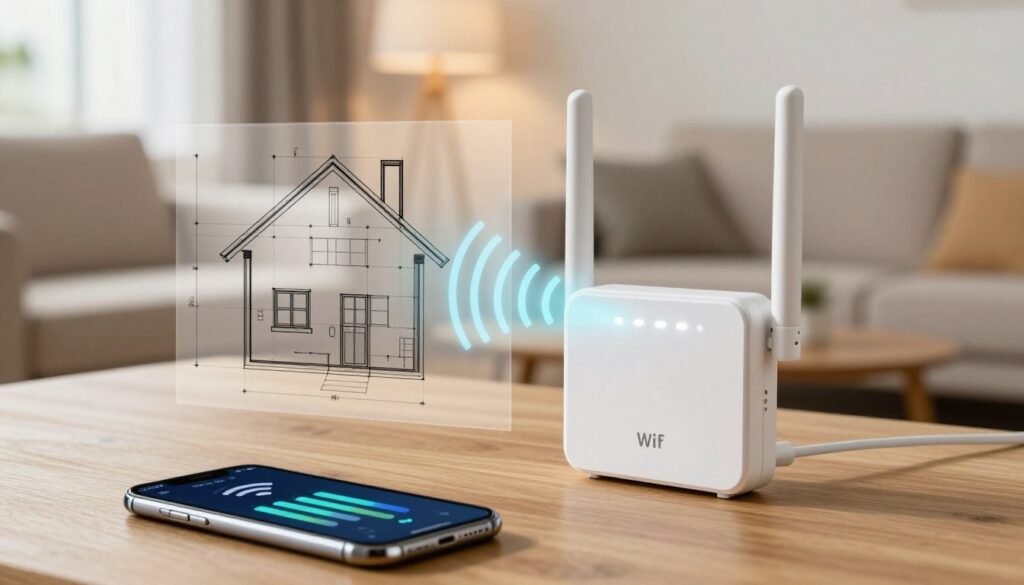
Extenders work by listening to your router and then re-sending the same radio packets farther into the house. That simple relay helps reach dead zones, but it also adds extra airtime for every packet.
Repeater basics
A repeater copies the router’s SSID and security and re-broadcasts one radio band. The device must receive a packet, then transmit it again, so a single client-to-router exchange often uses twice the wireless airtime.
What Else Would You Like to Know?
Choose below:
One hop and the half‑speed effect
On a one‑hop link, clients commonly see roughly half the throughput. Because the same channel carries device↔repeater and repeater↔router traffic, available bandwidth is split by contention and overhead.
Why a second hop hurts more
Adding another hop multiplies retransmissions and collisions. Speeds can fall sharply and latency can spike when traffic chains through two repeaters instead of a direct connection.
Single‑band limits and practical choices
Many repeaters repeat only 2.4 GHz for range, which trades range for lower speeds and more interference. A stronger router, a wired access point, or a mesh system with dedicated backhaul avoids the repeater penalty in many homes.
When a wifi extender slows down, what’s actually getting slower
What usually changes is the local wireless throughput, not the line from your ISP.
Internet speed from your ISP vs. Wi‑Fi throughput to connected devices
Your internet speed (the WAN) can remain the same while the home radio link drops usable bandwidth. Run a wired test at the router to confirm the ISP rate. If that result is fast but tests near the repeater or far-room device are slow, the problem is the LAN path.
Bandwidth sharing: every device on the network competes for capacity
Multiple active devices share airtime and bandwidth. For example, a 4K TV, a laptop downloading large files, and online gaming at once can make other devices feel sluggish.
Router, extender, and device capabilities
Older devices from past years may use older modes and cap real-world throughput. A weak cable, a 10/100 port, or a mis-negotiated Ethernet link can lock speeds near 100 mbps and mask as a repeater issue.
- Test mindset: compare results at the wifi router, then at the point device, then at the far-room client to find the bottleneck.
- Remember: a repeater adds airtime contention, so plan Mbps may not reach each device equally.
Common causes of slow extender performance: signal, distance, and interference
How and where you place network gear has the biggest impact on real‑world throughput. Small changes in location often fix apparent capacity problems faster than buying new hardware.
Placement problems: too far from the router or too close to dead zones
Placing an extender at the edge of a dead zone makes it repeat a weak signal. That creates slow speeds and frequent dropouts for nearby devices.
Placement principle: sit the device where it still gets a strong router signal, not where you wish the coverage ended. An open, elevated location usually works best.
Physical barriers in the home: walls, furniture, and building materials
Interior walls, brick fireplaces, and floor assemblies can block or reflect signal. Large mirrors and heavy furniture also reduce quality and force retransmissions.
Line of sight between router and node matters. Even short offsets or metal objects can cut effective bandwidth in a typical US home.
Band selection: 2.4 GHz vs 5 GHz tradeoffs
2.4 GHz travels farther but usually delivers lower throughput. Devices on 5 GHz get faster rates at short range, yet that band weakens faster through walls.
Choosing the right band for backhaul and client links helps keep downstream speeds steady, a lesson mesh systems also use.
Wireless interference and network congestion
Neighbors’ networks, crowded channels, microwaves, and baby monitors add noise and reduce capacity. Multiple active devices can use airtime and leave less bandwidth for others.
Quick check: make sure the unit is not hidden behind a TV, inside a cabinet, or sitting on the floor—those locations commonly cause avoidable issues.
Troubleshooting steps to improve extender speeds without replacing your network
Begin troubleshooting by improving the physical link between points. Small changes to placement and cables often restore normal performance faster than buying new gear.
Reposition for a stronger link
Move the device to a midpoint where the router signal is strong. Elevate it on a shelf and avoid corners, cabinets, or behind a TV.
Test placement like a mesh connection test
Temporarily place the router and extenders closer together. If speeds improve, the backhaul link was the issue. Then find a final location that balances coverage and link quality.
Restart the network the right way
Power-cycle equipment in order: modem, then router, then extender. Wait about 2 minutes for the modem to stabilize before powering the router. This sequence clears cached faults and forces fresh connections.
Check for upstream bottlenecks
Inspect cables and ports: replace aging runs with Cat 5e or Cat 6, and confirm modem-to-router links show gigabit where your plan requires >100 Mbps.
Confirm ISP health and reduce conflicts
Run a wired speed test at the main wifi router to verify ISP mbps. Contact your ISP if the WAN is slow. Also, disable Wi‑Fi on unused routers or set them to bridge mode to cut interference and roaming issues.
“After small placement and cable fixes, many homes see clear improvements without new hardware.”
| Action | Quick check | Expected result |
|---|---|---|
| Move midpoint placement | Test speed near moved device | Stronger signal, fewer dropouts |
| Mesh-style proximity test | Temporarily reduce distance to router | Improved backhaul and higher throughput |
| Restart sequence | Power-cycle modem→router→extender | Cleared handshake errors and reconnection |
| Upgrade cable/ports | Confirm gigabit link lights; use Cat 5e/6 | Removes 100 Mbps caps |
| ISP verification | Wired speed test at router | Confirms WAN vs home network issue |
Repeatable testing: after each change, test in the same spot at the same time of day. Track results so you can separate real gains from normal fluctuation.
Conclusion
When coverage improves but throughput falls, you’re seeing a tradeoff: repeating a signal trades raw bandwidth for reach, so devices can feel slower even when your internet speed from the ISP is unchanged.
Practical next steps: confirm baseline speed at the router, then optimize placement and signal quality at each point. Check for interference, device capability, and cable or port limits to find the weakest link.
Multi-hop repeater chains usually make performance worse over time. If troubleshooting still leaves issues, consider a mesh system with dedicated backhaul or add a wired access point instead of stacking extenders.
Checklist mindset: treat slow links as a system problem—router/point placement, devices, cabling, and ISP health all matter. Small maintenance over the years (firmware updates, occasional restarts, and rechecking placement) prevents recurring problems.
FAQ
Why can an extender reduce my home network speeds?
How do these devices work and why does performance drop in real homes?
What exactly gets slower — my internet plan or local throughput to devices?
How does device count affect shared bandwidth?
Could placement be causing the poor performance I see?
How do walls and building materials impact signal and speed?
Why is 2.4 GHz more common for repeaters, and what is the trade-off?
What kinds of wireless interference should I watch for?
How can I test and improve placement for a stronger link?
What is a mesh “connection test” and why keep devices closer together?
Should I restart gear to fix performance problems?
Could Ethernet or older equipment be the bottleneck?
How do I confirm whether the ISP or my internal network is the issue?
Can nearby routers cause roaming and interference problems?
When is it better to replace the unit with a mesh system or additional access points?
Why Wi-Fi Gets Slow During Video Calls and How to Fix It Fast
» See exclusive tips for your home