Bluetooth Interference With Wi-Fi: When It Happens and How to Avoid It
Learn how to resolve bluetooth interference wifi issues. Discover the causes and effective solutions to minimize disruptions and optimize your wireless connection.
Bluetooth interference wifi describes what happens when home gadgets share radio lanes and performance slips. This guide looks at why a connection feels smooth one minute and unstable the next.
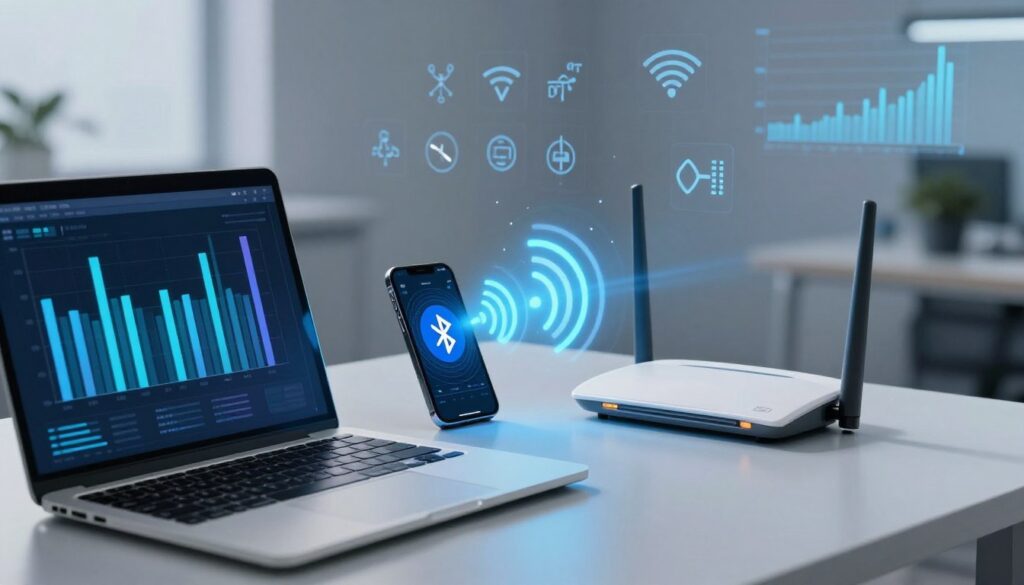
In practical terms, signal interference shows up as slower internet, stuttering audio, higher latency, and short dropouts. These symptoms can hit the same device inconsistently. That makes troubleshooting feel random and frustrating.
This section sets expectations: you will learn when interference occurs, simple checks to confirm it, and reliable fixes that often stabilize connections. Expect practical tips like switching to 5 GHz, changing channels, moving routers and gadgets, reducing congestion, and keeping firmware updated.
Note that pairing or device bugs are a different cause than shared signal issues. The article separates those problems and focuses on repeatable checks you can run at home. Crowded airwaves, especially around common consumer devices, raise the chance of trouble, so the fixes aim to reduce guesswork and improve reliability.
Key Takeaways
- Shared radio use can cause drops, lag, and stuttering in a typical U.S. home.
- Symptoms include slow internet, higher latency, and brief cutouts.
- This guide shows how to confirm signal problems and rule out device bugs.
- Common remedies include band selection, channel changes, and better placement.
- Keep firmware updated and reduce crowded devices to improve stability.
Why Bluetooth Can Interfere With Wi‑Fi in the First Place
When many gadgets talk on the same radio band, they can compete and reduce overall network speed. That competition is the basic reason problems start in the first place.
Shared 2.4 GHz frequencies and what it looks like at home
Most home devices use the 2.4 ghz range for simple range and compatibility. Those devices share overlapping frequencies, so transmissions can collide.
What Else Would You Like to Know?
Choose below:
On a network, collisions show as throughput dips, stuttering video, and short pauses during streaming. These are timing problems, not always a provider slowdown.
Why crowded airwaves cut available bandwidth
In apartments or rooms full of smart gadgets, the local radio space becomes the bottleneck. Even with a fast internet plan, the local frequency environment can limit bandwidth.
Traffic changes too. When a headset starts streaming or a peripheral wakes, congestion rises and disruptions appear. That intermittent behavior is why switching to a different ghz band or changing channels often fixes the issue.
Common Signs and Situations When Bluetooth Interference Hits
You usually spot the problem when streaming audio drops and web pages slow at the same time. That classic pair—choppy sound from a speaker or headset while uploads or pages stall—helps pinpoint where to look.
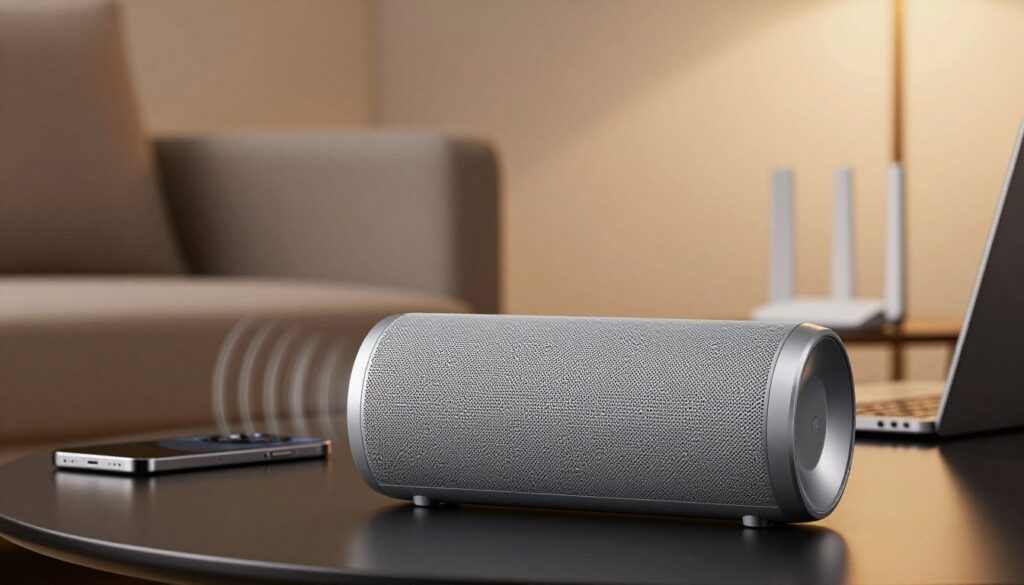
Streaming audio cuts out as network speed falls
Audio that stutters or drops mid-song while tabbed video buffers is a telltale sign. This often shows up on smart speakers and headsets during high demand.
Multi-device setups that raise risk
Using a laptop on the same network while a phone pairs with several accessories increases congestion. Keyboards, mice, and game controllers are common gadgets that push performance down when many are active.
Sporadic disruptions that come and go
The same router and devices can work fine, then degrade at random times. Start a Zoom call with headphones or launch cloud gaming with a controller and you may trigger short drops, lag spikes, or reconnect loops.
Note: Not every slowdown is caused by radio clashes; some device-specific problems mimic these symptoms. The next section shows quick checks to confirm the cause before you change settings.
Quick Checks to Confirm bluetooth interference wifi Is the Cause
A simple A/B test is the fastest way to see if shared radio activity is the root cause.
Turn accessories off and retest
Power down Bluetooth accessories or toggle Bluetooth on a phone or laptop. Run a speed test or stream video in the same spot and note any change in performance.
Change one thing at a time
Test single-device toggles so you can isolate which accessory or combination triggers problems. This avoids false leads when multiple gadgets act up.
Pairing versus network slowdowns
Pairing failures or discovery timeouts are different from network slowdowns. If discovery fails, follow a pairing checklist:
- Is the accessory in discovery mode?
- Is Bluetooth enabled on the host device?
- Is the device already paired and connected?
Device-health checkpoint
Watch for device-specific issues. For example, a laptop Wi‑Fi adapter may misbehave after sleep and need a disable/enable reset in Device Manager. If only one laptop shows problems, treat that as a separate root cause from a whole-network fault.
| Test | What to watch | Action if positive |
|---|---|---|
| Turn off accessories | Instant performance recovery | Focus on that accessory or move it away from the router |
| Toggle one device | Only one device triggers slowdown | Update drivers or factory-reset the accessory |
| Pairing check | Discovery or connection timeouts | Follow pairing checklist and retry |
| Sleep/wake laptop test | Adapter error or need to re-enable | Update adapter drivers; treat as device problem |
If tests point to true shared-radio problems, the next step is to change bands, pick different channels, and improve placement to stabilize connections.
How to Reduce Bluetooth Interference and Stabilize Your Connection
A few targeted steps can stabilize connections and keep streaming smooth in most homes. Start with changes you can make in minutes, then test to confirm improvement.
Move heavy traffic to the 5 GHz band
If your router supports a 5 GHz band, use it for streaming and gaming. Create separate SSIDs or enable band steering so devices that support 5 GHz move off 2.4 GHz.
Goal: reduce overlap with common 2.4 GHz activity and free up local frequency for other devices.
Change the 2.4 GHz channel and retest
Auto channel selection helps, but manual choice can be better in crowded buildings. Pick channels 1, 6, or 11 to avoid overlap.
Channel retest method: change one channel, run a speed or stream test, note results, then try the next channel until you find the most stable option.
Reboot and check for quick wins
Restart your router before deep changes. A reboot clears temporary glitches and often restores steady signal.
After rebooting, run the same tests you used earlier. Look for smoother streaming and fewer dropouts.
Improve placement and reduce barriers
Move devices closer to the router and avoid hiding it behind TVs or inside cabinets. Walls made of metal, concrete, plaster, or brick cut signal strength and worsen problems.
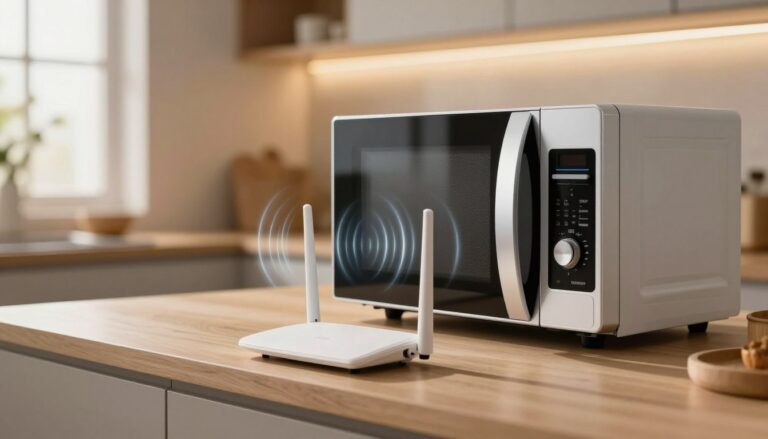
Keep Bluetooth gadgets away from microwaves and fluorescent lights to reduce local disruption. Finally, limit how many devices share the same frequency at once to maintain bandwidth without buying new hardware.
When Fixes Don’t Stick: Device, Firmware, and Hardware Factors
If changes help only briefly, the real issue may live inside a phone, laptop, or router. Temporary fixes that fade suggest a deeper layer: outdated firmware, buggy drivers, or aging hardware.
Update order and why it matters
Start with router firmware. A modern router firmware update can resolve protocol bugs that cause repeat drops.
Next, update laptop Wi‑Fi drivers, then Bluetooth drivers and OS patches on phones and tablets. Each layer affects the overall connection and can undo quick fixes when left outdated.
Troubleshoot the device
Watch for common cases: a laptop adapter that fails after sleep often recovers when disabled and re-enabled. That toggle fixes symptoms but not the root cause.
Recurring reconnect cycles or toggling Bluetooth that only helps for a short time point to driver or hardware limits.
Isolate and document
Test with a second laptop or phone on the same router to see if the issue is network‑wide or tied to one device. If only one device shows trouble, focus updates and resets there.
Keep a short log of when problems return — after sleep, after an update, or when adding new devices. This record speeds diagnosis and shows whether hardware limits explain persistent bluetooth interference.
Conclusion
A methodical check-and-fix approach usually restores steady connections and predictable performance.
Start by confirming the cause, then make one change at a time. Try moving heavy traffic to a faster band, adjust channels, and improve placement to clear shared airspace.
Remember common bluetooth devices — like headsets, speakers, and controllers — can add load when several run at once. Testing each accessory helps find the real source.
If problems persist after environmental tweaks, update drivers and firmware and inspect device behavior during sleep/wake cycles. Those steps often resolve lingering bluetooth interference.
Goal: steady bandwidth, fewer dropouts, and smoother streaming and work throughout your home.
FAQ
Why do devices on the 2.4 GHz band sometimes cause connection problems?
How can I tell if a wireless peripheral is causing my network to slow down?
My audio stutters when I stream while using a laptop. What should I check first?
When is changing the router channel on 2.4 GHz useful?
Will switching to the 5 GHz band solve all connectivity issues?
Can physical objects affect wireless performance?
How do household appliances like microwaves impact my home network?
What role do firmware and driver updates play in wireless performance?
How can I reduce congestion when many gadgets are active at once?
What troubleshooting steps help when a specific adapter or phone acts up after sleep?
Are there placement tips to stabilize both audio and internet performance?
If quick fixes don’t help, when should I consider hardware changes?
Can I mix brands and still get stable performance?
Does a Microwave Affect Wi-Fi: What’s Real and What’s Not
» See exclusive tips for your home