Why Baby Monitors Can Interfere With Wi-Fi
Learn how to resolve baby monitor wifi interference issues. Discover the causes and solutions to minimize disruptions and ensure a stable connection.
Radio overlap on 2.4 GHz is a common cause of slowed home networks. In plain terms, this happens when a baby device’s transmissions compete with your wireless signal, and your network speed or reliability can drop even if your internet plan is fast.
This short guide explains how to spot signs of trouble, why the 2.4 GHz band is the usual conflict zone, and how to diagnose problems in real time. You’ll learn fixes that keep coverage while reducing disruption.
Not all monitors behave the same. Some send polite, short bursts and barely affect nearby channels. Others transmit more aggressively and can push up latency for video calls, streaming, and smart home gear.
Why this matters: many devices share the same airspace. A single noisy device can hurt performance across the whole home network, especially through walls or in larger houses.
Quick wins later in the guide include moving devices to 5 GHz, changing channels, repositioning the router and monitor, and upgrading hardware when needed.
Key Takeaways
- 2.4 GHz band is crowded; overlap can reduce performance.
- Simple symptoms include higher latency and dropped streams.
- Not all units cause the same level of disruption.
- Start by moving devices to 5 GHz and changing channels.
- Repositioning gear and hardware upgrades often solve issues.
What baby monitor WiFi interference looks like on a home network
You’ll usually notice trouble when everyday apps slow or video starts stuttering. Typical first signs are a sudden drop in perceived speeds, buffering during streaming, or lag in a video call even though the router reports “connected.”
What Else Would You Like to Know?
Choose below:
Real activities that expose the issue include a live camera video that becomes choppy while a laptop meeting stutters, gaming latency spikes, smart speakers responding slowly, or downloads that fluctuate wildly.
Drop versus slow: interference can force repeated retransmissions. Devices often remain connected, but throughput collapses and responsiveness suffers because retries, latency, and packet loss rise.
Patterns make it seem random: symptoms show up at certain times—night, nap time, or when motion triggers the unit—and in specific rooms near the nursery or adjacent spaces. A speed test may pass sometimes, yet interactive apps still fail because latency and packet loss matter more than raw Mbps.
- Intermittent connectivity loss and reduced signal strength
- Increased retries and higher latency during real‑time video/voice
- Problems cluster by room and by time of day
Next: these are classic signs of 2.4 GHz band crowding, not necessarily a bad internet plan.
Why the 2.4 GHz band is especially vulnerable to wireless interference
Because the 2.4 GHz frequency is unlicensed, a wide range of everyday gear competes for the same airspace. Radios, consumer gadgets, and neighboring routers can all transmit without centralized coordination. That makes this spectrum busy in many U.S. homes.
Longer range means more overlap. The 2.4 ghz band travels farther and penetrates walls better than higher bands. More reach lets distant signals and nearby devices be heard inside your home, which raises contention and the noise floor.
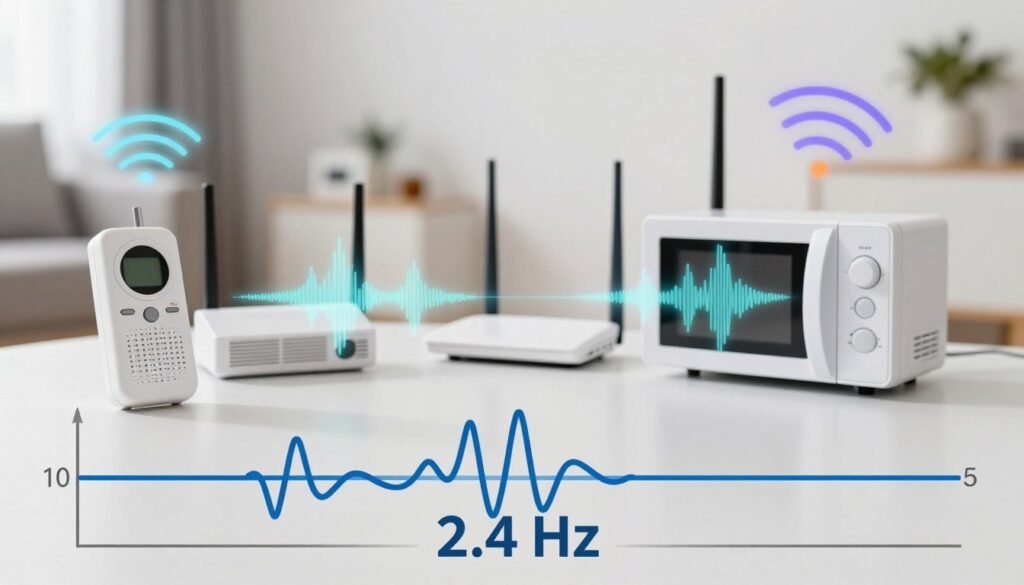
Noise and saturation reduce usable capacity. Frames get corrupted, devices retransmit, and airtime fills with repeats. The result is slower throughput, higher latency, and packet loss.
| Cause | Effect | Expected symptom |
|---|---|---|
| High device density (many routers, smart gadgets) | Congestion of the spectrum | Buffering and slower speeds |
| Non‑Wi‑Fi radio energy (microwaves, some transmitters) | Uncoordinated noise | Packet loss and retries |
| Long‑range, high‑power transmitters | Raised noise floor across the band | Lag, unstable connections in certain rooms |
Note: congestion differs from external interference. Congestion is many wireless networks sharing airtime; interference is uncoordinated radio energy. Some consumer devices are built for long range and can unintentionally overwhelm the 2.4 ghz spectrum. The next section explains how specific transmitters behave.
How baby monitors transmit and why they can disrupt Wi‑Fi
How a unit sends data — in quick hops or in a constant stream — shapes the effect on nearby networks.
Frequency-hopping devices jump across several parts of the 2.4 GHz band. That behavior spreads brief transmissions around the spectrum. Even short hops “ping” many channel centers, so Wi‑Fi frames can collide and force retries.
Frequency-hopping vs. continuous transmitters
Some monitors use hopping to avoid a single busy channel. Others act like a continuous broadcaster and occupy a slice of spectrum nonstop.
Frequency hopping raises collisions across channels. Continuous transmitters create long-lived contention on a specific band slice.
Channel overlap and wideband behavior
Wide footprints (~32 MHz) can span multiple Wi‑Fi channels. Non‑Wi‑Fi camera-style channels around 2415, 2433, 2451, and 2468 MHz overlap common router centers.
Power, antennas, and long range
Higher transmit power and strong antennas increase RF saturation nearby. A “long range” design can unintentionally drown out several channels if the receiver sits close to the router.
“Transmission style, not product quality, often explains the problem.”
This is about shared spectrum limits, not bad gear. Even when a unit is the main trigger, other sources like microwaves, Bluetooth, and neighboring routers can stack on top of it.
Other common sources of 2.4 GHz interference that can make the problem worse
Several common household transmitters can join forces on the 2.4 GHz band and make a problem much worse.
Microwave oven behavior during use
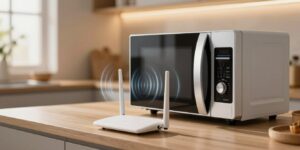
Microwave ovens leak energy near 2.4 GHz while running. That leakage can sharply reduce throughput and raise retries for nearby wireless links, so performance often dips during meal prep.
Shielding quality varies—older or damaged ovens cause larger spikes. If issues match a predictable time pattern, test Wi‑Fi speed while the oven runs to confirm a correlation.
Bluetooth and dense device environments
Bluetooth is low‑power, but many active peripherals (speakers, headsets, keyboards) can create a noisy background. One keyboard is minor; dozens of devices in a small space add up.
In dense setups, Bluetooth traffic increases packet collisions and airtime contention on the 2.4 GHz band.
Cordless phones and nearby routers on the same channels
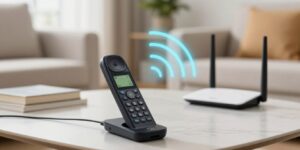
Older cordless phones and some consumer phones use 2.4 GHz and can directly compete with your router on the same channel.
Neighboring routers in apartments often overlap channels 1–11. Changing to a less crowded channel can reduce contention quickly.
| Source | How it behaves | Typical symptom | Quick fix |
|---|---|---|---|
| Microwave oven | Short bursts of broadband noise | Slowdowns during use; time‑based spikes | Move router/critical device farther from oven |
| Bluetooth devices | Many low‑power hops across band | Background packet loss in dense areas | Limit active devices; use 5 GHz when possible |
| Cordless phones | Continuous or periodic transmissions | Unreliable calls and degraded throughput | Replace with DECT/5 GHz phones or relocate |
| Nearby routers | Overlapping channels and airtime contention | Persistent slow speeds and high latency | Scan for channels and switch to a clear one |
Bottom line: a monitor may be the tipping point, but microwaves, bluetooth gear, phones, and nearby routers often stack to create real problems. Identify the overlapping sources so you can target fixes instead of guessing.
How to diagnose the source of interference in real time
Start troubleshooting by isolating the suspected transmitter and measuring changes in real time.
Confirm it’s affecting your network: run the same speed and latency test with the device powered on, then off. Keep the test phone or laptop in the same spot and repeat the test several times to spot a pattern.
What to measure
- Latency/Ping stability: look for jitter and spikes, not just Mbps.
- Packet loss: repeated retries cause poor video and call quality.
- Buffering and call degradation: note if video calls stutter or streams rebuff.
Check channel congestion on 2.4 GHz
Use a Wi‑Fi analyzer app to see which of the US channels 1–11 your router uses and how many neighboring networks overlap it. Walk the house while watching RSSI and channel usage to map weak spots.
When to use spectrum analysis
If channels look clear yet problems persist, a spectrum tool can reveal non‑Wi‑Fi sources. Spectrum analyzers show frequency‑hopping and continuous transmitters that a normal scanner cannot detect.
| Step | Tool | What to record |
|---|---|---|
| On/Off isolation test | Speed test + ping | Throughput, latency, jitter, repeatability |
| Channel scan | Wi‑Fi analyzer app | Router channel, nearby networks, RSSI map |
| Walk the home | Phone or laptop app | Dead zones and sudden signal drops |
| Spectrum check | Spectrum analyzer (Ekahau, Sidekick) | Non‑Wi‑Fi transmitters, hopping patterns, continuous noise |
Practical note: homeowners do not need enterprise gear to start. Use an app and simple tests first. If multiple rooms or devices suffer, consider professional spectrum analysis or rental tools to pinpoint invisible sources.
How to fix baby monitor Wi‑Fi interference without sacrificing coverage
A few practical tweaks can keep full home coverage while reducing 2.4 GHz contention.
Move compatible devices to 5 GHz
Priority one: switch laptops, phones, and streaming boxes to the 5 GHz band when possible.
Change your channel
Run a quick channel scan and pick a cleaner 2.4 GHz channel. Then retest data and latency with the unit active.
Relocate gear and reduce close-range saturation
Increase separation between the router and the device base. Raise the router, avoid cabinets, and keep it away from large metal or water surfaces.
Use extenders and hardwire where it helps
Place extenders where they still get a strong signal from the router. For thick walls, run Ethernet to a second access point to carry data around problem zones.
Replace or upgrade noisy devices
If a device transmits on wide slices of the 2.4 ghz band, consider a model that uses other frequencies or lower power.
| Fix | Best use | Expected result |
|---|---|---|
| Move to 5 GHz | Compatible devices | Less 2.4 GHz contention, higher throughput |
| Channel change | Single router homes | Reduced overlap with neighbors |
| Relocate router/device | Close-range problems | Improved signal-to-noise ratio |
| Ethernet to AP | Thick walls or metal | Consistent coverage without 2.4 GHz retries |
Retest: after each change, check latency, buffering, and stability to confirm which way solved the problems in your home.
Conclusion
A short, methodical check can separate device‑caused radio conflict from a real service outage.
Most problems come from 2.4 GHz crowding rather than the ISP. If a baby monitor or similar device overlaps your router, throughput and latency can fall even when the plan is fine.
Confirm the correlation by turning the unit off and on, scan channels, move compatible devices to 5 GHz, and improve placement or add an Ethernet‑backed access point.
Success looks like steady streaming, fewer dropouts, and consistent latency during the times you need reliability most.
In apartments, try channel changes and band separation first. In larger homes, focus on placement and wired extenders. If repeated tests show the monitor is the main source of interference, upgrading to a less disruptive model is often the simplest long‑term fix.
FAQ
Why can a nursery video device disrupt my home wireless network?
What does this kind of disruption look like on a home network?
Why does the problem often seem time‑based or unpredictable?
Why is the 2.4 GHz band more vulnerable to problems than 5 GHz?
How does long range and better wall penetration worsen wireless competition?
How do noise and saturation affect Wi‑Fi performance at a technical level?
How do these nursery devices actually transmit and cause disruption?
What is channel overlap and why does it matter in 2.4 GHz?
Which other household items commonly add to 2.4 GHz congestion?
How can I confirm the source of the problem in real time?
How do I check for channel congestion on the 2.4 GHz band?
When should I consider professional spectrum analysis?
How can I reduce competition on the 2.4 GHz band without losing coverage?
Will relocating the router or device really help?
Should I use extenders or wired solutions to bypass tough walls?
Is replacing the unit a good option to stop problems?
Are there simple habits that reduce RF conflicts?
Bluetooth Interference With Wi-Fi: When It Happens and How to Avoid It
» See exclusive tips for your home