Do Cordless Phones Still Interfere With Wi-Fi
Discover how a corded phone interferes WiFi and learn troubleshooting steps to resolve connectivity issues. Improve your network's performance now.
Short answer: yes — but not in the way many worry. In several reported cases, placing a Uniden cordless phone on top of a Linksys router caused odd, computerized sounds during ringing. That pattern points to local radio frequency overlap, not a hacker tapping the line.
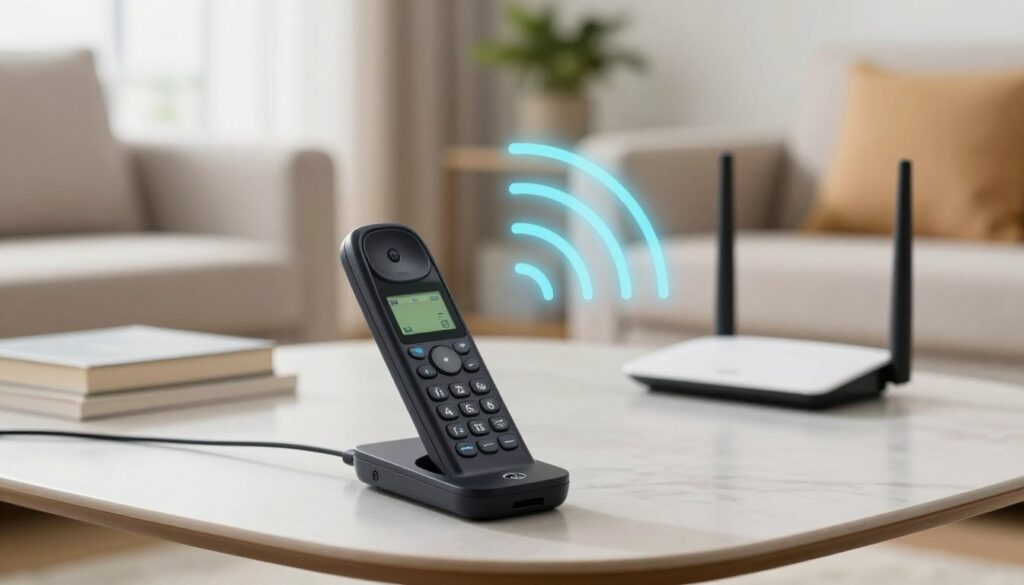
What usually happens: when a base station transmits during an incoming call, it can contend with a nearby router for airtime on the same band. The result feels like a sudden drop or jitter in the connection during the ring.
Two failure modes matter: one is local RF interference that affects wireless performance. The other is a full internet drop when a modem or filter glitched and the WAN had to reconnect.
This guide looks at practical fixes: give devices more space, switch bands or channels, and check line filters and wall sockets. Success means your network stays stable during calls, streaming keeps playing, and devices keep a steady connection across the home.
Key Takeaways
- Physical proximity of a cordless base to a router can cause radio overlap and noise during ringing.
- Most call-triggered drops come from placement, RF overlap, or wiring/filter issues—not malicious activity.
- There are two distinct problems to diagnose: local wireless interference and WAN reconnection events.
- Fixes include more separation, changing channels or moving to 5 GHz, and checking line filters and sockets.
- Success means stable streaming and consistent device connections during calls around the home.
How phone and Wi‑Fi signals collide in a modern home network
Home networks act like shared radio channels where collisions lead to lag and retransmits. Multiple devices transmit in the same air space, so they must compete for airtime. That competition causes retries, higher latency, and occasional dropouts.
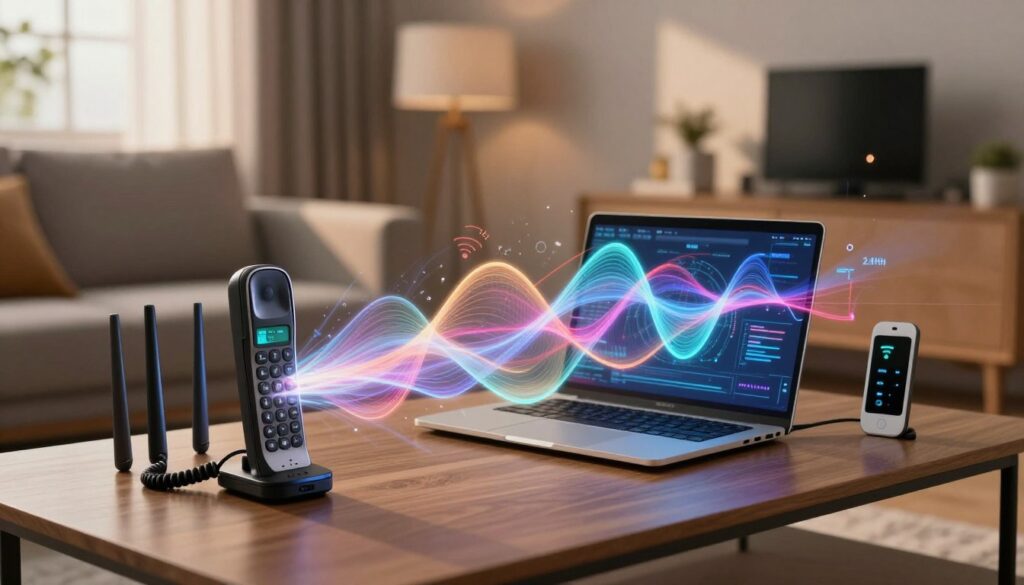
Why the 2.4 GHz band is more prone to problems
2.4 GHz waves travel farther and pass through walls better than 5 GHz. That range is useful, but it also attracts more devices. The result: a crowded band with overlapping channels and more chance of interference.
What Else Would You Like to Know?
Choose below:
Devices on 2.4 ghz often share the same channel. When routers or other radios transmit at the same time, performance drops. Switching channels or moving to 5 ghz often reduces congestion.
Common culprits beyond phones
- Nearby routers using the same channel create a “crowded airwaves” effect.
- Baby monitors and cordless phones commonly used the 2.4 ghz frequency and competed with network signals.
- Microwaves emit around 2.4 ghz and can slow or jitter wireless traffic when active.
- Bluetooth usually coexists, but many active devices in one area still increase congestion.
For example, streaming video may stall when the microwave runs or when a cordless phone rings. That is normal physics and spectrum sharing, not a security event. Most fixes are placement or configuration changes.
Signs a corded phone interferes wifi vs. a phone-line/filter problem
Read the timing and scope of the outage to choose the right fix.
What it means when internet drops during ringing, starting a call, or ending a call
If the internet drops exactly when a call rings, starts, or ends, many users reported the modem losing sync and then reconnecting. That pattern points to a WAN or line problem, not just local radio noise.
Cordless base station too close to the router vs. true Wi‑Fi channel congestion
When the router still shows a link but throughput tanks, local radio interference is likely. This often happens if a cordless base station sits beside or on top of the router.
When the “Wi‑Fi issue” is really the WAN reconnecting: filters, sockets, and line noise clues
If a wired Ethernet connection also drops during a call event, the problem is upstream. Faulty microfilters, bad jacks, or noisy internal wiring commonly cause the router to lose sync.
| Symptom | Likely cause | Quick test | Quick fix |
|---|---|---|---|
| Only wireless slows (devices stay connected) | Local radio overlap / channel crowding | Move handset away; test speed | Relocate base, change channel |
| All connections drop (wired + wireless) | WAN reconnect / line noise | Unplug filters, use master socket | Replace microfilters; call ISP |
| Problem happens even with handsets unplugged | Bad internal wiring or poor filter | Test at master/test socket | Inspect wiring; replace jack or filter |
Next: try isolation steps: check Ethernet during a call, move the base, and test at the master socket. Most issues clear using this order: placement → channels/band → filters/wiring → testing.
Fixes that usually restore Wi‑Fi performance when calls trigger problems
Small, ordered changes stop most call-related drops quickly. Start with placement, then adjust channels, check wiring, and finish with upgrades if needed.
Increase separation
Keep the router and cordless base station several feet apart. Do not place the base on the same shelf or on top of the gateway.
Change 2.4 GHz channels
Pick non-overlapping channels (1, 6, or 11) to reduce local interference. Scan nearby routers and choose a less crowded channel for the 2.4 ghz band.
Move devices to 5 GHz and use extenders
Shift streaming boxes and laptops to the 5 GHz band when possible. Use a wired or mesh extender to bring 5 GHz coverage past thick walls.
Check filters and wiring
If calls cause the entire connection to drop, replace or re-seat DSL/phone microfilters. Test at the master/test socket to isolate internal wiring from the provider line.
Test and remove blockers
Run a signal-checking app, map dead zones, and try a wired Ethernet test on computers to see whether the issue is wireless only. Move the router away from metal surfaces, mirrored furniture, and dense walls.
When to upgrade
If repeated fixes fail, choose phones and bases that use 1.9 GHz, 900 MHz, or 5 GHz and consider a better router or placement. Those changes often end persistent interference.
“Start simple: move the base, change the channel, then check the filter.”
Example workflow: separate base and router, move key devices to 5 GHz, change the 2.4 GHz channel, replace the microfilter, then retest for call-triggered drops.
Conclusion
A few quick checks usually show whether calls are a radio nuisance or an upstream line fault. Cordless and corded phones can cause local radio overlap, but many full drops come from microfilters or bad wiring.
Fastest win: move the base and router apart and retest. That simple change often restores signal and steadies the network within minutes.
If only wireless slows, change the 2.4 GHz channel or shift devices to 5 GHz. If wired computers also lose their connection, inspect filters, test the master socket, and check internal wiring.
Quick checklist: separate equipment, switch band, change channel, replace filters, then validate with a wired test. Strange ringing or timing rarely means a neighbor tapped your line; radio overlap or line noise is far more likely.
FAQ
Do cordless phones still interfere with Wi-Fi?
How do phone and Wi‑Fi signals collide in a modern home network?
Why is the 2.4 GHz band more prone to interference than 5 GHz?
Besides cordless units, what commonly causes wireless interference at home?
What does it mean when my internet drops during ringing, starting a call, or ending a call?
How can I tell if the cordless base station is too close to the router versus real Wi‑Fi channel congestion?
When is a “Wi‑Fi issue” actually a WAN reconnecting problem due to line noise?
How far should I place the router and cordless base station apart?
How do I change 2.4 GHz channels to avoid overlap with nearby routers?
When should I move devices to 5 GHz or use extenders?
How do I replace or re-seat DSL/phone microfilters and isolate wiring with the master/test socket?
What tools help pinpoint interference: signal-checking, dead zones, and wired connection checks?
How can I reduce physical and material blockers near the router?
When should I upgrade hardware: phones or routers?
Bluetooth Interference With Wi-Fi: When It Happens and How to Avoid It
» See exclusive tips for your home