Why Large Water Tanks and Aquariums Weaken Wi-Fi
Discover how to minimize wifi interference from aquarium and large water tanks. Learn the causes and solutions to boost your Wi-Fi signal.
Large indoor tanks can quietly sap connection strength. Water soaks up portions of the radio waves your router sends. When a filled tank sits between a router and a laptop or TV, the signal can drop noticeably.
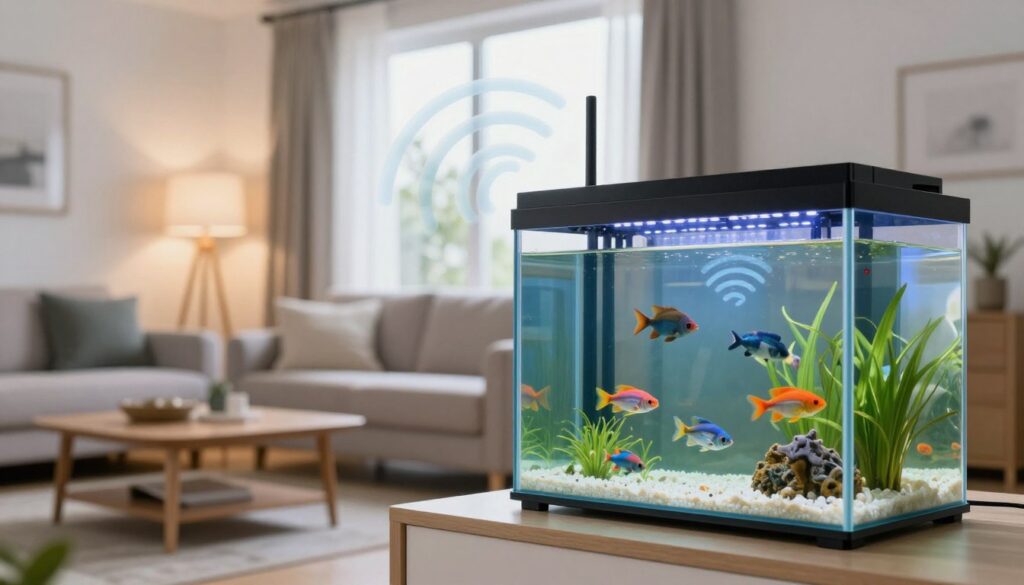
This guide explains what “wifi interference from aquarium” means in plain terms and what to expect. You will learn quick checks and simple placement fixes that help most homes. The problem usually stems from the volume of water plus nearby metal stands, cabinets, glass, or appliances—not the fish.
We’ll show how to confirm the tank’s role, try easy router moves and band changes, and when to add mesh nodes or upgrade for multi-device use. Expect practical, step-by-step tips rather than blaming your service provider.
Key Takeaways
- Water absorbs radio waves, so large tanks can weaken signals along the line of sight.
- Keep your router out of direct paths that cross a tank or fish tank to preserve signal strength.
- Simple moves and band choice often fix common drops without new gear.
- Nearby metal and appliances can amplify the effect; check the whole setup.
- Learn quick tests to confirm the tank is the main cause before upgrading hardware.
Why Aquariums and Large Water Tanks Weaken Wi‑Fi Signals
Large indoor water volumes change how radio energy travels. Water absorbs part of a router’s radio waves, so less signal reaches devices on the far side. That loss shows up as lower bars, slow streams, or choppy calls.
Water and radio waves: simple attenuation
As radio waves pass through dense materials, some energy is absorbed or reflected. The remaining signal is weaker, so devices get less reliable coverage.
How 2.4 GHz and 5 GHz differ
The 2.4 GHz band travels farther and penetrates walls better, but it is often more crowded. The 5 GHz band gives higher speeds yet drops faster with distance and obstacles.
What Else Would You Like to Know?
Choose below:
When the tank acts like a wall and other blockers
A full fish tank can behave like a thin wall between a router and a TV or office. Metal stands, mirrors, concrete walls, and placing gear in a cabinet can make the effect worse.
- Symptoms: fewer bars, buffering, and smart-home dropouts.
- Compounds: metal reflections, mirror backing, and reinforced concrete.
How to Confirm wifi interference from aquarium in Your Home Network
Begin with a simple walk-through test to chart where your connection drops most around the tank. Move through each room and note bars, speeds, and which devices lose access.
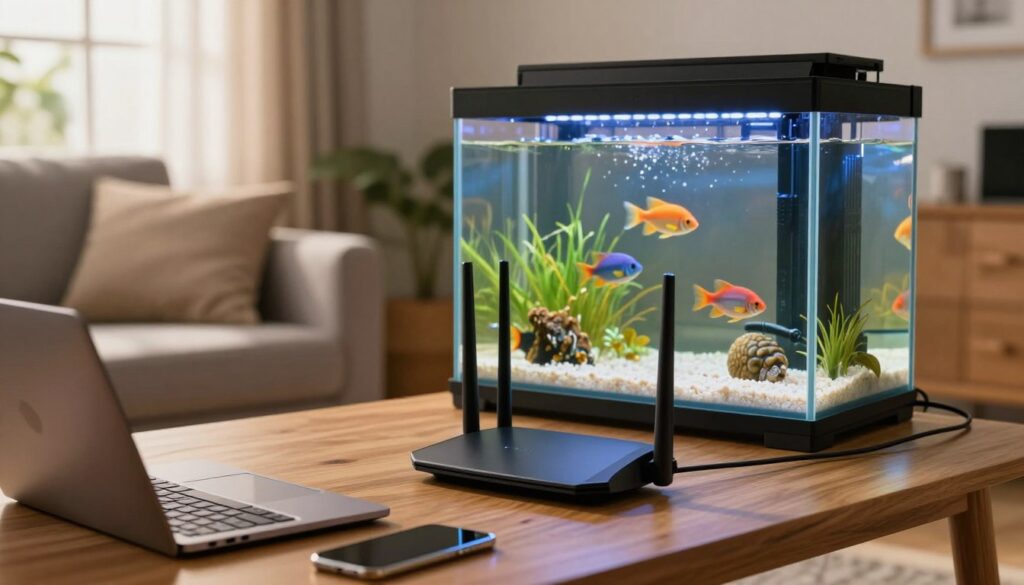
Map weak coverage and check line-of-sight
Test the signal in every room and mark weak areas on a quick sketch of your home.
Stand where a device struggles and look straight toward the router. If the tank sits in the direct path, treat it as a likely obstacle.
Timing and nearby 2.4 GHz activity
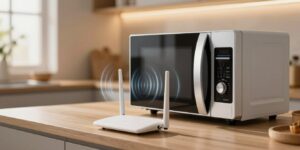
Compare performance at different times of the day. Note if slowdowns match kitchen use—microwave ovens can block much 2.4 GHz band traffic while running.
Temporarily power off cordless phones and Bluetooth speakers to see if the band steadies. Bluetooth hops rapidly and can make trouble variable.
Check channel crowding
Open your router or device scan and count visible wireless networks. High counts mean channel congestion and can worsen any attenuation caused by the tank.
| Step | What to test | When it indicates a problem |
|---|---|---|
| Room map | Speed and bars in each room | Consistent drop near the tank area |
| Line-of-sight | Visual path from router to device | Tank or metal stand sits on the straight path |
| Timing test | Compare during microwave use | Slow streams only when ovens run |
| Device interference | Disable phones/Bluetooth | Performance improves after disabling |
| Channel scan | Count nearby wireless networks | Many networks on the same channel |
Decision point: If tests show a strong link between the tank’s placement and 2.4 GHz activity or channel crowding, try repositioning, band switching, or channel changes before buying new hardware.
How to Minimize Aquarium Wi‑Fi Interference and Improve Coverage
A few deliberate moves and settings tweaks often fix most home coverage gaps. Start with placement, then use band choices and extra access points only if needed.
Reposition your router for clearer access points
Place the router high and central so signals reach every room. Avoid corners, cabinets, and spots behind TVs or mirrors.
Priority: move the router so the aquarium does not sit between it and your most important devices.
Increase separation from kitchens and microwave ovens
Keep the router at least a room or two away from the kitchen. Microwave leakage can stun the 2.4 GHz band during use and cause call drops.
Switch bands strategically
Use 5 GHz for close, speed‑sensitive tasks and 2.4 GHz for longer reach across walls and concrete. Shift less-critical devices to the band with spare capacity to reduce contention.
Optimize placement and add hardware when needed
Don’t hide gear in a metal cabinet or next to large appliances that block signal. If obstacles persist, add mesh access points or a range extender placed halfway to the weak area.
- Do: elevate the router and angle antennas toward devices.
- Don’t: position routers directly behind or beside the aquarium where most signal must pass through water.
- Scale: upgrade routers or antennas for modern multi-device homes if dead zones remain.
Conclusion
Quick, takeaway: large volumes of water can absorb wireless energy and create real coverage gaps when they lie between a router and key devices.
Start with simple moves: place the router central and high, avoid hiding it behind TVs or in cabinets, and keep it away from kitchen appliances that can upset the 2.4 GHz band.
Use 5 GHz for nearby speed and 2.4 GHz for longer reach, but watch for channel crowding. Test by room and at different times to spot patterns tied to microwaves or busy neighbor networks.
If placement and band changes fail to close dead zones, add mesh nodes or extra access points to rebuild coverage where you need it.
Finally, if your router is several years old, an upgrade often restores stable internet for many devices and cuts recurring troubleshooting.
FAQ
Why do large water tanks and aquariums weaken my wireless signal?
How does 2.4 GHz compare to 5 GHz around a fish tank or water barrier?
When does a tank act like a “wall” for my network?
What other nearby items make signal problems worse around an aquarium?
How can I confirm the tank is causing network problems in my home?
Should I check for other 2.4 GHz activity to diagnose slowdowns?
How do I find channel crowding from neighbors on the 2.4 GHz band?
What router placement changes help reduce signal loss from a tank?
Is it better to keep the router away from the kitchen and microwaves?
When should I use 5 GHz vs 2.4 GHz in a home with a large tank?
How can I optimize channels to cut down on nearby router interference?
What placement mistakes should I avoid that make signal problems worse?
When is adding hardware the right move to improve coverage?
Should I upgrade my router or antennas for a home with many devices?
Bluetooth Interference With Wi-Fi: When It Happens and How to Avoid It
» See exclusive tips for your home