Smart Home Devices That Crowd Your Wi-Fi
Discover the causes of wifi interference from smart home devices and our step-by-step guide to resolving the issue.
Modern houses run many wireless gadgets, and that mix can slow a household network. In plain terms, wifi interference from smart home setups means devices compete for limited airtime. When several speakers, cameras, TVs, streaming sticks, and sensors share one access point, everyday actions can lag or fail.
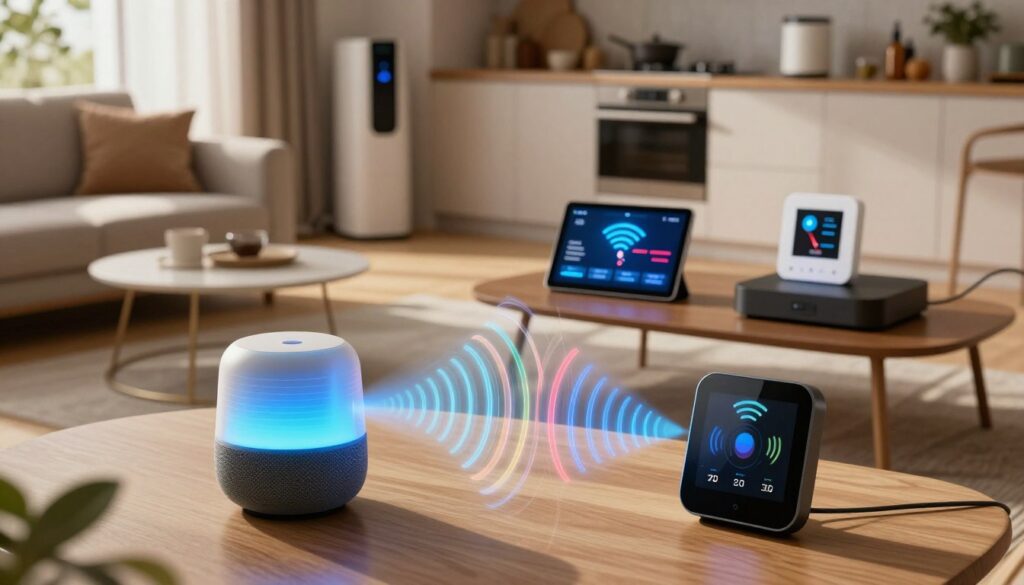
This guide shows practical checks you can run today. Start with simple tests, then adjust router placement, pick the right band, and tune channels. If needed, we cover upgrade options when the current setup cannot handle the device load.
Interference is often a mix: neighboring networks, building materials, and other electronics all add noise. You will learn to spot symptoms, find likely sources inside the house, and try fixes before buying gear.
Key Takeaways
- Recognize lag as a sign that devices share limited airtime.
- Try basic checks first: reposition the router and reduce background traffic.
- Use 2.4 GHz for reach and 5 GHz for speed when possible.
- Separate the router from noisy electronics and thick walls.
- Follow step-by-step troubleshooting before upgrading equipment.
What Wi-Fi interference looks like in a smart home
Setup and pairing failures often reveal deeper signal problems long before other symptoms appear. A new device may stall on “connecting,” fail to accept credentials, or repeatedly time out while the app tries to complete setup. Treat these as diagnostic clues, not isolated glitches.
Setup failures and difficulty connecting devices to the app
During setup, a failed connection usually means the radio link is weak or noisy. Apps may loop on the same step, or the handset shows an error while the gadget keeps retrying.
Repeated disconnects, “Offline” status, and slow response times
Devices can drop randomly but often follow patterns—peak usage, appliance cycles, or heavy neighbor traffic. You’ll see “Offline” notices, delayed actions, or commands that spin while the device retries transmissions.
What Else Would You Like to Know?
Choose below:
Video and history gaps from cameras, security, and monitoring devices
Streaming gear shows the issue first: pixelation, buffering, or skipped clips. Timeline gaps, missing sensor events, and incomplete energy or security data mean packets were lost or delayed.
“Treat these symptoms as signals; the same root cause can affect multiple devices across the house.”
- Takeaway: These patterns usually appear when many devices share limited wireless airtime and when signal strength drops in certain spots.
Why smart home devices crowd your network in 2026 homes
As device counts climb in 2026, ordinary residences can feel like busy radio rooms. Each gadget adds small bursts of background traffic, retries, and control chatter. Over time, that constant activity steals usable bandwidth and slows everyday tasks.
Too many devices sharing unlicensed spectrum in the same location
Unlicensed bands mean your radios share public airspace with neighbors and household gadgets. Collisions and waiting turns become normal when many devices and networks compete in one location.
2.4 GHz band congestion vs 5 GHz speed and range tradeoffs
2.4 ghz reaches farther through walls but is crowded by many device types. The 5 ghz band gives higher throughput but drops sooner with distance. Pick the right band for each device to balance speed and range.
Mixed wireless standards under one roof
Wi‑Fi, Zigbee, and Bluetooth can overlap frequencies. When many of these radios transmit often, coexistence worsens and retries rise.
Whole-home nodes that relay traffic and reduce available capacity
Mesh nodes that use the same channel for backhaul and client access can halve effective capacity. Multi-radio hubs may also self-block, causing extra latency.
| Factor | Behavior | Impact |
|---|---|---|
| 2.4 ghz band | Longer range, many legacy devices | Higher congestion, lower throughput |
| 5 ghz band | Higher speed, shorter range | Better for streaming but needs closer access |
| Mesh / backhaul | Relays traffic on shared channels | Reduces overall user bandwidth |
| Multi-radio hubs | Multiple radios in one device | Possible self‑blocking and retries |
“Fixing crowding usually blends better placement, band strategy, and network design—not a single setting.”
- Next: practical checks and quick fixes to reduce load and improve access.
wifi interference from smart home: the most common sources inside your house
Inside any residence, a few common objects and materials cause the biggest signal problems. Dense construction and everyday items can cut effective range and raise packet loss. Spotting these sources helps you fix problems without swapping gear.
Building materials and objects that block or weaken Wi‑Fi signals
Concrete, brick, and thick walls absorb radio energy and often create dead spots. The router behind a chimney, inside a cabinet, or next to large furniture will show much weaker signal in adjacent rooms.
Metal is especially disruptive. Refrigerators, stoves, filing cabinets, and mirrors reflect and absorb waves, which produces unstable connections and gaps in coverage.
Competing nearby networks fighting for the same channels
In apartments and dense neighborhoods, multiple networks overlap and force devices to wait before they can transmit. If your phone shows many SSIDs nearby, that list is a quick hint that channel competition is hurting throughput.
Electronics and appliances that create radio noise or share frequencies
Microwave ovens, cordless phones, baby monitors, and Bluetooth devices add radio noise—mainly in the 2.4 GHz band. These appliances can cause short slowdowns or persistent contention that looks like device trouble.
“The culprit isn’t always a gadget; it can be a stove, mirror, or a neighbor’s network.”
Next: Before changing settings, confirm whether the problem is external (ISP) or local to the house so your fixes target the true cause.
Quick checks before changing settings
Before changing any settings, run a few quick checks to isolate the real cause.
Confirm ISP outages vs in‑home network problems
First, rule out an outage. If several devices lose internet at the same time, the issue may be upstream.
Visit your ISP status page or call support. This saves time and avoids needless router tweaks.
Restart modem and router to clear temporary connection issues
Try a simple restart: unplug the modem and router, wait about 30 seconds, then plug them back in.
Allow a few minutes for the connection to fully re-establish. Restarts clear routing glitches, memory leaks, and stuck sessions that make gadgets show Offline.
Check signal strength room by room and note dead zones
Walk through rooms and log where the wifi signal is weak or devices fail. Note garages, upstairs bedrooms, and yards that show poor strength.
Use the router app or your phone’s indicator as a quick proxy, then repeat tests at the same spots for consistency.
“Map affected rooms first — targeted fixes work better than guessing.”
| Check | How to do it | Why it helps |
|---|---|---|
| ISP status | Visit provider page or contact support | Confirms upstream outages and avoids wasted troubleshooting |
| Power cycle devices | Unplug modem/router ~30 seconds, restart, wait minutes | Resolves temporary routing errors and stuck connections |
| Room signal map | Record wifi signal/connection in each room | Shows dead zones and guides placement or device moves |
Next option: Once outages and basic resets are done, move on to placement, band selection, and channel tuning to improve stability.
Step-by-step fixes to reduce interference and improve signal strength
Simple actions taken now can reduce radio collisions and restore steady access in minutes. Start with placement and then move on to settings and security.
Reposition and elevate the router
Place the router centrally, elevated and out in the open. Avoid closets, behind TVs, or near large metal objects to maximize range.
Separate noisy radios and electronics
Keep the router and devices about three feet from cordless phones, Bluetooth hubs, and microwaves. This distance cuts radio crowding and improves signal reliability.
Update firmware and pick the right band
Install firmware updates via the router app or web interface to fix bugs and boost performance. Use 2.4 GHz for distant sensors and 5 GHz for cameras and streaming when close to the access point.
Optimize channels and reduce device load
Enable auto channel switching first. If problems persist, run manual tests and speed checks to find a clearer channel.
Remove unused devices, stop background backups, and remove unknown clients to free bandwidth.
Secure and diagnose
Use WPA2/WPA3 and strong passwords to prevent unauthorized use. Run built-in diagnostics and logs to spot repeated retries or weak links.
“Good” looks like faster app response, fewer Offline notices, stable video history, and steady performance throughout the house.
| Action | How to do it | Effect | When to try |
|---|---|---|---|
| Reposition router | Move central, elevate, avoid metal | Better coverage, fewer dead zones | First step |
| Separate radios | Keep ~3 ft from noisy electronics | Less radio crowding, fewer drops | After placement |
| Update firmware | Use router app/web to install | Stability, security, performance fixes | Monthly or when issues appear |
| Channel tuning | Auto-switch, then manual testing | Higher throughput, fewer retries | If slow or variable |
When troubleshooting isn’t enough: upgrades and architecture changes
If placement and tuning don’t stabilize your network, upgrades are the next logical step. In larger or older homes, dense walls and metal structures can limit reach. That makes architectural changes the best option to restore reliable internet and preserve bandwidth for many devices.
Add coverage with extenders, powerline adapters, or a mesh system
Extenders or repeaters rebroadcast a signal into weak areas and often work best when matched to the same manufacturer as your router for smoother setup.
Powerline adapters use electrical wiring to carry data around thick walls and floors. They are a strong option for garages or basements where wireless reach is poor.
Mesh systems place multiple nodes for whole‑home coverage. They shine in multi‑story layouts or long ranch houses.
Understand mesh limits and why tri‑band helps
Many mesh setups use the same frequencies for both client access and backhaul. That design can cut usable capacity because nodes relay traffic as well as serve devices.
Tri‑band systems often dedicate a 5 GHz radio to backhaul. This reduces congestion for client radios and improves performance for cameras and streaming devices.
Multi‑radio hubs and coexistence issues
Hubs that mix Wi‑Fi with Zigbee or other radios can self‑interfere. When the hub’s radio transmits, Zigbee traffic may need retries. That raises latency, adds battery drain for sensors, and shortens practical years of reliable service.
“Match the upgrade to your layout and then validate it room by room over time.”
| Upgrade option | Best for | Key benefit | When to choose |
|---|---|---|---|
| Extender / repeater | Single dead rooms | Fast, low cost reach extension | When a minor coverage gap exists |
| Powerline adapters | Homes with thick walls/floors | Bypasses structural blocks via wiring | When wireless signals fail through walls |
| Mesh (dual‑band) | Full‑home coverage | Simpler setup, even coverage | For multi‑room or multi‑story homes |
| Mesh (tri‑band) | Many cameras and streaming devices | Dedicated backhaul, less congestion | When bandwidth needs are high |
Conclusion
A clear diagnostic path helps you fix trouble spots quickly and with less cost.
Start by recognizing symptoms, pinpoint in‑house sources such as thick walls or noisy electronics, and run quick checks before changing settings or buying gear.
High‑impact actions include central router placement, keeping distance from noisy radios, choosing the right 2.4 GHz vs 5 GHz band for each device, and tuning channels when nearby networks crowd the air.
Manage connected devices: remove unused clients, secure access, and keep firmware current. Re‑test coverage after adding gear or moving furniture.
After these steps, devices should set up more reliably, stay connected longer, respond faster, and produce more complete camera and monitoring histories across the house.
FAQ
What devices commonly crowd your home network?
How can setup failures and app connection problems indicate a network issue?
Why do devices repeatedly drop offline or respond slowly?
What causes gaps in camera recording or missed security events?
How does unlicensed spectrum sharing affect modern homes?
When should I choose 2.4 GHz versus 5 GHz?
How do mixed wireless standards cause problems under one roof?
Can whole-home nodes reduce available capacity?
What building materials and household objects weaken signals?
How do nearby networks compete for the same channels?
Which electronics and appliances add radio noise?
What quick checks should I do before changing advanced settings?
How should I reboot equipment to clear temporary problems?
How do I find dead zones and weak spots?
Where should I place the router for the best coverage?
How far should I keep electronics and other radios from the access point?
Why is firmware important and how often should I update?
How do I choose the right band for each device?
When should I change channels manually versus using auto selection?
How can I reduce device overload and background traffic?
What security steps prevent unauthorized bandwidth use?
How can built-in router diagnostics help find ongoing problems?
When should I add extenders, powerline adapters, or mesh systems?
What limits should I expect with mesh systems?
Why consider tri-band systems for busy networks?
How do multi-radio hubs affect coexistence with Zigbee and Bluetooth?
Why iPhone Keeps Disconnecting From Wi-Fi
» See exclusive tips for your home