Band Steering Problems: Why Your Device Keeps Switching Bands
Get to the bottom of band steering issues. Find out why your device is switching bands and learn how to fix the problem with our troubleshooting guide.
Notice your phone or laptop bouncing between frequencies? That sudden drop in speed or a gadget that shows full Wi‑Fi bars but acts unstable is often the symptom users blame on the router. In reality, the client device usually makes the final connection choice.
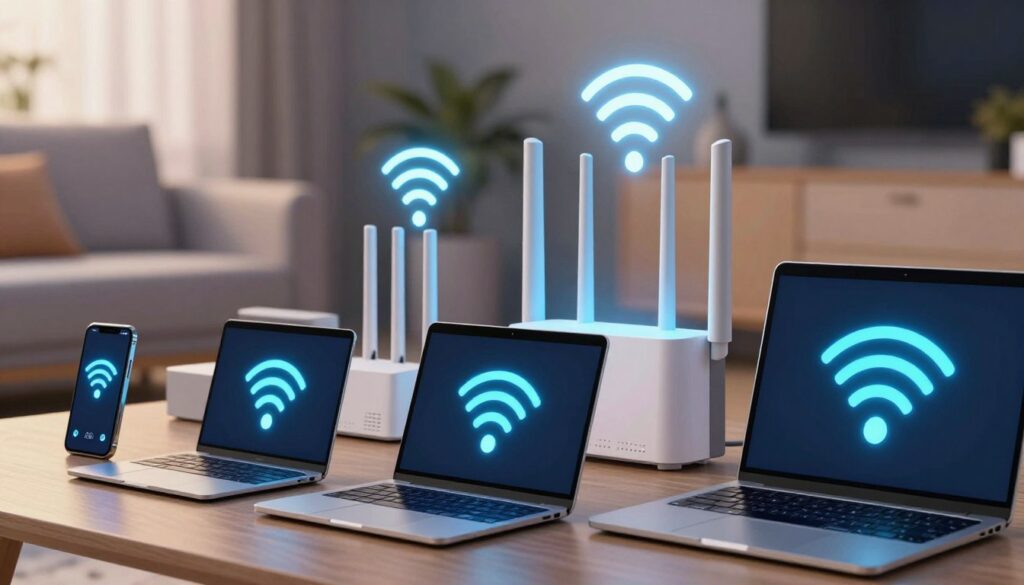
Band steering is a router feature that nudges dual‑band clients toward 5 GHz to reduce congestion. This can help most devices, but it sometimes misidentifies 2.4 GHz‑only gadgets and blocks them from joining. The result feels like random disconnects or “connected but no internet” moments.
This introduction sets the goal: steady performance for streaming, calls, and smart‑home control—not forcing every device to one frequency. We’ll explain how steering works, show quick diagnostics for Windows and phones, and walk through fixes like splitting SSIDs, disabling the feature, and tweaking channels and security.
Key Takeaways
- Devices may switch frequencies when the router tries to favor 5 GHz, but the client chooses the final band.
- Symptoms include speed drops, unstable behavior despite strong Wi‑Fi, and some gadgets failing to join after upgrades.
- 2.4 GHz‑only products, common in IoT, can be misclassified and effectively blocked.
- Troubleshooting will cover detection, quick device checks, and router settings to restore stability.
- Router labels vary: look for terms like smart connect, single SSID, or dual‑band in menus.
What band steering is and why your Wi‑Fi network keeps moving devices between 2.4 GHz and 5 GHz bands
Some routers advertise a single SSID but subtly push compatible gadgets toward the 5 GHz radio. The router does this by rejecting or delaying connection attempts on the 2.4 ghz radio so dual‑capable clients try the faster option instead.
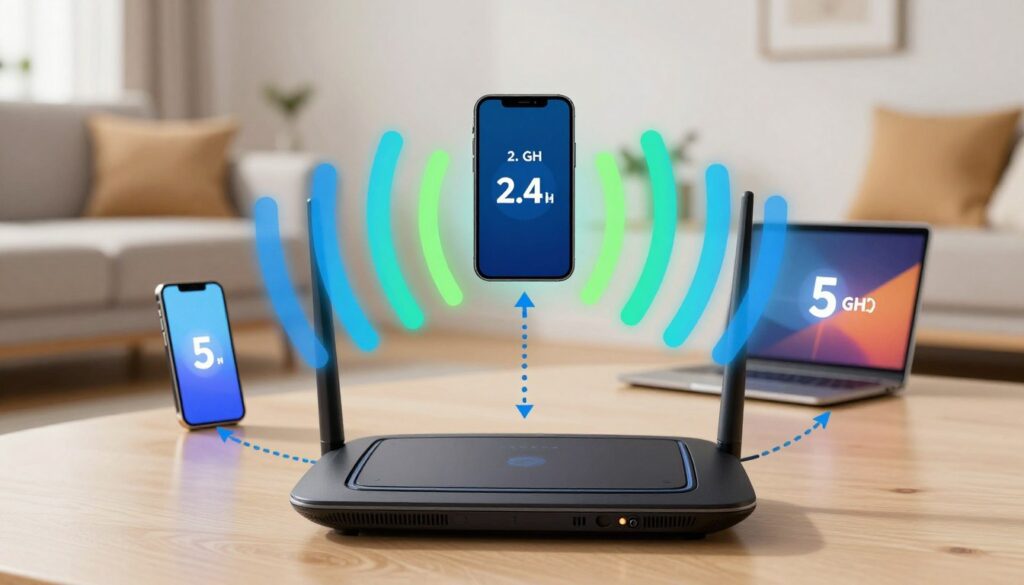
How nudging dual‑band devices works
When a router uses band steering, it presents one network name for both radios. It then selectively limits 2.4 ghz associations so phones and laptops fall back to 5 ghz. Clients still make the final choice, so results vary by model and OS.
Why some 2.4 GHz‑only gadgets fail to join
Some smart plugs, bulbs, and monitoring inverters speak only 2.4 ghz. Routers can misidentify them as dual‑capable and block their attempts. The result looks like constant reconnects or an authentication loop during setup.
What Else Would You Like to Know?
Choose below:
When the feature helps — and when it hurts
Benefits: In dense apartment areas, steering reduces congestion and can raise speed on modern devices.
Drawbacks: If walls weaken 5 ghz signal strength or device compatibility is mixed, the feature creates instability.
“Steering can speed modern phones in busy networks, but it may stop older or 2.4 ghz‑only gear from connecting.”
- Tradeoff: 5 GHz often gives higher throughput but shorter range.
- SSID view: With steering on, you may not see a separate 5G name.
- Symptom link: Short connects, drops, or wrong-frequency joins point to this behavior.
How to diagnose band steering issues on your router, phone, and computer
Start with a quick SSID scan. Open the Wi‑Fi list on a phone or laptop and look for two names from your router, for example “HomeWiFi” and “HomeWiFi-5G.”
If you only see one shared name or the 5 GHz label is missing, the router’s feature may be combining radios. Seeing a hidden 5 GHz SSID often points to a single‑name or steering setup rather than separate networks.
Windows quick check
On Windows, connect to the network, click the Wi‑Fi icon in the taskbar, then open the connected network’s Properties. Scroll to find “Network Band” to confirm if the PC reports 2.4 GHz or 5 GHz.
Use a Wi‑Fi analyzer
Install an analyzer app to watch band changes, RSSI swings, and channel shifts as you walk through the house.
Look for the device jumping radios or losing signal strength when it moves a few rooms — that pattern often shows client roaming or the router nudging devices between radios.
Clues that point to the router feature vs general internet trouble
- If many devices lose internet at once, the ISP or modem likely has a problem.
- If only one device flips radios and acts unstable while others stay fine, suspect client behavior or the router’s policy.
- Does the problem occur only far from an access point, or during smart‑device setup needing 2.4 GHz? Those answers narrow the cause fast.
“Check SSIDs first, then confirm with Windows and a Wi‑Fi analyzer before changing router settings.”
Next point: Once repeated radio switching or a failure to join 2.4 GHz is confirmed, move to router settings, SSID strategy, and channel or security tweaks in the next section.
Troubleshooting fixes: router settings, SSID strategy, channels, and security compatibility
Start simple and work outward. Begin in the modem or router admin portal and follow a minimal‑disruption fix order: disable the steering feature, then retest before changing channels or security.
Where to look: Wireless settings → Advanced Wireless → band steering or Smart Connect. ISP gateways (Telstra, Huawei, TP‑Link) label this differently, so check menus if you do not see the option.
Practical SSID and channel steps
Create two SSIDs (2.4 GHz and 5 GHz) so you can place older or IoT devices on 2.4 ghz and high‑use gadgets on 5 ghz.
If some clients fail on 5 GHz, test lower channels first (36–48). Many Windows laptops and older chipsets work best there.
Security and testing
If the gateway uses WPA3‑only, switch to WPA2 or WPA2/WPA3 mixed mode to stabilize older connections.
Test correctly: forget the network on the device, reconnect to the chosen SSID, confirm the connection band in device properties or an analyzer, and move around the home to watch signal and connection behavior.
| Action | Why | Expected result |
|---|---|---|
| Disable Smart Connect/band steering | Stops automatic radio nudging in ISP gateways | Devices stay on selected frequency |
| Split SSIDs | Manually assign 2.4ghz for IoT, 5 GHz for high bandwidth | Fewer authentication loops, stable streaming |
| Select 5 GHz channels 36–48 | Improves compatibility with Windows and older clients | Fewer drops and failed associations |
“If your ISP gateway hides these controls, replacing it with a router that allows full wireless settings is often the fastest solution.”
Conclusion
When devices hop between radios, the cause is usually a predictable interaction between router features and client behavior. That means this is often fixable without replacing hardware.
Practical path: split SSIDs, give older gadgets a 2.4 GHz name and modern devices a 5 GHz name. Confirm each device’s connection in its properties or with an analyzer and test real tasks like video calls or streaming.
If problems persist, revisit 5 GHz channel selection and switch security to WPA2 for older clients. Use one change at a time, retest, and record results.
Quick post checklist: identify the problem, confirm the band, change one setting, retest. If you have questions, share your router model, ISP gateway type, and the devices that fail to connect for targeted help.
FAQ
What is band steering and why does my device keep switching between 2.4 GHz and 5 GHz?
How can I tell if my router is nudging devices to the 5 GHz network?
Why do some 2.4 GHz‑only devices get blocked or misidentified?
Should I disable band steering or split my network into separate SSIDs?
How do I confirm a device’s current network band on Windows?
What tools help diagnose frequency changes, signal strength, and roaming behavior?
Which 5 GHz channels should I choose to reduce connection failures on some devices?
Could Wi‑Fi security settings be causing connection problems for older devices?
What is the correct test procedure after changing router settings?
When is replacing the router the best option?
How do mesh systems handle guiding devices between 2.4 GHz and 5 GHz?
Are there quick settings to try before diving into advanced fixes?
Which devices typically prefer 2.4 GHz and which benefit most from 5 GHz?
What are signs that my problem is general coverage, not steering behavior?
Can firmware updates fix frequency switching problems?
Why 2.4GHz Wi-Fi Feels Slow and When It’s Still the Right Choice
» See exclusive tips for your home