Best 2.4GHz Wi-Fi Channels and How to Choose Them
Find the best 2.4GHz channel for your router and improve your Wi-Fi speed. Our guide helps you select the optimal channel for a stronger connection.
This guide helps you pick the best 2.4ghz channel for a typical U.S. home network and explains why the choice matters for daily Wi‑Fi use.
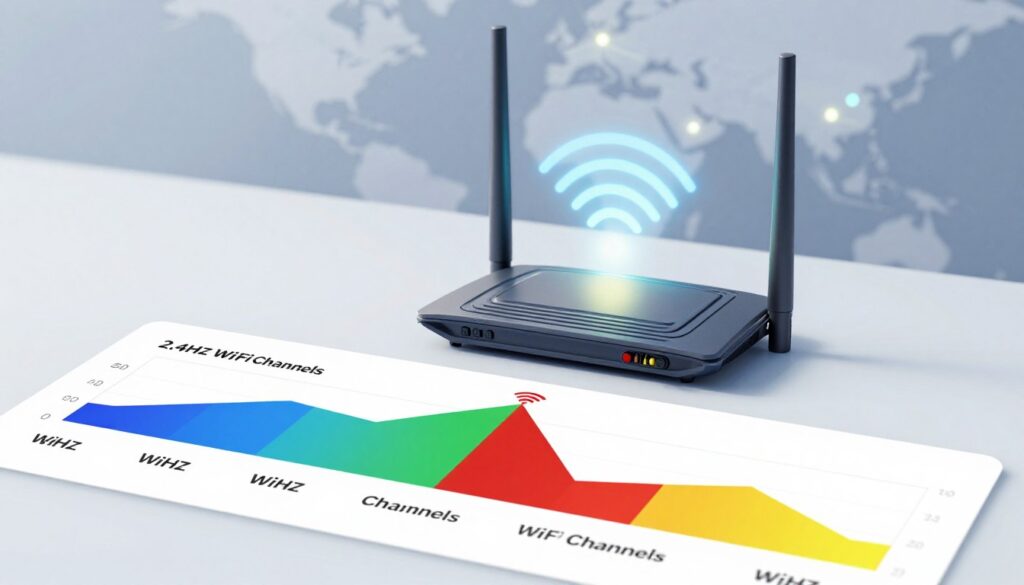
Modern routers broadcast multiple bands: 2.4 ghz, 5 ghz, and 6 ghz. On the 2.4 ghz band, three non‑overlapping channels—1, 6, and 11—cut interference and often improve reliability.
Expect practical wins like fewer dropouts, smoother browsing, and steadier connections rather than dramatic peak speed boosts.
Routers use radio frequency slices so networks share airtime. Nearby networks can collide and slow each other down, so choosing a clean channel reduces overlap and interference.
Remember that the ideal setting can change with time of day, neighbor activity, and router placement. This article will show how to understand channels, spot overlap, scan your space with an analyzer, pick among 1/6/11, and change settings safely for U.S. consumer routers.
Key Takeaways
- Focus on channels 1, 6, and 11 on 2.4 ghz to minimize overlap.
- Changing a setting often gives steadier connections more than huge speed jumps.
- Use a scanner app to see nearby networks and interference patterns.
- Router placement and neighbor traffic can alter the optimal choice.
- Instructions target U.S. consumer routers and common living situations.
Understanding 2.4 GHz Wi‑Fi channels and why they affect speed
Think of wireless bands like radio stations that your router can tune into. A band (for example, 2.4 ghz, 5 ghz, or 6 ghz) sets the broad frequency your network uses. A channel is a smaller slice inside that band your router selects to send and receive data.
What Else Would You Like to Know?
Choose below:
Frequency bands vs. channels: how routers “tune” your network
Choosing a band is like picking the station. Choosing a channel is like fine‑tuning for the clearest reception in your home. A router uses this slice to talk to all connected devices. When many neighbors use the same slice, signals collide and performance drops.
2.4 GHz vs. 5 GHz vs. 6 GHz: range, speed, and when 2.4 GHz makes sense
2.4 ghz gives better range and wall penetration, so it helps smart plugs and older devices stay connected across the house. 5 ghz and 6 ghz deliver higher speeds but have a shorter range and struggle through walls. Pick a band based on device needs and proximity to the router.
How many channels exist: 2.4 GHz availability in the United States
The 2.4 ghz frequency includes up to 14 channels worldwide, but U.S. users typically use channels 1–11. Only three non‑overlapping choices exist, so prioritize those slices to reduce interference and keep your network steady.
- Quick tip: Scan for nearby networks and pick a non‑overlapping slice with the least traffic.
Why 2.4 GHz channels overlap and what interference looks like
The 2.4 GHz band has limited usable spectrum, and each Wi‑Fi slice is roughly 20 MHz wide. That width means slices sit close together, so they often spill into neighboring slices. This is why channels overlap and performance can fall.

The 20 MHz width problem
Think of the band as a narrow hallway. Each 20 MHz slice takes up space, so multiple slices cannot fit without bumping each other. In short, channel width creates physical overlap.
Co‑channel vs adjacent interference
Co‑channel interference means networks share the same slice and politely take turns. Adjacent‑channel interference happens when slices overlap and signals clash. Adjacent overlap is usually worse for throughput and perceived lag.
Example: It’s like two groups trying to speak in the same room — taking turns is noisy but overlapping voices cause confusion.
| Type | Cause | Effect on performance |
|---|---|---|
| Co‑channel | Multiple APs on same slice | Lower throughput; devices take turns |
| Adjacent‑channel | Overlapping slices (non‑1/6/11) | Packet loss; retries; worse speeds |
| Non‑Wi‑Fi interference | Microwaves, cordless phones, other electronics | Raised noise floor; weaker signal strength |
Nearby access points with strong signals can drown weaker routers, forcing lower modulation and retries. Physical barriers—walls, cabinets, metal appliances—further cut signal and make interference more visible. The practical fix for most homes is to pick non‑overlapping slices on 2.4 GHz, which we cover next.
Best 2.4ghz channel options for most homes
For most homes, choosing one of the three non‑overlapping slices simplifies setup and cuts interference. These selections reduce adjacent overlap and help devices keep a steady link across different areas of the house.
Why 1, 6, and 11 avoid overlap
The three non‑overlapping choices are spaced so a 20 MHz width does not bleed into the next slice. That spacing lowers adjacent interference and makes co‑existence cleaner when multiple access points are nearby.
How to choose between them when all look busy
Pick the option with fewer competing networks and weaker competing signals near your router. Then run a quick speed test to confirm which gives the best run speed in your primary usage area.
Dense apartments and many access points
In crowded buildings you will often see many access points on each non‑overlapping slice. In that case, stick to one of the three and choose the least congested one rather than switching to overlapping slices that worsen interference.
When 40 MHz bonding can hurt performance
Channel bonding (switching to 40 MHz) widens the slice and increases overlap across the band. In shared environments this raises packet retries and can lower overall throughput for you and neighbors.
| Situation | Recommended option | Reason |
|---|---|---|
| Typical single‑family home | One of the three non‑overlapping | Good mix of range and stability with 20 MHz width |
| Dense apartment building | Least congested non‑overlapping | Avoid overlapping slices; reduce cross‑AP interference |
| Far from router / through walls | Use 2.4 GHz for range | Shorter range bands may not reach; 2.4 GHz penetrates better |
| Shared neighborhood with many networks | Avoid 40 MHz | Bonding increases overlap and often reduces real world performance |
How to find the best channel using Wi‑Fi analyzer tools and quick tests
Open a Wi‑Fi analyzer app to watch real-time graphs that reveal airtime use and competing access points. Start by measuring three things: channel utilization, number of nearby networks, and RSSI (signal strength) for each access point.
What to measure
Channel utilization shows how busy the air is. Count networks on each non‑overlapping option and note competing signal levels.
Using an Android analyzer app
Open the app, switch to the channel graph, and look for which of channels 1, 6, or 11 has fewer networks and weaker competing signals. Graphs update live, so watch for spikes at different times.
Scanning on Windows or Mac
Run a desktop scanner to list nearby network names, channels, and RSSI. Use the same 1/6/11 comparison to pick the least crowded slice.
| Measure | Why it matters | Practical threshold |
|---|---|---|
| Channel utilization | How busy airtime is | Lower is better |
| Number of networks | More APs = more sharing | Prefer the fewest |
| Signal (RSSI) | Strength of competing APs | <= -75 dBm = weak; closer to -20 dBm = strong |
“If channel 11 shows fewer networks and the strongest non‑household signal is around -80 dBm, it’s often the smarter pick.”
Confirm by running a speed test and checking latency. Repeat at different times of day to make sure the chosen setting gives steady run speed for streaming, calls, and gaming.
How to change channel settings on your router without breaking your network
A calm, step‑by‑step approach prevents accidental lockouts when you adjust wireless settings. Gather the router admin name and password and pick a low‑traffic time to work.
Access the admin page
- Connect a device to the network (wired or Wi‑Fi).
- Enter the router IP in a browser (common ones: 192.168.0.1 or 192.168.1.1).
- Log in with admin credentials (often printed on the label).
Locate wireless and band options
Open Wireless or Wi‑Fi settings, then pick the band you want to edit: 2.4 GHz or 5/6 GHz. Look for a Channel dropdown and a width option (20 MHz vs 40 MHz).
Auto vs. manual selection
Auto can adapt to interference, but some routers lag behind real congestion. If an analyzer shows heavy overlap, choose a manual slice such as 1, 6, or 11 on 2.4 GHz.
Save, reconnect, and validate
After saving, expect a short Wi‑Fi drop as devices reconnect. Some older devices may need a manual reconnect.
“Do a quick video call, stream a short clip, and run a gaming latency test to confirm real improvements.”
| Step | What to check | Why it matters |
|---|---|---|
| Login | IP address, admin user | Ensures safe access to settings |
| Band selection | Choose correct SSID (2.4 GHz vs 5/6 GHz) | Avoid changing the wrong frequency |
| Security | Update default password; use WPA2/WPA3 | Prevents unauthorized access during changes |
| Validation | Streaming, gaming, latency checks | Confirms real‑world performance and range |
Keep 5 GHz for high speed near the router and tune 2.4 GHz for range and device reliability. If manual picks don’t help, revert settings or try the router’s auto option after testing.
Conclusion
, A practical routine helps you keep wireless performance steady as neighbors and devices change.
For 2.4 ghz home Wi‑Fi, favor non‑overlapping choices like 1, 6, and 11 to limit channels overlap and adjacent interference. Scan your area, pick the least crowded option, change the setting on the router, then run a quick speed test to confirm improvement.
Good results look like a steady signal and reliable performance for streaming, calls, and smart devices. Stick to 20 MHz width in shared spaces; wider widths often raise interference and hurt real speed.
Use 2.4 ghz frequency for range and compatibility, and save higher ghz bands for short‑range speed. Re-scan and re-test if new congestion appears or performance shifts during the day.
FAQ
What is the difference between frequency bands and channels?
When should I stick with the 2.4 GHz band instead of 5 GHz or 6 GHz?
How many channels are available in the U.S. 2.4 GHz band?
Why do channels in the 2.4 GHz band overlap and why does that matter?
What is the 20 MHz width problem and when does bonding to 40 MHz hurt performance?
What is the difference between co‑channel and adjacent‑channel interference?
What household items commonly interfere with the 2.4 GHz band?
Why are channels 1, 6, and 11 recommended?
How do I pick among channels 1, 6, and 11 when all three look busy?
What should I do in dense apartments with many access points nearby?
How can I find the clearest slice using tools on my phone or computer?
What measurements matter when testing channels: utilization, number of networks, or signal strength?
How do I confirm a channel change actually improved performance?
How do I change the wireless channel on my router without causing problems?
When should I let the router use automatic channel selection instead of manual?
Can using a 2.4 GHz analyzer app on Android give different results than Windows or macOS tools?
Will changing transmit power affect my network positively?
How often should I re-scan the wireless environment?
Why 2.4GHz Wi-Fi Feels Slow and When It’s Still the Right Choice
» See exclusive tips for your home