Should You Separate 2.4GHz and 5GHz SSIDs
Learn whether you should separate SSID 2.4 and 5 GHz for optimal Wi-Fi performance. Discover the benefits and drawbacks of separating your Wi-Fi frequencies.
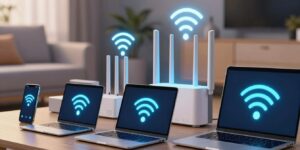
Dual-band routers often present both wireless ranges under one name, so your phone shows a single network entry.
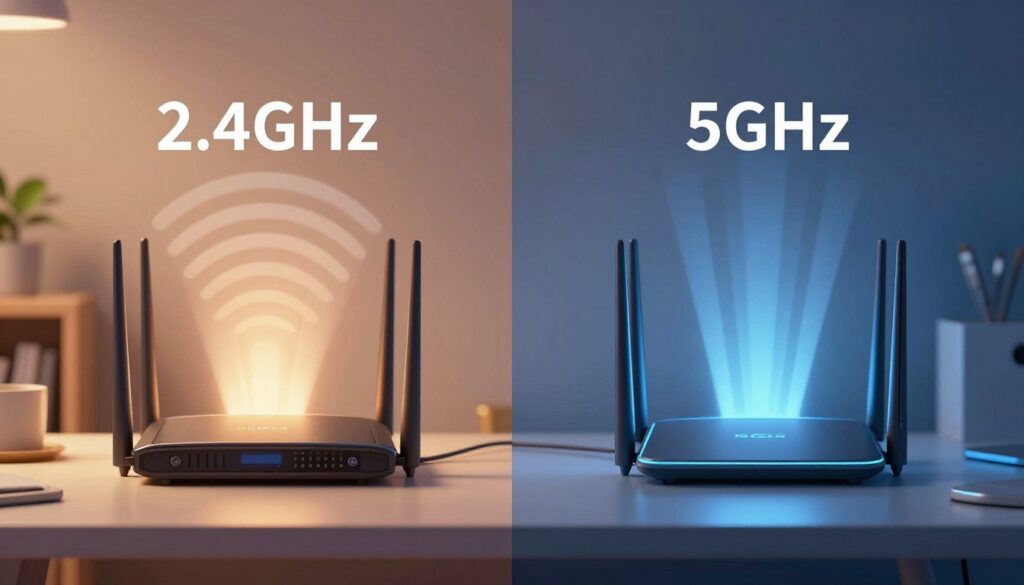
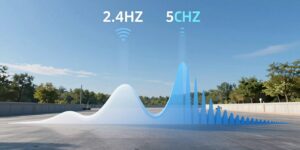
Giving each band its own name means you can pick the faster option for a laptop or the longer-range option for a smart plug. This setup helps when certain home gadgets only work on the 2.4 ghz range or when a simple connection flow fails.
Most current router models in US homes support both bands, but labels and settings differ by brand and internet provider. Later sections explain when a split improves compatibility and stability and when built-in band steering makes a change unnecessary.
By the end you will be able to decide whether to split names, follow clear admin steps to rename each ssid, and troubleshoot missing options in your router menu.
Key Takeaways
- Single name keeps things simple but can hide band choice on a phone.
- Separate names let you force a device onto the 2.4 ghz or the 5ghz band.
- Most modern routers support both, but menus vary by model and ISP.
- Split names help with smart home setup and device compatibility.
- Instructions will show how to rename each network and verify connections.
When separating Wi‑Fi bands helps and when it doesn’t
Mixing a router’s two radios under one network name can hide which link a device actually uses. That single label is common on modern hardware because many makers enable both radios with identical names to simplify setup for everyday users.
Why your phone often shows one network name
Routers that use a shared label will steer a phone to the radio the router thinks is best. Decisions depend on signal strength, device capability, and roaming behavior.
Real examples that break until you force the right radio
Smart plugs, bulbs, older printers, and some EV chargers only join a 2.4 ghz radio. If an app or phone hops to the faster radio during pairing, the device can fail to connect.
Tradeoffs to consider
Giving each radio a unique name fixes many setup issues because you can make your phone join the correct radio during pairing. The downside is manual switching—phones and laptops may not roam as smoothly and you will manage extra network names.
- Decide by device mix: many smart home gadgets need 2.4 ghz.
- Home layout: apartments often favor simplicity; large homes may need control.
- Priority: keep one name for seamless switching, split when setup or stability issues repeat.
How to separate ssid 2.4 and 5 in your router settings
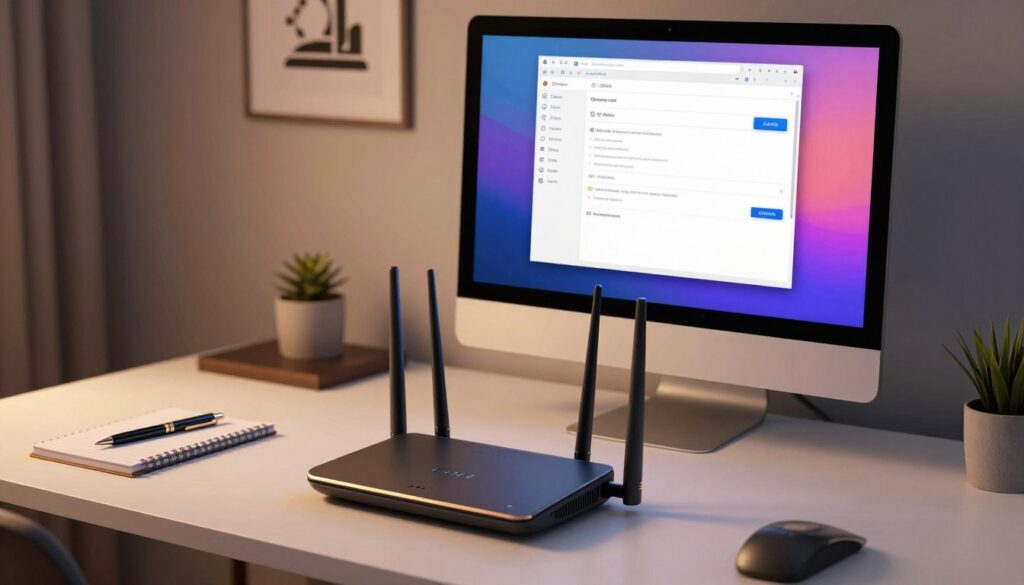
Begin at the router label: use the login address on the sticker to access the router settings page in a browser.
Sign in to the admin interface
Enter the admin credentials from the label. Open the router’s Wireless or Wi‑Fi area on the settings page. Some models put radios under an Advanced tab.
Rename each wireless band
Find the 2.4 ghz section and set the network name to “(Name)-2.4G”, then save. Repeat in the 5ghz section with “(Name)-5G” and save.
Save, reconnect, verify
Allow the router to apply changes; Wi‑Fi will drop briefly. Keep the same password if you did not change it to avoid extra logins.
- Rejoin every device to the new names—this is expected.
- Open Wi‑Fi on a phone and confirm both names appear as separate networks.
- If only one network shows, check for a smart connect or name-sync setting that must be turned off.
Note: during some app-based device pairings, the phone must remain on the 2.4 ghz radio. Using distinct names prevents the phone from switching mid-setup.
Provider and router limitations: what to do if you can’t split SSIDs
ISP-supplied routers often hide band controls behind simplified menus that block manual naming. This is common when providers lock firmware or enable a smart-connect default to keep things simple.
Workaround: disable the faster radio during setup
Primary trick: log into the router settings page, find Advanced > Wireless Settings, and temporarily disable the 5ghz radio. That forces the phone and device onto the 2.4ghz network for pairing.
Where the toggle usually lives
The option is often under Advanced > Wireless or a similar section. Some UIs show separate enable/disable switches for each radio. Save changes and wait for the router to apply them.
When disabling seems to break things
Before you change anything: write down the current Wi‑Fi name and password and confirm you can access the settings page if Wi‑Fi drops.
- Check that the 2.4ghz radio is enabled and SSID broadcast is on.
- Ensure changes were saved and the router fully rebooted.
- Turn off smart-connect or band sync if it hides the 2.4ghz network.
- Scan with another device and restart the router after edits.
If the UI lacks band controls or changes are overridden by a provider app, contact provider support or search their support link for “change Wi‑Fi name” or “wireless frequency bands.”
Conclusion
Deciding how to name each wireless band shapes how well your gear pairs and stays connected.
If you need reliable pairing for older smart plugs or bulbs, give each radio a unique name in the router settings. Save the change, keep the same password if you prefer, then reconnect key devices and confirm both networks appear.
Quick checklist: confirm access to the admin page, rename each radio, reconnect critical devices, and run a simple speed or reach test in main rooms. This helps you spot trouble fast.
Weigh the tradeoff: convenience for seamless roaming versus control for predictable setups. If problems persist, contact provider support or consider upgrading hardware to match your home needs.
FAQ
Should I split my 2.4 GHz and 5 GHz Wi‑Fi names?
When does giving each band its own name help, and when does it not?
What does “one Wi‑Fi name” mean on my phone and why do modern dual‑band routers show a single network?
What are real-world cases where splitting names fixes issues with devices limited to the lower band?
What are the downsides of using different names for each band?
How do I decide which approach fits my home, devices, and needs in the United States?
How do I find my router’s settings page and sign in using the label or admin credentials?
How should I name the lower band so it’s clear to users and installers?
How should I name the higher band for clarity?
After changing the network names, do I need to reconnect my devices and keep the same password?
How do I confirm both network names appear on my phone or laptop Wi‑Fi settings page?
What if my provider’s router does not allow using different network names?
Where is the option to disable the higher band usually found in Advanced Wireless Settings?
When does disabling the higher band “break everything” and what should I check first?
Why 2.4GHz Wi-Fi Feels Slow and When It’s Still the Right Choice
» See exclusive tips for your home