Why Wi-Fi 6 Can Be Slower Than Wi-Fi 5 in Some Homes
Discover why wifi 6 slower than wifi 5 in some homes. Learn the key differences and factors affecting Wi-Fi performance.
Newer wireless standards promise faster connections, but real homes tell a mixed story. Factors like band selection, device compatibility, and router settings can make a modern setup feel worse than an older one.
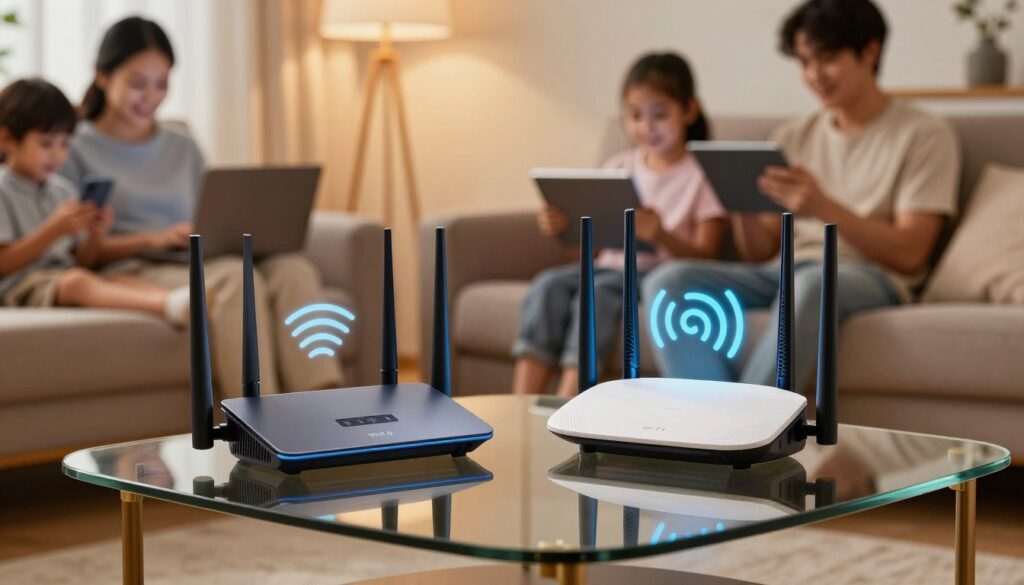
In many U.S. houses, walls, neighbor networks, and a mix of old and new devices shape actual speeds and performance. Internet plan limits also hide gains from upgraded gear.
“Slower” usually means lower speed test numbers, more buffering, or spotty video calls across rooms. Often a phone or laptop will latch onto the 2.4 GHz band, fall back to older modes, or follow router settings that favor stability over top throughput.
This article frames practical causes you can change: band steering pushing low bands, channel width choices, firmware or QoS limits, mesh node placement, and local congestion. The goal is to help you diagnose why wifi 6 slower than wifi 5 happens and decide whether to tweak settings, move hardware, or keep the older standard for some devices.
Key Takeaways
- Real-world performance depends on bands, device support, and settings—not just the standard name.
- Physical layout and neighboring networks in U.S. homes often reduce observed speeds.
- “Slower” shows as lower speed tests, buffering, or inconsistent room-to-room links.
- Wi‑Fi 6 delivers big wins with many connected devices thanks to efficiency, not always peak single-device speed.
- Later sections show fixes: adjust band steering, channel width, firmware/QoS, and mesh placement.
Wi‑Fi 5 vs. Wi‑Fi 6 basics for U.S. home networks
Standards define capability, yet your router, radios, and walls shape what you actually get.
What 802.11ac does on the 5 GHz band
802.11ac—often called Wi‑Fi 5—focuses on the 5 ghz band. It aims for high throughput at short to medium range. This band sees less interference than 2.4 ghz, so single devices can reach strong peak speeds nearby.
What Else Would You Like to Know?
Choose below:
What 802.11ax changes with dual‑band support
Wi‑Fi 6 (802.11ax) brings both 2.4 and 5 ghz band support plus efficiency tools like OFDMA and 1024‑QAM. Those improvements boost shared performance when many devices compete for airtime.
Why the standard and your real speeds differ
Box specs show what the standard can do, not what your household will see. Signal strength, channel congestion, device radios, and router settings all limit real-world speed and connectivity.
- Access method matters: OFDM (older) vs OFDMA (newer) changes how multiple devices share data.
- Older devices can force the network to fall back, so a modern router may act like an older standard.
Specs vs. reality: the numbers that set expectations
Manufacturers quote headline numbers, but home tests tell a different story. Specs like aggregate throughput and lab latency help compare technology, yet they rarely map directly to a device in your living room.
Theoretical max speeds versus real use
3.5 Gbps vs 9.6 Gbps represents aggregate capacity across all radios and streams in ideal lab conditions. It is not a single-phone result.
Typical phones and laptops often see tens to a few hundred Mbps in a room. That still covers heavy tasks like large game downloads, moving files to a NAS, or streaming multiple 4K videos across the house.
Latency in practice
Latency targets of ~20 ms versus ~30 ms are useful goals. Lower delay helps Zoom calls, cloud gaming, and competitive matches where consistency matters more than peak throughput.
But lower latency depends on congestion, airtime efficiency, and signal quality. Devices on 2.4 ghz far from the router may still see higher delay.
Range claims and home layout
Range improvements come from better interference handling, not magic signal penetration. Walls, floors, and materials like brick or tile reduce effective coverage.
Placement, ISP plan, and device radios usually dominate practical performance. Treat headline specs as a ceiling, not a guarantee.
| Metric | Lab Claim | Typical Home Result |
|---|---|---|
| Aggregate throughput | 9.6 gbps | Hundreds of Mbps across multiple devices |
| Single-device peak | Up to multiple Gbps (lab) | Tens to several hundred Mbps in a room |
| Latency target | ~20 ms | 20–50 ms depending on distance and congestion |
| Range | Improved handling of interference | Limited by walls, floors, and device antenna quality |
Why wifi 6 slower than wifi 5 happens in some homes
A fast upgrade can feel disappointing when client devices or router rules prevent newer features from working. Older devices connect fine to a modern router, but they do not use the newest efficiency tools.
Backward compatibility means a device running the prior standard can “anchor” the network. That device may force mixed-mode operation and stop benefits like OFDMA from helping overall performance.
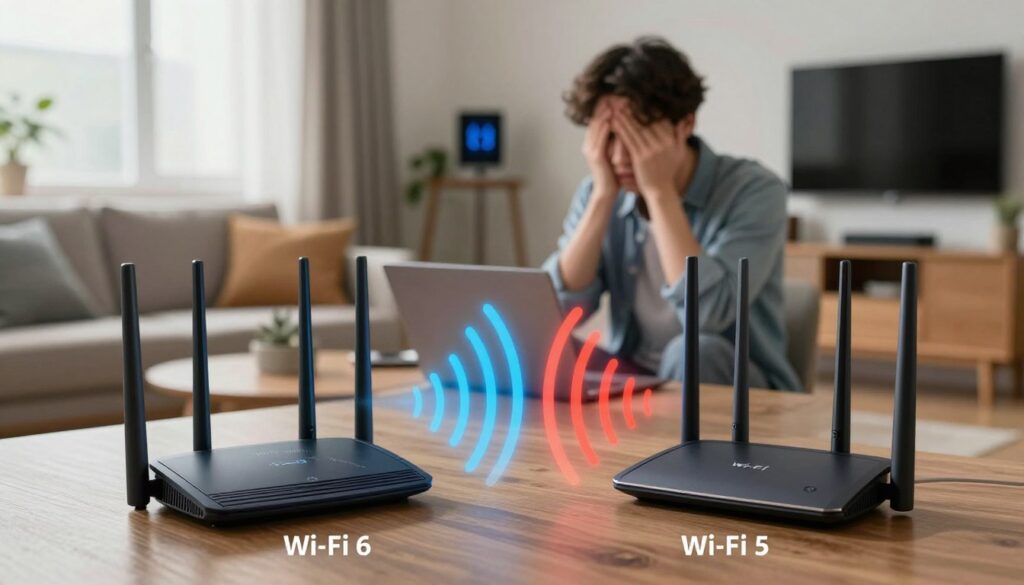
Your device isn’t actually using new features
If a laptop or smart TV is compatible only with the previous standard, it will not gain improved airtime scheduling. One such device can reduce throughput for nearby devices.
Band steering and range vs speed
Many routers steer a device onto 2.4 ghz to keep a stable link at distance. That improves coverage but trades off peak speed compared with a nearer 5 GHz connection.
Router settings that quietly cut throughput
Narrow channel width, outdated firmware, conservative auto-channel choices, or strict QoS rules can all lower effective speed. Check the router configuration before blaming the standard.
Interference and congestion erase efficiency gains
Neighbor networks, microwaves, Bluetooth, and dense device populations cause retransmissions. Even with advanced technologies, a noisy RF environment reduces real-world performance.
Quick diagnostic steps: confirm the device radio, test on both bands, review router settings, and measure interference sources. Find whether the client, band, router, or RF environment is the root cause before changing hardware.
| Root cause | What to check | Expected fix |
|---|---|---|
| Client device limits | Device spec, driver updates | Upgrade adapter or update drivers |
| Band steering | Which band the device uses at distance | Disable aggressive steering or force 5 GHz |
| Router configuration | Channel width, firmware, QoS | Widen channels, update firmware, relax QoS |
| Interference/congestion | Neighbor channels, appliances, Bluetooth | Change channel, reposition router, reduce noise |
Band behavior that makes Wi‑Fi 6 feel slower
Household layout and radio physics often make a modern dual‑band router act differently from lab claims.
2.4 GHz vs 5 GHz: coverage, penetration, and speed tradeoffs
2.4 ghz typically carries farther and goes through walls better, so devices far from the router stay connected. That range comes at a cost: lower peak speed and more local interference.
5 ghz gives higher top speeds in the same room but drops faster across floors or thick walls. In many U.S. homes — router in the living room, office at the far end, bedrooms upstairs — this difference matters.
When faster band links become less stable across rooms
A device in the same room may see dramatic throughput on 5 ghz. Move it through multiple walls and the link can fall back or fluctuate. Those sudden rate drops feel like random slowdowns for streaming or large downloads.
How “smart switching” between bands can interrupt streams and calls
Band steering tries to keep devices on the best band, but mid‑session switching can interrupt a live video call or a streaming session.
Users often run a speed test on the farther, stronger 2.4 ghz link without noticing. That can make a dual‑band system look worse than a single high‑speed 5 ghz setup.
- Neighboring networks crowd 2.4 ghz more, lowering throughput even at strong signal.
- Troubleshoot by forcing one band, testing in multiple rooms, and watching for mid‑session switches.
Next: the article explains why new efficiency features help many devices, even if single‑device peak speed sometimes does not improve.
Wi‑Fi 6 efficiency features that don’t always translate into faster speeds
Today’s wireless updates aim to serve many devices smoothly instead of pushing one device to extremes.
OFDMA: sharing airtime for many small transfers
OFDMA (orthogonal frequency-division multiple access) splits the channel into smaller resource units. That lets the router pack many short uploads and downloads into one timeslot.
This improves responsiveness for smart home gear and background syncs. It helps when many devices send small packets, not when one laptop streams a huge file.
MU‑MIMO and multiple input benefits
Multiple input/multiple output upgrades let routers handle more spatial streams. The change expands MU‑MIMO from mostly downlink to stronger uplink and downlink handling.
That matters for multiple users doing video calls or uploads at once. Still, client devices often have fewer antennas than the router, so real gains depend on the endpoints.
BSS coloring and neighboring networks
BSS coloring marks overlapping transmissions so devices skip fewer opportunities to send data. It reduces unnecessary waiting on crowded channels.
However, color tagging does not remove interference. Strong neighboring signals or heavy overlap can still cut throughput and hurt overall performance.
| Feature | What it helps | When it matters |
|---|---|---|
| OFDMA | Efficient airtime for many small packets | Busy homes with many smart devices and background traffic |
| MU‑MIMO | Serve multiple users with spatial streams | Simultaneous video calls, uploads, and multi-user streaming |
| BSS coloring | Reduce needless channel waiting | Dense neighborhoods with overlapping networks |
Router and device bottlenecks that cap performance
A modern router can offer large theoretical capacity, but everyday devices and placement decide what you actually feel.
Client limitations
Not all devices can take full advantage of newer features. A router cannot force an older phone or laptop to adopt advanced modes. Many clients are 1×1 or 2×2 radios and that limits peak link rates.
WAN vs LAN: where multi‑gbps helps and where it doesn’t
Your internet plan often sets the top observed speeds. If the ISP plan is 300–500 Mbps, multi‑gbps capacity on the local network won’t raise internet test numbers.
Local data transfer, backups, or NAS copies can still benefit from higher gbps throughput inside the home even when the WAN is slower.
https://www.youtube.com/watch?v=JJlsy8V0JvU
Mesh, backhaul, and access point placement pitfalls
Poorly placed mesh nodes or access points reduce range and cut effective throughput. A node behind many walls can behave worse than a single well‑positioned router.
Wired Ethernet backhaul stabilizes multi‑node setups and preserves speeds. Wireless backhaul can halve or worse the usable bandwidth if the node link is weak or congested.
- Practical tips: put APs centrally, elevate them, and keep them away from metal or large TVs.
- Validate client capabilities before an upgrade. Test in different rooms and check both LAN and WAN results.
| Issue | Check | Fix |
|---|---|---|
| Client radio limits | Device spec, driver | Upgrade adapter or update drivers |
| Slow ISP plan | Speed test to WAN | Consider plan upgrade or accept LAN-only gains |
| Weak mesh link | Signal between nodes | Use Ethernet backhaul or reposition nodes |
Upgrade framing: optimize placement and confirm which devices will actually benefit before buying higher‑tier gear.
When Wi‑Fi 5 can outperform Wi‑Fi 6 at home
In compact apartments a well‑tuned 5 ghz setup often delivers all the speed most users need.
Single-user, short-range scenarios
Single users near the router see strong real‑world throughput on 5 ghz. For simple tasks, a mature 5 GHz connection gives stable speeds that feel the same as newer gear.
Homes with few connected devices
When a household has few connected devices, advanced scheduling offers little benefit. The network has low contention, so OFDMA and similar features are unused.
Conservative router defaults or band steering can make newer routers favor 2.4 ghz for range. That change may cut peak speed and make the newer standard look worse.
For browsing, HD streaming, and casual gaming in a small flat, a dedicated 5 ghz SSID can be more predictable. Many users prefer simpler behavior over marginal theoretical gains.
| Scenario | Why 5 ghz wins | Real-world use |
|---|---|---|
| Single device close to AP | High link rate, low contention | Large downloads, HD streaming |
| Few connected devices | Advanced efficiency unused | Stable browsing, video calls |
| Conservative router settings | Band steering to 2.4 ghz | Worse peak throughput |
Next: contrast these low‑load cases with busy homes that benefit most from modern efficiency and low latency.
When Wi‑Fi 6 should be faster and more reliable
When many gadgets share the same link, scheduling and airtime management make a real difference.
Many connected devices — phones, tablets, smart home gear, and laptops — compete for airtime in busy households. OFDMA and improved MU‑MIMO let the router serve multiple clients at once. That reduces contention and often offers faster real experiences for users, not just higher lab numbers.
Better responsiveness for latency-sensitive use
Lower typical latency (~20 ms vs ~30 ms) helps when multiple people game, use video conferencing, or stream live content. Consistent latency cuts spikes that can break a match or freeze a video call.
Security and power gains that matter
WPA3 brings stronger security for U.S. households as more devices join the network. It reduces risks from weak device passwords and improves overall network protection.
Target Wake Time lets endpoints coordinate wake/sleep schedules. Phones, tablets, and IoT gear can sleep longer, draw less power, and extend battery life between charges.
| Benefit | Why it helps | When it applies |
|---|---|---|
| Multi‑device scheduling | OFDMA + MU‑MIMO reduce collisions | Homes with many active devices |
| Lower latency | Fewer spikes, steadier packets | Gaming, video calls, live streaming |
| WPA3 security | Stronger encryption and protection | Smart home devices and personal data |
| Target Wake Time | Coordinated sleep reduces power use | Battery‑powered devices and sensors |
Decision lens: if your home is device‑dense or you rely on frequent video calls and streaming, this standard’s consistency and security upgrades often matter more than a single speed test. For the best outcome, ensure compatible client devices, a good 5 GHz signal where needed, and router settings that allow wider channels and clean frequencies.
Conclusion
Upgrading gear doesn’t guarantee instant gains; real benefits appear when client support, placement, and settings align. A modern router can list up to 9.6 gbps, but that ceiling only helps when devices use the new features and the home environment is clean.
Key takeaway: slower observed speeds often come from client fallbacks, band steering to the 2.4 ghz or other ghz band choices, interference, or poor placement. Prioritize client capability, band selection, RF cleanup, and router settings before replacing hardware.
Quick decision guide: keep or tune a mature 5 GHz setup for short‑range needs. Choose the newer standard for many devices and better long‑term consistency. If range is the problem, add mesh nodes or Ethernet backhaul. Validate which band and link rate each device reports, and confirm WPA3 and security status before assuming a defect.
Bottom line: the upgrade usually wins for long‑term network reliability and security, but only when you configure and place your gear to let those benefits show.
FAQ
Why can Wi‑Fi 6 be slower than Wi‑Fi 5 in some homes?
What are the core differences between Wi‑Fi 5 (802.11ac) and Wi‑Fi 6 (802.11ax) for U.S. home networks?
Why do theoretical maximum speeds differ from what I see at home?
How do the headline specs (3.5 Gbps vs 9.6 Gbps) translate to real usage?
Does Wi‑Fi 6 reduce latency compared to Wi‑Fi 5?
How does home layout affect range and performance?
What causes a device not to use Wi‑Fi 6 features even when the router supports them?
How does band steering to 2.4 GHz affect speeds?
Which router settings commonly reduce throughput?
Can high interference or network congestion negate the efficiency gains of Wi‑Fi 6?
What are the practical tradeoffs between 2.4 GHz and 5 GHz bands?
Why might a 5 GHz connection be faster but less stable across rooms?
How can “smart switching” interrupt streaming or calls?
What does OFDMA do, and why doesn’t it always increase my device’s speed?
How does MU‑MIMO improve performance in busy homes?
What is BSS coloring and does it eliminate neighbors’ interference?
How do client device limitations cap overall performance?
Why does a slow internet plan hide the benefits of a faster local network?
How do Ethernet backhaul and mesh placement affect performance?
In what home scenarios can Wi‑Fi 5 outperform Wi‑Fi 6?
When should Wi‑Fi 6 provide clear benefits?
What security and power‑saving upgrades come with Wi‑Fi 6?
Why Wi-Fi Gets Slow During Video Calls and How to Fix It Fast
» See exclusive tips for your home