Phone Wi-Fi Is Slow but Other Devices Are Fine
Troubleshooting guide for 'phone wifi slow but others fine' issues. Learn why your phone's Wi-Fi is slow and how to fix it when other devices are working fine.
Symptom: your handset loads pages or videos slowly while laptops and TVs on the same network feel normal. That pattern points to a single-device connection issue rather than a total internet outage.

“Slow” can mean many things: pages render slowly, video buffers, apps lag, or speed-test numbers are low. Different apps stress different parts of the network, so expect varied results.
We start with checks that don’t change settings, then move to targeted changes. First, confirm it’s only your handset. Next, try fast restarts of the device and the router. If that helps, the fix was quick and low-risk.
If restarts don’t help, the guide digs into signal and interference, bands and channels, device settings and apps, router health, and finally ISP-level issues like congestion or throttling. Make sure to test one change at a time and re-run a speed test after each step.
Some variance across devices is normal. Phones may use different radios, antennas, or power-saving modes. If the handset is slow on every network, the problem is likely the device software, a VPN, or background apps. If it’s only slow at home, the router environment is the more likely reason.
Key Takeaways
- Confirm the issue affects only your handset before troubleshooting the network.
- Start with quick restarts of the device and the router.
- Test one change at a time and re-run a speed test to measure impact.
- Check signal, interference, frequency bands, and device settings next.
- If the handset is slow everywhere, focus on device software and apps.
- If the problem is only at home, inspect the router and local environment.
Quick checks to confirm it’s only your phone (not the internet connection)
Start with a simple comparison: run a speed check on your handset and on another device while both are on the same network. Record download, upload, and ping. If the handset’s numbers are consistently lower, the issue is device-specific.
What Else Would You Like to Know?
Choose below:
Test from the same room and position first to reduce variables. Then repeat from the spot where performance felt poorest to see if signal or interference is at fault.
- Run multiple speed tests across different time windows: morning, afternoon, and peak evening hours. This reveals home congestion or provider traffic patterns.
- Compare results: phone-only means one device shows lower speeds while other devices perform normally. An internet-wide problem shows all devices slow at the same time.
- Try the handset on a different network (work, friend’s place, hotspot). If speeds recover, focus on router placement, band/channel, and local interference at home.
For a baseline, connect a computer to the modem via Ethernet and run a test. That gives the clearest view of your internet connection and available bandwidth. If the handset remains limited everywhere, inspect apps, VPNs, or OS settings on the device.
Restart and refresh your connection before changing settings</h2>
A quick restart often clears transient issues and is the fastest fix to try first.
Power-cycle the modem and router the right way:
- Unplug power from the modem first, then the router or gateway.
- Wait 60 seconds to let capacitors drain and temporary memory clear.
- Plug the modem back in and allow it to fully boot (this can take up to 20 minutes).
- When the modem shows ready, plug the router in and wait until the network lights stabilize.
Why this helps: clearing RAM and restarting processes can reset routing tables, DNS caches, and transient firmware states. That often resolves short-term routing or name-resolution hiccups without changing settings.
Restart the handset and rebuild the saved profile
Restart the device—not just toggling the wireless switch—to reset the network stack and stop stuck background tasks. A full reboot clears temporary memory and can restore normal operation.
If the problem persists, forget the network on the device and reconnect. This removes a possibly corrupted profile and forces a fresh handshake with the router. Make sure you re-enter the correct password and pick the intended SSID (2.4 GHz and 5 GHz names can look similar).
After each action, re-run the same speed test to see which step fixed the connection. If resets only help temporarily, the recurring issue often points to congestion, interference, firmware bugs, or an app/VPN behavior that returns.
phone wifi slow but others fine: the most common causes on a single device</h2>
When one handheld device lags while other gear runs smoothly, the cause is usually local to that device or its placement.
Weak signal from distance or obstacles. Walls, floors, and furniture can cut the signal strength. Small antennas in a handset make it more prone to loss at greater distance. If speed jumps when you stand next to the router, you have a coverage problem, not an ISP issue.
Interference and household noise. Neighboring routers on the same channel create congestion. Common appliances add electronic noise, especially on 2.4 GHz. These sources cause choppy video, high ping, or dropped streams in parts of the home.
Device hardware and operating limits. Older radios, limited Wi‑Fi standards, or aggressive power management can cap real-world throughput. When the handset never reaches expected numbers anywhere, check the device’s capabilities and software.
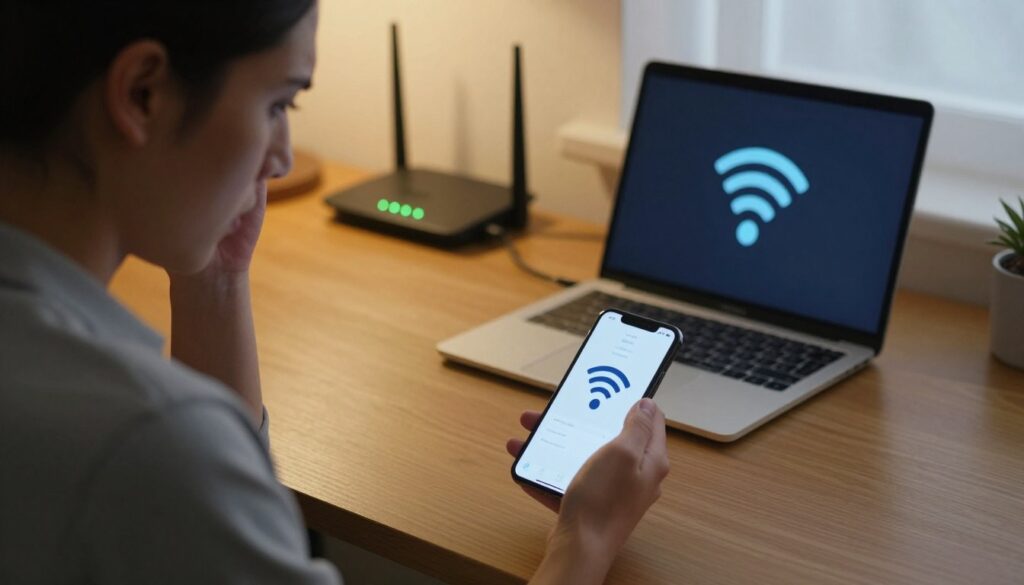
- Symptoms map: weak bars = placement or distance; only one room affected = interference; always slow = device limits.
- Next steps preview: test signal strength and placement, then optimize bands/channels, then inspect device settings and apps.
Signal strength and distance issues that impact a phone first</h2>
A weak wireless signal often shows up first on handheld devices when distance or obstacles weaken reception. Use the device’s indicator as a quick proxy before changing settings.
Check your phone’s Wi‑Fi meter and verify you’re getting a strong signal
Look at the signal icon on the screen. Low bars in one room usually point to local signal loss rather than an ISP fault.
Move closer to the router to confirm whether signal strength is the bottleneck
Stand next to the router and run the same speed test you used earlier. If numbers jump, distance and signal loss are the problem.
Improve router placement for better coverage throughout the home
Walls, floors, and metal objects weaken signals. Placing the router centrally and elevated often expands usable coverage across the home.
“Even small relocations can yield large gains—try moving the router a few feet and test again.”
| Action | Why it helps | When to try |
|---|---|---|
| Check signal meter | Quick indicator of local signal strength | Before making any changes |
| Test at the router | Confirms distance is the bottleneck | If one room shows low results |
| Move router slightly | Reduces obstacles and interference | When coverage gaps appear |
| Consider mesh or extender | Eliminates persistent dead zones | After basic placement and channel fixes |
Placement tips: keep the router away from thick walls and large metal objects. Avoid cabinets and appliances that emit interference. Aim for line-of-sight to main living areas so signals can travel with fewer obstacles.
If small moves only help a little, the next steps are band and channel optimization to get better results. Persistent dead zones may need a mesh system or extender after you finish the basic checks.
Optimize bands and channels for better phone speeds</h2>
Choosing the right band and channel reduces interference and helps small devices get better throughput in dense homes.
Choose 5 GHz vs. 2.4 GHz based on range and interference
5 GHz normally delivers higher real-world throughput and sees less congestion at close range. If you are near the router or have a clear path, prefer 5 GHz for higher performance.
2.4 ghz reaches farther through walls and floors, but is more prone to interference from household appliances and neighboring networks. Use 2.4 ghz when distance or obstacles matter more than peak speed.
Switch channels to reduce neighborhood congestion
Many routers default to Auto, which can leave you on a crowded channel. In apartments or dense areas, overlapping broadcasts create high contention on the same channel and hurt smaller clients first.
How to try a new channel:
- Log into the router settings and find the wireless channel selector.
- Pick a less-used channel (use a scanner app if available) and save changes.
- Test performance and repeat until speeds improve.
Cut 2.4 GHz interference from household devices
Common sources of interference include microwaves, cordless phones, and wireless doorbells. Relocate the router away from these appliances or switch the device to 5 GHz when possible.
Dual-band routers can broadcast both bands at once, keeping compatibility for older devices while freeing 5 GHz for higher-performance use.
Final tip: after any change, verify the handheld actually connects to the intended band and channel. Re-test to confirm the change helped your ability to connect internet and get better speeds.
Phone settings and apps that silently slow your network speeds</h2>
Apps and settings on a handheld can quietly eat bandwidth or add latency without obvious signs.
Disable VPN to check for encryption overhead or a slow VPN server
Why try this: a VPN adds encryption and routes traffic through remote servers. That can add latency and reduce raw speeds.
Temporarily turn the vpn off, run a speed test, then turn it on and test again. If results differ a lot, try a different server or a higher-quality vpn app.
Clear browser cookies and app cache when pages and apps load slowly
If a browser or an app loads content sluggishly despite decent internet speed numbers, clearing cookies and cache can help.
Open the app settings, clear cache for the troubled app, then relaunch and retest. This often fixes page rendering and media playback issues.
Check background apps, downloads, and updates that can hog bandwidth
Look for these common bandwidth hogs on the device:
- App updates and OS downloads in progress
- Cloud photo sync or backup tasks
- Podcast or video downloads and active streams
Pause or stop these tasks, then rerun the same speed test to isolate the cause.
Update your operating system and apps to fix performance and Wi‑Fi bugs
Keep the operating system and major apps current. Many connectivity bugs get fixed in routine updates.
If the handset still shows degraded performance after updates, the next step is to check router/modem stability and firmware for compatibility issues with that device.
Test recommendation: run a controlled comparison with vpn off and on, and pause background sync before each run to get clear results.
Router and modem checks when only one device acts up</h2>
D. A targeted hardware inspection often finds the root cause when one device behaves differently on the same network.
Confirm router firmware is updated and stable for current devices
Why firmware matters: updates fix compatibility and stability issues that can affect a single handset or model. Even if most devices look fine, a firmware patch may resolve odd drops or handshake errors.
Safe update approach: note the current firmware version, schedule the update during low-usage hours, apply the update, and allow the router to fully reboot. Re-test the affected device right after the reboot to see if performance improved.
Inspect cables and connections between modem and router for signal degradation
Loose or damaged cables can produce intermittent issues that look like device-level problems. Check that Ethernet plugs click into place and that coax is screwed hand-tight.
- Ethernet: listen for a click, ensure the latch is intact, replace if kinks, tears, or chew marks appear.
- Coaxial: hand-tight connector, no crushing or visible damage; a bad coax can degrade signals and overall service.
- If a cable looks suspect, swap it with a known-good spare and retest.
Quick isolation test: connect a computer directly to the modem via Ethernet and run a speed check. If the wired result matches your plan, the issue is likely the router or its wireless setup rather than the ISP.
“A few minutes of hardware checks often saves hours of guessing.”
If hardware and firmware checks don’t explain the symptoms, the next step is to review ISP-level limits and plan-level factors that can cause device-specific performance problems.
When the ISP, plan speed, or throttling is the real issue</h2>
If device tweaks don’t help, it’s time to consider limits set by your internet provider or the plan itself. Network-level problems can look like device faults when congestion or throttling targets specific traffic.
Low bandwidth vs. high latency
Low bandwidth shows as long downloads and buffering. High latency causes lag in gaming or video calls even if Mbps looks okay. Measure both download numbers and ping to understand the real issue.
Peak-hour congestion and throttling
Run tests at different times of day. Repeated evening drops point to provider congestion. To check for throttling, compare a regular speed test with one run while using a VPN. Faster results with a VPN can indicate traffic shaping.
Expectations and next steps
Remember that “up to” plan speeds are not guaranteed. Line quality, neighborhood load, and modem provisioning affect results. If tests show consistent shortfalls, contact the ISP, verify modem activation, and ask about outages or congestion.
- Document multiple tests across days before calling support.
- Consider upgrading to fiber or 5G home service for better bandwidth and lower latency.
If only one device is slow while others test well at the same time, provider congestion is less likely—but still worth ruling out.
Conclusion</h2>
Finish troubleshooting with a clear checklist so you can track what you changed and when. Start by confirming the issue affects only your device, then restart gear, test, and isolate the cause.
Next address signal and placement, optimize band and channel choices, review apps/VPNs and updates, then validate the router and modem. Follow a one-change-at-a-time approach so each step shows measurable results.
If speeds improve near the router, focus on coverage. If performance returns on other networks, inspect your home network setup. If the problem follows the handset everywhere, hunt device software or hardware faults.
Make sure to log test times, results, and actions taken. Persisting problems after these steps may warrant contacting the manufacturer, replacing aging hardware, or discussing plan and congestion with your provider. Finally, make sure the handset reconnects to the intended wi‑fi band and that background downloads or a VPN do not reintroduce the issue.
FAQ
How can I confirm the issue is only with my phone and not the internet connection?
What’s the correct way to power‑cycle my modem and router?
Should I restart my phone or forget the network before changing settings?
What common device‑specific causes slow a single handset?
How do I check if signal strength or distance is the bottleneck?
What router placement tips improve coverage for mobile devices?
When should I use 5 GHz instead of 2.4 GHz for better mobile performance?
How can changing channels reduce congestion for my phone?
Could household devices be interfering with my handset’s signal?
Can apps or settings on the phone silently slow down my connection?
Should I test speeds with and without a VPN to diagnose throttling?
How do router firmware and cable connections affect just one device?
How can I tell if my ISP plan or peak‑hour congestion is the real problem?
When is it time to consider switching to a different service type like fiber or 5G home internet?
Why Wi-Fi Gets Slow During Video Calls and How to Fix It Fast
» See exclusive tips for your home