Android Says ‘Connected’ but No Internet: What to Check
Android wifi connected but no internet? Learn how to diagnose and fix the problem with our comprehensive troubleshooting guide.
Problem in plain terms: Your android phone shows a normal wifi icon and says it is connected, yet web pages and apps fail to load. Typical messages include “site can’t be reached,” stalled downloads, or app stores that won’t update.
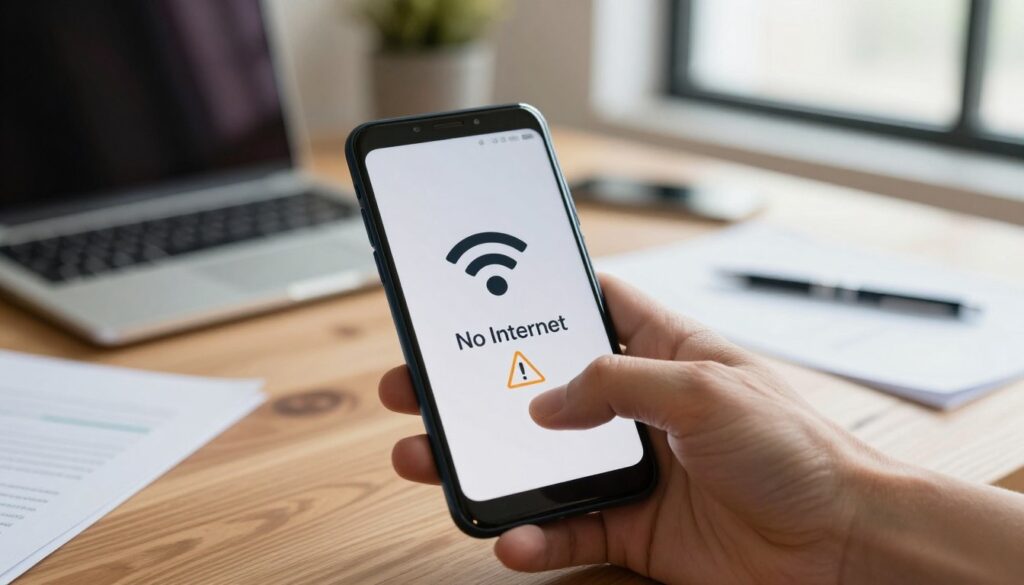
That status means the device joins the local network but lacks access beyond the router to the wider internet. In other words, the phone talks to the router but can’t reach web servers.
This guide walks you through a clear troubleshooting flow. First, confirm whether the problem affects only one phone or all devices on the home network. Then try fixes from simplest to advanced: restart, check IP and DNS settings, verify system time, and review router or ISP issues.
Common outcomes include pages not loading, streaming that buffers, and stalled app updates. Causes are usually router or service problems, or local settings like DNS, IP assignment, or time and date on the device.
Scope: Steps use present-day menus and work across Samsung, Pixel, and OnePlus models, with notes where labels differ. Later sections cover both phone settings and router/ISP checks so you avoid unnecessary resets.
Key Takeaways
- “Connected” can mean local network access only, not full internet reachability.
- Check whether one phone or all devices are affected before changing settings.
- Try simple fixes first: restart phone and router, then check IP and DNS.
- Common signs: pages fail, downloads stall, and streaming buffers.
- Causes often stem from the router or ISP, or from device DNS/time misconfiguration.
Quick checks to confirm whether the issue is your phone, the router, or your internet service
Start by isolating where the outage lives: on your phone, the local network, or with your service provider. This fast check helps decide whether to tweak device settings or contact the ISP.
What Else Would You Like to Know?
Choose below:
Test other devices on the same network
Try a laptop, tablet, smart TV, or another phone on the same wifi. If those devices load pages, the problem is likely specific to your android device.
If every device also fails, the issue most often lies with the router or the internet service provider. In that case, follow the router and ISP steps later instead of changing phone settings.
Check for sign-in pages (captive portals)
Some public and shared networks require a sign-in or terms page. Until you accept, the phone may show a connected wifi status but lack usable internet.
Trigger the login by toggling wifi off/on, tapping the network name, or opening a browser to force the sign-in page.
Reboot your device and verify basic access
Restarting often clears temporary glitches from long uptime or roaming between access points. After reboot, load a lightweight site and open an app store to confirm the internet connection is restored.
- Next questions this guide answers: is the network assigning the right IP, is DNS resolving, and is traffic being filtered?
Why android wifi connected no internet happens
Local link only proves the phone talks to the router. For full access, the router and modem must forward traffic to the provider and resolve names into addresses.

Router glitches that block internet traffic
Routers can suffer firmware hiccups, full routing tables, or misbehaving features. These faults often leave the local signal intact while failing to pass traffic onward.
ISP interruptions and line problems
Outages, maintenance, weather, or damaged cables can cut the internet connection at the provider. The local network keeps running, so devices still show a normal link.
Address conflicts from DHCP errors
DHCP can assign duplicate addresses when it malfunctions. Two devices with the same address break routing and produce intermittent access problems.
DNS failures and filtering appliances
If DNS cannot translate domain names, apps and browsers can’t find websites. A misconfigured Pi-hole or similar filter on the network can cause widespread resolution failures.
Wrong time and certificate failures
Incorrect date or time breaks HTTPS validation. Even with a working link, secure sites may refuse connections if certificates appear invalid.
Diagnostic tip: If Safe Mode did not help, third-party apps are less likely the cause. That points toward router, DNS, or provider-side issues.
| Cause | What it affects | Quick check |
|---|---|---|
| Router firmware or routing table | All local devices’ outbound traffic | Power-cycle router; check firmware updates |
| ISP outage or line damage | Internet connection for entire service | Check provider status page or test another network |
| DHCP address conflicts | Single-device or intermittent failures | Reboot devices or assign a static address |
| DNS server or Pi-hole misconfig | Domain resolution for apps and sites | Switch DNS to a reliable provider temporarily |
| Incorrect system time | HTTPS and certificate validation | Set automatic date & time on the device |
Step-by-step fixes on your Android device (fastest → advanced)
Begin by trying the fastest device steps so you can stop once access returns.
Forget and reconnect
Open Settings → Network & internet → wifi network details, tap Forget, then reconnect. This forces a fresh IP and clears stale cached parameters.
Reset network settings
If forgetting the network fails, use Reset network in Settings. This clears Wi‑Fi, mobile data, and Bluetooth configs. You must re-enter saved passwords.
Change DNS
Set DNS to a known provider (8.8.8.8 / 8.8.4.4) in the network’s Advanced options. Swapping DNS quickly rules out name‑resolution or filter issues.
Assign a static IP
In Advanced network settings switch from DHCP to Static and pick an unused address to avoid repeat address conflicts on busy networks.
| Action | Effect | When to stop |
|---|---|---|
| Forget & reconnect | Fresh IP; clears cached prefs | If browsing works, stop |
| Reset network settings | Removes corrupted configs | Stop if connection restores |
| Change DNS / Static IP | Fixes name resolution & address conflicts | Stop when apps load normally |
| Safe Mode / uninstall apps | Rules out VPNs, blockers, or apps | If safe mode fixes it, remove recent apps |
| Repair tools / factory reset | Software repair or full system wipe | Back up data first; use as last resort |
Verify system time is automatic. If device issues persist only on the phone, test in Safe Mode and review VPN, firewall, or private DNS apps. Consider reputable repair software that downloads firmware only after standard steps fail. Use a factory reset as the final option and back up all data first.
Router and ISP troubleshooting when your WiFi is connected but internet still won’t load
When several devices show the same problem, focus on the router and your provider before changing device settings again.
Power-cycle the modem and router: Unplug the modem and router (or gateway), wait about 60 seconds, then plug the modem back in first. Wait until its lights stabilize, then plug the router in. This refreshes the WAN session and forces renegotiation with the service provider, which often restores internet access.
Confirm DHCP and reduce address conflicts
Log into the router admin page. Check the DHCP lease table to ensure the router is assigning addresses normally. Clear stale leases or shorten lease time if many devices show duplicate addresses.
Look for duplicate reservations or static entries that overlap. If address conflicts appear, assign distinct static addresses or expand the DHCP pool to reduce collision problems.
Contact your internet service provider
If multiple devices still lack wifi internet after power-cycling and DHCP checks, call your ISP or use their outage map. Tell support that several devices show connected wifi but no external access, you power-cycled modem/router, and DHCP checks were performed. That helps technicians run targeted remote diagnostics for line, signal, or account issues.
“If every device can reach the router admin page but not external sites, the upstream link or provider service is the likely fault.”
| Action | Why it helps | When to escalate |
|---|---|---|
| Power-cycle modem & router | Clears routing cache; refreshes WAN session with provider | If multiple devices still lack internet access |
| Check DHCP lease table | Finds duplicate addresses and stale leases | If devices show IP conflicts or intermittent drops |
| Review router settings | Detects custom DNS, filters, or parental controls blocking traffic | If sites load locally but external pages fail |
| Contact ISP | Provider can confirm outages, signal issues, or account problems | After basic steps fail and multiple devices are affected |
Conclusion
First, figure out whether the issue lives on a single phone or across the whole household network. That step decides whether to focus on the device or your wider setup.
Start with the least invasive fixes: forget and reconnect to the wifi, reset network settings, and change DNS. After each change, make sure you test by loading a basic page or an app that uses HTTPS.
If Safe Mode does not help, make sure to inspect router DNS and any network filters before using static IPs, repair tools, or factory reset. Work up the steps in order and stop when normal internet access returns.
As a final check, load several sites, run an HTTPS app, and confirm stable connectivity after sleep and reconnect cycles.
FAQ
What should I check first when my phone shows it’s connected but I can’t load websites?
How can I tell if the problem is my device, my home router, or my internet service provider?
Could the router show a live connection while blocking internet access?
What role does my ISP play when webpages won’t load despite a strong network link?
How do IP address conflicts cause an active connection without web access?
Can DNS issues make it look like I’m online but pages won’t open?
Why would incorrect date and time settings block secure websites?
What’s the fastest fix on the device when pages won’t load?
When should I reset network settings or change DNS on my phone?
How do I avoid repeated IP address conflicts on my home network?
Could apps, VPNs, or Safe Mode reveal why only one device can’t access the web?
When is a factory reset warranted and how should I prepare?
What router steps help when the LAN is up but the internet won’t load?
When should I contact my internet service provider for help?
Are there system repair tools I can use before seeking professional help?
Smart Home Devices That Crowd Your Wi-Fi
» See exclusive tips for your home