PS5 Wi-Fi Slow or Unstable: How to Improve It
Fix ps5 wifi slow issues with our troubleshooting guide. Learn how to improve your PS5's Wi-Fi connection for a seamless gaming experience.
Not getting expected speeds on your console? Many players see lower-than-expected throughput or an unstable connection even with a fast plan. That can look like uneven download rates, lag in online gaming, or a clear ceiling on 5 GHz performance in certain rooms.
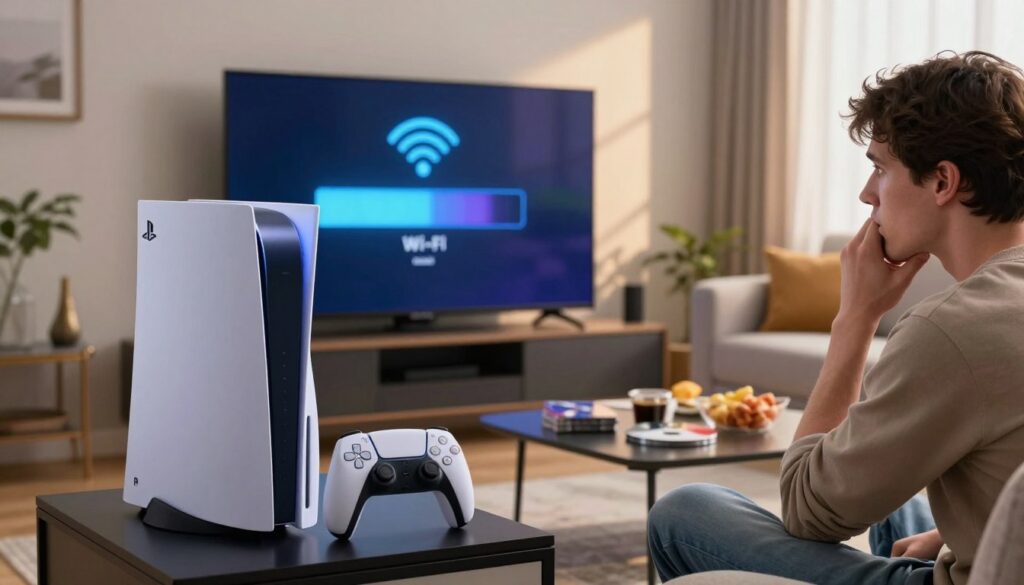
Real-world limits often come from the environment, router behavior, or the console itself rather than the ISP alone. Some setups top out around ~250 Mbps on 5 GHz due to overhead and interference.
This short guide previews a practical flow: first diagnose whether the issue is the console, home network, or external services. Then apply quick fixes — reboots and simple settings — before moving to deeper setup changes or switching to an Ethernet cable.
What you’ll get: a concise checklist to boost download speeds, steady online play, and clear criteria for when wired is the better choice. Many problems clear in minutes; full optimization depends on room layout and equipment.
Key Takeaways
- Lower-than-expected speed often stems from local interference or hardware, not just the ISP.
- Stability matters more than peak speed for smooth gaming.
- Expect a real-world ceiling on 5 GHz in some setups (around ~250 Mbps).
- Start with quick reboots and tests before major changes.
- Follow the checklist to improve download speeds and decide on Ethernet.
Diagnose what’s causing slow speeds and an unstable PS5 connection
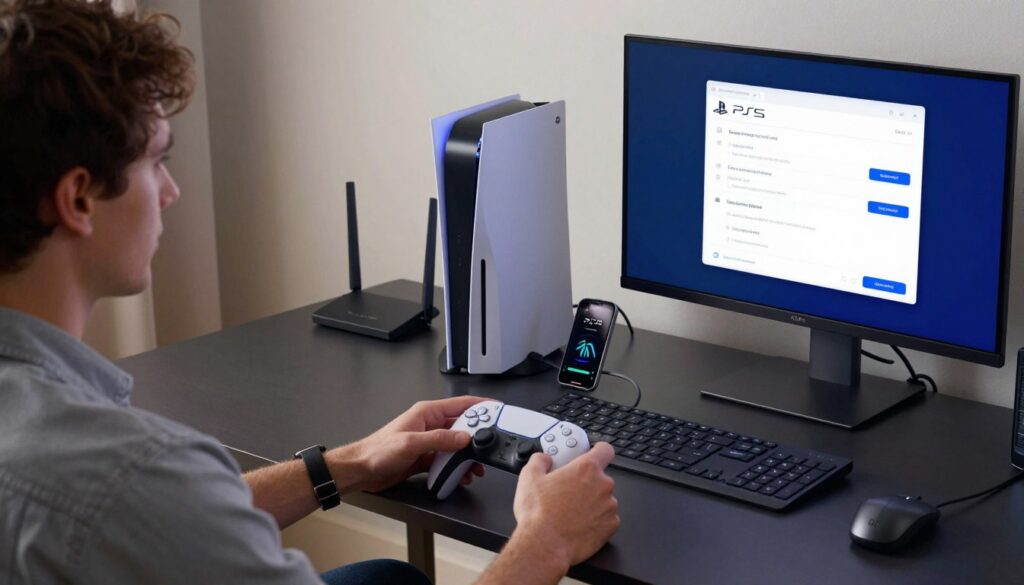
Start by narrowing down whether the problem lives in your console, your home network, or an external server. A short checklist helps you sort symptoms and pick the right fix without guesswork.
Common symptoms and what they mean
Lag during online games often points to latency or jitter, not raw download speeds. Buffering during streams signals unstable throughput. Low download rates usually indicate congestion, weak signal, or the wrong band.
What Else Would You Like to Know?
Choose below:
Quick isolation test
Check other devices on the same network—phone, laptop, or streaming TV. If they show the same problems, focus on the router, modem, interference, or heavy network load.
Run console and external checks
Run the PS5 network test at different times to spot peak-hour congestion. Also verify PlayStation Network status and specific game servers; outages can mimic a bad connection at home.
Bands, range, and real-world limits
Confirm whether the console is on 2.4 GHz or 5 GHz. 5 GHz usually gives better speeds for games but has shorter range. 2.4 GHz reaches further but faces more crowding and interference.
Decision point
If only the PS5 has trouble, treat it as a console-side setting or hardware issue. If multiple devices struggle, concentrate on the router/modem and the home network. This quick map keeps fixes targeted and efficient.
Fast fixes for ps5 wifi slow problems
A short sequence of reboots and a placement check will show if the problem is local or network-wide. Follow these steps in order for the quickest wins before moving to deeper changes.
Fully reboot the console to clear stuck network states
Power off completely — don’t leave the PS5 in Rest Mode. Hold the power button until the system shuts down, wait 30 seconds, then restart.
Why it helps: a full reboot clears frozen network sockets and stalled downloads that a soft sleep won’t fix.
Restart modem and router (power cycle)
Unplug the modem and router, wait 30–60 seconds, then plug the modem back in first, then the router. Wait for lights to settle.
What this resets: DHCP leases, routing tables, and transient connectivity glitches that affect all devices.
Move devices and run a quick comparative test
Temporarily place the console and router in the same room. Re-run the connection test and start a download.
Pause other large downloads or streams for 10 minutes to rule out congestion.
- Make sure the correct network and password are selected.
- Make sure the console is not attached to a weak extender node.
| Step | Action | Expected result |
|---|---|---|
| 1 | Full console shutdown and restart | Clears stuck connections, may restore download speed |
| 2 | Power-cycle modem & router | Resolves network-wide glitches for all devices |
| 3 | Move to same room and retest | Confirms whether walls/distance cause weak signal |
| 4 | Pause other traffic | Shows if household load limits download stability |
Optimize your Wi‑Fi setup for smoother gaming and faster downloads
Small placement and band choices can turn a jittery connection into steady downloads and gameplay.
Choose the best band for your room: prefer 5 GHz for higher speed when the console sits near the router. Use 2.4 GHz when distance or walls drop performance. That trade-off balances throughput and range and often fixes common download issues quickly.
Reduce interference from other devices
Keep the router away from dense electronics and metal cabinets. Move cordless phones, microwaves, and Bluetooth speakers off the same shelf.
Pause large transfers on other devices during big downloads. Fewer competing streams gives more consistent speeds for game updates.
Mesh systems and weak backhaul links
A mesh node too far from the main unit can force a single-band link and cut real throughput. To diagnose, move the satellite 1–2 meters next to the main node.
If it then connects on both bands, placement is the issue. If it still uses one band, suspect defective hardware or a bad backhaul.
“Stable throughput matters more than peak numbers when downloading large game files.”
Match router and modem to your internet plan
Verify your router and modem support the plan speed and the Wi‑Fi generation you need. Older gear can bottleneck even when the ISP delivers more.
| Area | Quick check | Best fix |
|---|---|---|
| Band choice | Is the console near the router? | Use 5 GHz when close; switch to 2.4 GHz for range |
| Interference | Are many devices active nearby? | Move router, limit competing traffic |
| Mesh link | Does the satellite use one band? | Move node within 1–2 m or add wired backhaul |
| Equipment fit | Does modem/router match plan tier? | Upgrade hardware or plan as needed |
Best next option: if placement can’t improve the room, consider a wired backhaul or a cable run to the console. A short cable or a properly placed node often beats repeated troubleshooting.
Advanced options when the PS5 connection still isn’t stable
If the connection keeps failing after quick fixes, use advanced tools and a cable test. This section shows targeted steps to narrow the fault and regain steady downloads and play.
Use PlayStation’s Fix and Connect tool
Run the tool on PlayStation’s support site, choose Internet Connection, and answer the prompts. It will suggest whether the issue is local, PSN-related, or console-specific.
Try changing DNS settings
DNS changes won’t raise raw bandwidth, but they can improve reliability and resolve occasional lookup delays.
- On the system, set Primary DNS to 8.8.8.8 and Secondary to 8.8.4.4.
- Test downloads and matches both before and after the change to measure effect.
Switch to a wired connection
A direct Ethernet cable to the router gives the most stable link for gaming. It reduces interference and packet loss compared with wireless bands.
If a permanent run isn’t convenient, try a temporary cable to confirm improvement. For tidy installs, route the cable along baseboards or use discreet clips.
When to escalate
If problems persist while other devices are fine, consider upgrading your plan, scheduling big downloads off-peak, or contacting Sony support.
“If you rule out network and external service issues, visit Sony’s Fix and Replace page for repair or replacement options.”
Conclusion
Conclude with a short plan: identify whether the issue is the ps5, your home network, or external servers. Apply quick fixes first, then optimize placement and bands, and finally try advanced tools if instability remains.
Prioritize consistency over raw speed. Stable downloads and low jitter matter more for gaming than headline Mbps. Focus on signal quality, correct band choice, and reduced interference to get steady speeds.
Remember that wireless ceilings are normal and can persist for years across different homes. If you can run one cable, choose Ethernet as the most reliable option.
If a cable is not feasible, use 5 GHz when the console sits near the router and switch to 2.4 GHz for greater range. If problems continue after these steps, treat them as either a network equipment limitation or a console hardware issue and follow the appropriate escalation path.
FAQ
How do I tell if the problem is my console, my home network, or PlayStation servers?
Does using 2.4 GHz or 5 GHz matter for online gaming and downloads?
What simple steps should I try first to fix an unstable connection?
Is a wired Ethernet cable worth using instead of wireless?
How can I check if my router or internet plan is the bottleneck?
Will changing DNS settings improve download reliability or speed?
What role does mesh Wi‑Fi play, and what should I watch for?
How can I reduce wireless interference at home?
When should I upgrade router or modem hardware?
What advanced tools can help diagnose persistent connection issues?
Should I schedule large downloads for off‑peak hours?
What if none of these tips solve the problem?
Why Wi-Fi Gets Slow During Video Calls and How to Fix It Fast
» See exclusive tips for your home