Why Your Wi-Fi Printer Keeps Going Offline
Troubleshoot why your wifi printer keeps going offline. Learn common causes and step-by-step fixes to get your printer online again.
Seeing “printer offline” when you try to print can be frustrating. In many home offices and small businesses, printing works for a moment, then the device drops out during normal use. This guide explains what that experience looks like and what to try first.
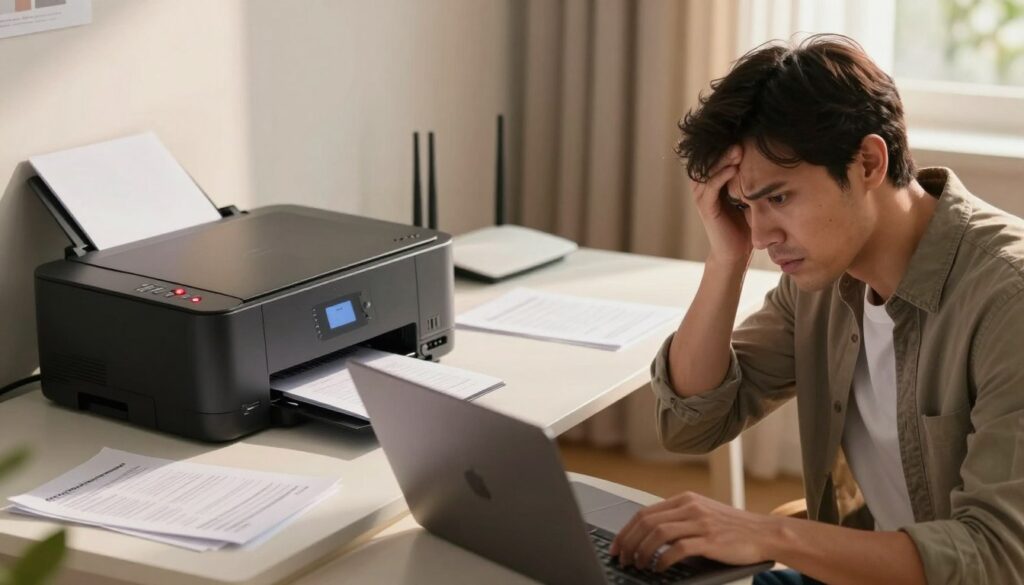
The root is simple: the computer and printer lose communication over the network even though both devices look powered on. Often this state is caused by settings, stalled jobs, sleep modes, or outdated drivers rather than a broken part.
We start with quick fixes, then move to checking settings and the print queue. If needed, the guide covers driver and software updates, and finally deeper router or IP address issues. Collect your model name, operating system, and how the device connects before you begin.
If a hardware fault remains after these steps, contact manufacturer support. Most repeated disconnects point to signal quality, router behavior, or addressing — not instant failure.
Key Takeaways
- “Printer offline” usually means a lost connection, not a broken machine.
- Start with quick resets, then check settings and queued jobs.
- Update drivers and software before assuming hardware failure.
- Gather model, OS, and connection type before troubleshooting.
- Use manufacturer support only for confirmed hardware or persistent disconnects.
What “Printer Offline” Really Means and How to Spot It
“Printer offline” describes a communication state where the computer and the device are no longer exchanging data. That does not always mean the unit has lost power. Most often, connectivity, settings, drivers, or a stuck print job are to blame.
Common signs include jobs that never start, a status that reads offline in the print queue, or successful printing from one computer while another fails.
- Typical messages: “Printer Not Connected” or “Unable to Communicate with Printer.” These point to network or driver-level problems.
- A single stuck print job can make the device appear unreachable even when it is on the network.
- If the status changes after idle periods, sleep and energy settings often trigger the issue.
“Try a quick print from a second computer to see if the problem is isolated to one printer computer or affects all devices.”
Also note the difference between offline, unavailable, and paused states — each suggests a different troubleshooting step. Confirm whether the issue affects multiple devices before moving to drivers or network fixes.
Quick Fixes to Get Your Printer Online Again
Most connection hiccups clear up with a short restart routine and a couple of simple inspections. Start here before changing drivers or network settings.
Power cycle the printer, router, and computer
Turn off the device, unplug it, wait at least 30 seconds, then plug it back in. Do the same for the router and computer if the problem persists.
This reset clears stalled communications and often restores normal connectivity between devices.
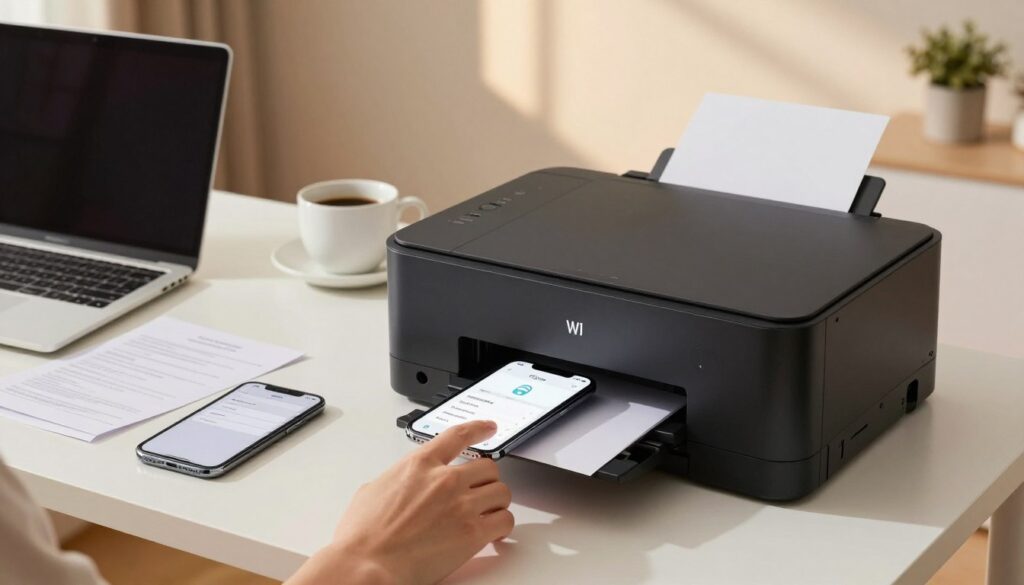
Check network connectivity and SSID
Confirm your phone or computer can access the network. Make sure the device is on the same SSID as the computer and not a guest network.
Print a network status page from the device control panel if available to verify the connection name.
Wake from sleep and inspect supplies
Wake the machine by sending a small print job or using the control panel. Energy-saving modes can shut down radios after idle time.
Clear paper jams and check ink, toner, and paper. Supply errors can make printing appear as a connection issue.
Check cables and run a quick test
Inspect USB or Ethernet cables for damage and secure loose ports on models that switch between wired and wireless modes.
After each step, attempt a one-page print to confirm the issue is resolved before moving on to deeper troubleshooting.
When Your wifi printer keeps going offline Because of Settings or Stuck Print Jobs
Settings and a stuck job can block printing even when the network looks fine. This often explains why one computer shows the device as printer offline while others print without issue.
Fix the Windows status in Control Panel
Open Control Panel > Devices and Printers. Find the correct printer, right-click printer and confirm Use Printer Offline is unchecked.
Set defaults and remove duplicates
Multiple icons (old installs, WSD copies) can route jobs to the wrong device. Set the right default printer so new print jobs go to the correct machine and delete duplicates.
Clear the print queue on Windows and Mac
Open the print queue, identify stuck documents, and choose “Cancel All Documents.” One corrupted job can block the rest, so clearing the queue often restores printer online status quickly.
Mac: Resume and reselect from Printers & Scanners
On macOS, go to Apple menu > System Settings > Printers & Scanners. If a yellow indicator appears, open the queue and click Resume. Reselect the correct device if the system points to an old or unavailable entry.
“Clearing the queue and confirming the active device is usually the fastest fix for this problem.”
| Action | Windows Path | Mac Path |
|---|---|---|
| Uncheck offline mode | Control Panel > Devices and Printers > right-click printer > uncheck Use Printer Offline | Not applicable (use Printers & Scanners status) |
| Clear stuck jobs | Open print queue > Cancel All Documents | Printers & Scanners > open queue > Cancel or Resume |
| Set default device | Devices and Printers > right-click > Set as default printer | Printers & Scanners > select and set default |
| Remove duplicates | Right-click old entries > Remove device | Delete extra listings in Printers & Scanners |
After these steps, print a one-page test from the OS to confirm the link between the printer computer and the device is restored and the issue is solved.
Driver, Software, and Installation Issues That Trigger Offline Status
When the software layer fails, the operating system cannot translate print jobs correctly. Drivers act as the translation layer between the OS and the device, so corrupted or mismatched drivers often cause a lost connection.
Update or reinstall drivers from the manufacturer’s website
Get the exact driver package for your model and operating system. Visit the manufacturer’s website, match the model number, and download the latest driver or full software bundle.
Remove and re-add the device to fix setup errors
If the device never appeared correctly in Printers & Scanners or Windows Add Device, uninstall the entry, reboot, then add it again.
During reinstall, accept any prompted software. Missing helper software can make wireless setup finish on the machine but fail on the computer.
Mac: Reset the printing system for corrupted lists
On macOS, open Printers & Scanners, right-click the printer list, and choose Reset Printing System. This removes all printers and queues. Then re-add devices and install the latest software from the vendor.
If updates work only briefly, proceed to network diagnostics next. Persistent reappearance of the problem can indicate router, IP, or firewall issues rather than software alone.
| Issue | Quick fix | When to escalate |
|---|---|---|
| Corrupted driver | Uninstall driver & install latest from website | If problem returns, try clean reinstall and firmware update |
| Failed setup | Remove device, reboot, add device via OS prompts | Install full software bundle from manufacturer |
| macOS list corruption | Reset Printing System, then re-add | Contact vendor support for enterprise driver options |
“Use official support pages to select the right driver type (PCL/PS) for advanced models.”
Network Problems That Make a Wireless Printer Drop Offline Repeatedly
If printing works after a restart but fails later, the local network is often at fault.
Router and signal issues that break connectivity over time
Router instability, band steering between 2.4 GHz and 5 GHz, and weak signal can cause the device to lose its connection after a lease renewal.
Check router placement and move the device closer or remove obstructions. Use the printer panel to confirm it stays on the correct network name and band.
Firewall or security settings blocking file and printer sharing on Windows
Windows Firewall can block discovery and print traffic. Open Control Panel > System and Security > Windows Firewall > Allow an app or feature through Windows Defender Firewall and enable File and Printer Sharing.
Temporarily disabling protection is only for testing. The long-term fix is to allow the correct feature or vendor software through the firewall.
IP address conflicts and why assigning a static address helps
When two devices share an address or the printer’s address changes, computers send jobs to the wrong destination and the device appears offline.
Assign a static IP on the device or set a DHCP reservation in the router. This stabilizes the address so computers find the device reliably.
Use built-in troubleshooters to spot network errors
Run Windows Network Troubleshooter (Settings > Network & Internet) or macOS Network Assist Me (System Settings/Preferences > Network > Assist me).
Look for DNS, DHCP, or connection errors. If network fixes fail, update firmware and contact manufacturer support for hardware or network card diagnostics.
Conclusion
A clear end‑game helps you avoid repeated disconnects and speeds up any support call.
Start with quick resets, then check settings and the print queue. Next update drivers and software, and finally review network settings. This sequence saves time and reduces repeated troubleshooting.
Prevention checklist: keep drivers current, avoid abrupt shutdowns during printing, and confirm the device stays on the correct network. Reserve or set a static IP for stability.
If the printer offline message returns after all steps, or multiple computers show the same issue, contact manufacturer support. Note recent changes (new router, firewall, or OS update) before you call.
When fixed, print a test page and a multi‑page document to confirm sustained printing over time.
FAQ
Why does my Wi-Fi printer keep going offline?
What does “Printer Offline” really mean and how can I spot it?
What are common offline symptoms and error messages?
How do I power cycle the device, router, and computer to restore communication?
How can I check connectivity and confirm the device is on the same network?
What if the device is in sleep mode or energy-saving mode?
Could paper jams or supply issues cause an offline status?
How do I disable “Use Printer Offline” in Windows?
How do I set the correct default device and remove duplicates in Windows?
How can I clear the print queue on Windows and macOS?
How do I resume or reselect the correct device on a Mac?
When should I update or reinstall drivers from the manufacturer’s website?
How do I fix first-time setup and installation errors?
How do I reset the printing system on a Mac if the queue and device list are corrupted?
How do router and signal issues break connectivity over time?
What firewall or security settings can block file and printer sharing on Windows?
Why do IP address conflicts happen and how does a static IP help?
How can built-in troubleshooters on Windows and macOS help find network errors?
Router Firmware Updates: When They Help and How to Do Them Safely
» See exclusive tips for your home