Wi-Fi Channels Explained and How They Affect Speed
Learn how wifi channel selection impacts your network's speed and performance. Discover the best practices for optimizing wifi channels in our comprehensive guide.
Short version: Modern routers and mesh systems split each wireless band into 20 MHz slices called channels, and many devices bond slices together for higher throughput.
That makes simple fixes like “just change the channel” less reliable today. Crowded bands and nearby interference often cause slow speeds, lag, and dropped connections even when your internet plan is fine.
This guide walks you step by step: learn how bands and channel width affect throughput, scan your environment, read results, and safely tweak settings on your router or mesh nodes. You will learn to pick sensible widths and the best options per band, then test and troubleshoot changes.
Key terms: a band is a frequency range (like 2.4 GHz or 5 GHz), a channel is a slice inside that band, channel width controls how many slices join, and throughput is the usable data rate you see.
Many devices auto-select settings, but automatic choices can miss local interference. A quick manual scan helps confirm the best setup for your home network.
Key Takeaways
- Channels are frequency slices; width and bonding change real-world speed.
- Crowded bands often cause slow connections, not just bad routers or ISPs.
- Follow a clear workflow: understand bands, scan, interpret, then adjust.
- You can choose sensible widths and test throughput after changes.
- Auto-select helps, but manual scans catch local interference issues.
How Wi-Fi channels affect speed, throughput, and reliability
A crowded radio space often throttles devices long before your internet plan becomes the bottleneck.
Think of in-home performance and your ISP plan as two different things. Your plan sets the internet speed to your house. The local network environment decides how much of that speed each device can actually use.
Why “slow” is often local congestion
When multiple networks share the same channel, devices must take turns. This congestion cuts real-world throughput even if signal bars look strong.
Data rate vs. real throughput in busy networks
The link negotiates a PHY data rate, but apps see lower numbers. Contention, protocol overhead, and interference reduce usable throughput. That is why speed tests change by time of day.
- Co-channel interference: many access points on one channel → buffering, call drops.
- Adjacent overlap: nearby bonded channels bleed into each other → unstable speeds.
- Non‑Wi‑Fi interference: microwaves, cordless phones or other electronics cause spikes and disconnects.
Decision checkpoint: before tuning settings, confirm heavy uploads or many active devices aren’t the true cause. Often reducing contention and overlap improves throughput more than chasing higher link rates.
Wi‑Fi bands and channels in 2026: 2.4 GHz, 5 GHz, and 6 GHz basics
Homes now use three main radio bands, and each one behaves differently for range, speed, and interference.
2.4 GHz strengths: range, walls, and compatibility
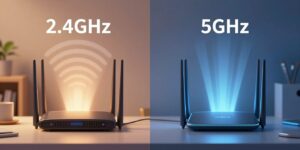
2.4 ghz travels farther and penetrates walls better than higher bands. That makes it useful for older devices and many smart-home gadgets.
It is slower and often crowded, so throughput drops when many networks or devices share the same spectrum.
5 GHz advantages: daily driver for streaming and gaming
5 ghz offers higher real-world speeds and more non-overlapping channels. Laptops, TVs, and consoles usually perform best here.
Range is shorter than 2.4 ghz, but less interference often yields smoother video and gaming near the router.
6 GHz today: low congestion, high potential
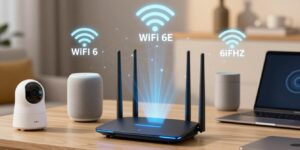
6 ghz (Wi‑Fi 6E/7) has the least congestion and highest throughput close to the router. It demands newer hardware in both the router and devices.
Expect the shortest range and faster falloff through walls compared with the other bands.
Band steering (Smart Connect): one SSID vs separate SSIDs
Smart Connect merges bands under a single name to simplify setup. That helps many users but can also cause devices to stick to a slower band.
“Band steering is convenient until a phone or laptop clings to a distant band and hurts performance.”
Use separate SSIDs when you need control—keep 2.4 ghz for IoT and 5/6 ghz for high‑speed video and gaming.
| Band | Range & walls | Compatibility | Best use |
|---|---|---|---|
| 2.4 GHz | Longest; best through walls | Most legacy devices, IoT | Basic sensors, remote rooms |
| 5 GHz | Moderate; less penetration | Laptops, TVs, consoles | Streaming, gaming, daily use |
| 6 GHz | Shortest; poor through walls | New 6E/7 devices and routers | High‑throughput near router |
Household example: a TV two rooms away may get better throughput on 5 ghz if 2.4 ghz is saturated by neighbors and many IoT devices. Practically, test both bands and keep 2.4 ghz for low‑bandwidth or legacy devices.
Channel width and bonded channels: why “changing the channel” doesn’t always work
How many adjacent 20 MHz blocks your router uses has a big effect on real performance and neighbor contention.
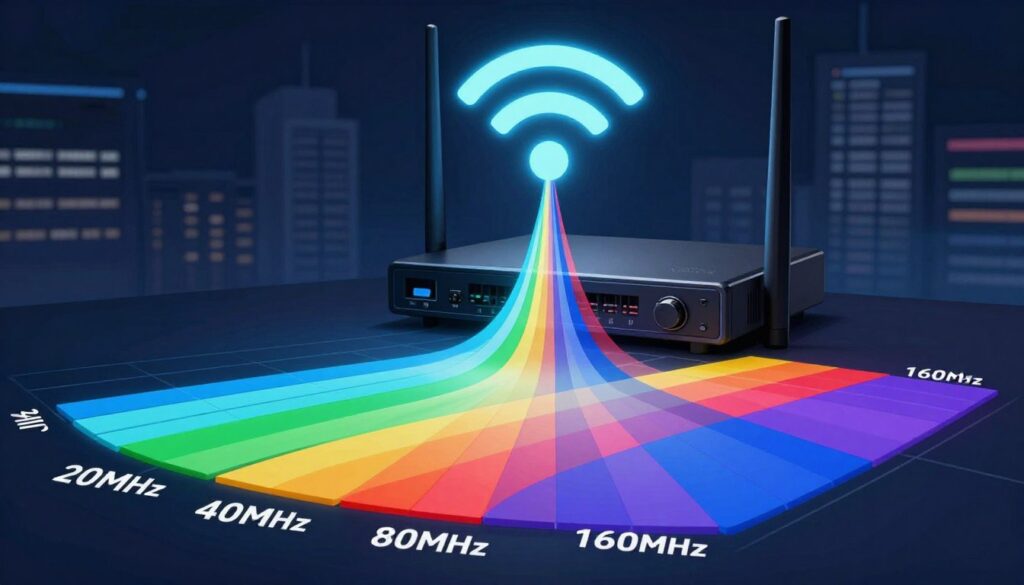
What is channel width? Each basic slice is 20 MHz. Routers bond multiple slices to form wider bandwidth: 40, 80, 160, or even 320 MHz. Wider widths let a device carry more data at once, raising peak throughput in clean air.
How bonded channels are created
Bonding joins adjacent 20 MHz slots. For example, an 80 MHz block that starts on 36 typically covers 36/40/44/48 in the 5 GHz band. That means choosing 40 may still overlap the same bonded block.
Why wider blocks fail in crowded homes
Wider bandwidth increases overlap with neighbors. In dense apartments, an 80 MHz or 160 MHz block can touch many other networks. That causes more contention and intermittent drops.
When routers downshift
Routers often fall back to narrower widths when they detect interference or a DFS event. This automatic downshift keeps a stable link but lowers peak speed.
| Width | Spectrum used | Pros | Cons |
|---|---|---|---|
| 20 MHz | 1 block (20 MHz) | Stable, low overlap | Lower peak throughput |
| 80 MHz | 4 blocks (80 MHz) | Higher peak speed in clean air | More overlap and interference risk |
| 160 MHz | 8 blocks (160 MHz) | Very high link rates near router | Often unstable in crowded areas |
Practical takeaway: “Best channel” advice is incomplete without width planning. Pick an open bonded block, not just a single number, and verify with an analyzer where you use devices.
wifi channel selection by band: the best channels to try first
Work band-by-band: pick a few sensible defaults, then confirm with real-world tests.
Best picks for 2.4 GHz
Start with the three non-overlapping options: 1, 6, and 11. These avoid adjacent bleed and usually yield the most stable connection in the 2.4 ghz band.
Avoid 40 mhz operation on 2.4 ghz in crowded homes. It consumes too much spectrum and increases interference from neighboring networks.
Where to start on 5 GHz
Try lower U-NII channels first (36/40/44/48) for stable, short-range use. If you need range, test upper channels (149–165).
Be aware of DFS/radar on some middle 5 ghz blocks. A DFS event can force a sudden switch and briefly drop clients.
80 MHz and 160 MHz planning
When using 80 mhz, think in bonded blocks (for example 36–48 or 149–161). That avoids overlapping a neighbor even if the router UI shows a different primary channel.
Use 160 mhz only in clean RF environments with short range and modern devices. Otherwise it often backfires—more overlap, more interference, and possible DFS issues.
6 GHz guidance
The 6 ghz band is still evolving. It has many 20 mhz slots and low congestion, but national rules vary. Preferred Scanning Channels can help devices find faster connections; confirm with a quick scan.
- Pick the least congested block by band.
- Confirm good signal where the device is used.
- Validate with a throughput test on the device that matters most.
Run a Wi‑Fi channel scan with a Wi‑Fi analyzer app
A short scan with a free analyzer app reveals what matters where you actually use devices.
Expect to see neighboring networks, the channel or bonded blocks they occupy, signal strength (RSSI), and sometimes channel width or airtime use.
Free analyzer options by device
On Windows, try WiFi Analyzer from the Microsoft Store for a simple visual view.
Mac users can run NetSpot to scan both 2.4 and 5 ghz bands and capture width info.
Android offers several WiFi Analyzer apps that reveal bonded blocks and real signal graphs.
Why iPhone and iPad tools are limited
iOS and iPadOS restrict low‑level access, so many iPhone apps can’t list every channel or show bonded widths the way desktop tools do.
Where to scan for realistic results
Scan in the living room, home office, bedroom, and any problem spot. Include at least one scan behind walls from the router.
- Capture both bands (2.4/5 and 6 if available).
- Note strongest competing access points that overlap your usage area.
- Record channel number, frequency, width (if shown), RSSI, and how many networks share the same block.
How to interpret scan results: interference, utilization, and signal strength
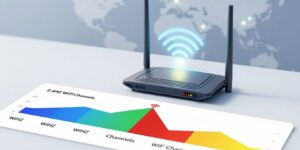
Reading an analyzer’s graphs correctly is the bridge between data and real speed gains. Start by matching visual elements to facts: a tall colored “hill” shows signal strength and the block of spectrum used in MHz. A wide hill usually means a larger channel width and possible overlap.
Co‑channel vs adjacent vs non‑Wi‑Fi interference
Co‑channel interference (CCI) is multiple access points sharing the same airtime. Even with strong signals, throughput falls because devices take turns transmitting.
Adjacent channel interference (ACI) happens when networks overlap in frequency. On crowded 2.4 ghz bands this is common and very harmful when networks don’t stick to 1/6/11.
Non‑Wi‑Fi interference comes from microwaves, Bluetooth, or baby monitors. Spectrum tools or high non‑802.11 utilization in an analyzer hint that this type of noise is present.
Reading graphs vs access point tables
Graphs give a quick view: center frequency, hill width, and RSSI strength. Use AP tables to verify details: frequency in MHz, configured width, and the bonded blocks implied by the primary number.
When a table shows 80 MHz width, treat four adjacent 20 MHz blocks as occupied even if the UI lists one primary number.
Spotting congestion and practical checks
- High 802.11 utilization = many Wi‑Fi talkers; expect lower throughput.
- High non‑802.11 utilization = outside interference; channel changes may not fix it.
- Crowded blocks, overlapping 80 MHz “mountains,” or many strong neighbors on the same block are clear signs of congestion.
Rule of thumb: favor a clean, narrower width where many strong networks overlap. Then validate with a throughput test on the device that matters most.
Choose the optimal channel and settings for your network and devices
Pick settings that match how you actually use devices in each room, not just what a default setup offers.
When to prioritize 5 GHz or 6 GHz for streaming, gaming, and video calls
Use 6 GHz or 5 GHz for low‑latency tasks when you have a strong signal near the router. A robust 6 GHz link gives the best speed and lowest lag for gaming, streaming, and video calls.
If a device lacks 6 GHz support, optimize its 5 GHz connection before falling back to 2.4 ghz.
When 2.4 GHz is the smarter choice
Reserve 2.4 ghz for basic devices and IoT that need range and compatibility.
Keep 2.4 ghz at 20 MHz for stability; 40 MHz on this band can cause problems with older adapters and raise interference in dense areas.
Best practices for channel width and 160 MHz use
Use 80 MHz when the radio environment is clean and signal is strong.
Shrink to 40 or 20 MHz when you see drops, spikes, or high interference. Only use 160 MHz in short‑range, low‑neighbor scenarios with high‑end clients.
How often to rescan and adjust
- Rescan after moving the router, adding a mesh node, or buying a new router.
- In dense housing, check every few months or when performance changes.
- Always validate changes with a consistent throughput test from the same device and location.
| Task | Best band | Recommended width | Why |
|---|---|---|---|
| Gaming / live video | 6 GHz or 5 GHz | 80 MHz (160 MHz only in clean RF) | Low latency, high throughput near router |
| Streaming / large downloads | 5 GHz | 80 MHz | Balanced range and speed |
| IoT / sensors | 2.4 GHz | 20 MHz | Better range and legacy compatibility |
How to change router channel settings on popular routers (and what mesh systems limit)
Most home routers hide channel and width controls behind an Advanced or Wireless menu—knowing where to look saves time.
Conceptually, log in by entering the router’s local IP in a browser, authenticate with your admin account, and open the wireless or advanced wireless section to find channel controls. Look for terms like Control Channel or Channel Bandwidth.
Common UI paths by brand
- ASUS: Advanced Settings > Wireless > Control Channel / Channel Bandwidth
- NETGEAR: BASIC > Wireless > [Radio] > Channel and Mode
- TP‑Link: Wireless > [Radio] > Channel and Channel Width
- Linksys: Router Settings > Wi‑Fi Settings > Wireless > Channel and Channel Width (enable CA if needed)
Auto vs. manual: when to override
Auto scans and picks a setting for you. That often works, but in dense apartments it can choose a busy block. Use a quick analyzer scan, then set a manual option if you find heavy overlap.
Safe manual-change workflow
Pick a candidate block from your analyzer, set an appropriate width, apply, and retest throughput where the device is used. Expect brief disconnects; some smart devices may take longer to reconnect.
Mesh realities
Many mesh systems limit manual control and keep band steering active. That means you may need to troubleshoot nodes, placement, or split SSIDs on the router rather than changing bands in the mesh UI.
| Task | Where to change | Note |
|---|---|---|
| Find channel | Wireless / Advanced | Look for Control Channel |
| Set width | Channel Bandwidth | Choose 20/40/80 per environment |
| Mesh limits | Mesh UI / Primary router | Band steering often on |
Fix common problems after changing channels
Start troubleshooting by confirming whether slow performance is due to your internet plan or the local radio link. Run a wired test to compare ISP speed vs the wireless link before you change more settings.
If speed doesn’t improve
Validate that the new channel actually moved your router onto a different bonded block. Use an analyzer app to confirm overlapping networks aren’t still occupying the same 20/40/80 MHz block.
If connections drop
Reduce channel width first. Drop from 160→80 or 80→40/20 to lower contention and avoid overlap. Narrower width often restores stability in crowded environments.
If signal is weak
No channel choice beats good placement. Move the router more central and higher, reduce walls and nearby metal, and keep it away from other interference sources.
If older devices struggle
Keep 2.4 GHz enabled for legacy gear. Disable 40 MHz on 2.4 GHz when adapters fail to connect. Consider separate SSIDs so modern devices use higher bands without affecting legacy connections.
Retest after each change from the same device and location to confirm real throughput and consistent speed gains.
Conclusion
A clear, repeatable process beats guesswork when you want steady wireless performance at home.
Focus on reducing contention and overlap across frequency bands rather than swapping a single channel number. Keep 2.4 GHz for legacy devices and IoT, use 5 GHz for most streaming and gaming, and reserve 6 GHz for the fastest short‑range links when signals are strong.
Remember that width matters: bonded mhz blocks affect neighbors as much as the mhz channel you pick. Scan with an analyzer app, change one setting at a time, then validate throughput and call/game stability.
Quick checklist: scan in multiple rooms, pick the least congested block, avoid overlap, verify signal strength, then retest and rescan. In dense areas you may not get “clear skies,” but disciplined scans, width management, and band choice still yield real gains.
FAQ
What is the difference between frequency bands such as 2.4 GHz, 5 GHz, and 6 GHz?
Why does a busy network often feel slower even when the router seems fine?
How does data rate differ from real throughput in crowded environments?
Which channels are best to try first on the 2.4 GHz band?
What should I consider when using wider bonded widths like 40, 80, 160, or 320 MHz?
How do bonded channels overlap in real homes?
When does band steering (Smart Connect) help, and when can it hurt?
Are there recommended 5 GHz ranges to prefer, and what about DFS channels?
When does 160 MHz on 5 GHz help, and when does it backfire?
How do I run a scan with an analyzer app and where should I test?
Why are iPhone and iPad analyzers limited?
How do I interpret scan results like utilization and signal numbers?
What is co‑channel vs adjacent‑channel interference and why does it matter?
When should I favor 5 GHz or 6 GHz for streaming and gaming?
When is 2.4 GHz still the smarter choice?
How often should I rescan and adjust settings in a changing environment?
Where in router admin settings do I change frequency and width controls?
How do router brand UIs differ for channel controls?
Should I use Auto channel selection or pick channels manually?
What limits do mesh systems impose on manual control?
If speeds don’t improve after changing frequencies or widths, what should I check?
What to do if connections drop after a change?
How can I fix weak signals after changing settings?
How do older devices react to wider 40 MHz settings on 2.4 GHz?
What are preferred scanning channels on 6 GHz for faster device connections?
Why 2.4GHz Wi-Fi Feels Slow and When It’s Still the Right Choice
» See exclusive tips for your home