Best 5GHz Wi-Fi Channels for Speed and Fewer Drops
Discover the best 5GHz channel for your Wi-Fi network. Learn how to optimize your router's settings for maximum speed and fewer drops. Improve your online experience now.
Understanding which band and frequency to use matters more than raw benchmarks. Wi‑Fi splits radio spectrum into multiple options, and the 5 GHz range often gives higher speeds at close range with less crowding than 2.4 GHz.
In real homes, the right choice means steady throughput and fewer drops during calls, gaming, or streaming. That depends on nearby congestion, building materials, and the devices you use.
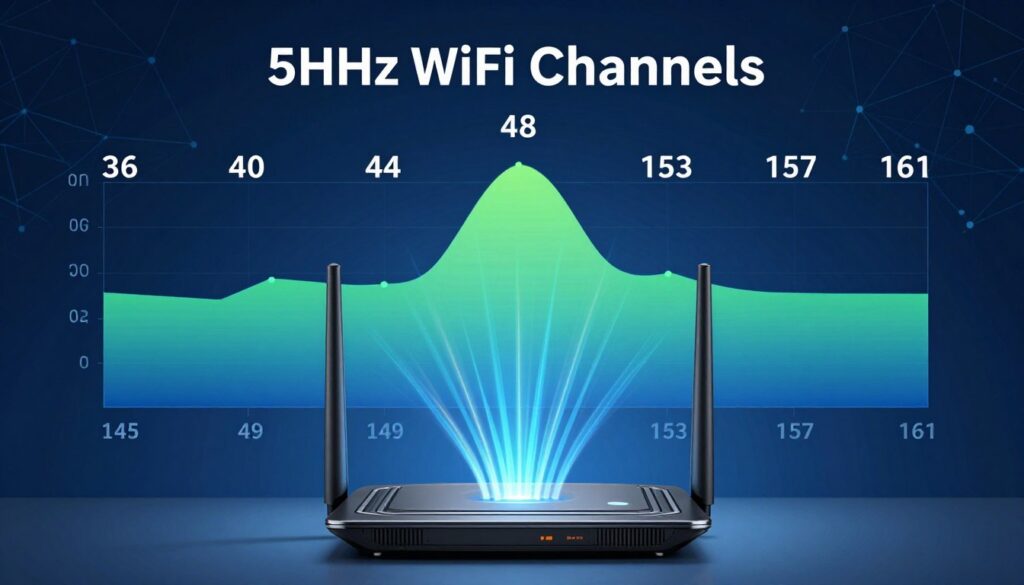
Practical try-first picks usually include UNII‑1 (36–48), higher midband picks like 149–161, and DFS ranges (52–144) that can be quieter but may change if radar appears. Router “Auto” selection can still land on crowded options.
This article focuses on the United States and will walk you through how band and frequency affect signal behavior, how to scan for interference, and how to test settings so you get consistent performance for your network.
Key Takeaways
- 5 GHz often gives better speed and less congestion at short range.
- There is no one-size-fits-all selection; test what works in your home.
- Start with UNII‑1 (36–48) or 149–161, consider DFS if compatible.
- Use an analyzer to find interference before making changes.
- Follow a step-by-step test: scan, change, and retest for stable connection.
Why 5GHz channel selection affects speed, drops, and real-world performance
Wi‑Fi performance changes when the slice of spectrum you use gets crowded by nearby networks and active devices. Wi‑Fi sends data as radio signals inside a defined slice, and that slice can get busy when many transmitters try to talk at once.
How Wi‑Fi channels carry data over radio signals (and why congestion matters)
Each slice of spectrum holds a set of frequencies. Devices take turns sending packets over that radio lane. If many networks or devices overlap, they must wait more, which lowers speeds and overall performance.
What Else Would You Like to Know?
Choose below:
What interference looks like at home: co-channel vs adjacent-channel interference
Co‑channel interference happens when networks share the same lane and politely take turns. Adjacent‑channel interference occurs when overlapping lanes talk over each other and usually causes worse packet loss.
- Congestion depends on both the number of radios and their signal levels; a strong neighbor matters more than many weak ones.
- Wider widths measured in MHz carry more data but overlap more and raise interference risk in dense areas.
- Practical symptoms include sudden speed drops, buffering, higher latency, and brief disconnects that feel like Wi‑Fi drops.
| Type | Cause | Impact |
|---|---|---|
| Co‑channel | Same frequency slice; devices time-share | Slower aggregate throughput; predictable wait times |
| Adjacent‑channel | Overlapping frequencies from nearby radios | Packet loss, retries, brief disconnects—often worse |
| Wide vs Narrow (MHz) | 80/160 MHz vs 20/40 MHz widths | Higher peak rates vs higher overlap and instability |
Takeaway: pick a cleaner slice, choose a sensible width, and avoid overlap when possible to reduce interference and improve real-world network reliability.
5GHz vs 2.4 GHz: choosing the right band before you pick a channel
Choosing between 2.4 and 5 GHz shapes coverage and speed long before you touch any settings. Pick a band to match where a device lives and what it needs.
When 5 GHz wins: faster speeds, more usable channels, less interference
5 GHz gives higher peak speed and more non-overlapping options. It usually faces less interference from crowded consumer networks and many legacy radios.
Use this band for TVs, game consoles, work laptops, and phones in main rooms. That keeps speed-sensitive traffic close to the router and reduces congestion for the rest of the network.
When 2.4 GHz still makes sense: range, wall penetration, and legacy devices
2.4 ghz travels farther and penetrates walls better. It fits smart plugs, sensors, and older devices that struggle with higher frequency signal loss.
In large homes or garages, keep distant gear on 2.4 ghz so it stays connected. Splitting devices by band lowers interference and makes both bands more stable.
| Feature | 2.4 GHz | 5 GHz |
|---|---|---|
| Typical range | Longer; better through walls | Shorter; best near router |
| Interference | Higher from neighbors and household gadgets | Lower; more usable frequencies |
| Ideal devices | Smart home gear, older devices | Streaming TVs, consoles, laptops, phones |
| When to use | Far rooms, multi-wall coverage | High-speed, low-latency tasks |
Next: after you pick the right band, learn how UNII ranges and width choices shape reliability and speed.
Understanding the 5GHz spectrum in the United States (UNII bands and channel ranges)
Understanding how UNII ranges map across the 5ghz band helps you pick stable settings at home.
UNII‑1 (36–48) is the most broadly supported range on phones, laptops, and many routers. Devices usually access these frequencies without special rules, so compatibility and steady throughput are high.
UNII‑2 and UNII‑2e (52–144): DFS rules and what they mean for your connection
UNII‑2 and UNII‑2e include DFS frequencies. Routers must check for radar and vacate a channel if radar appears. That forced move can look like a brief drop or reconnection for clients.
These frequencies can be quieter in crowded apartment environments. If you can tolerate occasional shifts, DFS ranges often yield lower congestion and higher real-world speeds.
UNII‑3 (149–165): strong throughput options
UNII‑3 is popular for wide widths such as 80 MHz and tends to support high throughput. Not every device handles all frequencies or wider widths the same way, and channel 165 may have limits on wider mhz settings.
Practical tip: match your router and client capabilities when selecting ranges, and remember width (20/40/80/160 MHz) interacts with these bands. Test each range to find the steady balance of speed and stability for your networks.

| UNII Range | Frequencies | Key traits |
|---|---|---|
| UNII‑1 | 36–48 | Wide compatibility; stable; great for general use |
| UNII‑2 / 2e | 52–144 | DFS required; less congestion but may force channel changes |
| UNII‑3 | 149–165 | Good for 80 MHz throughput; some device/width limits |
Channel width basics: 20 MHz, 40 MHz, 80 MHz, and 160 MHz
Channel width directly shapes how much radio spectrum your router uses and how fast devices can transfer data. Wider widths can move more bits per second when the air is clear. But they also take up more spectrum and raise overlap risk with nearby radios.
How MHz width impacts throughput, overlap, and reliability
20 MHz is the most stable choice. It keeps interference low and gives steady throughput for many devices.
40 MHz and 80 MHz raise peak speeds and are useful when congestion is moderate. These widths can improve performance for streaming and gaming but increase the chance of overlap with other networks.
Practical width choices for different environments
In apartments or high-congestion areas, stick with 20 MHz or sometimes 40 MHz for consistent performance. In quieter suburban homes, 80 MHz often hits a useful balance of speeds and manageable interference.
When 160 MHz helps—and when it hurts
160 MHz can deliver the highest throughput for short-range links and Wi‑Fi 6 devices that support it. However, it consumes many channels and is fragile in busy RF spaces, so it can increase drops and reduce overall network stability.
“Choose width based on your environment, devices, and willingness to trade stability for peak speeds.”
Best 5ghz channel recommendations you can try first
Start with straightforward, broadly supported frequencies that work well in many homes. Below are practical picks to try now for fewer drops and steady throughput.
Popular non-overlapping picks for most homes
36, 40, 44, 48 are the common non-overlapping channels that many routers and devices handle reliably. They offer wide compatibility and low risk of adjacent interference when set with sensible widths.
Alternate picks when the lower band is crowded
If UNII‑1 is congested, try 149, 153, 157, 161. These UNII‑3 frequencies often support 80 MHz widths and can boost speeds in less busy suburban areas.
DFS ranges for lower congestion
DFS zones (roughly 52–144) can be quieter in dense areas. Channels 100–144 frequently reduce congestion and improve real-world performance.
Warning: routers must vacate DFS frequencies if radar appears. That can cause brief disconnects for some devices.
Use caution or avoid these picks
Channel 165 and similar edge frequencies can have limited device support and width limits. They may reduce stability for some clients.
Always validate any choice with a quick Wi‑Fi scan in your area before locking settings. Testing beats guessing — every home environment is different.
| Pick | When to try | Notes |
|---|---|---|
| 36–48 | Default compatibility | Stable; wide device support |
| 149–161 | UNII‑3, less crowding | Good for 80 MHz; suburban areas |
| 100–144 (DFS) | Dense apartment areas | Lower congestion but radar risk |
How to choose the best channel for your home network and devices
Good wireless performance begins by aligning your router’s settings with client support and home layout. A short audit saves time: note router generation, what devices connect, and where you use high-priority gear.
Match the plan to routers and client devices
Confirm your router type (Wi‑Fi 5 or Wi‑Fi 6) and supported widths. Then check key devices for compatibility and preferred widths.
Wi‑Fi 6 adds OFDMA and MU‑MIMO to boost efficiency under load, but it still needs a clean channel and sensible width to shine.
Consider your environment
In apartments, use narrower widths and quieter channels to limit interference. In suburban homes, wider widths often work because competing signals are fewer.
Balance speed versus stability
For gaming and calls, prioritize steady connection over peak speeds. Avoid DFS ranges if radar-triggered drops affect play, and keep widths conservative when interference is high.
- Separate SSIDs for 2.4 and 5 GHz when needed.
- Place streaming and work devices on the faster band; use Ethernet for fixed, latency-sensitive gear.
- Test at normal use times — the best 5ghz channel is the one that stays stable during real activity.
How to find the least congested 5GHz channel using a Wi‑Fi analyzer
A quick Wi‑Fi scan can reveal which frequencies nearby radios are using and where your airspace is clearest. Start with a dedicated analyzer app on your phone or laptop and run a full sweep while standing in the room that needs the best access.
What to watch in analyzer results
Look beyond the raw count of networks. Check signal levels — strong neighbors matter most — and any reported channel utilization or airtime stats. High utilization means devices are using that slice heavily even if there are few networks.
Spotting co‑channel vs overlap
Co‑channel crowding appears as many SSIDs stacked on the same lane. Adjacent overlap shows wide bars that spill into neighboring frequencies. If bars overlap, reduce width or pick a cleaner block.
- Scan where devices are used, not just at the router.
- Note the quietest block of frequencies and write it down.
- Change router settings, then re-scan to confirm improvement.
Auto selection can miss short-term congestion. Routers often pick at boot and may not adapt quickly or may favor broad compatibility over current spectrum conditions. Re-scan at different times (evening vs daytime) to catch changing neighborhood use.
| Step | What to check | Why it matters |
|---|---|---|
| Scan in room | Signal strength, utilization | Shows real conditions where devices connect |
| Identify quiet block | Lowest utilization and no strong neighbors | Reduces interference and retries |
| Apply settings & retest | Manual band/width change | Validates the chosen frequency improves performance |
How to change your router’s 5GHz Wi‑Fi channel (step-by-step settings)
Open your router admin page to make quick, targeted changes that improve stability and speed in your home network.
Accessing the admin page and locating the 5 GHz band
Find your router IP (common defaults: 192.168.0.1 or 192.168.1.1). Enter it in a browser, then log in with your admin credentials.
Look for a Wireless or Wi‑Fi menu. Pick the 5 GHz band — do not confuse it with 2.4 ghz settings. Note the current settings and write them down so you can revert if needed.
Set a manual channel, choose width, reboot, and retest
Switch from “Auto” to manual. Pick a lower interference option such as the UNII‑1 or UNII‑3 group (examples: 36–48 or 149–161). Choose a channel width in MHz: 20, 40, 80, or 160 MHz based on device support and your environment.
Save the changes and reboot the router or allow it to apply settings fully. Reconnect key devices and run a speed test.
Verify stability with a short video call, a gaming session, or sustained streaming. If performance drops, step down the width (80 → 40 → 20 MHz) or try a different block of frequencies. Avoid DFS ranges if radar-triggered disconnects happen.
“Document original settings before changing anything so you can roll back quickly.”
| Action | Why | Tip |
|---|---|---|
| Find router IP & log in | Gain access to wireless settings | Check label on device or use ipconfig/ifconfig |
| Switch Auto → Manual | Pick a less crowded frequency | Use UNII‑1 or UNII‑3 options first |
| Adjust width (MHz) | Balance peak rate vs stability | Use 20/40 MHz in dense areas; 80 MHz in quiet homes |
Conclusion
A reliable home wireless link starts with picking the right band, then refining frequency and width. Prioritize the band that fits device needs before you change any settings.
Quick takeaways: for most US homes try UNII‑1 (36–48) first, and use UNII‑3 (149–161) if lower local use helps. DFS ranges can be quieter but may force brief moves when radar appears, so test stability first.
Channel width is a major part of the performance equation—narrower widths often beat wide ones in crowded spaces. Use a Wi‑Fi analyzer, make one change at a time, reboot, and retest during your peak use.
Next action: scan, choose a clean set of channels, set a sensible width, reboot, and verify real-world speeds and range. Revisit settings when new devices or interference show up.
FAQ
How does selecting a 5 GHz Wi‑Fi channel affect speed and dropped connections?
How do Wi‑Fi channels carry data and why does congestion matter?
What’s the difference between co‑channel and adjacent‑channel interference at home?
When should I choose the 5 GHz band instead of 2.4 GHz?
Why might 2.4 GHz still be useful in some setups?
What are the main UNII ranges in the U.S. and why do they matter?
What is special about UNII‑1 channels 36–48?
What are DFS channels and how do they affect connections?
Are UNII‑3 channels (149–165) a good option for throughput?
How does channel width (20/40/80/160 MHz) affect performance?
When should I avoid 160 MHz even if my equipment supports it?
Which non overlapping frequencies are typically best for most homes?
What are good alternate picks if UNII‑1 is crowded?
When do DFS channels between 100 and 144 help performance?
Which frequencies or scenarios should I avoid or use cautiously?
How do I match channel choice to my router and client devices?
How should environment type (apartment vs house) influence channel planning?
How can I find the least congested frequency using a Wi‑Fi analyzer?
Why can “Auto” channel selection still result in congestion?
How do I change my router’s 5 GHz settings step by step?
What should I test after changing a channel or width?
Why Wi-Fi Gets Slower at Night and What You Can Do
» See exclusive tips for your home