DFS Channels Explained: Why Your 5GHz Wi-Fi Drops Sometimes
Understand DFS channels WiFi and its effect on your 5GHz wireless network. Find out why your Wi-Fi drops and how to resolve the issue for a more stable connection.
Many 5 GHz networks look fine, yet devices still drop or reconnect. In the United States this often comes from how routers share spectrum with radar systems. When a router detects radar it must pause, move, or clear a band. That behavior can feel like a random outage.
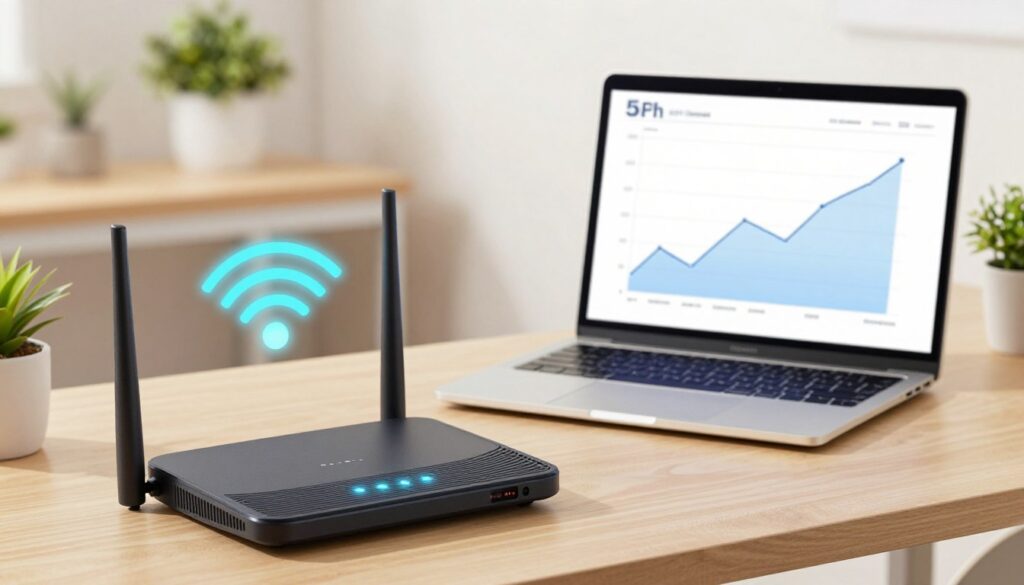
What this guide fixes: learn why a laptop reloads a page, a voice call cuts out, or a smart device falls back to 2.4 GHz. You will see that some forced channel switches and startup wait times cause brief service gaps.
We focus on 5 GHz behavior, not general internet slowdowns. The solutions usually live in channel selection, bandwidth, and auto-channel/DFS settings. Choosing more wide bands or bonding too many channels is not always more stable.
Key Takeaways
- Radar rules can force a band change, causing short outages.
- Startup checks and clear-air time add a delay when an AP picks a new channel.
- Not every drop is an ISP problem; many are local radio decisions.
- Adjusting channel width and auto settings can reduce disruption.
- More available channels do not always mean more stability.
What DFS Is and Why It Exists on 5GHz Wi‑Fi
Some parts of the 5 GHz spectrum are shared with radar systems, and that sharing drives special router behavior. Dynamic frequency selection is the technical rule set that forces an access point to listen before it transmits on certain bands. The goal is simple: avoid interfering with weather, military, or aviation radar.
How regulators shape behavior
On many routers you will see UNII band groupings. Certain UNII‑2 and UNII‑2e ranges contain dfs channels such as 52–64 and 100–144 in the US. These require a Channel Availability Check at boot.
What the Channel Availability Check means
CAC is a compliance “listen before talk” window. If a router picks a protected channel at startup, 5ghz may remain absent for about 1–10 minutes while it verifies the air is clear. During that time, 2.4 GHz usually stays active as a fallback.
What Else Would You Like to Know?
Choose below:
- Practical note: devices can’t join a 5ghz SSID on a protected channel until CAC finishes, even if credentials match.
- Region settings and firmware affect CAC time and behavior, so identical models can act differently.
Key takeaway: dynamic frequency selection exists to protect radar, not to improve home network uptime, and its rules can cause brief but confusing 5 GHz absence.
Why dfs channels wifi Can Cause Random Disconnects
Short, unexplained outages on the upper bands are often the result of mandatory channel checks and sudden moves. These behaviors create two common failure windows that look like random drops to users.
CAC delays after reboot: why 5 GHz can be unavailable for minutes
Channel Availability Check (CAC) runs at boot on protected bands. During CAC the AP listens and will not start normal transmission.
That 1–10 minutes wait can hide the 5 GHz SSID. Devices may fail to join or stick to 2.4 GHz even when they prefer the faster band.
Radar detection events and forced channel moves
If the AP detects radar, it must stop transmitting on that channel and move clients to another one. The forced move disconnects clients until they re-associate.
This abrupt change interrupts real-time traffic and can look like a repeated outage when radar activity spikes.
Non-occupancy rules: why an AP may avoid a channel for about 30 minutes
After a radar hit, the observed channel enters a non-occupancy window of roughly 30 minutes. Many APs then avoid returning to that same channel.
False positives and intermittent drops in busy RF environments
Nearby equipment can mimic radar patterns. Aggressive detection or noisy air causes false positives and repeated forced moves.
Check router logs for radar, CAC, and channel-switch entries. Those entries often match the time users report reconnects and show whether the problem is regulatory behavior or a device/signal issue.
| Trigger | User effect | Typical duration | Router log entry |
|---|---|---|---|
| CAC at boot | 5 GHz SSID absent; devices join 2.4 GHz | 1–10 minutes | “CAC start” / “CAC complete” |
| Radar detection | Immediate disconnect; clients re-associate on new channel | Seconds to reconnect | “Radar detected” / “Channel move” |
| Non-occupancy rule | AP avoids channel; stability may drop if auto selects DFS | ~30 minutes | “Non-occupancy set” |
| False positive | Intermittent drops; repeats under busy RF | Varies | “False radar” or repeated detections |
How DFS Impacts Roaming, Calls, and Real‑Time Apps
Client discovery speed determines whether a walk from room to room breaks a call or is seamless.
When a client hunts for the next AP it must scan multiple channel bands. On non‑protected bands a device can send a Probe Request and get a Probe Response in ~20 ms. On protected bands the client often must passively wait for a beacon (~100 ms).
This difference matters. For example, scanning ten non‑protected channels costs a few hundred milliseconds. Scanning the same set with many protected channels can add several seconds. That extra time breaks roaming and hurts real‑time traffic.
Why voice and video suffer first
Voice and video have tight jitter and latency limits. A forced channel move is like a sudden roam without pre-scan. Calls drop or stutter while the device locates the new channel and re-associates.
Hidden SSIDs and 802.11k
Hidden SSIDs force extra probe requests and increase scan time. By contrast, 802.11k neighbor reports let APs give a shortlist of nearby APs and channels, cutting discovery time and improving handoff behavior for clients and devices.
“Short pre-scans and neighbor reports turn multi-second searches into sub-100 ms hops, keeping calls alive.”
| Scan Type | Typical per-channel time | User effect |
|---|---|---|
| Active (non‑protected) | ~20 ms | Smooth roaming for most clients |
| Passive (protected) | ~100 ms | Slower handoffs; call/video impact |
| With 802.11k | Reduced to targeted channels | Faster roam; fewer interruptions |
Channel Width, Interference, and Why 80/160 MHz Can Make Things Worse
Wider band settings often promise speed, but they trade away usable spectrum and steady performance.
Channel bonding combines 20 MHz slices into 40, 80, or 160 MHz groups. That can raise peak data rates by using more frequency at once. But bonding reduces the number of non‑overlapping channels available for reuse.
20 MHz vs 40/80/160 MHz: the fewer‑channels tradeoff
Using 80 or 160 mhz cuts the pool of distinct spectrum. In a dense building, a small number of wide footprints forces multiple aps to share the same band.
Co‑channel interference and contention
When several networks overlap the same channel area, airtime becomes a shared resource. Devices wait more, latency rises, and real throughput can fall despite strong signal strength.
Noise floor and SNR impact
Each doubling of bandwidth adds roughly +3 dB of noise. That lowers SNR and can push clients to lower modulation rates. The result is more retransmissions and sluggish performance.
| Setting | Effect on number of usable channels | Practical impact |
|---|---|---|
| 20 MHz | Many | Best reuse and stability |
| 80 MHz | Few | Higher contention; more interference |
| 160 MHz | Very few | Likely overlap and more retransmissions |
Decision point: in apartments or multi‑AP homes choose narrower widths for reliable performance. Wider profiles may boost peak throughput but increase interference and the chance of regulatory band overlap.
How to Stop 5GHz Drops Caused by DFS on Your Router or Access Points
Reduce surprising 5 GHz outages by applying a deliberate channel and reboot plan. Follow a short verification flow, then apply a steady channel plan and bandwidth choices to keep clients stable.
Confirm the cause
Start with logs. Look for phrases like radar detected, CAC, or channel switching and match timestamps to the disconnect time. In admin screens check current channel, channel width, and whether auto selection includes protected bands.
Apply a stable non‑DFS plan
In the US, prefer a 20 MHz plan using 36, 40, 44, 48 and 149, 153, 157, 161. This eight‑channel plan reduces forced moves and keeps signal consistent. Avoid channel 165 for voice‑sensitive setups; it often sits too close to adjacent bands.
Practical settings and fallbacks
Choose 20 MHz where neighbors are dense or for roaming and calls. Use 80 MHz only for single AP sites with strong SNR. Disable auto selection that scans protected bands if you need steady uptime; the tradeoff is more congestion on the remaining band set.
Operational tips
- Schedule reboots and firmware updates during low‑use windows because CAC can make 5ghz unavailable for several minutes.
- Keep 2.4 GHz enabled as a deliberate fallback so devices stay online during transitions.
- Verify device support before committing to protected bands; some client radios won’t see certain 5ghz frequencies.
Future option: consider Wi‑Fi 6E (6 GHz) when you need wide, clean spectrum without the same regulatory moves, provided both AP and devices support it.
Conclusion
Compliance checks, non‑occupancy windows, and radar-triggered moves explain many of the “my 5 GHz drops sometimes” moments. The behavior is regulatory: routers pause or move to protect radar, which can create CAC delays and forced channel changes. This is why you may see dfs channels disappear at boot or after a detection.
For steady performance, pick stable non‑DFS 20 MHz channel plans, favor narrower widths for roaming and voice, and disable auto-selection that pushes your APs onto protected bands. Check logs and status screens to diagnose CAC or channel switches instead of guessing.
Decide by priority: keep DFS for low‑risk sites that benefit from extra spectrum; avoid it where uptime and call quality matter. When you need both speed and stability, consider 6 GHz as a long‑term option for your network and devices.
FAQ
What is Dynamic Frequency Selection and why does the FCC require it?
Where does this protection apply within the 5 GHz spectrum?
What is a Channel Availability Check at startup?
Why can my 5 GHz connection be unavailable for minutes after a reboot?
How do radar detection events force my network to move channels?
What are non‑occupancy rules and how long do they last?
Can false positives cause intermittent drops in busy RF environments?
How does passive scanning on protected frequencies affect roaming?
Why does scan time increase across these protected frequencies and what does that mean for roaming?
Why do voice and video suffer first during channel changes and rescans?
How do hidden SSIDs affect discovery and scanning overhead?
Can 802.11k neighbor reports help reduce scan time?
How does channel bonding (20/40/80/160 MHz) affect the number of usable frequencies?
Why can wider channels increase contention and slow a busy network?
How does widening channels impact noise floor and signal‑to‑noise ratio?
What problems arise from mixed channel widths among neighboring networks?
How do I confirm whether these protected frequencies are causing my 5 GHz drops?
When should I use a non‑protected channel plan in the US, and what about channel 165?
When is setting channel bandwidth to 20 MHz the right choice?
What are the trade‑offs when disabling auto channel selection that includes protected bands?
How should I plan for reboots and firmware updates to avoid surprise CAC downtime?
Why keep 2.4 GHz active as a fallback during CAC and channel transitions?
How do I check client compatibility with protected 5 GHz frequencies?
When should I consider moving to Wi‑Fi 6E (6 GHz) to avoid these behaviors?
Why 2.4GHz Wi-Fi Feels Slow and When It’s Still the Right Choice
» See exclusive tips for your home