Electronic Devices That Quietly Interfere With Wi-Fi Without You Realizing
Your Wi-Fi can be flaky even when your router is new and your internet plan is fast. A lot of the time, the problem is electronic devices interfering with wifi in ways that are hard to spot.
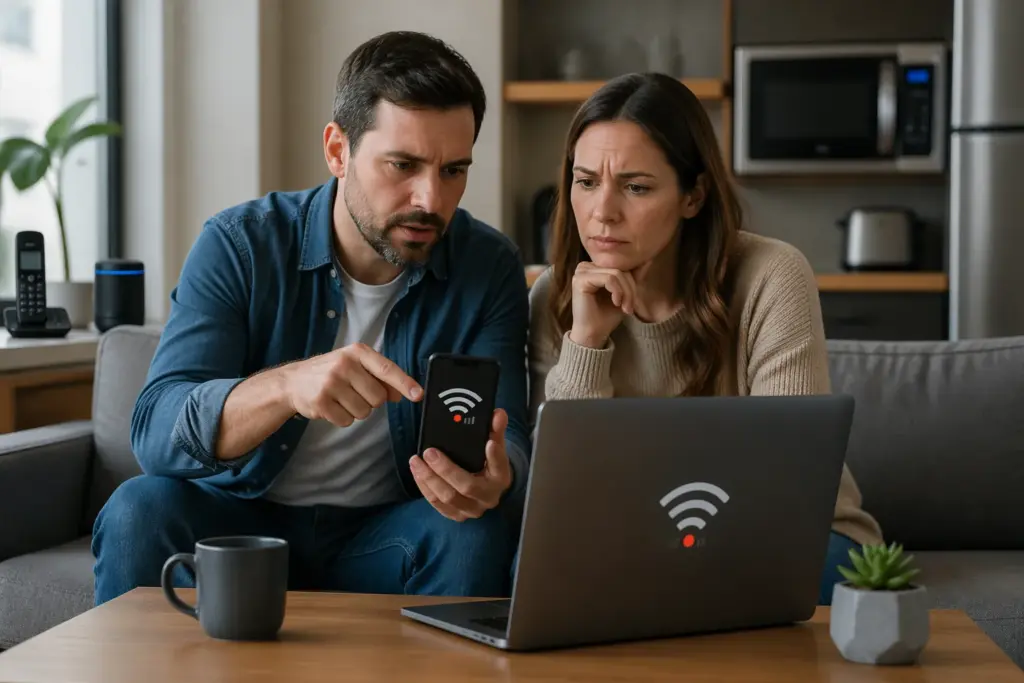
I see people blame their ISP first, then they buy a mesh kit, then they still get drops in the same rooms. What changed was not the router, it was the noise floor in the house, and some gadget quietly raised it.
Wi-Fi is radio, and your home is full of radios that never call themselves radios. If you have ever wondered what devices interfere with wifi, the annoying answer is, more than you think.
Some interference is obvious, like a microwave that makes streaming stutter every time you reheat coffee. The hidden wifi interference sources are the ones that only show up as random lag, buffering, and “connected, no internet” messages.
How wireless interference actually works in a home
Your router and devices talk using channels, which are slices of radio spectrum. When other gear talks over the same slice, your Wi-Fi retries packets and your speed drops even though your signal bars look fine.
Interference comes in two flavors, co-channel chatter and broad-spectrum noise. Co-channel means another Wi-Fi network shares your channel, while noise can come from non-Wi-Fi electronics that spray energy across the band.
What Else Would You Like to Know?
Choose below:
Most homes still lean heavily on 2.4GHz because it travels farther and goes through walls better than 5GHz. That longer range is a mixed blessing because 2.4GHz is also where many household gadgets make a mess.
Wi-Fi tries to be polite by waiting its turn, but it cannot negotiate with a noisy device that never listens. When the air gets crowded, your network looks like it is “dropping” when it is really stuck retrying.
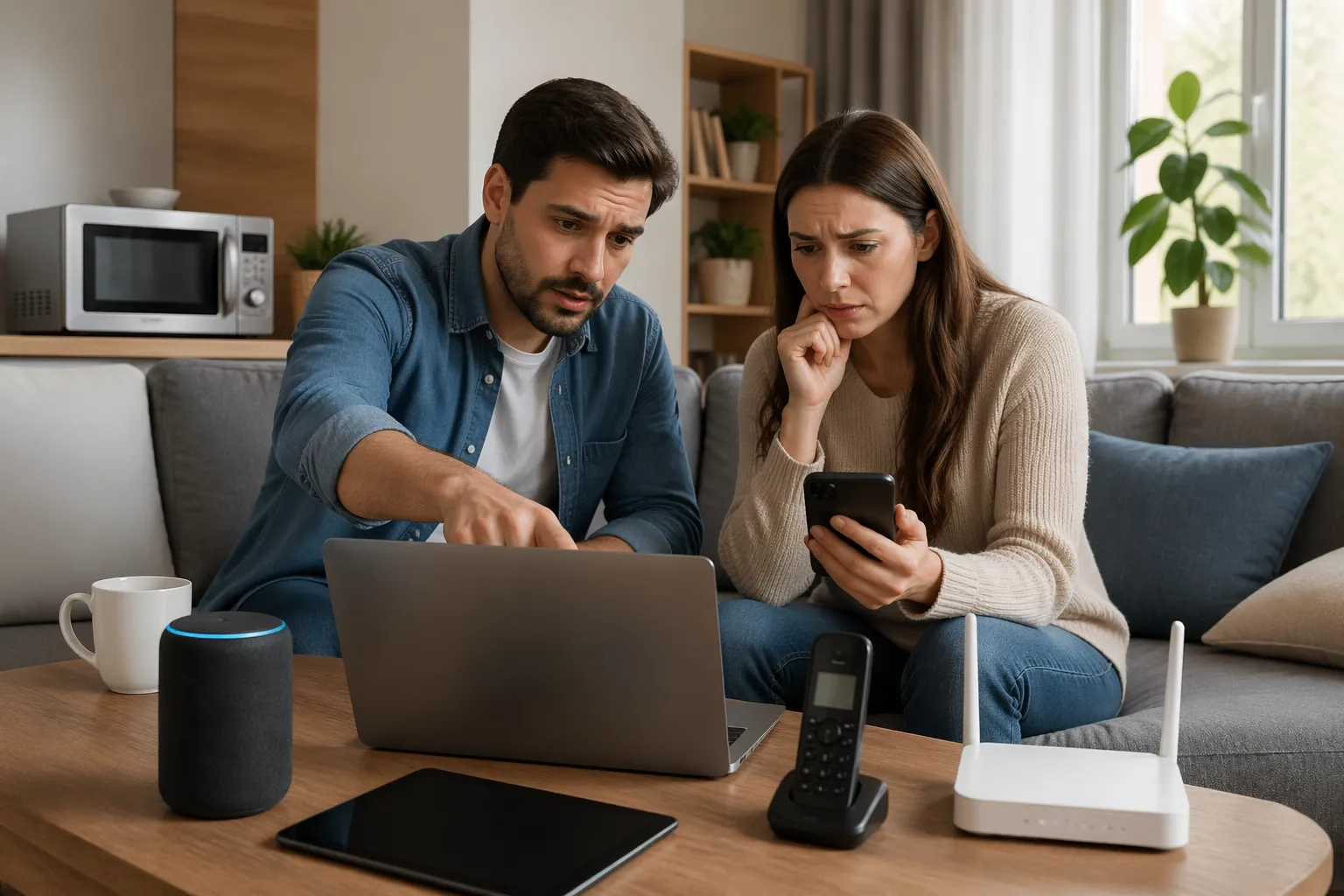
This is why you can run a speed test and see a decent number, then still have your video call freeze five minutes later. Short bursts of interference or congestion can ruin real-time apps without tanking your average throughput.
Signal strength and signal quality are not the same thing, and most phones only show you the strength. You can have full bars and still have a terrible signal-to-noise ratio because the room is full of chatter.
Wi-Fi also has overhead, like management frames, acknowledgments, and re-transmissions that do not feel like “data” but still consume airtime. When interference increases, that overhead grows and your usable speed shrinks.
Another detail people miss is that slower devices can drag down a busy network because they take longer to send the same amount of information. A single far-away 2.4GHz device can occupy the channel long enough to make everything else feel laggy.
Walls, mirrors, and metal appliances can reflect and absorb radio waves, creating dead spots and weird multipath echoes. Those effects are not interference by themselves, but they make your Wi-Fi more fragile when interference shows up.
Even your router can contribute if it is set to very wide channels on 2.4GHz, which is usually a bad idea. A wider channel sounds faster, but it increases the chance you overlap with something noisy.
When people say their Wi-Fi “randomly disconnects,” it is often the device giving up after too many retries and roaming attempts. The router did not necessarily crash, the client just could not get a clean moment to speak.
Think of it like trying to have a conversation in a crowded kitchen, where you can hear the other person but you keep missing words. You are connected, but the message gets lost enough times that the experience falls apart.
Devices that operate near the 2.4GHz band without being obvious
The 2.4GHz band is a magnet for cheap radios because components are inexpensive and power use is low. That is why so many smart devices causing wifi problems are also the ones marketed as simple and plug-and-play.
Bluetooth lives at 2.4GHz and hops around, which usually plays nicely but can still add jitter in busy rooms. Wireless headphones, game controllers, and even some keyboards can be the straw that breaks a crowded channel.
Zigbee also sits at 2.4GHz, and many smart bulbs and sensors use it through a hub. A stable Zigbee setup is fine, but a misbehaving hub or a mesh of bulbs near your router can add constant background traffic.
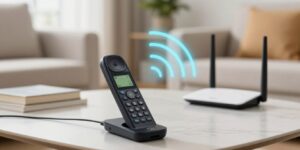
Cordless phones are less common now, but older 2.4GHz models still exist in drawers and guest rooms. If you plug one in near your router, you can create a problem that looks exactly like a failing modem.
Baby monitors often use 2.4GHz too, and the cheap ones can be surprisingly aggressive. If you have a monitor that never sleeps and sits near your bedroom router node, it can chew up airtime all night.
Wireless printers can be sneaky because they sit idle for hours, then wake up and start broadcasting and reconnecting when someone prints. That reconnect storm can look like a random Wi-Fi hiccup if it happens at the wrong moment.
Some wireless mice and keyboard dongles use proprietary 2.4GHz links that are not Bluetooth, and they can be noisy up close. If your laptop Wi-Fi gets worse the moment you plug in a tiny USB receiver, that is a clue.
Wireless alarm sensors, door contacts, and older home security gear can also live in the same neighborhood. They are not always strong enough to kill Wi-Fi, but they can add to the background mess in a small apartment.
Even certain toys and hobby gadgets, like RC controllers and cheap wireless microphones, can show up at 2.4GHz. They may only run for a few minutes, which makes the problem feel like a ghost.
Wireless audio links are another one, especially older soundbar subwoofer kits that use 2.4GHz. If your TV area is also where you want stable gaming and streaming, that overlap can be painful.
Smart scales, thermometers, and health devices can also phone home on 2.4GHz and then go quiet again. They rarely break a network alone, but they matter when your channel is already packed.
The frustrating part is that these devices do not show up in a normal Wi-Fi network list because they are not Wi-Fi networks. They are just energy in the same band, and your router has to live with it.
How to identify which device is causing your drops
Start with a simple rule, change one thing at a time and watch what happens for at least ten minutes. Randomly rebooting everything can hide the pattern and waste your evening.
Look for timing clues, like drops that happen when someone starts a video call, turns on a baby monitor, or runs a microwave. Those habits are often the breadcrumb trail to hidden wifi interference sources.
Keep a quick log in your notes app with the time, the room, and what was happening when the drop occurred. After a day or two, you usually see a repeatable trigger that you missed in the moment.
Test with a continuous ping to your router and a separate ping to a public DNS server, because those failures mean different things. If the router ping spikes, it is local Wi-Fi trouble, and if only the internet ping spikes, it could be the modem or ISP.
Walk around with the same device and repeat the same test, because swapping devices can confuse the results. If the problem follows a room rather than a device, you are likely dealing with interference or a placement issue.
Also do the reverse test by staying in one spot and switching devices, because client hardware can be the whole story. A laptop with a noisy USB hub can look like a “bad Wi-Fi room” when it is really a bad desk setup.
If your router has logs, look for repeated deauth events, excessive retries, or band steering messages around the time of the problem. Those notes are not always friendly, but they can confirm that the radio is struggling rather than the internet link.
Try temporarily turning off 2.4GHz or 5GHz to force devices onto one band and see if the behavior changes. A clean A/B test is often faster than guessing which gadget is acting up.
When you suspect a specific device, do not just power it off for five seconds and turn it back on. Unplug it for long enough that your network settles, then bring it back and see if the problem returns.
Be careful with “smart” power strips and timers during testing, because they can add their own noise and they can also reboot devices in the background. You want a stable baseline before you start changing things.
If you live with other people, ask what they were doing when you noticed the drop, because their actions matter. Someone starting a wireless headset call in the next room can be your missing puzzle piece.
| Symptom you notice | Likely interfering device | Quick test |
|---|---|---|
| Speed collapses only during reheating | Microwave oven | Run a continuous ping while heating for 60 seconds |
| Drops happen when a call comes in | Old cordless phone base | Unplug base station power for 15 minutes |
| Lag spikes in the living room at night | Bluetooth headphones or soundbar | Turn off Bluetooth on phones and the accessory |
| Smart home app delays and Wi-Fi stalls | Zigbee hub or smart bulb cluster | Move hub 6 feet away from the router |
| Only one room has issues despite strong signal | USB 3.0 hub or external drive near client | Disconnect USB 3.0 devices and retest |
Do not ignore the boring physical clues, like a new charging station, a new lamp, or a new soundbar that appeared around the time the Wi-Fi started acting up. People remember the router purchase, but they forget the gadget they plugged in next to it.
If you have a mesh system, test with one node powered off at a time to see if a specific node is sitting in a noisy spot. A mesh node placed behind a TV can be a perfect recipe for interference and poor backhaul.
It also helps to test at different times of day, because some interference is schedule-based. A neighbor’s gear, a smart thermostat, or even a streetlight controller can create patterns that only show up at night.
When you think you found the culprit, confirm it by reproducing the problem twice. One lucky good run does not mean you fixed it, it just means the air was quiet for a minute.
USB 3.0 gear and cheap chargers that create weird local noise
USB 3.0 can be a sneaky offender because its signaling can leak noise around 2.4GHz. An external hard drive plugged into a laptop can wreck Wi-Fi for that laptop while everything else seems fine.
The giveaway is distance, because moving the laptop two feet can suddenly fix it. If you have electronic devices interfering with wifi right at your desk, look for USB docks, hubs, and unshielded cables.
Cheap USB chargers and power bricks can also spray radio noise, especially the no-name ones that run hot. I have seen a single bargain charging station knock down 2.4GHz performance across an entire bedroom.
Try unplugging chargers one by one, starting with anything that has a fast-charge label or multiple ports. If your Wi-Fi stabilizes, replace that charger with a better one and keep it away from the router and access points.
USB 3.0 noise is often worst when the cable is long, poorly shielded, or coiled up next to the laptop. A short, well-made cable can be the difference between stable Wi-Fi and constant retries.
Docks are a common trigger because they combine HDMI, Ethernet, USB, and power delivery in one box. If your Wi-Fi gets worse only when you are docked, you have a very specific suspect list.
External SSDs can be even more noticeable than hard drives because they can sustain high transfer rates for longer. Copying a big file to an external drive while on a 2.4GHz connection is a great way to create your own lag spikes.
Some laptops also have Wi-Fi antennas near the USB ports, which makes them extra sensitive to local noise. That is why the same hub can be harmless on one machine and disastrous on another.
Chargers can cause trouble even when they are not charging anything, because the switching circuitry is still active. If you have a power strip full of bricks, try leaving only the ones you actually need.
LED desk lamps with USB ports are another sleeper issue, because they mix cheap power supplies with a device you keep near your laptop. If your Wi-Fi is worse when the lamp is on, it is not your imagination.
One practical trick is to separate radio and power, meaning keep chargers and hubs on the floor or at the back of the desk. The closer the noise source is to the Wi-Fi antenna, the more it matters.
If you must use a hub, avoid stacking it directly under the router or next to a mesh node. People do this for convenience, then wonder why the “new router” performs worse than the old one.
When in doubt, test by switching that one device to 5GHz and seeing if the problem disappears. USB 3.0 noise is mostly a 2.4GHz headache, so moving bands can be a quick confirmation.
Appliances that interfere even when you are not actively using them
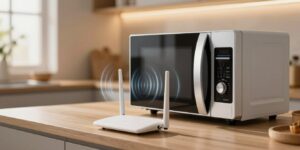
Microwaves are the classic example, but they are not the only kitchen culprit. Some older refrigerators and induction cooktops can throw off enough electrical noise to raise your error rate, especially if the router sits on the counter nearby.
Baby monitors and wireless cameras are repeat offenders because they transmit constantly. Many of them sit close to where people want good Wi-Fi, like bedrooms and living rooms, so the interference feels personal.
Wireless HDMI extenders and older video senders can be brutal because they push a steady stream. If you installed one for a TV over the fireplace and your Wi-Fi died in that room, you found your suspect.
Even something as boring as a fish tank heater or an LED light strip power supply can add noise when it cycles. The pattern is usually a short burst of lag every few minutes, which makes people think the ISP is throttling them.
Fans, air purifiers, and dehumidifiers can create interference indirectly by generating electrical noise on the same circuit as your networking gear. If your modem and router share a power strip with a motor-driven appliance, you are inviting weirdness.
Some appliances are quiet most of the time, then get loud when a compressor kicks on or a thermostat cycles. That can create the exact kind of intermittent problem that drives people to buy new routers.
Older fluorescent lights and some dimmers can be surprisingly nasty, especially when they are partially dimmed. If your Wi-Fi gets worse when you set “mood lighting,” you may be hearing the electrical hash in the air.
Cheap LED bulbs can also be a problem, not because they transmit radio like Wi-Fi, but because their drivers can be noisy. The closer those bulbs are to your access point, the more likely you notice it.
Electric blankets and heating pads are another odd one, because they cycle and they are used right where people stream and scroll in bed. If your bedroom Wi-Fi is worse in winter, pay attention to what is plugged in near the bed.
Some TVs and set-top boxes can radiate noise, especially if they have cheap internal power supplies. If your router is tucked behind the TV, you are basically asking it to live next to a noise generator.
Even if an appliance is not radiating much, it can still cause trouble by forcing your router into a bad location. A router placed low, behind a fridge, or inside a cabinet will be more sensitive to every other interference source.
If you suspect a kitchen appliance, do not just test right next to it, because reflections and walls can make the worst spot a few feet away. The interference pattern can be lopsided, which is why one corner of the room suffers more than the rest.
Sometimes the simplest fix is moving the access point away from the kitchen entirely and using a wired backhaul to reach that area. You cannot make a microwave behave, but you can stop living next to it.
Smart home hubs and “always on” gadgets that crowd your airtime
Some problems are not raw interference, they are airtime congestion caused by too many chatty devices. A pile of smart plugs, bulbs, and cameras can make your router spend all day juggling tiny packets.
Wi-Fi cameras are the loudest because they upload video and often sit on 2.4GHz by default. If you want an easy win, move cameras to 5GHz or wire them with Ethernet when you can.
Many voice assistants and smart speakers also stick to 2.4GHz for range. If they are close to the router, they can contribute to the “busy but slow” vibe that people describe as smart devices causing wifi problems.
Guest networks and IoT networks help, but they do not magically create more spectrum. If your 2.4GHz band is packed, shifting the heavy hitters to 5GHz or wired connections matters more than any app setting.
Some IoT devices are also just bad citizens, meaning they reconnect often, spam discovery traffic, or have weak radios that force slow data rates. A cheap smart plug at the edge of coverage can waste airtime for everyone.
Routers have limits on how many clients they handle gracefully, even if the marketing says “supports 100+ devices.” You can connect 80 devices and still have a miserable experience because the airtime is the real bottleneck.
Smart TVs and streaming sticks can be chatty even when “idle” because they check for updates, ads, and background content. If you have several of them on 2.4GHz, they can create a constant low-grade load.
Game consoles can also be noisy when they are downloading updates in the background, especially if they are set to always-on mode. The download itself is not interference, but it can push your Wi-Fi into congestion where interference hurts more.
Printers, thermostats, and appliances sometimes use power-saving modes that cause them to drop and reconnect frequently. That reconnect behavior can create bursts of broadcast traffic that make everything stutter for a few seconds.
Mesh systems can amplify this effect if the backhaul is wireless and also on a busy band. You can end up with devices fighting for airtime plus nodes fighting to talk to each other.
If you have a choice, keep low-bandwidth IoT on 2.4GHz and move high-bandwidth devices to 5GHz or wired, but do it intentionally. The goal is not to banish everything to one band, it is to stop the heavy devices from clogging the narrow one.
Also watch for duplicate hubs and bridges you forgot about, like an old smart home hub still plugged in after you switched platforms. Two hubs competing in the same spot can look like “random Wi-Fi drops” when it is really constant radio chatter.
If your router supports it, turning on features like airtime fairness can help in mixed environments, but it can also break older devices. I treat those settings as tools, not defaults, and I test after every change.
Simple changes that reduce interference without replacing gear
You do not need to buy a new router to fix many interference issues, you need better placement and cleaner channels. The easiest improvement is to get the router out of a cabinet and away from big metal objects and speaker magnets.
Channel choice matters most on 2.4GHz, where you should stick to channel 1, 6, or 11 in the US. Auto-channel can work, but I prefer setting it manually after checking what neighbors use.
Height matters more than people think, because a router on the floor has to fight furniture and bodies. Putting it on a shelf in an open area can improve both coverage and stability without changing a single setting.
Do not park your router next to the modem just because the cable comes in there, especially if that spot is behind a TV or in a closet. A longer Ethernet cable is cheaper than a new mesh system and usually more effective.
On 2.4GHz, avoid 40MHz channel width unless you have a very quiet environment, because it increases overlap. A stable 20MHz channel often feels faster in real life because it spends less time retrying.
If your router lets you reduce transmit power slightly, that can sometimes help in apartments by shrinking your footprint and reducing co-channel fights. It sounds backwards, but less shouting can mean more clarity.
Separate your SSIDs if band steering is causing devices to bounce, because bouncing looks like random drops. A dedicated 5GHz name for laptops and TVs can stop a lot of drama.
Move Zigbee and other hubs away from the router, but also away from your Wi-Fi client hotspots like your desk. A hub sitting between your laptop and the access point is the worst placement even if it is “six feet away.”
Replace one questionable power brick at a time, because you want to know what actually fixed it. If you replace everything at once, you will never learn which hidden wifi interference sources were real in your setup.
If you have a mesh system, prioritize wired backhaul if your home allows it, even if it is only for one node. A single wired hop can free up enough airtime to make the whole network feel calmer.
Keep access points away from large mirrors, aquariums, and thick masonry, because those surfaces can warp the signal. You cannot fix physics, but you can avoid placing your gear in the worst possible spot.
- Move the router at least 3 feet from TVs and soundbars
- Switch 2.4GHz channel to 1, 6, or 11
- Disable 2.4GHz on devices that support stable 5GHz
- Relocate Zigbee hubs away from the router
- Replace unbranded USB chargers near the router
- Use shorter, shielded USB 3.0 cables
- Hardwire consoles, PCs, and streaming boxes when possible
After you make changes, give your network time to settle and then retest in the same way you tested before. Consistent testing is how you know you improved stability rather than just getting lucky for an hour.
If you rent and cannot run cables, even a temporary flat Ethernet cable along a baseboard can be worth it for a backhaul test. Once you feel the difference, you can decide whether a cleaner long-term solution is worth the effort.
Also keep firmware updated on routers and access points, because radio drivers and band steering logic do improve over time. Updates do not fix interference, but they can make your gear handle interference more gracefully.
Finally, do not ignore the simplest fix of moving a single noisy device, like a charging station, away from the router. Two feet of separation can be more valuable than any “gaming QoS” setting.
5GHz and 6GHz are not magic, but they change the game
Moving devices to 5GHz often fixes problems because there is more spectrum and less random gadget noise. The tradeoff is range, so a far bedroom may still do better on 2.4GHz even if it is slower.
If you have Wi-Fi 6E or Wi-Fi 7, 6GHz can feel like a private lane, especially in apartments. It still suffers from walls and distance, so you may need an access point closer to where you work or game.
Band steering can help, but it can also annoy older devices that cling to 2.4GHz. If a device keeps bouncing bands, set it to a dedicated SSID so it stops arguing with your router.
Even with newer bands, you can still have electronic devices interfering with wifi in the form of local noise near a client device. If only one laptop struggles, fix the desk setup before blaming the whole network.
5GHz also gives you more non-overlapping channels, which makes it easier to find a quiet spot in crowded neighborhoods. That is why a simple band switch can feel like a miracle even when nothing else changed.
The catch is that 5GHz signals fade faster through walls, so a weak 5GHz connection can be less stable than a strong 2.4GHz one. If your device is right on the edge, it may keep dropping to slower rates and feel inconsistent.
6GHz takes that range challenge further, which is why it shines most in the same room or one room away from the access point. When it works, it is smooth because there is usually less legacy clutter.
Not every device benefits equally, because some phones and laptops have better radios than others. Two devices on the same band can have totally different experiences just based on antenna design.
If you are using mesh, a dedicated backhaul band can help, but only if the nodes have clean paths to each other. A “tri-band” label does not fix a node that is hidden behind metal and concrete.
Also remember that many IoT devices are 2.4GHz-only, so you cannot fully escape that band. The practical goal is to keep 2.4GHz stable for those devices while reserving 5GHz and 6GHz for the stuff you feel the most.
When you move to 5GHz or 6GHz, you may need to revisit channel widths and DFS channels depending on your environment. Sometimes the best stability comes from slightly narrower settings that avoid radar events and channel switches.
If your router keeps changing channels on its own, that can look like interference because clients have to follow. Locking a stable channel can be better than chasing the perfect one every hour.
Newer bands change the game, but they do not replace good placement and clean power. A great 6GHz router stuck behind a TV can still perform like a bargain unit on a good day.
When the interference is coming from outside your home
Neighbors are often the biggest answer to what devices interfere with wifi, especially in dense buildings. Their routers, extenders, and cheap ISP gateways can crowd the same channels you are trying to use.
You can spot this with a Wi-Fi analyzer app or your router’s site survey if it has one. If you see ten networks stacked on channel 6, your best move is usually switching to a cleaner channel or using 5GHz.
Some outside interference is not Wi-Fi at all, like wireless security systems or building automation gear. You cannot control those devices, but you can reduce your exposure by placing access points away from shared walls.
Outdoor links can also leak in, like a neighbor’s point-to-point bridge or a camera system aimed across yards. If your drops line up with someone arriving home, you may be dealing with their equipment ramping up traffic.
Apartments can be rough because you are surrounded on all sides, and 2.4GHz only has a few usable channels. Even if everyone is being “polite,” the airtime gets split into tiny slices.
Extenders can make it worse because they repeat traffic and double the airtime used for the same data. If a neighbor uses an extender on your channel, you may feel it even if their signal is not strong.
Sometimes the interference is a single strong network, like a business-grade access point next door blasting through the wall. Your router may keep trying to compete, and both networks end up slower than they need to be.
If you can, place your router more centrally so it does not have to compete through a shared wall. Even a few feet of movement can reduce how much neighbor signal overlaps with your main coverage area.
In houses, outside interference can come from nearby garages, workshops, or sheds with their own gear. A wireless camera system in the garage can be close enough to jam the home office on the other side of the wall.
Construction materials matter too, because brick and concrete can block neighbor Wi-Fi while letting lower-frequency noise seep through in odd ways. That is why two apartments in the same building can have totally different Wi-Fi experiences.
If your analyzer shows a clean 5GHz band but a crowded 2.4GHz band, take the hint and move your important devices. Let 2.4GHz handle the basics and stop expecting it to carry your whole household.
When you cannot find a clean channel, stability comes from reducing your own airtime use and keeping your signal strong. A strong, clean signal can tolerate more neighbor noise than a weak signal can.
If the problem is extreme and persistent, adding a wired access point closer to your devices can be more effective than turning up transmit power. You are not trying to win a shouting match, you are trying to shorten the conversation distance.
Conclusion
Most Wi-Fi problems blamed on “bad internet” are really local radio noise or airtime congestion. Once you accept that, electronic devices interfering with wifi become easier to track down because you stop treating it like a mystery.
The fastest fixes are usually boring, move the router, clean up 2.4GHz channels, and separate chatty smart gear from your main devices. If you keep an eye out for hidden wifi interference sources, you can get stable performance without buying a whole new network.
When you troubleshoot, focus on repeatable tests and small changes, because that is how you isolate the real trigger. Once you find the culprit, the fix is often just distance, a better cable, or a better power brick.
Wi-Fi will never be perfect, but it can be predictably good when the air is clean and your devices are not fighting each other. The goal is not maximum speed on a speed test, it is stable performance where you actually use it.
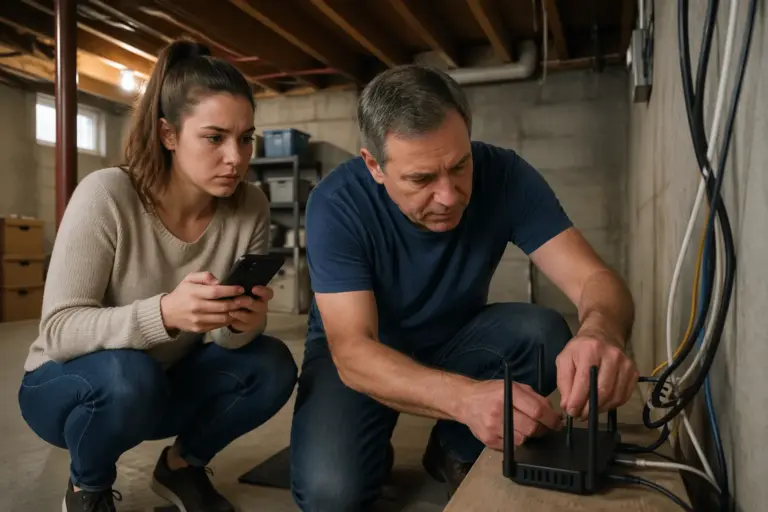
Why Wi-Fi Struggles More in Basements and Below-Ground Spaces
» See exclusive tips for your home