Ethernet Backhaul: The Upgrade That Makes Mesh Wi-Fi Much Better
Improve your mesh Wi-Fi network with ethernet backhaul mesh. Follow our step-by-step guide to enhance your network's speed and coverage.
Ethernet backhaul links mesh nodes with a wired path so the system’s routers talk to each other without using radio lanes. This change often becomes the single biggest upgrade for stable whole-home Wi‑Fi.
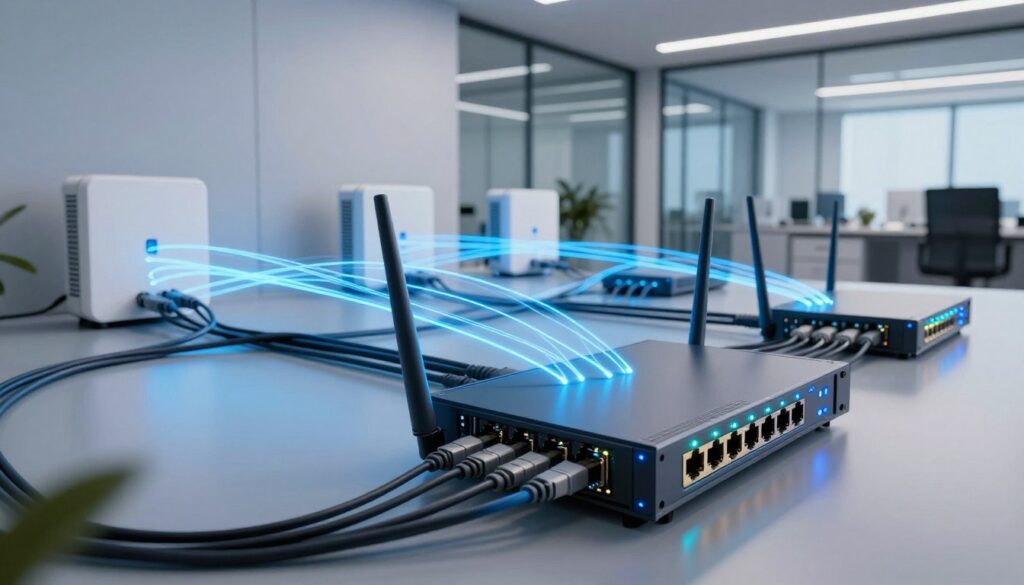
When you move the backhaul traffic from the air to a cable, you reduce wireless interference and free up radio capacity for phones and laptops. Expect more consistent speed, fewer dropouts, and smoother roaming between nodes in busy neighborhoods or crowded apartments.
This setup does not replace Wi‑Fi for client devices. It strengthens how each router communicates inside the local network, improving overall performance and visible improvements room to room.
Homes with multiple stories, long hallways, or older construction gain the most. The rest of this guide walks you through required gear, wiring options, and simple tests to verify the gains after setup.
Key Takeaways
- Wired links between nodes make Wi‑Fi more reliable.
- Moving backhaul traffic off the radio reduces interference.
- Clients still use Wi‑Fi; the wired path improves internal routing.
- Best for multi-story homes, long distances, and inconsistent rooms.
- Guide will cover gear, wiring choices, and validation steps.
- Expect steadier speed, fewer drops, and smoother roaming.
Why Ethernet Backhaul Improves Mesh Wi‑Fi Performance
Think of the internal link between nodes as the home’s highway for data—when it’s clear, traffic moves faster. In plain terms, backhaul is the path that carries traffic between each node and the main unit. That internal link controls how well the whole network delivers speed and coverage.
Wireless vs wired: how the link changes results
Wireless links share airtime. Walls and nearby networks steal capacity and raise latency. That reduces throughput for every device when the link is over the air.
What Else Would You Like to Know?
Choose below:
By contrast, a wired link frees radio capacity for phones, laptops, TVs, and smart gear. Devices keep full Wi‑Fi lanes while nodes use the cable for their internal traffic.
“A solid wired connection often lets a node deliver speeds closer to what your ISP provides.”
Real improvements you’ll notice
- Higher sustained speeds and fewer slowdowns during peak use.
- More consistent coverage in hard-to-reach rooms.
- Improved roaming because nodes exchange info faster and more reliably.
In dense U.S. neighborhoods, overlapping networks mean more interference. A stable wired connection reduces that competition and gives a more predictable internet experience.
What You Need Before You Start
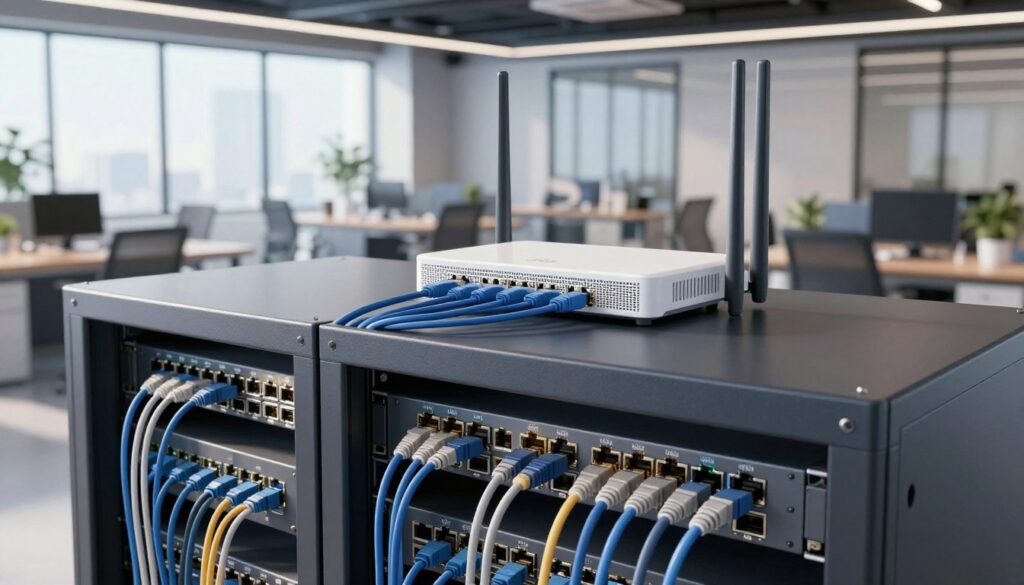
Before you pull any wires, confirm the exact parts and ports your home network needs. A small prep step prevents slow links and misplaced connections later.
https://www.youtube.com/watch?v=D0n9R5CyzNE
Choosing the right ethernet cable for backhaul: CAT5e or better and why it matters
Use a CAT5e or better ethernet cable for all runs. Modern CAT5e, CAT6, or higher handles gigabit speeds and avoids bottlenecks that old or damaged cable can cause.
Older cables may negotiate lower link speeds. That slows the wired path and limits what connected devices can achieve.
Confirming your hardware and firmware support on your product’s support page
Visit the manufacturer’s support page for your router or node. Pick the correct hardware version, then check the datasheet and firmware section.
ASUS recommends CAT5e or greater and a gigabit switch for best results. TP‑Link notes firmware updates can change feature access—so update only after confirming version support.
Planning ports and placement: modem, router, nodes, and available LAN port capacity
Count LAN ports on the main router and on each node. Note which connectors are labeled WAN versus LAN. Decide if a switch is needed to add ports.
Keep the main unit next to the modem. Place wired nodes where coverage is most needed, not just where wireless signals look strongest.
- Plan cable lengths, avoid tight bends, and label both ends.
- Test each run before finalizing placement.
- Factor in TVs, PCs, and consoles so lan port capacity fits your home design.
How to Set Up ethernet backhaul mesh in Common Home Network Setups
Start simple, then expand. Run one cable from the main router to a node for the easiest, most reliable upgrade.
Direct wired link: connect the main unit’s LAN to the node’s WAN (or LAN if the vendor recommends). Check link lights and confirm gigabit negotiation.
When to add a switch
Use a gigabit switch (10/100/1000Tbase) when you need extra ports. This prevents the wired path from becoming a bottleneck.
Router-mode with a switch (step-by-step)
- Modem → main router WAN.
- Main router LAN → switch LAN.
- Switch → each node WAN so the router assigns IPs.
AP (bridge) mode with switch
- Modem LAN → switch.
- Switch → main unit LAN (main gets IP from modem).
- Switch → node WAN ports.
Modem must provide DHCP; some ISPs limit IPs.
AP mode without a switch
When the modem has spare LAN ports, wire nodes directly to it. This works but watch for ISP device limits and DHCP restrictions.
Managed switch and VLANs
Do not attach node ports to trunk-mode VLANs. Use access (untagged) ports so the nodes keep a stable connection.
Finally, set the mesh app’s backhaul priority to Ethernet or “Ethernet first” so wired links are preferred.
| Setup | Key wiring | Requires | Notes |
|---|---|---|---|
| Direct node | Router LAN → Node WAN | One CAT5e+ cable | Fastest, simplest |
| Router mode + switch | Modem→Router WAN; Router LAN→Switch→Nodes | Gigabit switch, CAT5e+ | Router manages IPs |
| AP mode + switch | Modem→Switch→Router LAN & Nodes | Modem DHCP, gigabit switch | Modem issues IPs; check ISP limits |
| AP mode no switch | Modem LAN → Router LAN + Nodes | Multiple modem LAN ports | Watch device/IP caps |
Verify the Wired Backhaul Is Working and Fix Common Issues
Start at the router or mesh app and confirm each node shows a wired uplink. Open the node details page and look for a clear status such as “wired” or “wired uplink” and a reported link speed (1 Gbps, 2.5 Gbps, etc.).
Check the physical ports too. Verify link LEDs on the router, switch, and node ports. If the UI reports a speed, confirm it matches the port capability.
Quick multi-brand checks
- Run a speed test beside each wired node to compare results.
- Swap in a known-good short cable to rule out bad runs.
- Use the node’s WAN vs LAN ports as vendor docs advise.
Troubleshooting flow
- Start with cable swaps. A single bad pair can cap speeds at 100 Mbps.
- Confirm you used the correct port on the router and node (WAN or LAN per instructions).
- Bypass any switch: connect node directly to the router to isolate switch faults.
Managed switch and configuration pitfalls
Avoid trunked VLANs on node-facing ports. Set those ports as access (untagged) so the node receives plain traffic. Also ensure the router’s connection priority is set to “Ethernet” so the system prefers the wired path.
ISP modem limits and what to ask support
Symptoms of modem IP limits include only one device getting internet, or nodes losing access after leases expire. Ask your ISP: Does the modem provide DHCP in AP/bridge mode? How many IP leases are allowed? Should I run my router behind the modem to support multiple devices?
| Problem | Quick check | Fix |
|---|---|---|
| Node shows wireless uplink | Node UI indicates “wireless” | Set priority to Ethernet, check cable and port |
| Speed capped at ~100 Mbps | Link LED active but slow | Replace cable, test for bad pair, verify port speed |
| Intermittent drops | Node falls back to radio after uptime | Bypass switch, check VLAN trunking, confirm access ports |
| Nodes can’t get internet | Some devices show no WAN IP | Contact ISP about DHCP leases or run router in router-mode |
Conclusion
A wired uplink often turns an inconsistent whole‑home setup into a steady, predictable system.
When it helps most: multi‑story homes, long hallways, or thick walls benefit the most because a cable bypasses interference and frees radio capacity for client devices.
Quick checks to finish: use the right cabling, plan port counts and topology, and pick router or AP mode that fits your modem and ISP limits. Confirm firmware and feature details on the manufacturer’s support pages before assuming limits are fixed.
Do one last verification step: confirm each node reports a wired uplink and re‑test speeds in rooms that were weak before. This final test shows the real improvements.
Bottom line: a proper wired link is a practical, lasting upgrade that reduces variability and keeps a mesh system reliable as you add more devices over time.
FAQ
What is wired backhaul and how does it improve a mesh Wi‑Fi system?
Do I need special cables to set up a wired connection between nodes?
How do I check whether my hardware and firmware support a wired node connection?
Can I use a standard unmanaged switch to connect multiple nodes?
How should I wire when using a router, modem, and a switch together?
What’s the difference between AP (bridge) mode and router mode when wiring nodes?
Can I connect multiple nodes directly to the modem without a switch?
What switch VLAN settings should I use for node ports?
How do I make the system prefer a wired link over wireless for inter‑node traffic?
How can I confirm nodes are actually using the wired connection instead of a wireless hop?
What common cable or port issues cause poor wired link performance?
My ISP modem limits device IPs. What are the symptoms and fixes?
Will a wired link improve gaming and video calls?
Is there any downside to using wired node connections in a home setup?
Router Firmware Updates: When They Help and How to Do Them Safely
» See exclusive tips for your home