Gigabit Router but Slow Wi-Fi: What Limits Wireless Speeds
Having a gigabit router still slow wifi? Learn how to identify and fix the problems limiting your wireless network's performance.
Many homeowners expect top-tier internet at every corner of the house. When a gigabit-class device seems to underdeliver, the issue rarely lies in advertising alone. A device cannot create bandwidth the ISP does not supply, so the home equipment must support throughput above the incoming feed to avoid a bottleneck.
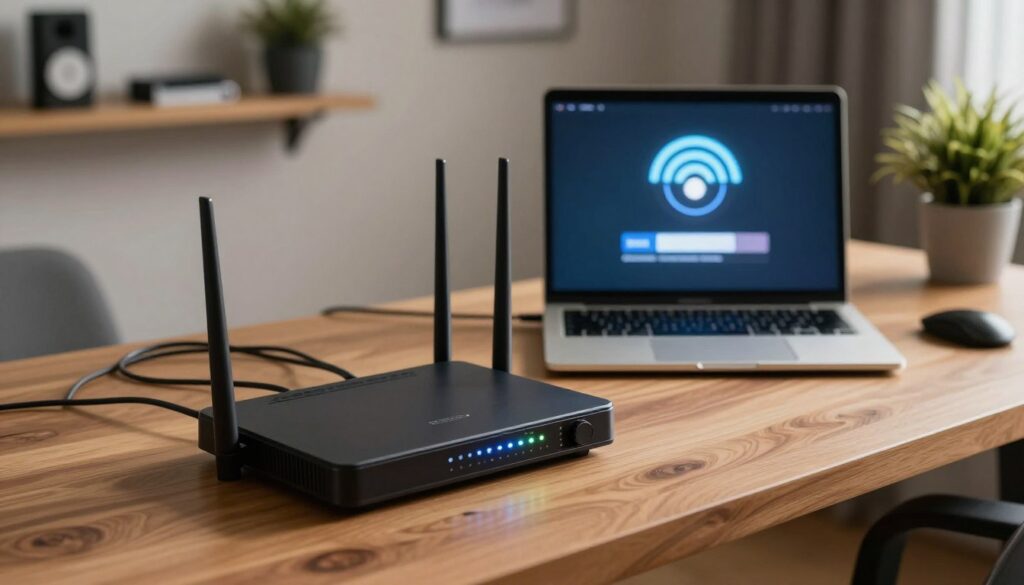
Common causes include simple fixes like restarting hardware, and physical limits such as distance, walls, or interference. Cables, ports, and old client devices also cut real-world speed. Provider congestion and throttling may affect the internet feed itself.
The goal of this guide is clear: show how to tell if the problem is on the ISP side or inside your home network, and then fix the highest-impact issues first. You will learn a concise diagnostic order — baseline speed test, wired check, device limits, settings, and coverage options — so you can collect repeatable measurements and act with confidence.
Key Takeaways
- Confirm your ISP feed with a baseline speed test before changing home gear.
- Short trips: restart devices and test wired speed to spot bottlenecks.
- Distance, walls, and old devices often reduce wireless speeds more than the modem.
- Check cables, ports, firmware, and active client load to fix common problems.
- Collect repeatable tests (same device, server, and time window) for reliable diagnosis.
Set a Baseline With an Internet Speed Test Before You Change Anything
Before swapping hardware, establish a reliable baseline for your home’s internet performance.
Confirm your plan in your ISP account or bill so you compare results to the correct target, e.g., “up to 1,000 mbps.” Remember that advertised peaks are not guaranteed and real-world internet speeds often fall short.
Choose tools and test consistently
Pick 1–2 trusted sites (Ookla, Fast.com, M‑Lab) and use the same one every time. Run at least three speed test runs in one sitting and record the median to avoid one-off spikes.
What Else Would You Like to Know?
Choose below:
Map locations and times
Test in the router room, a mid-distance room, and your trouble spot. Repeat during peak evening hours and off-peak mornings to spot provider congestion or local coverage gaps.
Interpret download vs upload
If download looks fine but mbps upload is low, expect trouble with video calls, cloud backups, and uploads. Stable upload, low jitter, and low ping can matter more than raw download bandwidth for real-time use.
“Measure first, change later” — small tests save time and point you to the right fixes.
Test the Modem First Using a Wired Connection
A direct wired connection to the modem gives the cleanest view of the service the ISP delivers. Connect one computer straight to the modem and run controlled speed checks to separate provider issues from in-home limits.
Step-by-step modem test
- Unplug the modem router from the home network.
- Use an ethernet cable to connect a laptop or desktop directly to the modem.
- Power-cycle the modem if prompted, then run three speed tests and record the median.
Why this is the cleanest measurement: a wired connection removes wireless interference, device load, and router settings from the result. This reveals the true internet connection from your ISP to the home.
Interpretation and when to contact the ISP
If direct modem results match your plan, the bottleneck is inside the house. If speeds are far below the service tier, contact the ISP.
“Document multiple tests by day and time to show a consistent problem.”
- Checklist for calls: date/time, wired vs Wi‑Fi result, device, test provider, and whether the modem was rebooted.
- Repeat the same wired test at peak and off-peak hours to collect supporting data.
- Note: a single bad cable or a modem-to-modem router link issue can mislead results; that is the next step to check.
gigabit router still slow wifi: The Most Common Wireless Speed Limiters
Household layout and band choice drive most real-world speed losses on wireless connections.
Band tradeoffs: 2.4 GHz trades top speed for range. It passes through walls better but faces more interference from common devices. By contrast, 5 GHz and 6 GHz offer much higher throughput at shorter range.

Check what your device uses
Confirm which band each device uses. If you see separate SSIDs, pick the 5 GHz or 6 GHz name for phones and streaming boxes that need speed.
Interference and placement
Nearby electronics, microwaves, Bluetooth devices, and neighbors’ networks lower signal quality. Dense materials like brick or concrete block signals more than drywall.
Why speed drops by room
Each wall or floor reduces signal strength and forces devices to use slower link rates. That cuts real Mbps even when the wired link is fast.
“Run a quick test beside the unit and again in the worst room; a large gap points to range, not the ISP.”
| Factor | Effect | Quick fix |
|---|---|---|
| Band choice | 2.4 GHz: better range, lower throughput | Use 5/6 GHz for speed-sensitive devices |
| Interference | Lowered signal and higher retries | Move away from kitchens and Bluetooth hubs |
| Placement | Uneven coverage across the home | Place centrally and elevated, not in a cabinet |
Note: Even a gigabit-capable unit cannot overcome a device with an older radio or a hidden 100 Mbps Ethernet link. The next section shows how to find those hidden limits.
Check for Hidden Bottlenecks in Ethernet Cables, Ports, and Link Speeds
A single faulty link can hide under the surface and cap your whole home’s throughput. Before changing settings, inspect the physical path from the modem to the network gear. A bad cable or port can make a high-speed plan look like it is only delivering ~90–95 Mbps.
Cat5 and the 100 Mbps trap
Older Cat5 wiring and some cheap cables may only negotiate at 100 mbps. If that cable sits between the modem and router, every device behind it inherits the cap.
Spot loose, worn, or damaged runs
Look for tight bends, kinks behind furniture, staples, and pet chew marks. Replace any cable with a worn retention clip or visible jacket damage.
Verify the modem-to-router path
Make sure the modem’s feed and the WAN/Internet port are used correctly. Hand-tighten coax or firmly seat fiber and ethernet connectors.
- Quick swap test: swap the modem-to-router ethernet cable first; it is cheap and often fixes mysterious caps.
- Re-seat every run: unplug and re-click each connection to rule out loose plugs.
- Check link rates: view the WAN link in the device UI to confirm 100 mbps vs 1,000 mbps negotiation.
“A single old or damaged cable can bottleneck an otherwise healthy network.”
Make Sure Your Devices Can Actually Use Gigabit-Class Wi‑Fi and Ethernet
Not every device in your home can use the top speeds that modern networking gear advertises. Often the client hardware is the bottleneck, not the network feed or the hardware feeding it.
Older standards and port limits
Example: a device with a 100BASE‑T Ethernet jack will cap at about 100 mbps wired. Likewise, a Wi‑Fi 4 client may top out near 150 Mbps per radio stream and cannot match newer models.
Why one device is fast and another is not
Different phones and laptops use different antennas, chipsets, and firmware. That causes real-world variation even in the same room.
- Test method: run a speed check with a newer phone, then repeat with an older device in the same spot. Large gaps point to the client.
- Check specs: look for Wi‑Fi generation, number of spatial streams, and 2.4/5/6 GHz support to confirm limits.
| Client type | Common cap | Action |
|---|---|---|
| Old desktop or dock | 100 Mbps (Fast Ethernet) | Replace cable or add a gig-capable NIC |
| Wi‑Fi 4 phone or stick | ~150 Mbps per stream | Use 5/6 GHz-capable device or wire it |
| Modern laptop/phone | Several hundred Mbps to >600 Mbps (near AP) | Prioritize for work or gaming |
“Upgrade the devices that need real speed, and wire the ones that must be reliable.”
Practical tip: prioritize upgrading or hard‑wiring work laptops, gaming consoles, and streaming boxes. Expect that few single devices will reach headline speeds over wireless; aim for consistent, usable performance where it matters.
Optimize Router Settings and Firmware That Can Throttle Speeds
Small configuration choices often cut throughput more than cables or old devices. Start here: update the device software and review key options before replacing hardware.
Update firmware to improve performance and security
Apply firmware updates early. Vendors like NETGEAR and others ship fixes that improve stability and throughput. Back up current configuration, then update and test.
Custom settings, QoS, and bandwidth caps
Legacy compatibility modes, per-device bandwidth limits, parental controls, or aggressive qos rules can cap top speed. Misconfigured rules or an underpowered CPU may reduce peak throughput.
- Change one thing at a time so you can measure impact.
- Check for forgotten per-device caps that create an unexpected bottleneck.
- If qos hurts top-end speed, try disabling it temporarily to compare results.
Smart Connect vs separate SSIDs
Smart Connect is convenient but can bind high-value devices to 2.4 GHz. If a device keeps choosing the wrong band, split SSIDs and have the device “forget” and reconnect.
“If a change creates a new problem, revert and move on to coverage or congestion fixes.”
Reduce Congestion and Latency on Your Home Network
When many devices pull heavy traffic at once, the home network can feel overloaded even if speed tests look fine. Congestion happens when downloads, live streams, backups, and updates fight for limited bandwidth. The result is buffering, choppy calls, and annoying lag.
Spot congestion and perform a quick audit
What congestion looks like: tests may pass in the morning but fail during evening streaming or large game downloads. Check the router app or web interface and list all connected devices.
Identify always-on users: cameras, cloud sync agents, and smart TVs often use steady bandwidth. Note the time windows when problems appear.
Simple fixes and scheduling
Pause background updates and schedule big downloads for off-peak hours. Stagger large tasks across different times to reduce simultaneous load.
Upgrade the plan only if device demand regularly exceeds available bandwidth.
Use QoS to prioritize what matters
qos can give voice, video calls, and work devices priority when the connection is under load. Set rules for key devices or ports rather than chasing raw peak numbers.
Prune and secure connected devices
- Put visitors on a guest network and block unknown devices.
- Change the Wi‑Fi password to force re-authentication of all devices if you see unrecognized entries.
- Remove or disable idle devices that consume constant bandwidth.
“Buffering and slow downloads usually signal bandwidth contention; lag and choppy calls often point to latency and jitter.”
After each change, re-run the same speed and latency tests at the same time of day to confirm improvement. This disciplined approach exposes whether the issue was device congestion, bandwidth limits, or latency-related problems.
Expand Coverage When Wi‑Fi Can’t Reach: Extenders, Mesh, and Better Placement
If rooms in your home lose connection, a placement change often beats buying new gear.
Start simple: move the router a few feet, raise it off the floor, and avoid metal cabinets or thick walls. Small moves frequently restore usable coverage and improve speed without extra cost.
When moving the device or raising it is the best next step
Place the unit near the center of the floor plan and elevated on a shelf. This reduces dead zones and gives more even signal across the house.
Extenders and mesh: what they fix and what they don’t
Extenders boost reach in single problem rooms but can cut throughput if they repeat wirelessly. Mesh systems provide broader, consistent coverage across multiple floors.
Example: an extender placed too far from the main unit in a basement showed a disconnected status; moving it midway restored measured internet speeds.
Placement rules and backhaul considerations
Place extenders midway between the main unit and the dead zone so they keep a strong connection. If possible, use wired backhaul (Ethernet or coax where supported) for the best, most stable performance.
- Try repositioning first.
- Test with a speed check in the problem room.
- If needed, add an extender or a mesh node with good backhaul.
| Solution | Best for | Limitations |
|---|---|---|
| Move existing unit | Small homes, single dead spots | May not fix multi-floor loss |
| Extender | One or two problem rooms | Can halve wireless throughput if placed poorly |
| Mesh system | Large homes, multi-story layouts | Higher cost but consistent speeds |
“Measure before and after to keep the best location based on real tests.”
Conclusion
Work from the modem outward: run baseline speed tests, then connect a wired device to the modem to confirm what your internet service actually delivers.
Next, isolate home limits: check cables and ports, test key devices, and address placement, band choice, firmware, and congestion. Follow a simple fix ladder: restart equipment → confirm modem performance → replace suspect cables → improve placement/band selection → update firmware/settings → reduce congestion → add an extender or mesh if needed.
Keep notes of each test, time, and change so you don’t repeat steps or misattribute gains. Contact your ISP when repeated wired modem tests fall well below the advertised tier across multiple days and times.
Success is not just a peak speed test number but a stable internet connection in the rooms you use most.
FAQ
How do I set a baseline with an internet speed test before changing settings?
What does “up to 1,000 Mbps” actually mean for my home internet plan?
Why should I test the modem with a wired connection first?
What if modem speeds are much lower than my service tier?
How do band choices affect wireless speed and range?
How does distance and interference cut wireless speeds?
Where should I place my wireless base for best coverage?
Can an old Ethernet cable limit my network speed?
How do I spot a faulty or damaged Ethernet cable?
Why should I verify the modem-to-base cable path?
Do my devices need special hardware to reach gigabit-class speeds?
Why does one phone run faster than another on the same network?
How can firmware and settings throttle my connection?
When should I use QoS or traffic prioritization?
What is Smart Connect and when should I use separate SSIDs?
How do I reduce congestion and latency on my home network?
When is “slow” actually high latency rather than low bandwidth?
When will moving the base beat buying new gear?
What do extenders and mesh systems actually fix and not fix?
Where should I place an extender to avoid creating a weak link?
Why Wi-Fi Gets Slower at Night and What You Can Do
» See exclusive tips for your home