IP Address Conflicts: Why ‘Connected’ Can Still Fail
Resolve ip address conflict wifi issues with our step-by-step guide. Learn how to identify and fix IP address conflicts on your network.
Even when a device shows it is connected, local routing can still fail. A common problem is when two devices claim the same local address. That overlap can cause traffic to be misdelivered or dropped, leaving users with intermittent or no internet despite a live radio link.
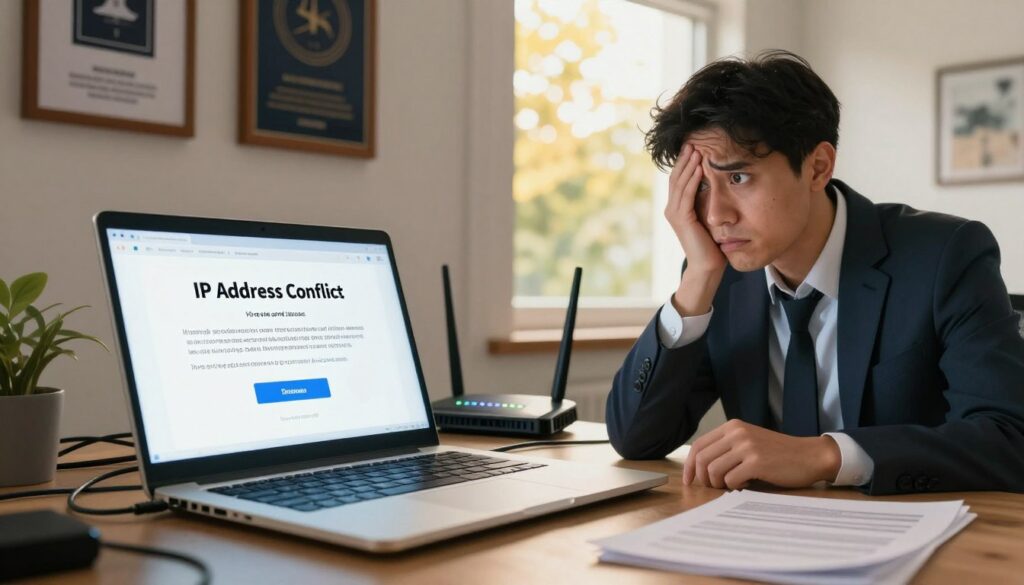
This guide explains the paradox: the radio link may be fine while packet routing on the network breaks down. You will learn how to spot symptoms like “connected, no internet,” repeated warnings, and random disconnects.
We cover home and office setups: routers, extenders, and mixed static and dynamic assignments. The goal is clear: show how to confirm a duplicate, fix it fast, and stop repeat incidents.
Act quickly. These issues do not always self-resolve and can return. Success means stable access, unique addresses per device, and predictable DHCP behavior.
Key Takeaways
- Devices may show connected while local routing fails.
- Duplicate local addresses cause misdelivered or dropped traffic.
- Learn to detect, confirm, and fix duplicates quickly.
- Applies to routers, extenders, and mixed setups at home or office.
- Fast action prevents recurring disruptions and restores stable access.
What an IP Address Conflict Is and Why Wi‑Fi “Connected” Isn’t Enough
A strong radio link does not guarantee correct packet delivery when two devices share one identifier. The radio layer only says the gadget and router can talk. Proper routing needs a unique local label, a valid gateway, and matching routes.
Packet-level failure: When two devices use the same local label, ARP or neighbor discovery tables point traffic to the wrong MAC. Packets can flip between targets or be dropped, so a device appears connected but fails to reach services.
Public vs. private and where the problem happens
Most failures occur on private LAN ranges like 192.168.x.x, not on the ISP-facing public one. The router still has a public identity, while local routing depends on unique private labels.
Dynamic vs. static and DHCP’s role
The dynamic host configuration protocol (DHCP) leases unique values to devices and prevents duplicates.
A mixed setup breaks that safety when a manually set static falls inside the DHCP pool. Example: a printer set to 192.168.1.50, then DHCP later gives 192.168.1.50 to a laptop.
“Clear allocation and simple configuration rules stop most duplicate incidents.”
| Scenario | What fails | Quick fix |
|---|---|---|
| Static inside DHCP pool | ARP table flips; packets misdelivered | Move static out of pool or reserve in DHCP |
| Two DHCP servers | Overlapping leases | Disable extra server or set distinct scopes |
| Stale lease reuse | Device gets old value when waking | Clear leases or reboot router |
Prevention starts simple: plan ranges, reserve critical devices, and avoid manual entries in the DHCP pool. Good hygiene keeps the network predictable and reduces repeat incidents.
Common Signs Your Network Has Address Conflicts
A few clear alerts and many quiet glitches both help you spot when two devices claim the same local label.
OS pop-ups and what they mean
Windows may show messages like “Windows has detected an IP address conflict” or “Another computer on this network has the same IP address.” macOS can warn that another device is using your computer’s IP.
These alerts mean the LAN has detected a duplicate address and routing may fail until the clash is resolved.
Silent failures: intermittent connectivity and random disconnects
Sometimes the radio link stays up but pages time out, streaming buffers, and devices drop without a popup. That pattern points to a duplicate that silently steals or drops packets.
Mobile platforms often show no dialog, so the issue feels like poor service rather than a duplicate label problem.
Router logs and admin clues
Check router logs for phrases such as “Bad Address” or “IP already in use.” Duplicate client entries or two MACs sharing one host record are strong indicators.
These signs link back to mechanics: the network cannot reliably decide which device should receive traffic for the duplicated address. ARP table flips and device sleep/wake cycles make the problem look intermittent.
- Look for OS pop-ups naming a duplicate — that gives a device-level start point.
- Note silent patterns (timeouts, buffering) when devices show connected but lack connectivity.
- Use router logs and the client list to narrow which device is responding for the same label.
Next step: confirm which device is conflicting so fixes target the right gadget instead of using random resets.
Why ip address conflict wifi Happens on Home and Office Networks
Many home and small office outages start when more than one device begins acting as the DHCP authority. That overlap makes two devices claim the same local label and routing fails even with a solid link.
DHCP server glitches are common. A router can reboot during lease assignment, lose track of leases, or mishandle simultaneous requests. Result: two clients may receive the same lease.
Static entries inside the pool
Setting a manual label inside the router’s lease range is a frequent human error. Over time the dynamic pool can hand that value to another gadget and a collision will occur.
Multiple DHCP servers
Adding a second router, an extender in router mode, or a rogue server often creates overlapping scopes. Unauthorized servers destabilize the network quickly.
Sticky leases and device wake-up
Phones and laptops often try to reuse an old lease after sleep. If the router reassigned that value, the returning device can clash with the new holder.
Router limits and firmware
Older modems and routers can exhaust their lease tables or suffer firmware bugs that cause allocation slipups under many smart devices. Keep firmware updated and use a single DHCP source to reduce repeat incidents.
“Single-source DHCP, clear pool boundaries, and up-to-date firmware stop most repeats.”

- Prevent: use one DHCP server and reserve critical devices.
- Avoid: static values inside the dynamic range.
- Maintain: update router firmware and monitor lease tables.
How to Confirm the Conflict and Identify the Conflicting Device
Start by confirming your device’s current network label and gateway so you know what to compare. That baseline makes matching entries in the router or ARP table easy to verify.
Find your current values on Windows and macOS
Windows: open Command Prompt and run ipconfig. Record the IPv4 and Default Gateway shown for the active adapter.
macOS: go to System Settings → Network → select the active service → Details/Advanced → TCP/IP. Note the current IP and router entry.
Use the router client list to match names and MACs
Open the router admin page and review connected devices. Match device names, listed addresses, and the mac address field.
A duplicate entry or two devices sharing the same listed address is a clear sign something is wrong.
ARP tools and quick scans
Run arp /a on Windows to list IP-to-MAC mappings. On macOS install arping or use arp -a to watch responses flip between two MACs.
Mobile scanners such as Fing list device names, addresses, and manufacturers for quick detection.
When powering off devices is faster
On small networks, the fastest test is pragmatic: power off likely devices one at a time. When connectivity stabilizes, the offender is found.
This trial-and-error method often beats deep log digging for home setups.
Quick Fixes That Often Restore Connectivity Fast
A fast reboot routine fixes many routing and lease mismatches in minutes. These first-response steps solve a large share of home and small office network issues without deep changes.
Simple restart sequence
Recommended order:
- Power off the router — unplug for ~10 seconds.
- Shut down or put the devices into airplane mode.
- Power the router back on and wait until the network is fully up.
- Reconnect each device one at a time.
Why this works and a quick shortcut
Restarting forces dhcp to reassign leases and clears stale mappings in the router’s tables. The network rebuilds active entries and many duplicate problems go away.
As a shortcut for phones and laptops, forget the network or toggle the wireless off/on to force a lease request. This often refreshes the device lease without a full reboot.
What to watch for and next steps
After these steps, look for stable internet, no repeat warnings, and a consistent entry for the device in the client list. If the issue returns, proceed to device-level lease renewals and then harden router/dhcp settings.
Renew or Reset Your Device’s Network Configuration
A client-side lease refresh often fixes routing problems without router changes. Try these steps on the troubled device first to avoid needless resets.
Windows: quick DHCP lease refresh
Open Command Prompt as an administrator. Run ipconfig /release, then ipconfig /renew to request a new lease from the DHCP server.
If name lookups seem wrong after renewal, run ipconfig /flushdns to clear the DNS cache. That separates name resolution issues from raw connectivity problems.
Windows: deeper stack repair when leases won’t stick
If the client still won’t hold a valid lease, run these commands and then reboot:
- netsh winsock reset
- netsh int ip reset
These commands reset the networking stack and often resolve stubborn software-level faults.
macOS: renew the DHCP lease
Go to System Settings → Network → select the active service → Details/Advanced → TCP/IP.
Click Renew DHCP Lease, then verify the new address and test connectivity. This requests a fresh allocation from the DHCP server.
When a full network reset is justified
Use a full reset only for repeated failures, corrupted adapter settings, or persistent “connected but no network” behavior.
What you’ll lose: saved wireless networks, custom DNS and VPN profiles, and virtual adapters. You will need to re-enter passwords and reconfigure services.
If renewing the lease resolves the problem, stop there and follow prevention steps in the router to avoid repeat incidents.
| Action | When to use | Expected result |
|---|---|---|
| ipconfig /release + ipconfig /renew | Temporary duplicate or stale lease | Requests new dhcp lease; often restores routing |
| ipconfig /flushdns | Name resolution oddities after renewal | Clears DNS cache; fixes lookup errors |
| netsh winsock reset + netsh int ip reset | Persistent lease failure or network software errors | Resets network stack; requires reboot |
| macOS Renew DHCP Lease | Mac shows connected but no connectivity | Asks dhcp for a fresh assignment; fast resolution |
Permanent Fixes on the Router and DHCP Server
Resolve repeat routing problems by making durable changes on the router and the DHCP server.
Define a clear DHCP scope and avoid overlap
Set a single, explicit pool so the server draws leases from a known range. This reduces accidental reuse and makes troubleshooting simpler.
Avoid overlapping pools when you have extra hardware. One LAN should have one authoritative DHCP server. If another device can hand out values, turn off its service or set a non‑overlapping range.
Use reservations instead of manual entries
Bind critical devices to a lease by reservation. A reservation ties a device’s MAC to a fixed value, giving stability without manual per‑device configuration.
Keep static devices outside the dynamic pool
Assign printers, NAS, and servers a static address that sits outside the dynamic range. This prevents collisions if the server later hands that same value to another gadget.
Clean up and update
Remove duplicate reservations and clear stale leases. Reboot the router after changes so the new rules apply consistently.
Update firmware regularly. New firmware fixes allocation bugs that can cause repeat conflict events, especially as IoT devices grow.
| Fix | When to use | Result |
|---|---|---|
| Define DHCP scope | Initial setup or recurring reuse | Single pool; fewer duplicate leases |
| DHCP reservation | Critical devices needing stable values | Stable mapping via MAC binding |
| Static addresses outside pool | Printers, NAS, on‑site servers | No overlap with dynamic leases |
| Clear leases & remove duplicates | After collisions or stale records | Cleaner client list; fewer repeats |
| Firmware update & management tools | Persistent allocation bugs or large networks | Improved stability; automated alerts via software |
When to consider software tools: larger networks benefit from IP management suites that inventory values, detect duplicates, and alert admins fast.
Advanced Scenarios: Rogue DHCP, Switch Ports, and Security Red Flags
In complex setups, a rogue lease source can ripple failures across multiple endpoints.
How a rogue DHCP server shows itself: devices may get unexpected gateways or DNS, leases shift unpredictably, and duplicate values can spread. If devices keep receiving settings after you disable the main dhcp on the router, another dhcp server is active.
Check the DHCP server identifier where visible. Compare that value to the router’s entry to see who issued the lease. Proceed with caution—disabling the main server causes downtime.
MAC checks and physical mapping
Match the mac address from the lease to the device vendor. Unknown OUIs or mismatched device names are red flags. Use a network scan to map which network device actually holds a given value.
Isolate via switch port
In managed networks, temporarily disable the switch port tied to the suspect host. If the problem clears, the offending device is isolated and can be remediated without broad disruption.
Security actions and escalation
Persistent issues may signal malware or mac spoofing. Run antivirus scans, change network passwords, and consider blocking suspicious devices. If firmware and scope are correct but problems persist, contact your ISP for deeper diagnostics or hardware checks.
| Issue | Quick detection | Remediation |
|---|---|---|
| Rogue dhcp server | Unexpected gateways/DNS; server identifier mismatch | Disable rogue service or remove device; restore single dhcp |
| MAC spoofing or rogue device | MAC vendor mismatch; repeated lease flips | Scan for malware; block port; update credentials |
| Recurring problems in business networks | Conflicts recur despite correct router settings | Deploy IPAM or user/device tracking tools; escalate to ISP |
Rule of thumb: use simple detection first, isolate with the switch, then escalate to management tools or your ISP when needed.
Conclusion
, A clear plan and quick checks turn most local network problems into short fixes.
Key takeaway: a connected radio link can hide routing failure. Stable access needs unique addressing and correct routing to move packets reliably.
Follow a practical path: confirm a duplicate, try quick fixes like restart and lease renew, then harden the router and DHCP rules. Keep static values outside the dynamic pool and use reservations for critical gear.
Document your home or office address plan as devices grow. For recurring issues or business sites, adopt IP management tools or software to spot conflicts early.
Escalation checklist: verify firmware, review reservations, rule out rogue DHCP, then contact your ISP if instability continues. The result should be consistent connectivity, predictable addressing, and far fewer recurring conflicts.
FAQ
What causes an IP address conflict and why can a device show “Connected” yet fail to reach the network?
How do two devices sharing one identifier break local routing?
Where do conflicts actually occur — on private networks or public segments?
Why do mixed dynamic and static setups create duplicate issues?
What are common OS warnings for a duplicate identifier on Windows and macOS?
What are the less obvious signs of a duplicate that look like random disconnects?
How can router logs help identify a problematic identifier?
How can DHCP servers issue the same identifier to multiple devices?
How do static assignments cause trouble inside the DHCP range?
Can standby or sleep behavior cause repeated conflicts?
What basic steps confirm a duplicate and identify the other device?
How can ARP tools help find two MAC addresses using the same identifier?
When is turning devices off helpful compared to digging through logs?
What quick actions often restore connectivity immediately?
How do I force Windows to request a new lease when the conflict persists?
How do I renew a lease on macOS?
When is a full network reset justified and what will I lose?
What permanent router-side fixes stop recurring duplicates?
How do DHCP reservations improve reliability for important devices?
What should I check when suspecting a rogue DHCP server on the network?
How can matching MAC addresses confirm which device is causing a collision?
When should I block a switch port or isolate a device to stop a conflict?
Could malware or MAC spoofing be behind repeated duplicates?
When should I contact my ISP for help with recurring allocation problems?
QoS on Routers: When It Improves Wi-Fi and When It Makes It Worse
» See exclusive tips for your home