ISP Router Wi-Fi Is Bad: What You Can Improve Without Replacing It
Is your isp router wifi bad? Discover troubleshooting tips to boost your internet speed and connectivity. Improve your Wi-Fi today.
Many people find the phrase isp router wifi bad rings true when speeds and coverage fall short.

Internet providers often include a combo device for convenience. That gear can be enough for a small space but may not handle a modern home with many devices.
Typical symptoms are slow speeds on wireless, weak coverage in rooms, dropped devices, and uneven performance even when the internet plan looks fine.
This guide focuses on practical fixes you can do without buying a new unit today. We cover placement, load trimming, simple setting changes, firmware hygiene, and targeted add-ons like wired links or an access point.
Expect a step-by-step approach: diagnose whether the bottleneck is the wireless versus the incoming line, fix physical factors, then tweak settings you can reach despite ISP-managed controls.
Key Takeaways
- Understand the gap between advertised plan speeds and real-world speeds around your home.
- Try placement and load fixes before spending money on new gear.
- Check firmware and simple settings even if the device is managed by your provider.
- Use wired links or an access point for reliable performance in priority rooms.
- Success means stable connection in key areas and fewer drops during calls and streaming.
Signs your ISP router is the bottleneck (and when it’s not)
Local connection gear can create a bottleneck even when the incoming line reports full speed.
What Else Would You Like to Know?
Choose below:
Look for these symptoms that behave like an internet outage but are local:
- Buffering during streaming, lag during gaming, or dropped video calls that vanish when a device is on Ethernet.
- Only certain rooms or floors lose access while wired devices stay online — that points to coverage, not the service.
- Devices that disconnect when many others are active, suggesting a cap on connected devices or internal congestion.
Range and signal strength problems show up in large or multi‑story homes. Signals fade through floors and thick walls. That cuts effective speeds and raises retransmissions even when the gateway reports it is online.
Capacity limits matter. Some provider-supplied units have lower connected‑device thresholds (often around 50 or so). When the cap is reached, idle clients can get dropped as new devices join.
Think of congestion like a busy highway: the maximum advertised speed may be available, but too many cars reduce actual travel pace. A typical US household example: two 4K streams, a console update, and a video call at once can overwhelm a modest unit and cause stutters.
| Symptom | Likely cause | Quick action |
|---|---|---|
| Buffering on wireless only | Local wireless bottleneck | Test over Ethernet; move gateway or add access point |
| Whole house outage | Service or modem/line issue | Check wired devices; contact provider if all fail |
| Frequent device drops | Connected device cap or congestion | Disconnect unused devices; stagger updates |
Next step: run a clean speed test over Ethernet to confirm the incoming internet speed before spending time on local fixes.
Run a clean speed test to separate Wi‑Fi issues from internet speed issues
A clean Ethernet test gives a clear picture of the speed your home actually receives.
Test over Ethernet first
Plug a modern laptop or desktop directly into the gateway using an Ethernet cable. Pause big downloads and stop cloud backups before you run the speed test.
Why wired matters: an Ethernet test shows the raw speed delivered to your home instead of the wireless speed in one room.
Compare results to your plan and peak times
Note the Mbps result and compare it to your advertised internet plan. Run tests at different times — morning and evening — to spot peak‑traffic variation.
If speeds dip mainly in evenings, congestion on the neighborhood network or service provider throttling may be involved.
Interpret results and next steps
If Ethernet matches the plan but wireless is much lower, the loss is local: coverage, interference, or settings. If Ethernet is also low, the problem is likely upstream with the service.
| Pattern | Ethernet result | Likely cause | Next step |
|---|---|---|---|
| Speed near plan | Matches advertised Mbps | Wireless coverage or device limits | Fix placement or add an access point |
| Lower at peak times | Reduced Mbps evenings | Network congestion or throttling | Run multiple tests; contact service provider if persistent |
| Consistently low | Far below plan | Provisioning, modem issue, or external line problem | Document tests and call provider support |
| Variable by room | Wired OK, wireless drops with distance | Weak coverage or interference | Move unit, reduce overlap, or add wired backhaul |
Run tests in several rooms and times to isolate whether slower speeds are environmental or upstream. Once you know where the loss happens, start with placement and interference fixes for the best return on effort.
isp router wifi bad? Fix placement and interference before touching settings
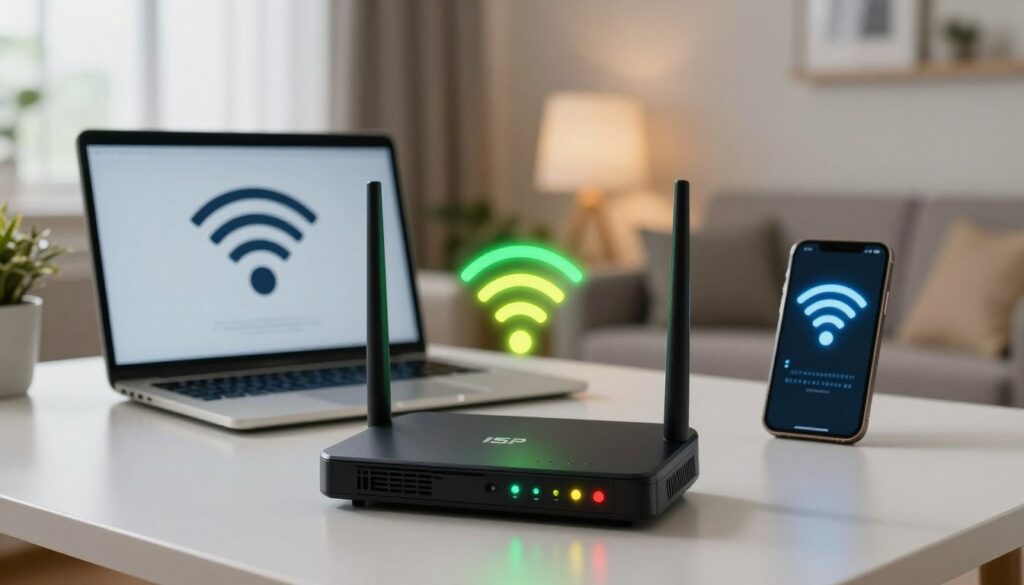
A poorly placed gateway can cut coverage across a whole home, no matter how modern the equipment is. Start with physical moves before chasing software changes. A clear line of sight and central location give the biggest, cheapest win for signal strength.
Move the unit to a central, elevated point
Place the device high—on a shelf or a mantel—near the middle of the house. Avoid hallways, basements, and closets. This improves coverage to bedrooms, living areas, and home offices.
Avoid thick walls and common interference sources
Thick plaster, brick, and metal appliances can block signals. Keep the unit away from microwaves, baby monitors, and large entertainment centers. These items reduce effective speeds and create dead zones.
Reduce neighboring overlap and channel interference
In apartments or dense suburbs, many nearby networks compete on the same channel. Use the device’s basic channel selection or set it to auto, then test stability.
“Good placement often beats advanced tuning—move first, tweak later.”
- After moving, test speeds in former dead zones room by room.
- If gaps remain, consider a wired access point for that area.
Next step: once placement and interference are handled, focus on load and traffic management to sustain better internet performance.
Reduce load from too many devices and heavy network traffic
Too many active devices in a home can make streaming and gaming stutter even when the service shows good numbers.
Start with an audit. Open the admin list on your gateway and note every connected device. Look for old phones, extra tablets, and unnamed clients you don’t recognize.
Remove or forget devices you no longer use. Turning off always‑on gadgets that don’t need internet can free capacity and improve speeds in problem rooms.
How device caps and contention hurt performance
Many provider boxes hit a connected‑device limit and then start dropping clients. This shows up as random disconnects or reconnect loops on phones and smart devices.
Even without a hard cap, CPU and memory limits cause contention when dozens of devices chatter. Reducing the total devices helps stability even if an internet speed test looks fine.
Schedule heavy tasks and separate smart home chatter
Move large downloads, cloud backups, and firmware updates to off‑peak times. Doing this keeps streaming and gaming smoother during prime evening hours.
Put IoT gear on a guest network or a separate band if available. That lowers background traffic and cuts small‑packet “chatter” that can bog down basic hardware.
Quick validation: after trimming devices and rescheduling heavy traffic, re‑test video calls and streaming in the rooms that had trouble to confirm fewer drops.
Optimize ISP router settings you can usually control
You can often tweak a few accessible settings to make connections steadier across the house.
Set expectations: many provider-supplied units limit advanced controls, but a few changes often help without new hardware.
Split bands or tune band steering
Split the 2.4 GHz and 5 GHz bands when possible. The 2.4 GHz band reaches farther but faces more interference. The 5 GHz band gives higher speeds at closer range.
If band steering pushes devices to the wrong band, manually assign critical devices to the best band for their location.
Enable QoS to prioritize streaming and gaming
Turn on QoS (quality of service) if the option exists. Prioritize video calls, streaming, and gaming so they get bandwidth during busy times.
QoS won’t raise your internet plan’s top speed, but it reduces lag spikes for priority apps.
Create a guest network and limit background traffic
Use a guest SSID to keep visitors and noisy IoT devices off your main network. This limits unnecessary access and cuts background chatter that can hurt real‑world speeds.
Adjust channel width and security mode
Set channel width to a practical value (20/40 MHz on 2.4 GHz; 40/80 MHz on 5 GHz) for stability over peak throughput.
Use modern security (WPA2 or WPA3 where supported) to protect the network while keeping older devices compatible.
“Change one setting at a time and test results so you can revert quickly if performance drops.”
Quick checklist: split bands, test band steering, enable QoS, add a guest network, and pick sensible channel widths. Test after each change and roll back if needed.
Update firmware and avoid common ISP gateway issues
Service-side updates sometimes arrive at inconvenient moments and can interrupt home internet access.
Automatic firmware pushes from your provider may run overnight. If an update fails, the gateway can reboot or lose its config and drop the connection. That interruption is often short, but repeated or poorly timed installs hurt reliability.
Why provider-controlled updates can break connectivity at the wrong time
When the internet service provider controls firmware, updates happen on their schedule. Failed installs or partial updates can leave the device unstable. Document the date and time of outages to spot patterns with maintenance windows.
What you can still do: reboots, ventilation, and heat management
Try a simple reboot cadence if performance degrades: power cycle once, then again after 10 minutes if problems persist. Note the exact time of each reboot so you can match it to provider logs.
Keep combo units cool. Place the hardware upright if it is designed that way. Avoid enclosed cabinets and stack-free zones. Heat throttles processors and can reduce sustained throughput when many devices are active.
| Scenario | Likely cause | Quick action |
|---|---|---|
| Cable outages after peak use | Older modem or DOCSIS limits | Document tests; ask provider about modem firmware/provisioning |
| Intermittent drops during updates | Failed provider firmware push | Log times; request rollback or remote support |
| Heat-related slowdowns | Combo modem-router overheating | Move to ventilated spot; ensure upright position |
| Fiber line OK, wireless issues | ONT handles line; local router load | Test over Ethernet; consider separate access point |
“Stability often improves with simple cooling, sensible reboots, and confirming hardware capability versus plan.”
- Keep a short log of outages and reboots to correlate with updates.
- Contact the internet service provider for recurring firmware failures or suspected provisioning issues.
- Consider asking for a line test if Ethernet speed tests are low after basic fixes.
Use Ethernet and simple add-ons to improve performance without replacing the ISP router
For priority devices, a physical Ethernet drop is the fastest path to consistent performance. A wired link delivers lower latency, fewer retries, and higher sustained speed than wireless in most homes.
Run Ethernet to high‑priority devices
Target one or two key locations: TVs, gaming PCs, and work computers benefit most. Run a cable along baseboards or use flat cable through trim to keep installs neat.
Tip: prioritize a single drop rather than wiring every room at once for the best cost-to-benefit ratio.
Add a standalone access point for one problem area
If a single room has weak coverage, place an access point on Ethernet in that spot. This gives full local speed and reduces retransmissions through walls.
Deploy mesh in access point mode
Use a mesh system as access points while keeping the service gateway as the router. Mesh nodes improve coverage without the throughput loss common to simple extenders, especially when backhaul is wired.
Bridge mode basics
Enable bridge mode when you want a secondary system to handle routing and avoid double NAT. Note: cable setups sometimes require provider registration or changes, while fiber often uses an ONT and is simpler to integrate.
Decision point: if your plan delivers good wired speed but wireless lags, Ethernet plus an AP or mesh usually outperforms repeated tweaks to limited gateway hardware.
Check plan and hardware limits that can cap speeds even with “good Wi‑Fi”
Even with strong signal bars, your home hardware can still bottleneck top-tier speeds.
Old Wi‑Fi versions and aging hardware limit real-world performance even near the gateway. Devices that expect Wi‑Fi 6 or newer will see lower throughput on older equipment.
Why measured speed can lag the plan
If your internet plan is 500–1000 Mbps but tests near the gateway top out far lower, the gateway hardware or wireless standard is often the ceiling.
Run an Ethernet test first to confirm actual Mbps to the home. If wired results match the plan, the local wireless or device capability is the bottleneck.
Cable vs. fiber realities
With cable, older modem standards (DOCSIS 3.0 vs. 3.1) can prevent consistent gig speeds regardless of signal quality.
With fiber, the ONT hands off the line, so in-home equipment and wireless are typically the limiting factors after the fiber handoff is stable.
“Providers may raise your plan over time while the same gateway remains in place, creating a mismatch.”
| Scenario | Likely hardware limit | How to test | Next step |
|---|---|---|---|
| Wi‑Fi tops out well below plan | Old wireless standard or low radio throughput | Ethernet speed test near gateway | Consider access point or newer router |
| Wired speeds below tier | Outdated modem/DOCSIS or provider issue | Document Mbps over Ethernet; test at different times | Contact provider or request modem upgrade |
| Fiber line equals plan, wireless lags | Local gateway or device limits | Compare ONT-to-Ethernet vs wireless tests | Add AP or upgrade home hardware |
| Evening slowdowns | Upstream congestion or capped hardware | Run multiple peak-time Ethernet tests | Decide provider support or hardware refresh |
Bottom line: verify your Mbps tier, confirm wired results, then decide if the limit is upstream or local. If placement, settings, and add-ons are exhausted, a hardware refresh or provider-supplied upgrade may be the only way to reach expected speeds.
Conclusion
Begin with a clear Ethernet test so you know whether the problem lives in the service or inside your home.
If wired speed matches your plan, focus on placement, fewer active devices, and targeted coverage improvements like an access point or mesh in access point mode.
Work through simple settings you can change—guest SSID, basic QoS, and sensible channel width—to steady performance without a full swap.
Measure success by more consistent speed, stable streaming and calls, fewer disconnects, and better coverage in problem rooms.
If Ethernet tests are low, document results and escalate service support; if wired is fine, invest in coverage and wired links first.
Bottom line: you can often get noticeably better internet performance today with correct diagnosis and targeted fixes, even when provider controls limit settings and firmware.
FAQ
How do I tell if my ISP router is actually the bottleneck or if the problem is the internet service?
Why does streaming buffer or gaming lag even when my plan shows high Mbps?
What placement changes improve coverage without replacing the ISP gateway?
How can I check whether other devices are causing congestion?
Should I split 2.4 GHz and 5 GHz bands or use band steering?
What quick firmware and maintenance steps can I take to avoid connectivity drops?
When should I run an Ethernet connection instead of relying on wireless?
Can I add equipment to improve coverage without replacing the provider’s gateway?
How do I reduce interference from neighboring networks and household electronics?
What device limits should I watch for on my ISP gateway?
How do I tell if my modem or gateway hardware is too old for my plan?
Will enabling QoS and a guest network help performance right away?
How do I identify throttling or congestion versus a weak wireless signal?
When should I ask my provider for support or a replacement gateway?
Are mesh systems or access points better than extenders for whole‑home coverage?
Router Firmware Updates: When They Help and How to Do Them Safely
» See exclusive tips for your home