Mesh Wi-Fi vs Single Router: Which Fixes Your Problem
Mesh Wi-Fi vs router: which is right for you? Compare the benefits and drawbacks of each to make an informed decision for your home network.
Choosing the right setup for your home network often comes down to fixing dead zones, dropouts, and slow speeds. This article helps you decide whether a single powerful device or a multi-point system is the better option for your space.
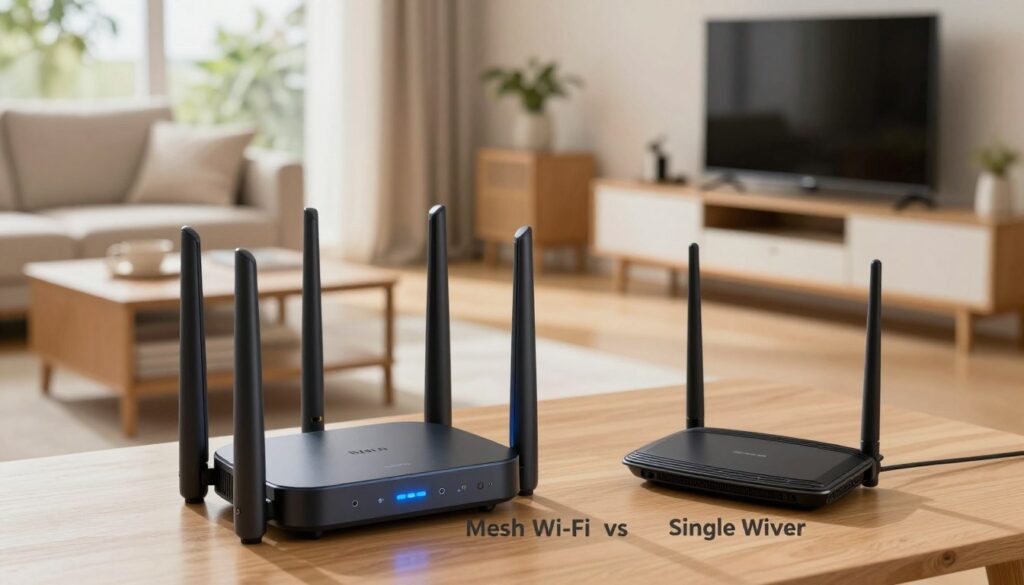
Fixes your problem means steady video calls, smooth room-to-room roaming, and reliable internet when many devices share bandwidth.
We will compare coverage, performance, setup ease, management, scalability, and long-term value. Expect that one central unit often covers small apartments well, while a multi-node design usually wins for larger or complex floor plans.
Both approaches can be right. The final choice depends on home size, wall materials, modem placement, and budget. Read on to diagnose your environment and pick the network setup that solves your daily connectivity issues without chasing headline speeds.
Key Takeaways
- One unit can be enough for small homes and simple layouts.
- Multi-point systems expand coverage for larger or multi-floor homes.
- Consider interference, construction materials, and placement for best results.
- Focus on reliable performance for calls and streaming, not just top speeds.
- Evaluate setup and management tools if you want easy control.
- Budget and future growth matter when choosing the right network option.
What a Traditional Router Does in a Home Network
A traditional router is the device that shares your internet plan and manages local traffic. It connects to the modem or gateway and becomes the central hub for wired Ethernet and wireless devices.
How it handles addresses and traffic:
What Else Would You Like to Know?
Choose below:
Single access point basics
The device assigns local IP addresses using DHCP and handles NAT so many gadgets share one public IP. This lets phones, TVs, and laptops access the internet at once while keeping local connections separate.
It also broadcasts a wireless network and forwards data between devices and the internet. All clients depend on this single access point for throughput and latency.
Why signal weakens over distance and obstacles
Range drops as you move away from the unit. Walls, floors, and household interference from appliances or neighboring networks lower usable throughput.
Those losses show up as buffering in back bedrooms, choppy video calls upstairs, or slow speeds near garages and basements. A single-router layout offers minimal overlap, so there is no second path when the main signal degrades.
| Function | What it does | Limitations |
|---|---|---|
| Modem link | Shares ISP connection with all devices | Placement affects whole-home reach |
| DHCP/NAT | Assigns local IPs and routes traffic | All traffic funnels through one access point |
| Wireless broadcast | Provides Wi‑Fi access for clients | Signal weakens with distance and obstacles |
How a Mesh Wi‑Fi System Works (Router + Nodes)
Modern multi-node setups pair a central unit with satellites to deliver broader, steadier coverage.
Main unit and satellites
The primary device connects to the modem and acts as the network’s brain. Secondary units — often called satellites or nodes — plug into rooms to create extra access points.
Multiple access points change the experience because devices use a nearby node instead of clinging to a distant weak signal. That reduces dropouts and improves real-world speeds for calls and streaming.
Single SSID and seamless roaming
Most systems run one network name so phones and laptops switch automatically to the strongest node. This seamless roaming keeps video calls and media playback from stuttering while you move around the house.
Backhaul: wireless or Ethernet
Nodes need a strong path back to the main unit. That link is the backhaul. It can be a dedicated wireless band or a wired Ethernet connection.
Ethernet backhaul usually gives steadier performance and frees wireless capacity for client devices. Wireless backhaul is easier to set up but can cut available throughput if not handled well.
| Role | What it provides | Practical note |
|---|---|---|
| Main unit | Connects to modem and coordinates network | Best placed centrally when possible |
| Satellites / nodes | Extend coverage with local access points | Add more for larger homes; placement matters |
| Backhaul | Link between nodes and main unit | Ethernet improves consistency; wireless is flexible |
mesh wifi vs router: Key Differences That Impact Daily Use
Real homes reveal the practical gaps between single-unit and multi-point designs. Coverage strategy defines whether a single source lights a few rooms or several points fill the whole house.

Coverage model: one source vs multi-point network
A single access point broadcasts from one location. It can be enough for small apartments, but signal drops over distance and through walls.
Multi-point systems place several access points to blanket larger or complex layouts. That reduces dead spots and raises consistent performance across rooms.
Connectivity while moving room to room
Sticky clients cling to a weak signal instead of switching to a nearer access point. Your phone may stay connected but at slow speeds, causing lag on calls.
Multi-point setups use automatic switching under one network name so devices hop to the strongest point more smoothly.
Scalability and management
To expand coverage, you can add extenders or another high-power unit. That often adds separate networks and extra configuration.
Adding another node is usually simpler and keeps one network name. Many brands also centralize controls in a mobile app, while traditional devices rely on browser settings and more manual setup.
| Difference | Single Access Point | Multi-Point System |
|---|---|---|
| Coverage | One central source; may leave gaps | Multiple points for even coverage |
| Roaming | Sticky clients risk sluggish handoffs | Automatic switching under one SSID |
| Scalability | Add extenders; more complexity | Add nodes; simpler expansion |
| Management | Browser-based, technical settings | Unified mobile app controls and diagnostics |
Dead Zones and “Challenging WiFi Environments” to Watch For
Identifying real-world spots where service crawls or drops helps you choose the right fix.
Layout problems that create gaps
Long footprints, split levels, and multi‑story plans push coverage to the edges of a home. In these cases, corners and far rooms often become dead zones.
Why ISP drop location matters
If the cable or modem sits in a corner, the main access point can’t be central. That shrinks effective coverage and makes other areas unusable.
Materials and spaces that block signal
Brick, poured concrete, dense plaster, and tiled bathrooms with plumbing absorb radio energy. Below‑grade basements and attics also produce weak zones.
Garages, workshops, and outdoor areas
Metal doors, insulation, and detached structures push spots beyond interior coverage. These are common cases where indoor service fails outside.
“Map slow spots first. A quick walk‑through with a speed test reveals where coverage drops and what fix will work best.”
Next steps: map where dead zones appear, try repositioning the main unit, run an Ethernet cable to a distant point, or add extra access points where needed.
| Issue | What to check | Quick fix |
|---|---|---|
| Corner modem | Central placement impossible | Move modem or add a wired point |
| Thick walls | Brick, concrete, tile | Place device in adjacent room or use wired backhaul |
| Outdoor areas | Garages, patios, metal doors | Add external access or a wired access point |
Performance and Speed: What to Expect for Streaming, Gaming, and Video Calls
Performance looks different depending on use: throughput for 4K streaming, low latency for gaming, and steady connection for video calls.
Throughput vs range
Physical distance and walls reduce signal quality, so measured speed drops the farther you are from the main unit. Even top-end units show lower real-world speeds through plaster, brick, or floors.
Load distribution and congestion
If many devices hit one access point, airtime becomes crowded and connections slow. A multi-point layout can spread traffic so one busy room doesn’t drag down the whole house.
When wired Ethernet is the best fix
Ethernet gives the most consistent result for gaming PCs, streaming boxes, and home offices. For peak stability, a wired link removes air interference and keeps latency low.
| User need | What matters | Best fix |
|---|---|---|
| 4K streaming | High sustained throughput | Good backhaul + wired to main stream |
| Gaming | Low latency | Direct ethernet to console/PC |
| Video calls | Stability | Wired or nearest access point, quality backhaul |
Realistic expectations: coverage systems improve consistency, but top peak speeds still depend on your internet plan, backhaul quality, and device limits.
Router + Extender vs Mesh System: Why “More Hardware” Isn’t Always Better
Adding extra hardware to cover a blind spot can seem simple, but it often creates new problems. A common fix is to pair a router with an extender, yet the real-world result is mixed.
How extenders rebroadcast and affect speeds
An extender listens to the main broadcast then rebroadcasts that same channel. This preserves coverage but can halve throughput if the extender sits where the signal is weak.
Common extender pain points
Users report separate SSIDs, manual handoffs, and devices sticking to the wrong access point. That makes the extended side feel inconsistent and slow.
When to choose an extender and when to upgrade
For a single small gap, an extender is a low-cost stopgap and a quick setup. For multi-room or multi-floor problems, a mesh system with coordinated nodes usually gives steadier roaming and better day-to-day speeds.
Tip: replacing a patchwork of extenders and routers with a unified mesh system often reduces troubleshooting and improves long-term connections.
Setup, Controls, and Ongoing Management
Most U.S. homes force network gear into corners, so placement often becomes the first real-world limitation to good coverage.
Why central placement is often impractical
ISP drop points and modem locations frequently dictate where the main unit sits. That spot can be tucked in a closet, garage, or basement.
When the device is off-center, wireless reach suffers even if the hardware is powerful. Moving the modem or running a short Ethernet cable to a better location usually fixes more than buying new gear.
App-led setup and remote management
Modern systems often guide you step-by-step through installation using a mobile app. These apps show connected devices, let you make guest networks, and create profiles or parental controls.
Apps also add simple tools: one-touch speed tests, device lists, and the ability to reboot or check status from anywhere. That remote service saves a trip if a device needs a quick restart.
Advanced tuning when you need it
For busy buildings or heavy gamers, manual tweaks still matter. Channel selection can reduce local interference and QoS prioritizes gaming or video calls.
When to tweak: dense apartments, many smart devices, or a dedicated home office may benefit from custom channels and rules. For most homes, default automatic settings work well.
“Place gear where the signal can reach most rooms; use the app to monitor devices and only tune channels or QoS when interference or latency becomes visible.”
| Task | Common option | Practical note |
|---|---|---|
| Initial setup | App-guided or browser setup | App is simpler for non-technical users |
| Device management | Device lists, guest networks, profiles | Useful for monitoring and parental control |
| Remote fixes | App remote restart/status | Helpful when away from home |
| Tuning | Channels, QoS | Only needed in high-interference or high-performance homes |
Cost and Value in the United States: Upfront Price vs Long-Term Fit
Upfront price tells part of the story, but long-term fixes and replacements shape total cost.
When a budget router is the most cost-effective option
For small apartments or open floor plans, a single affordable router often covers daily needs. Fewer devices and minimal outdoor coverage make this the best option for many renters and single-level homes.
When a mesh system delivers better value
In larger footprints or multi-story homes, a multi-point system can save money over time by eliminating dead zones. Paying more up front avoids repeated purchases, tangled extenders, and constant troubleshooting.
Hidden costs to compare
Watch for add-ons—buying one extender rarely solves all gaps. Extra extenders or replacing older routers can push lifetime spending past the cost of a unified system.
| Cost factor | Typical US impact | When it matters |
|---|---|---|
| Initial price | Lower for single routers | Small homes, few devices |
| Expansion | Extenders or extra nodes add cost | Large homes, garages, detached offices |
| Upgrades | Faster internet plans may need new hardware | When ISP plan increases speed |
Value tip: compare what you pay now to the cost of fixing problems later. Factor in extenders, extra nodes, and any hardware needed to use faster internet plans you may buy.
Future-Proofing Your Network with Wi‑Fi 7
Future standards aim to keep homes ready for higher speeds, denser device counts, and low‑latency apps.
Why future-proof matters now: more devices, faster ISP tiers, and real‑time uses like cloud gaming push older gear to its limits. Choosing modern equipment reduces the need for frequent upgrades.
Key technical gains that show up at home
New features — 320MHz channels and 4096‑QAM — raise peak throughput for capable devices at close to mid range. That translates to faster file transfers and better 4K streams in the living room.
Multi‑link and reliability improvements
Multi‑Link Operation (MLO) lets a device use multiple bands at once. In practice, that reduces buffering when one band gets busy.
Preamble puncturing, OFDMA, and MU‑MIMO improve latency and efficiency when many devices share the same network.
Security and segmentation for safer homes
Modern systems support WPA3 and make it simple to run a guest network and a separate IoT network. Segmenting untrusted smart devices keeps critical connections safer.
| Feature | Home impact | When to consider |
|---|---|---|
| 320MHz & 4096‑QAM | Higher peak speeds for newer devices | Faster ISP plans and close‑range use |
| MLO | More reliable streaming and handoffs | Crowded band or many streaming devices |
| OFDMA / MU‑MIMO | Better multi‑device efficiency | Homes with many active gadgets |
| WPA3 & segmentation | Stronger security and isolated IoT | Smart home devices and guest access |
“Pick gear that matches your plan and device count, not just headline speeds.”
Real examples: compact routers like the NETGEAR Nighthawk RS700S target high single‑unit speed for up to a few thousand square feet. Larger multi‑node options such as the Orbi 970 scale to bigger homes and add dedicated backhaul and multi‑gig ports when you need wide coverage.
Conclusion
Think in terms of coverage and real use: where you need strong service matters more than headline speed. For a small, simple apartment, one good router often solves most problems.
For larger or complex homes, a multi-point system with well-placed nodes reduces dead zones and makes roaming smoother. Extenders can help small gaps but may create separate SSIDs and slow links.
Quick checklist: map slow spots, count active devices, note where calls or streams happen, and check modem placement. Prioritize Ethernet for desks and media boxes to lock in performance.
Upgrade path: try better placement and a wired link first. If gaps remain, add a multi-point system. Match the choice to your home’s layout and daily needs, not just speed claims.
FAQ
What’s the main difference between a single router and a whole-home node system?
Why does my router signal weaken in some rooms?
How do nodes and satellites work together to cover a home?
Do I need Ethernet backhaul between units?
Will clients automatically switch to the strongest node when moving around the house?
Is adding an extender the same as adding a node?
What home layouts most often create dead zones?
How does distance affect streaming and gaming from a single device?
When should I choose a budget single box over a multi-node setup?
Can wired Ethernet to a device still be the best solution?
How do management and setup differ between traditional and node systems?
Do more nodes always mean better results?
What security features should I expect from modern systems?
Will upgrading to Wi‑Fi 7 change how I plan my home system?
What hidden costs should I watch for when comparing solutions in the U.S. market?
How do I decide between a mesh-style system and upgrading a single high-end box?
Apartment Wi-Fi Problems: What Makes Signal and Speed Worse
» See exclusive tips for your home