Modem vs Router vs Access Point: What Each One Controls
Understand the differences between modem, router, and access point to optimize your home network. Learn how modem vs router wifi impacts your internet experience.
Clear roles make troubleshooting and upgrades simple. A modem brings the internet into your home and holds a public IP address. A router creates a local network and hands out private IPs so your devices can talk to each other.
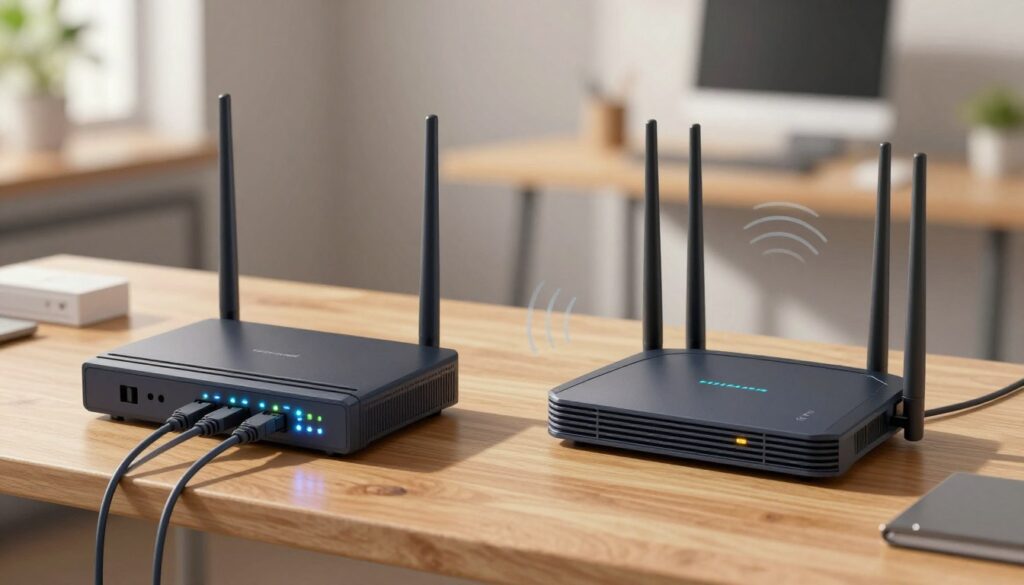
An access point handles wireless coverage and extends that local network across rooms. Many modern units combine a modem and router into a single gateway, which is why people use terms interchangeably.
Expect a straightforward A vs. B vs. C comparison ahead. We will show how each component affects speed, reliability, and troubleshooting in a typical U.S. home internet setup. You’ll also learn when to mix separate gear or keep a combined modem router device.
Key Takeaways
- The modem brings internet to your house; the router manages device connections on the local network.
- An access point expands wireless coverage without changing how the internet enters your home.
- Some products combine a modem router into one box, which can simplify setup.
- Knowing these roles helps you troubleshoot slow or unreliable home internet faster.
- Mixing separate devices can improve flexibility; a combined unit can be easier for most users.
Why modem vs router wifi matters for your home internet connection
When internet performance drops, knowing what each piece of equipment does saves time and stress.
How devices change speed, reliability, and latency: The incoming service sets the headline rate, but local networks and wireless layers shape how fast things feel. Congested local traffic, old router hardware, or weak signals can cut effective speed and add lag.
Real-world symptoms point to different causes. Buffering or slow downloads often trace to the connection from your provider or an overloaded gateway. Lag spikes and jitter tend to come from processing limits or competing devices on the local network. Dead zones and random disconnects usually mean wireless coverage problems.
What Else Would You Like to Know?
Choose below:
Quick troubleshooting mindset
- Check service status with your ISP or provider first.
- Restart the incoming device and the router to clear transient issues.
- Test wired vs wireless to separate local network problems from coverage gaps.
| Symptom | Likely layer | Quick fix |
|---|---|---|
| Slow downloads | Service or gateway | Verify plan speed, reboot incoming device |
| Lag spikes | Local network | Reduce active devices, update router firmware |
| Dead zones | Wireless coverage | Add an access point or reposition equipment |
What a modem does in a home network
The device that links your home to the public internet sits where the provider’s line meets your house. It establishes the wide area side of your setup and hands the local network a path out to the world.
The modem connects your home to the internet service provider network
Definition: A modem is the box that connects to the internet service provider line and creates the WAN side of your setup. It is the hardware the provider uses to reach your address and deliver an internet connection.
Signal translation between your ISP line and your devices’ data
Practical explanation: The modem converts the provider’s cable or line signals into digital data your equipment understands. Outgoing traffic is packaged and sent back over the provider’s network.
Public IP address and the WAN connection explained
Each device on the WAN gets a public address attached to the modem. That public IP identifies your home to remote servers; local devices keep private addresses behind the modem’s WAN port.
Typical physical connections like coax cable, DSL, and fiber handoffs
Common handoffs in the U.S. include coax cable for cable service and phone-line DSL. For fiber, the provider often terminates fiber and hands off an Ethernet cable to your equipment.
- Many modems only have Ethernet ports and no wireless, so they feed a separate gateway for local coverage.
- Identify the box by the wall line: the device attached directly is the one that connects home to the provider.
- If that unit is offline, your local network can still run between devices, but you will lose internet access.
What a router does for your devices
At the heart of a LAN is a unit that builds the local network and keeps device traffic flowing smoothly. It lets many devices share a single internet connection and talk to each other inside the home.
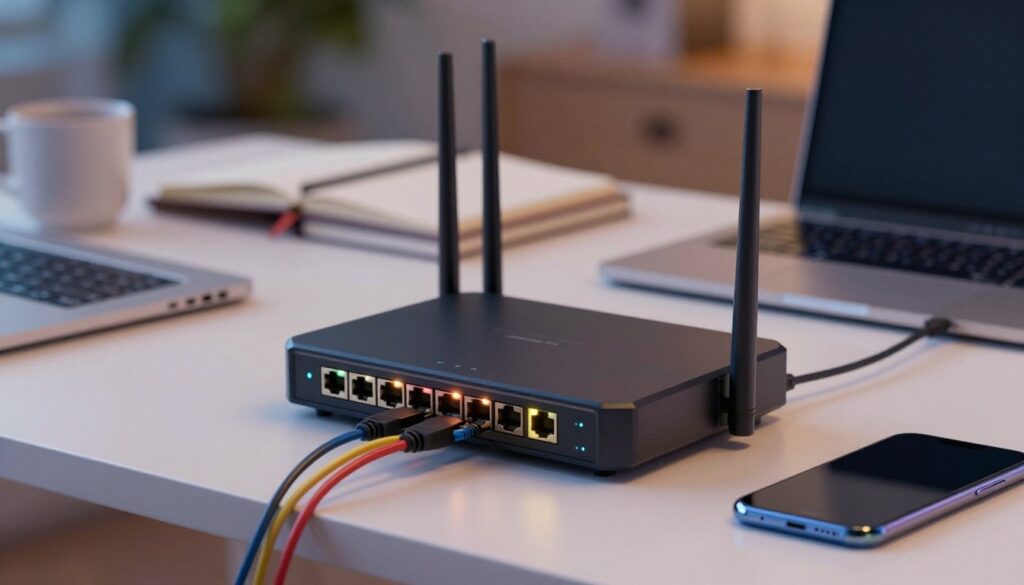
Creating a local area network
The router is the traffic director: it makes a local area network so phones, laptops, smart TVs, and printers can exchange data. It also shares one internet link so every device can browse or stream.
Assigning local IPs and directing traffic
The unit gives each device a private address. That lets it send information to the right phone, laptop, or printer without confusion.
Ethernet vs wireless
Wired ethernet ports offer stable, low-latency connections for gaming and streaming. Wireless connections add convenience for mobile and small devices throughout the house.
Security and useful features
Common protections include firewalling, guest networks, and parental controls. These features help block threats and limit access or screen time for specific devices.
Working without internet access
Even without internet access, the unit can run a LAN for local file sharing, printers, or offline gaming.
| Role | What it controls | Typical benefit |
|---|---|---|
| Addressing | Local IP assignment | Directs traffic to the right device |
| Connection type | Ethernet and wireless | Wired stability, wireless convenience |
| Security | Firewall, guest network, parental controls | Safer home network use |
Access point vs router: how WiFi coverage actually expands
Coverage depends on radios and placement more than core traffic control. Adding dedicated access hardware extends reach so more rooms and devices get a usable connection.
What an access point controls compared to routing
An access point focuses on radio coverage and client connections. It does not make core routing decisions for the network. Instead, it offers an entry point for wireless devices to join the LAN.
By contrast, the router directs traffic and hands out local addresses. Use extra access equipment when coverage — not routing — is the problem.
Mesh systems as multiple access points working together
A mesh system links several nodes so your device automatically connects to the strongest node. This creates consistent coverage across a large home or property.
Extenders vs mesh nodes for dead spots and larger homes
- Extender: rebroadcasts the original signal. Good for a single garage or small outbuilding.
- Mesh: coordinated nodes that scale across floors and many rooms. Better for repeated weak zones.
| Scenario | Recommended option | Backhaul note |
|---|---|---|
| One dead spot | Extender | Wireless backhaul ok |
| Multiple weak areas | Mesh system | Ethernet backhaul improves speed and stability |
Decision rule: Choose an extender for small gaps and a mesh setup for broad, consistent coverage across a larger home.
Modem, router, and access point compared by what they control
Think of each box in your setup as a specialist: one links you to the provider, one manages local traffic, and one spreads the wireless signal around the house.
What each device controls:
- Modem: the ISP-facing internet access link and the public IP that identifies your home on the web.
- Router: the local area network that assigns private addresses and moves data between devices.
- Access point: the coverage layer that broadcasts signals so devices can connect wirelessly across rooms.
Physical placement is simple: the provider line meets the modem at the WAN edge. The router sits behind it and creates the LAN. Access points branch off the LAN to extend coverage.
“provider line → modem → router → access point → devices”
| Layer | Controls | Typical fix |
|---|---|---|
| WAN / public | ISP link and public address | Contact ISP or reboot provider equipment |
| LAN / private | Local IPs, routing, device traffic | Restart router, limit heavy devices |
| Coverage | Wireless signals and room reach | Add access point or reposition node |
Key takeaway: replacing the modem rarely fixes dead zones, and adding access points won’t restore service during an ISP outage. Use the right specialist for the problem to simplify upgrades and troubleshooting.
Modem-router combo vs separate devices: which setup fits your home
A single gateway can replace two boxes and simplify how your home gets online. Gateways combine the ISP-facing function and the local networking role into one unit. That reduces cables, power bricks, and initial setup time.
When a combo unit makes sense
Convenience: A provider-supplied gateway means fewer moves during setup and one support contact for service issues. Many include extra features like basic parental controls and added security from the service provider.
Why separate gear can be better
Flexibility: Keeping the modem and a standalone router lets you upgrade Wi‑Fi performance or routing features without swapping the provider device. Enthusiasts and homes with many devices often prefer this path.
Trade-offs to consider
- Combos save space and are easier for most homes.
- Separate equipment offers more customization but may cost more and take more space.
- Mismatched brands can complicate troubleshooting and support responsibilities.
| Option | Strength | Drawback |
|---|---|---|
| Gateway | Simple setup, single support | Less upgrade flexibility |
| Separate | Easy to upgrade Wi‑Fi or routing | More boxes, potential compatibility checks |
Decision rule: pick a gateway for ease and a separate setup for long‑term customization based on home layout, device load, and how much control you want over features and security.
Choosing the right configuration based on ISP type, speed, and home layout
Pick equipment that matches your service type, home layout, and how you use the internet each day.
Match gear to the incoming signal: For cable service, pick compatible modems that handle your plan’s top speed and a capable gateway or separate router to share the link. For fiber, ensure the device supports the provider’s handoff and high throughput. DSL users on lower-speed plans can often use simpler equipment and save money.
Count devices and use cases next. Streaming, gaming, and remote work raise the need for higher speed and lower latency. Homes with many simultaneous devices should favor newer equipment that can keep up.
Layout matters. A small single-floor home often needs only one strong unit. Larger homes, multiple floors, or outbuildings need extra coverage. Use an extender for a single garage office, but choose a mesh of nodes for several dead zones across the property.
| Scenario | Recommended setup | Why |
|---|---|---|
| Cable, high speed | Modern modem plus powerful router | Prevents bottleneck at high speed |
| DSL, light use | Basic gateway or combo unit | Cost-effective and sufficient for low speed |
| Fiber, multi-user | Provider-compatible gateway or fiber ONT + router | Supports high throughput and low latency |
Quick checklist before you buy: note your isp and internet service type, plan speed, square footage/floors, and number of devices that will connect internet at once. Match purchase to those needs to avoid overbuying or creating a new bottleneck.
Security and control: what protection comes from the router and gateway
Keeping devices safe in your house relies on local controls that can block threats and set limits for users.
Baseline: a standalone modem usually only provides a link to the provider and rarely offers privacy or blocking features. That box simply hands off the internet connection and public addressing.
What the local controller adds
The router or gateway enforces firewall rules, inspects suspicious inbound and outbound traffic, and isolates risky devices from the rest of the network.
Common protections include:
- Stateful firewalling to block unwanted connections.
- Threat blocking for known malicious sites and traffic patterns.
- Device-level controls and segmented networks for guests or IoT.
Parental controls and practical limits
Parental features let you set content filters and schedule internet time. These controls live on the router or gateway because they manage client access and address assignment.
Layered approach: pair the ISP link with strong local controls, keep device software updated, and follow safe browsing habits to reduce risk.
| Protection | Managed by | Why it matters |
|---|---|---|
| Firewall / traffic filter | Router / gateway | Blocks unauthorized access and suspicious flows |
| Parental time and content rules | Router / gateway | Limits screen time and blocks unsuitable sites |
| Connection only (no filtering) | Modem | Provides internet link but no traffic controls |
Conclusion
Identifying the failing layer makes fixes quick and precise. The modem brings service into your house, the router builds the local network, and access points or mesh nodes handle signal reach.
Choose remedies by the problem: check the provider link first, then test the local network, and finally adjust placement or add coverage hardware for weak areas.
A modem router combo suits most users who want simplicity. Separate gear works better when you need upgrades, advanced features, or faster wireless across a larger home.
Next step: note your ISP type and plan speed, map your rooms and device load, then match equipment to those needs. Start troubleshooting in this order: modem/WAN, router/LAN, then access point and coverage.
FAQ
What does each device control: the gateway, the router, and an access point?
Why does the difference between gateway equipment and a wireless router matter for home internet?
How do these devices affect speed and latency on today’s networks?
What are common mix-ups when people call everything a “modem” or “WiFi router”?
How does the gateway connect your home to the internet service provider network?
What is signal translation between the ISP line and my devices’ data?
How does the public IP address and the WAN connection work?
What typical physical connections should I expect at the ISP handoff?
How does a router create a local area network and share one internet connection?
How are local IP addresses assigned and traffic directed between devices?
When should I use Ethernet vs wireless for connecting laptops, TVs, and printers?
What security features do routers add, and when can they work without internet?
What does an access point control compared to routing?
How do mesh systems act as multiple access points?
When should I choose a wireless extender versus a mesh node?
How do internet access, device-to-device networking, and wireless coverage differ in control?
What are the WAN vs LAN roles and where does each device sit?
What are the pros and cons of a combo gateway versus separate devices?
When is a combo device a better fit for a home?
Why might separate devices be easier to upgrade and customize?
How should I match equipment to my internet service type and speed?
How many devices and what activities affect the configuration I need?
What setup is best for small homes versus larger properties with dead zones?
When should I add an access point, extender, or full mesh?
What security and privacy protections come from the router and gateway?
What does the ISP termination device typically not provide for privacy and security?
How do router and gateway controls block suspicious traffic and manage parental settings?
Router Firmware Updates: When They Help and How to Do Them Safely
» See exclusive tips for your home