Can an Old Router Make Your Wi-Fi Slow
Is your Wi-Fi slow due to an old router? Find out how to boost your internet speed by addressing old router slow wifi issues with our expert tips.
Yes — aging hardware can throttle home internet even when your plan is fine. You may see slower browsing, frequent buffering, and lag in calls or games while the service from your provider shows nominal speed.
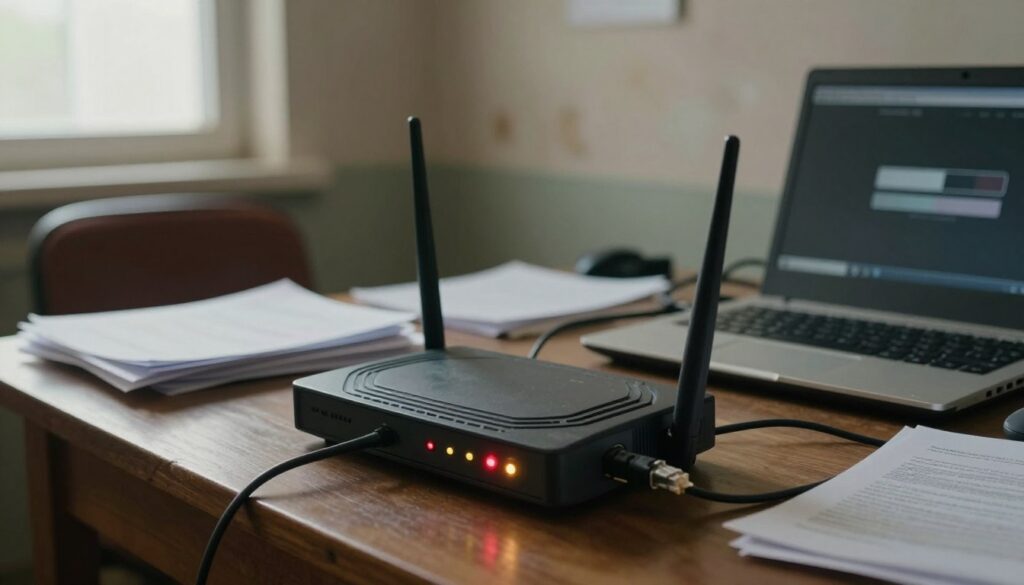
In plain terms, an older router can become a bottleneck. Over about 3–4 years, firmware support and internal parts can fall behind current technology, which raises latency and cuts throughput.
This intro previews a simple troubleshooting flow: check whether the modem, device, or ISP is the cause; try no-cost fixes; tweak settings; then consider equipment upgrades or mesh coverage.
Practical fixes often focus on placement, interference, and settings — such as choosing 2.4 vs 5 GHz, changing channels, running speed tests, or using Ethernet for critical devices.
Key Takeaways
- A dated device can limit in-home network performance even with a strong internet plan.
- Look for symptoms like higher latency, uneven speed, and streaming hiccups.
- Follow a clear check sequence: test, reposition, configure, then upgrade.
- Many solutions are physical or configuration-based, not always replacement.
- Checklist: speed tests, placement, interference, band choice, channel checks, Ethernet, and mesh.
Why Wi‑Fi slows down over time in a typical US home network
A home’s connection quality can degrade when internal hardware and usage patterns outpace its capabilities. Over months and years, heat and component fatigue reduce performance. Limited CPU and memory in aging networking gear struggle when many tasks run at once.
Router age and aging hardware limits
Wear on a router matters. Heat cycles and aging components cut processing power. That limits how well a unit handles multiple data streams and security tasks, so perceived internet speeds fall even when the provider delivers on plan speeds.
What Else Would You Like to Know?
Choose below:
Device overload from streaming, gaming, and smart home devices
Modern homes have dozens of devices. 4K streaming, background backups, gaming downloads, and video calls all compete for bandwidth. That airtime fight can make individual devices feel like they have slow internet.
Interference, walls, and distance reducing signal strength
Thick materials such as brick, plaster, and concrete weaken signals and create dead zones. Greater distance also reduces throughput. Nearby electronics and other networks add interference, cutting speeds and stability.
ISP plan limits vs home network issues
“Think in layers: provider → modem → router → device.”
This helps separate provider bandwidth from in‑home distribution. ISP gateways can be older combo units with weak wireless. So even when the isp provides promised speeds, the modem or router can be the bottleneck.
- Bottom line: aging hardware, more devices, building materials, and interference all add up over time.
Signs your old router slow wifi problem is the real bottleneck
You can tell the distribution device is the problem when connection quality changes dramatically from room to room. These quick checks separate a local gear issue from an ISP outage.
Speed is fine near the router but drops across the house
Test a laptop right next to the unit and then in another room. If speeds fall sharply, coverage or hardware limits are likely. This near‑vs‑far pattern points to weak signal strength or insufficient radio power.
Frequent disconnects, buffering, and lag spikes
Repeated drops, streaming hiccups, and jumps in latency during calls or gaming are red flags. These symptoms often affect all devices on the network rather than one gadget.
Slowdowns when multiple devices are connected
If several phones, TVs, and smart speakers cause overall sluggishness, the unit may lack processing headroom. Older gear struggles with many simultaneous connections and airtime contention.
Missing or unstable 5 GHz options
When the 5 GHz band is absent, keeps disappearing, or will not stay connected, the 5 GHz radio may be failing or unsupported. That specific failure often means replacement will restore speed and stability.
- Quick check: If the problem hits every device, the network gear is the likely bottleneck.
- Single-device issue: If only one phone or laptop lags, troubleshoot that device first.
Run speed tests to pinpoint whether the issue is your router, modem, or ISP
Begin by measuring raw connection performance at the modem, then compare that to wireless results around the house.
Step-by-step testing: Connect a laptop by Ethernet to the modem or gateway and run speed tests to record download, upload, and latency. Repeat the same test over the wireless network in the living room, bedroom, and far corners.
How to compare results on phones and laptops
Run at least three tests on each device at different times. Note download, upload, and ping values and check consistency across runs.
What latency and consistency reveal
Latency and jitter matter for video calls and gaming even when headline speeds look fine. High ping or wide jitter ranges cause choppy calls and lag spikes.
Interpreting “getting what you pay for” and when to contact the provider
If wired tests match your plan but wireless speeds drop a lot across rooms, the problem is the home network — placement, settings, or coverage. If modem-level tests fall short of the plan, check your ISP app or outage map and contact the provider for service checks.
| Test location | What to record | When it flags an issue |
|---|---|---|
| Wired to modem | Download, upload, latency | Consistently below plan → contact provider/isp |
| Near access point | Download, upload, ping | Much lower than wired → placement or device limits |
| Far room | Download, upload, jitter | Large drops or high jitter → coverage or bandwidth limits |
Practical threshold: large speed drops across rooms or big latency spikes under load usually point to in‑home issues. If multiple people stream at once, a full plan bandwidth ceiling can also explain poor performance.
Fix no-cost setup problems that commonly cause slow internet
A few simple placement fixes can greatly improve how devices see and use your network. Start with moves you can do in one session and re-test after each change.
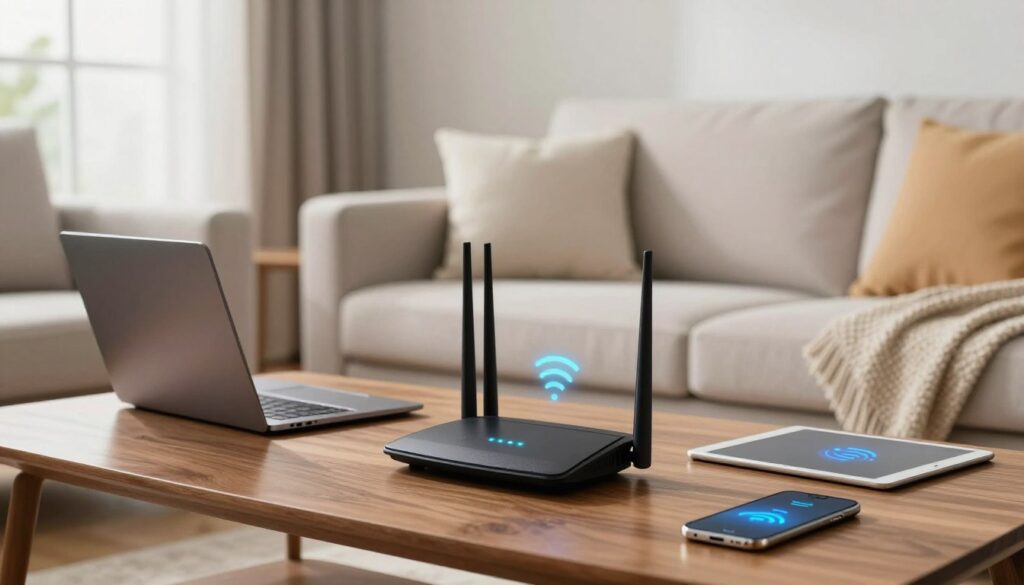
- Move the router to a central, open location to boost coverage across rooms and floors.
- Raise the unit onto a shelf or wall mount — elevation reduces furniture and floor obstructions.
- Keep the device away from microwaves, large TVs, and other electronics that cause interference.
- Identify signal blockers: brick fireplaces, plaster walls, metal appliances, and aquariums.
- If the modem sits at the house edge, run a longer Ethernet cable to relocate the router or try powerline adapters as an alternative.
- Adjust antennas: use perpendicular angles or tilt some horizontally to improve multi‑story coverage.
| Action | Why it helps | How to verify |
|---|---|---|
| Central placement | Evenly distributes coverage and reduces distance to devices | Run a speed test in each main room |
| Raise device height | Fewer furniture obstructions, better line of sight | Compare speeds at floor level vs. raised position |
| Move away from electronics | Reduces 2.4 GHz interference from microwaves and TVs | Check stability during microwave use or TV activity |
| Adjust antennas | Improves coverage across floors and corners | Test upstairs and downstairs after each angle change |
Step-by-step tip: change one thing at a time and re-test the connection. That shows which move produced the biggest gain.
Optimize router settings that impact connection speed and reliability
Small changes in settings can unlock noticeably better connection performance without new hardware. Start with firmware, then tune bands, channels, and access rules to match how your devices use the network.
Update firmware to fix software glitches and improve stability
Firmware updates deliver bug fixes, performance tweaks, and security patches. Visit the manufacturer’s support page, follow the posted upgrade steps, and back up current settings before installing.
Use 5 GHz for high speeds and 2.4 GHz for range
Put streaming boxes, laptops, and gaming gear on the 5 GHz band for better speeds and less interference.
Keep smart plugs, sensors, and long-range devices on 2.4 GHz to preserve coverage.
Split SSIDs when band steering causes problems
Band steering helps many devices, but it can force some to bounce between bands or stick to the wrong one. If a device misbehaves, give each band its own network name so you can select the right connection manually.
Change channels to reduce local congestion
In apartment buildings or dense neighborhoods, overlapping networks share the same channels. Use the router’s channel scanner or a phone app to pick a less crowded channel and improve stability.
Create a guest network to protect main devices
Guest networks isolate visitors and their devices from your core systems. This lowers the risk of infected devices reaching cameras or computers and keeps your main password private.
“Always test after each change — run speed and stability checks to confirm the impact.”
| Setting | Why it matters | How to verify |
|---|---|---|
| Firmware update | Fixes bugs, boosts stability, patches security | Check firmware version before and after update; run a speed test |
| Band assignment (5 GHz / 2.4 GHz) | Matches speed-sensitive devices to faster band and long-range devices to wider coverage | Compare speeds on each band and note fewer drops on 5 GHz |
| Split SSIDs | Stops devices from flapping between bands | Observe device connection consistency after splitting names |
| Channel selection | Reduces interference from nearby networks | Use a channel scanner and re-test signal quality |
| Guest network | Segregates visitors and improves security hygiene | Connect a guest device and confirm no access to main devices |
Reminder: modern security like WPA3 is preferable. Older units stuck on weak encryption may pose a security and compatibility issue, so consider upgrades if updates and settings changes do not resolve connection problems.
Use Ethernet and bandwidth strategy for smoother streaming and gaming
Plugging heavy users into a wired connection reduces contention and stabilizes the whole household network.
When a wired ethernet connection beats wireless for stability
Ethernet gives lower latency and steadier throughput for competitive gaming and video calls.
A physical cable avoids radio interference and keeps jitter and packet loss low so real‑time apps perform predictably.
Free up bandwidth by wiring key devices near the modem
Connect smart TVs, consoles, and desktop PCs to the modem or router using gigabit Ethernet ports.
Wiring just a few heavy‑use devices will free air time for phones and tablets and often boosts perceived speeds for all devices.
Identify heavy‑use habits that saturate your network
Look for simultaneous 4K streams, cloud backups, large OS or game updates, and continuous camera uploads. These behaviors eat available bandwidth.
“Wiring one or two heavy users can improve the entire household experience.”
- Schedule updates overnight to avoid peak use.
- Limit simultaneous high‑bitrate streams when the plan is constrained.
- Use correct modem and router ports—prefer gigabit LAN ports for wired devices.
| Action | Why it helps | How to verify |
|---|---|---|
| Hard‑wire TV/console/PC | Reduces airtime contention and jitter | Run speed and latency tests during heavy use |
| Schedule backups/updates | Prevents peak‑time saturation | Compare evening vs overnight speeds |
| Use gigabit modem/router ports | Ensures wired devices get full link speeds | Confirm link speed on the device (1 Gbps) |
Re-run speed tests and watch latency during peak hours to confirm improvements in your internet connection and overall system performance.
When placement isn’t enough: improve coverage with mesh systems or smarter expansion
Homes with many floors or thick walls often need a coordinated multi‑device system to deliver consistent coverage.
Decision framework: if a single router cannot reliably reach key rooms, expansion is the practical next step. Choose between a mesh kit, a traditional extender, or adding a wired access point based on speed needs, layout, and budget.
Mesh systems vs extenders vs wired access points
Mesh systems provide seamless roaming and consistent speeds across a whole home by using multiple managed nodes. They are easier to scale and troubleshoot.
Extenders are cheaper but can halve throughput if they rebroadcast wirelessly. They work for small gaps but may cause uneven performance with many devices.
Wired access points give the best speed consistency when you can run Ethernet. They avoid wireless backhaul limits and are ideal for high‑use rooms.
Avoid dead zones in larger or multi‑level homes
Start with the main unit centrally, then expand outward. Place each satellite where it still sees a strong backhaul—about one or two rooms away from the previous node.
Avoid stacking repeaters in series; too many hops reduce effective throughput and increase latency.
Placement tips for satellites and avoiding new issues
- Keep satellites out in the open, not inside cabinets or behind TVs.
- Maintain line of sight where possible; thick walls and appliances cause interference and weaken signal strength.
- Do not place a node at the extreme edge of a dead zone; it should connect well to the main unit.
- If you use an ISP gateway plus your own system, enable bridge mode or disable the gateway wireless to reduce radio interference.
| Option | Best for | Speed consistency | Setup complexity |
|---|---|---|---|
| Mesh system | Whole‑home coverage, roaming devices | High | Moderate (app guided) |
| Extender | Small gaps, low budget | Medium to Low | Low |
| Wired access point | High‑use rooms (TV, console, PC) | Very High | Higher (cabling required) |
Outcome focus: the right expansion improves coverage across the home, reduces drops, and handles many devices more smoothly without constant reboots or manual switching.
Conclusion
Confirming where the bottleneck lives saves time and money. Start each step by running repeat speed tests so you know what changed.
Common causes include aging router hardware, interference, distance, device congestion, and plan limits from your provider. Tackle problems in order: test, fix placement, adjust settings, add Ethernet, then expand coverage with mesh if needed.
If the unit is several years old and no longer gets firmware updates — or if the 5 GHz radio fails — replacement often fixes both performance and security gaps.
Finally, if modem-level results stay below plan, check provider tools or contact service before buying new hardware. Most complaints improve with better placement and simple tweaks; upgrade when hardware limits persist.
FAQ
Can an old router make your Wi-Fi slow?
Why does Wi‑Fi slow down over time in a typical US home network?
How does router age and hardware limits affect performance?
Can too many devices cause slowdowns?
How do walls, floors, and distance reduce signal strength?
How can I tell if the ISP plan is the limit versus my home network?
What signs indicate the router is the real bottleneck?
How do I compare internet speeds vs Wi‑Fi speeds on my devices?
What does high latency and inconsistent results mean for calls and gaming?
What if speed tests show I’m “getting what I pay for” but Wi‑Fi still feels slow?
When should I check my provider for outages or bandwidth caps?
What no‑cost placement steps improve coverage?
Will raising the device change signal reach?
Which household electronics create interference?
How should I adjust antennas for better coverage?
Why update firmware and how often should I check?
When should I use 5 GHz versus 2.4 GHz?
Should I split 2.4 GHz and 5 GHz network names?
How do I choose less congested Wi‑Fi channels?
Why create a guest network?
When should I use Ethernet for devices?
How can wiring heavy devices free Wi‑Fi bandwidth?
What heavy‑use habits saturate a network?
Mesh system, extender, or another access point—what’s best?
How do I avoid dead zones in larger or multi‑level homes?
Where should mesh satellites be placed to prevent new issues?
Why Wi-Fi Gets Slower at Night and What You Can Do
» See exclusive tips for your home