Powerline Adapters: When They Help Wi-Fi and When They Make It Worse
Discover how powerline adapter affects WiFi networks. Learn when it improves connectivity and when it causes issues with our step-by-step guide.
Powerline technology uses household electrical wiring to carry a home network signal between rooms. It often plugs into a router on one end and into a device or switch on the other, offering an Ethernet-style connection where running cable is impractical.
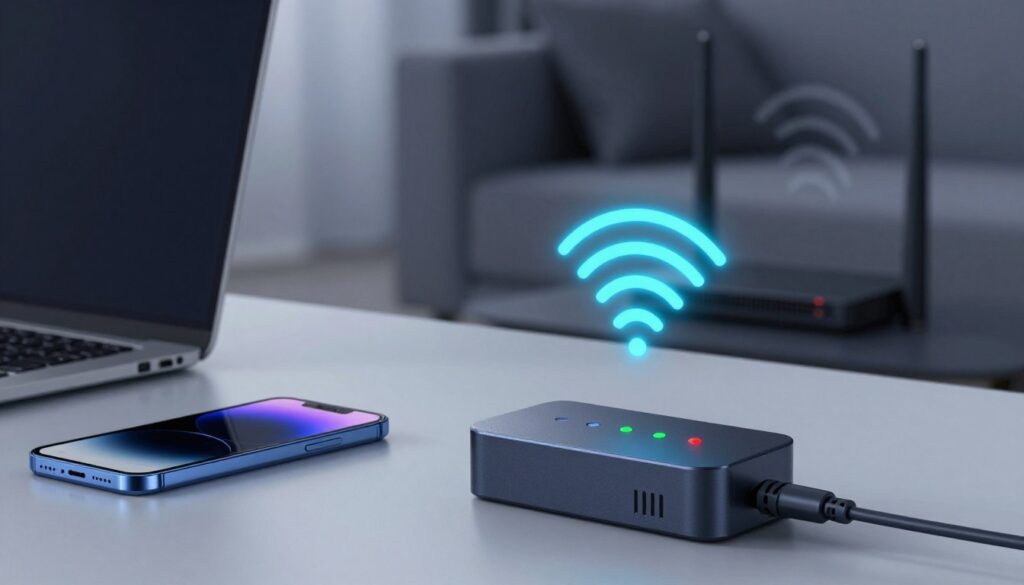
Real results vary widely by house. Factors like wiring quality, circuit layout, and appliance noise change link rates and real throughput. Field tests found that advertised “up to” rates usually reflect link speed, not true internet or LAN performance.
In practice, these adapters can either improve coverage by providing a stable wired backhaul or make a setup feel worse due to jitter, retransmits, and interference. In the United States, GFCI-protected circuits and multi-circuit homes often reduce reliability compared with other regions.
This guide previews a practical, step-by-step approach: check wiring and circuits first, choose outlet placement carefully, avoid filtering pitfalls, verify link quality with software tools, and troubleshoot noise and distance issues systematically.
Key Takeaways
- Know the role: These devices bridge electrical wiring and your home network for room-to-room links.
- Expect link rates to be higher than real throughput; plan for ~30–35% conversion to usable speeds.
- US wiring and GFCI circuits can cut reliability; always test in your home.
- They can reduce wireless load when used as Ethernet backhaul, improving performance for other devices.
- Troubleshoot by checking circuits, optimizing outlets, and measuring link quality before assuming a failure.
How Powerline Adapters Work Alongside Wi-Fi and Ethernet
Home electrical wiring can carry modulated network signals that link rooms without running cable. A sender injects a radio-like waveform onto the mains and a receiver converts those signals back to Ethernet at the other outlet.
The router still handles routing and DHCP. The powerline segment behaves like a wired Ethernet link and can feed a switch, an access point, or a mesh node to relieve wireless load.
Why “Up To” Rates Aren’t Real Throughput
Manufacturers report a link rate, not usable bandwidth. In real homes, expect roughly 30–35% of that label as practical throughput due to noise, distance, and breaker crossings.
Standards: HomePlug AV/AV2 vs G.hn
HomePlug AV and AV2 brought incremental refinements; G.hn advertises higher link rates (up to 2.4Gbps link). Still, wiring quality and household electrical noise determine the actual speed and performance more than the spec sheet.
Ethernet remains the gold standard for predictable bandwidth. These devices exist to provide a wired-like connection when running cable is unrealistic. Vendor firmware and management tools also change real-world stability and metrics visibility.
When Powerline Adapters Actually Improve Wi-Fi Coverage
Using powerline adapters as an Ethernet backhaul to remote radios often fixes dead zones without running long cable runs.
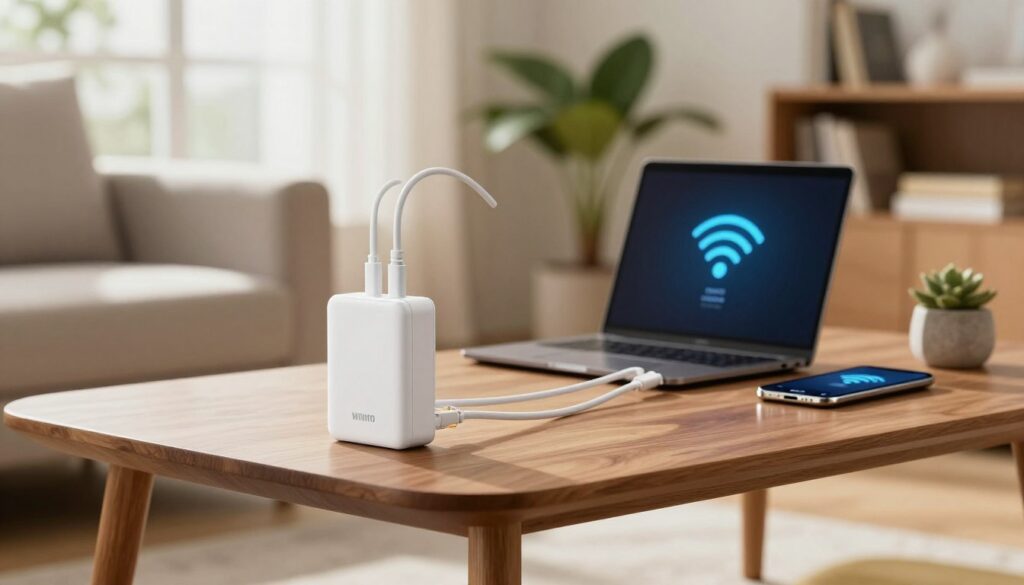
How it helps: Feed a mesh node or an access point with an Ethernet link from the electrical path so radios serve clients instead of carrying backhaul traffic over the air.
This approach works best in homes with thick plaster or brick walls, long hallways, or isolated rooms where a single router cannot reach. In those cases, the link brings a more stable connection and fewer dropouts for streaming and calling.
Placement mindset
Optimize the electrical link first. Test several outlets and pick the one with the strongest reported throughput. Then run a short ethernet cable to the ideal AP location to get the best radio placement.
Sometimes placing the kit in an adjacent room or directly above/below the target point yields higher throughput while keeping a strong wireless signal where it’s needed.
Practical tips
- Connect a small switch to the remote unit when multiple wired devices need access.
- Expect better consistency more than higher peak internet speed if the backhaul is the bottleneck.
- Aim for a stable backhaul before tuning channels and AP placement; instability there will make the whole network feel worse.
powerline adapter affects wifi: The Main Ways It Can Make Your Network Worse
Household wiring can carry data, but it also carries the same interruptions created by appliances and power gear. That shared path means devices like fridges, AC compressors, and UPS units often inject electrical noise that lowers throughput and stability.
Appliance and equipment noise
Compressor-based devices and heavy motors create continuous contamination on the mains. That noise forces retransmits and drops raw link rates.
Intermittent sources — microwaves, dishwashers, and dryers — make the problem worse because performance falls only at certain times. The network feels random and unreliable.
Low-frequency RF pollution
Wiring can radiate low-frequency signals. That RF pollution sometimes interferes with nearby radios and local wireless reception, compounding the user impact.
Signal dropouts and network-wide effects
When links flap, adapters and connected gear retry aggressively. That generates extra broadcast traffic and can slow all devices on the LAN.
Modern mesh systems may silently switch backhaul from wired-over-mains to a wireless link. That fallback raises congestion and reintroduces original dead-zone problems.
| Cause | Typical symptom | Practical fix |
|---|---|---|
| Compressor motors (AC, fridge) | Consistent low throughput | Use a different circuit or reserve for low-demand devices |
| Intermittent loads (microwave, washer) | Occasional slowdowns at certain times | Schedule heavy use or move critical links to Ethernet/MoCA |
| UPS and power equipment | High jitter and dropouts | Plug UPS-protected gear separately; test alternate outlets |
| Link flaps in complex LANs | LAN-wide chatter and reduced performance | Isolate the link, limit retries, or switch backhaul method |
Decision lens: In noisy homes, reserve the wired-over-mains path for low-demand devices or replace it with MoCA or true Ethernet when feeding a primary access node.
Check Your Home Wiring First: Circuits, Breakers, and US-Specific Gotchas
Start by mapping the circuits in your house — the electrical path matters more than the spec sheet. A working connection often depends on whether two outlets share the same circuit or must cross breakers, subpanels, or phases.
Same circuit vs multiple circuits: When both units sit on the same circuit, the signal usually stays strong. Crossing breakers or going through a subpanel frequently weakens or drops the signal. That means a bright link light doesn’t guarantee usable throughput for a remote room.
US-specific GFCI issues: Whole-house GFCI or GFCI-protected outlets can filter or distort signals. Homes with recent remodels, detached garages, or isolated appliance circuits often create separate circuit paths that reduce reliability.
Quick test: identify likely breakers for each outlet, then try sockets that share the same circuit first. If performance is poor despite pairing, move the unit to another room and retest before buying more gear.
Step-by-Step Setup That Minimizes Interference and Maximizes Throughput
Follow a short, repeatable routine to find the best outlet pair and confirm stable throughput before finalizing the installation.
Baseline test: Plug one unit into a central router outlet and the other into the target room’s wall. Do not use surge strips or extension cable. Run a quick speed test and note transmit and receive link rates in the vendor software.
Move, measure, repeat: Try at least three different sockets in each room. Small changes in outlet location often change the electrical path and the measured speed. Record results to compare.
Avoid noisy neighbors: Keep the unit away from clustered chargers, UPS units, and multi-plug wall blocks. These devices commonly inject noise that lowers throughput and causes jitter.
Ethernet cable trick: Use a longer ethernet cable so the device can sit at the outlet with the shortest electrical path. Moving the physical cable can reduce distance on the mains and often raises real-world data rates.
Pairing and verification: Pair units deliberately using the vendor pair button. Then open the management software and confirm stable transmit/receive rates over time rather than trusting the labeled class speed.
| Step | Action | Why it helps |
|---|---|---|
| Baseline test | Test one outlet pair and log link rates | Establishes a performance reference to improve on |
| Multiple sockets | Try different outlets in each room | Finds a shorter, quieter electrical path for better throughput |
| Avoid surge strips | Plug units directly into the wall | Prevents high-frequency filtering that reduces speed |
| Longer ethernet cable | Place unit at best outlet, even if farther from the device | Improves link quality by shortening the mains distance |
| Use software tools | Monitor transmit/receive rates and stability | Validates changes and catches intermittent problems |
Troubleshooting Signs Powerline Is Hurting Wi-Fi Performance
A few simple tests can tell if the electrical link is the reason your network feels flaky. Start with a short, repeatable routine and record results so you can compare changes over time.
Isolate appliance cycles
Method: Run a steady speed and latency test while turning suspect appliances on and off. Include compressors, microwaves, washers, dryers, and UPS units.
What to watch for: sudden buffering during appliance use, a second adapter that desyncs, or sharp drops in throughput when a device powers up.
Distance vs circuit failures
Gradual loss of throughput usually points to long electrical runs and distance-related degradation. Abrupt disconnects or total failure to link often mean the units cross different breakers or subpanels.
Half-duplex limits and jitter
These links often behave like a simple hub: only one endpoint talks at a time. That means simultaneous uploads and downloads increase contention and create spikes in jitter even with a good link light.
MIMO clues for wiring health
MIMO can boost real-world speed when multiple conductors are healthy. But if enabling multi‑stream modes drops performance, suspect wiring faults or repeated retransmits.
Detecting mesh fallbacks
Check your mesh app for backhaul type and compare throughput when the electrical link is stable versus when it degrades. If the node looks “connected” but behaves like a wireless-only unit, the system likely switched to wireless backhaul.
When to swap hardware
Replace hardware when the current devices are at their limits or run outdated firmware. If testing shows the wiring or circuit topology is the bottleneck, new units rarely fix the root problem.
- Symptoms: inconsistent access at APs, jitter spikes during calls, or mesh nodes performing like they’re wireless-only.
- Quick test: document timing of drops during appliance cycles and note whether the second adapter loses link.
Conclusion
The right test is whether the setup provides consistent, usable data rates over time.
When it helps: these devices create a practical Ethernet-like link through a wall or across a home when running cable isn’t feasible and wireless coverage is poor.
Expectations: labeled link speeds reflect standards and signaling rates, not guaranteed throughput. Real results depend on wiring, outlet choice, and local electrical signals.
Setup wins: plug directly into the wall, avoid surge strips and multi-plugs, test multiple sockets, and use a longer ethernet cable to place the unit at the best outlet.
When it hurts: appliance-driven instability, link flaps that spark retries and LAN chatter, and mesh systems silently falling back to wireless can make the network feel worse.
Decision guide: keep the solution if it gives stable backhaul and steady performance. If it’s unstable, reposition or simplify. When circuits or noise limit results, consider dedicated Ethernet or other backhaul methods instead.
FAQ
How do powerline network devices work with Wi-Fi and Ethernet?
Why do manufacturers advertise “up to” speeds that I never see?
What’s the difference between HomePlug AV/AV2 and G.hn?
When will these devices improve my wireless coverage?
Where should I plug them in to get the best Wi-Fi results?
How can these units make my wireless network worse?
Do home circuits and breakers matter for performance?
What setup steps reduce interference and boost throughput?
How should I test if electrical noise is the problem?
How do distance and wiring faults show up in diagnostics?
What are half-duplex limits and why do they matter?
When does MIMO help, and when does it reveal wiring faults?
How can I tell if my mesh system fell back to wireless backhaul?
When will swapping hardware actually help?
Are there regulatory or neighbor-related interference concerns?
What tools help verify link quality and stability?
Apartment Wi-Fi Problems: What Makes Signal and Speed Worse
» See exclusive tips for your home