Router Admin Page Won’t Load: How to Get Back Into Your Router Settings
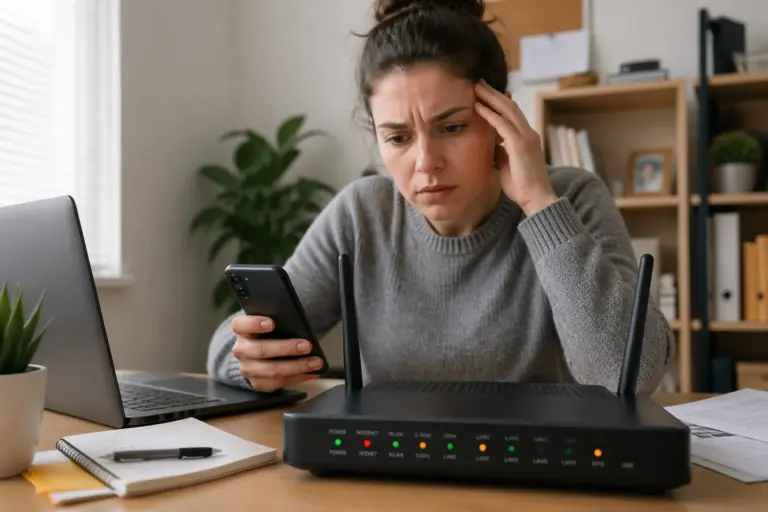
When your router admin page won’t load, it feels like the one door you need is suddenly bricked up. You type the address, hit Enter, and the browser spins until it gives up.

This problem is common with home Wi-Fi gear, and it does not always mean the router is dying. Most of the time, a small network detail is wrong, and the fix is boring but effective.
People usually notice it when 192.168.1.1 not loading keeps happening, or when a bookmarked login page suddenly fails after an ISP change. You might also see a blank page, a timeout, or a message that the site refused to connect.
If you can’t access router login page screens on every device, treat it like a local network issue first, not an internet issue. The router web interface not responding often comes down to which device you are on, how you are connected, and what IP your router is using today.
It also helps to remember that your router admin page is not a normal website, so your browser can’t “search” for it if the network path is wrong. Your device has to be able to reach that private IP address directly, and that only works when you are on the correct side of the router.
Even when the internet is down, you should still be able to open the router login page if your local connection is healthy. When you can browse the web but the router admin page won’t load, that usually points to a routing, isolation, or browser issue rather than a full outage.
What Else Would You Like to Know?
Choose below:
Why the admin page sometimes becomes unreachable
The router admin page won’t load when your device is not on the same network as the router, even if Wi-Fi looks connected. This happens a lot with mesh systems, extenders, and guest networks that isolate clients.
Another common cause is an IP change after a firmware update or after swapping routers, which makes old bookmarks useless. When that happens, 192.168.1.1 not loading is a symptom, not the root problem.

Double NAT can also block access, especially when an ISP gateway sits in front of your own router. You end up trying to manage Router B while your phone is actually living behind Router A.
Finally, some routers crash only the management service while Wi-Fi keeps working, which is maddening. In that case, the router web interface not responding may clear up after a clean reboot, but it can also point to overheating or bad firmware.
Sometimes the issue is as simple as typing the wrong address format, like leaving off the dots or adding spaces that the browser treats as a search query. If your browser is sending you to a search engine instead of the router, the page will never load even though the router is reachable.
Another sneaky cause is that you are connected to the router, but you are connected through a network that is being “managed” by the router in a different mode. In access point mode or bridge mode, the router’s admin IP can be different from what you expect, and the old address stops responding.
Some routers also disable local management from Wi-Fi as a security option, which makes it look like the admin page is dead. If someone enabled “wireless access to router settings: off,” you may only be able to log in from Ethernet.
There are also cases where the router is fine, but your device is using a different gateway because it has multiple network connections active. A laptop that is on Ethernet and Wi-Fi at the same time can choose the wrong route, and then the router admin page won’t load even though one of the links would work.
IP conflicts can break management access in weird ways, especially if another device on the network is accidentally using the router’s IP. If something else claims 192.168.1.1, your browser may connect to the wrong device or get inconsistent results.
In some homes, a “smart” switch or powerline adapter creates an unexpected network segment that blocks local traffic. It can still pass internet traffic, which makes it feel like the router web interface not responding is the only thing broken.
Basic checks before assuming the router is broken
Start with the physical basics, because they waste the least time and catch the dumb mistakes. Confirm the router has power, the status lights look normal, and the Ethernet cable from modem to router is fully seated.
Next, reboot the router the right way, which means unplugging power for 30 seconds, then plugging it back in and waiting two full minutes. A quick off-on tap often leaves the router half-initialized, and then the router admin page won’t load again.
Try a wired connection if you can, because Wi-Fi roaming and extenders cause weird access issues. Plug a laptop into a LAN port, disable Wi-Fi on that laptop, and try the login page again.
If you still can’t access router login page screens, test from a second device to rule out a single broken browser profile. I like using a phone on Wi-Fi plus a laptop on Ethernet, because they fail for different reasons.
While you are doing this, make sure you are testing from the same network name you normally use, not a similarly named guest SSID. A lot of routers ship with “NetworkName” and “NetworkName-Guest,” and it is easy to pick the wrong one when you are in a hurry.
Check whether your device actually has an IP address from the router, because “connected” does not always mean “working.” If your phone says “Connected, no internet,” it may still have local access, but if it shows no IP or a weird self-assigned address, the admin page may not be reachable.
On a wired laptop, look at the Ethernet port lights where the cable plugs in, because no link light means no connection at all. If the port is dead, try a different LAN port, because some routers have one port that gets disabled by a setting or a hardware fault.
Restart your device too, especially if you have been toggling VPNs, proxies, and Wi-Fi networks all day. A reboot clears stale routes and DNS caches that can make it look like the router web interface not responding when it is really your device being stubborn.
If you are using a desktop PC, confirm you are plugged into the router and not into the modem or a wall jack that goes somewhere else. In homes with structured wiring, it is common to have multiple jacks that look identical but terminate on different equipment.
Also pay attention to whether your router has a dedicated “Internet” status light that is red while Wi-Fi is still broadcasting. That situation can distract you into chasing the ISP, but it does not explain why the router admin page won’t load, because local management should still work.
If you have a mesh kit, identify the main router unit and try to connect near it, because satellites can be in a half-online state. A satellite that is backhauled poorly can pass some traffic but fail to route you cleanly to the management IP.
How to find the correct admin IP address
Stop guessing and pull the router address from your device, because the “default” IP is often wrong in real homes. When 192.168.1.1 not loading shows up, it usually means your gateway IP is something else like 192.168.0.1, 10.0.0.1, or 192.168.50.1.
On Windows, open Command Prompt and run ipconfig, then look for Default Gateway on the active adapter. On macOS, open System Settings, go to Network, pick your connection, and check the Router field.
On iPhone, tap the “i” next to your Wi-Fi network name and look for the Router entry, which is usually the admin IP too. On Android, the wording varies by brand, but you are looking for Gateway, Router, or something similar in the network details.
If your device shows multiple gateways, focus on the one tied to the connection you are actively using right now. A laptop with a virtual adapter from a VPN client can list extra gateways that are not what you want for local router access.
Once you have the gateway IP, type it directly into the address bar, not the search bar, and include the dots exactly. If your browser tries to “help” by searching, click the address bar and force the exact IP again.
If the gateway IP loads a page but it is clearly the wrong brand interface, you may be looking at the ISP gateway instead of your router. That is still useful information, because it tells you which device is actually acting as the gateway for that network.
In some setups, the gateway is not the same as the router you want to manage, especially if your router is in access point mode. In that case, the gateway might be the upstream device, and you will need to find the access point’s IP from a client list or a network scan.
You can also try the router’s hostname if your brand supports it, such as routerlogin.net or a vendor-specific local name. Hostnames are convenient, but they are also easier to break when DNS settings change, so the gateway IP is still the most reliable method.
| Device or method | Where to look | What you want |
|---|---|---|
| Windows 10/11 | Command Prompt, ipconfig | Default Gateway IP |
| macOS | System Settings, Network | Router IP address |
| iPhone (iOS) | Wi-Fi network details | Router field |
| Android | Wi-Fi network details | Gateway or Router field |
| Router label or manual | Bottom sticker or PDF | Default LAN IP and login URL |
If your device shows a gateway like 169.254.x.x, that usually means it failed to get a proper address from the router. In that situation, the router admin page won’t load because your device is not truly on the LAN yet.
If you see a gateway that looks correct but the page still times out, try pinging it from a computer to confirm basic reachability. A successful ping does not guarantee the web UI works, but a failed ping strongly suggests you are not reaching the router at all.
When ping fails, check whether your device is using the expected subnet, like 192.168.0.x if the gateway is 192.168.0.1. If your device has an address from a different range, you may be on the wrong Wi-Fi network or stuck with a static IP.
Why your router might not be on 192.168.1.1 anymore
Some brands ship with different defaults, so 192.168.1.1 not loading is normal on day one for a lot of hardware. Many Netgear models use 192.168.1.1, but ASUS often uses 192.168.50.1, and some ISP gateways use 192.168.0.1.
Mesh systems complicate it because the app becomes the main management tool, and the web UI address can change or be hidden behind a node. If you are connected to a satellite unit, the router admin page won’t load until you connect to the main router or use the vendor portal.
If you replaced an ISP modem-router combo with your own router, your network might have moved from 192.168.1.x to 10.0.0.x. That change breaks every saved link and makes it look like the router web interface not responding when it is actually at a new IP.
Static IP settings on a computer can also strand you on the wrong subnet. If your PC is stuck on 192.168.1.200 but your router is now 192.168.0.1, you will swear you can’t access router login page screens even though the router is fine.
Some routers also let you change the LAN IP as part of “avoid conflicts” wizards, and people forget they ever clicked that button. If you once changed it to something like 192.168.10.1 to match a work setup, 192.168.1.1 not loading will be the expected result.
If you added a second router at some point, you may have changed one of them to avoid an address collision, and then later removed the second router. The network might still be on the adjusted range, even though the original reason is gone.
ISP “smart” gateways sometimes change their own LAN range when they detect conflicts, especially after resets or replacements. If your ISP swapped the box, your default gateway may have changed overnight without you touching anything.
Another twist is that some routers use a local domain like http://router.asus.com or http://tplinkwifi.net that depends on DNS or a helper service. When that helper breaks, it looks like the router admin page won’t load, but the raw IP still works.
If your router supports multiple LAN networks or VLANs, you might be on a segment that cannot reach the management interface. That is common in prosumer gear where the admin UI is only available from a “main” LAN, not from an IoT VLAN.
In rare cases, the router is using IPv6 management, and the IPv4 address you are trying is not active for the admin service. Most home routers still rely on IPv4 for the UI, but it is worth noting if your network is heavily IPv6-enabled.
Connection problems that look like a dead admin page
Client isolation is a big one, because some guest networks block access to local devices by design. If you are on Guest Wi-Fi, the router admin page won’t load, and that is the point of the feature.
VPNs can break local access too, especially “full tunnel” modes that route everything away from your LAN. Turn the VPN off, reconnect to Wi-Fi, and try again before you assume the router web interface not responding is a router crash.
Public DNS settings do not usually affect local IP access, but some security apps intercept local traffic anyway. If you run something like Malwarebytes Browser Guard, an antivirus web shield, or a corporate device profile, try a different device to confirm.
Finally, check your actual connection path, because being connected to the modem instead of the router happens more than people admit. If your phone joined the ISP gateway Wi-Fi, you will be trying 192.168.1.1 not loading while your real gateway is something completely different.
Wi-Fi extenders can create a second NAT layer or a separate subnet depending on how they are configured. If the extender is in router mode instead of repeater mode, you may be stuck behind it and unable to reach the main router’s admin page.
Powerline adapters can also be deceptive, because they sometimes include a built-in Wi-Fi access point with its own management rules. You might be connected to the powerline Wi-Fi and not realize it is isolating you from the router.
Another issue is captive portals and “sign in to Wi-Fi” prompts, which can hijack your browser until you dismiss them. If your phone is trying to open a login prompt for a different network, it can interfere with loading the router admin page.
If you are on a work-managed laptop, local firewall policies can block access to private IPs or common admin ports. That can make it seem like the router web interface not responding, but your personal phone on the same Wi-Fi might load it instantly.
Some routers also have an option to disable management over Wi-Fi while still allowing internet access. If you can reach the admin page on Ethernet but not on Wi-Fi, that setting is a prime suspect.
It is also worth checking whether you are using a “Wi-Fi calling” or “private relay” feature that changes routing behavior. These features are not supposed to block local access, but they can add enough complexity that troubleshooting becomes confusing.
If you recently changed your Wi-Fi password and some devices are still connected, they may be connected through cached credentials to a different access point. That split-brain situation can make you think the router admin page won’t load on “every device,” when the devices are actually on different networks.
Browser and device settings that block the login page
Browsers sometimes force HTTPS, and many routers still use plain HTTP by default, which can create confusing errors. If the router admin page won’t load, type http:// then the IP address, and try the exact opposite if your router expects HTTPS.
Cached redirects can trap you, especially if you once logged in through a hostname like routerlogin.net and it now points somewhere else. Clear the browser cache for that site or open a private window to see if the behavior changes.
Proxy settings are another silent killer, and Windows can enable them through workplace software or old debugging tools. Turn off any system proxy, then retry the page if you can’t access router login page screens.
Some phones also use randomized MAC addresses per network, which can trigger parental controls or access rules on picky routers. If the router web interface not responding only happens on one device, temporarily disable private address or randomized MAC for that Wi-Fi network.
Extensions that rewrite URLs or enforce strict tracking protection can also interfere with basic router pages. If you see the page partially load and then go blank, an extension may be blocking a script or redirect that the router UI depends on.
Some browsers remember HSTS rules that force HTTPS for a host, and that can be a problem if your router only speaks HTTP. If you previously visited an HTTPS version of the router UI, the browser may keep forcing HTTPS even when you type HTTP.
If you get a certificate warning on HTTPS, that is normal for many routers, but some devices refuse to proceed. Try a different browser that lets you bypass the warning, or switch to the router’s supported method if it offers HTTP on the LAN.
Auto-fill can also sabotage login attempts by injecting the wrong username or password repeatedly. If you can load the page but cannot log in, manually type the credentials and consider clearing saved passwords for that router address.
On mobile, “data saver” and “private DNS” features sometimes route traffic through filtering services. They are not supposed to touch local IPs, but when they do, the router admin page won’t load and it feels completely random.
Another device-level issue is that your browser might be using a custom DNS-over-HTTPS provider. That usually does not affect direct IP access, but it can affect hostname-based logins like routerlogin.net and send you to the wrong place.
If you are using an old device, it may not support modern TLS versions required by newer routers that default to HTTPS. In that case, the page can fail to load even though the router is fine, and a newer browser fixes it immediately.
Quick fixes that solve most cases fast
If you want the highest win rate, try a wired laptop, the correct gateway IP, and a private browser window, in that order. That combo bypasses most reasons the router admin page won’t load.
Also try a different browser, because extensions and strict privacy modes can interfere with basic router pages. I have seen Safari behave differently than Chrome, and Firefox ignore a weird redirect that kept Chrome stuck.
If you are stuck on a phone, toggle Wi-Fi off and back on to force a fresh DHCP lease. It sounds too simple, but it often fixes cases where your phone is clinging to a stale gateway and 192.168.1.1 not loading is just the symptom.
Try typing the address slowly and directly, and wait a few seconds after hitting Enter before you change anything. Some routers take longer than you expect to respond, especially right after boot, and rapid retries can make you think the router web interface not responding is permanent.
If you have a mesh system, open the vendor app and look for a “router IP” or “LAN IP” field, because it usually shows the correct address. Many mesh products still have a web UI, but they do not advertise it unless you look for it.
Another quick win is to disable cellular data on your phone while testing, because some phones will silently switch routes when Wi-Fi is flaky. If the phone decides Wi-Fi is “bad,” it may try the request over cellular, and the router admin page won’t load because cellular cannot reach your LAN.
If you suspect your computer has a static IP, switch it back to automatic DHCP temporarily. A mismatched static IP is one of the fastest ways to create a fake “router is dead” moment.
- Connect by Ethernet to a LAN port
- Disable VPN and proxy settings
- Use the device’s Default Gateway IP
- Try http:// and https:// versions
- Open a private or incognito window
- Switch to a different browser
- Leave guest Wi-Fi and join main SSID
If you get a login prompt but it rejects your password, do not assume the page is broken. A router can be reachable while your credentials are wrong, and repeated failed attempts can trigger lockouts that look like the router web interface not responding.
When you finally get in, consider writing down the management IP and saving it somewhere reliable. Bookmarks are fine, but only if you label them clearly and update them when you change routers.
It also helps to turn on a setting like “allow local management only” if your router offers it, because it reduces the chance of remote access confusion. The goal is to make the admin page predictable, so the next time 192.168.1.1 not loading happens, you have a faster path to the real address.
When the router web interface is truly not responding
Sometimes the router is up but the management process is frozen, so pings work while the login page times out. If the router web interface not responding persists after a reboot, heat and memory leaks are common culprits.
Feel the router casing, and if it is hot to the touch, move it into open air and away from other gear like modems and game consoles. Heat makes cheap routers flaky, and the first thing to die is often the web UI.
Firmware bugs are real, especially on ISP-provided gateways that update themselves at 3 a.m. If your router admin page won’t load right after an update, check the vendor support page for known issues and consider rolling back if your model allows it.
Another clue is whether the router responds to ping at the gateway IP while the browser fails. If ping works but the page does not, try accessing by a different port like :8080 only if the manual mentions it, because guessing ports wastes time.
Look for patterns in when it fails, like only after several days of uptime or only when many devices are connected. If the admin page dies after a week but comes back after a reboot, that is classic stability trouble rather than a one-time configuration issue.
Check whether the router still hands out IP addresses via DHCP when the UI is down, because that tells you which services are still alive. If new devices cannot join the network and the admin page won’t load, the router may be in a deeper crash state.
If your router has logs accessible through an app, look for repeated restarts, kernel panics, or storage errors. Even basic “system uptime” information can confirm whether the router is rebooting itself and briefly becoming unreachable.
Some routers have a separate management IP when operating in certain modes, and the normal LAN IP stops serving the UI. If you enabled features like “AP isolation,” “multi-SSID,” or “remote management,” double-check whether the management interface moved or was restricted.
If you can SSH or use a vendor tool to reach the router but the web UI is dead, that points directly to the web server process. That is not a beginner fix, but it is a strong sign that the router is not totally bricked.
Hardware can also degrade slowly, especially power supplies that no longer deliver clean voltage under load. A failing adapter can keep Wi-Fi running but cause random crashes that make the router web interface not responding show up more and more often.
If you have another compatible power adapter with the same voltage and polarity, swapping it as a test can be surprisingly effective. It is not the most common fix, but it is easier than replacing the whole router if the power brick is the real problem.
ISP gateways, double NAT, and the wrong box problem
If you have an ISP gateway plus your own router, you might be logging into the wrong device. That is the classic “can’t access router login page” scenario where you are using the right steps on the wrong box.
Look at your wiring, because the router you want to manage is usually the one your devices connect to for Wi-Fi. If your phone connects to your personal router but the gateway IP belongs to the ISP unit, you have a split network that needs cleanup.
To reach the second router, you often need to browse to its WAN-side address from the first router’s network, which many setups block. The cleaner fix is putting the ISP gateway in bridge mode or setting your router as an access point, then the router admin page won’t load problem tends to vanish.
If bridge mode is not available, set the ISP gateway to DMZ your router and disable Wi-Fi on the gateway. That reduces double NAT headaches and makes it easier to reach the router web interface without tripping over two layers of routing.
One way to spot the wrong-box problem is to compare the brand name on the login page with the hardware you think you are managing. If you expected an ASUS interface but you see your ISP logo, you are not in the right place yet.
Another clue is the IP range your devices are getting, because ISP gateways often use a different default range than retail routers. If your devices are on 10.0.0.x but you are trying 192.168.1.1 not loading, you are likely aiming at the wrong device or the wrong network segment.
Double NAT setups also create confusion with Wi-Fi names, because people reuse the same SSID on both boxes. If both devices broadcast “HomeWiFi,” your phone may connect to the ISP gateway one day and your router the next, and then the admin page appears to randomly work or fail.
If you keep both boxes, give them distinct SSIDs temporarily while troubleshooting. This makes it obvious which network you are on and reduces the odds that the router admin page won’t load simply because you joined the wrong Wi-Fi.
Some ISP gateways also block access to downstream router management for “security,” especially if you are trying to reach a private IP behind their NAT. If you cannot reach your router from the ISP network, connect directly to your router’s LAN or Wi-Fi and try again.
If your router is in access point mode behind the ISP gateway, the admin IP might be assigned by the ISP gateway’s DHCP server. In that case, you may need to log into the ISP gateway first and check the connected devices list to find the access point’s current IP.
Once you clean up the topology, management becomes boring again, which is the goal. A simple network with one router doing routing and one device doing modem duty is the easiest way to avoid the router web interface not responding drama.
Last resort: factory reset and what you’ll lose
A factory reset is the move when you have the correct admin IP, you have tried wired access, and the router admin page won’t load on any device. It also makes sense if you forgot the admin password and recovery options are not working.
Most routers reset by holding the physical Reset pin for 10 to 15 seconds until the lights blink, then waiting several minutes. Do it with the router powered on, and do not interrupt the reboot unless the manual says otherwise.
You will lose your Wi-Fi name and password, custom DNS settings, port forwards for cameras or game consoles, and any parental control rules. If your home has smart devices, expect to reconnect plugs, bulbs, and thermostats that only remember the old SSID.
After the reset, use the default login info on the label, then immediately set a new admin password and update firmware. If 192.168.1.1 not loading was caused by a misconfigured LAN IP, a reset usually puts it back to a known default so you can get in again.
Before you reset, take a minute to check whether your router has a backup/restore feature in an app or cloud account. If you can still access anything at all, exporting settings can save you from rebuilding port forwards and Wi-Fi schedules later.
If you cannot back up settings, at least write down your ISP connection details if your service requires them. Most cable connections are automatic, but some fiber and DSL setups need PPPoE usernames, VLAN IDs, or special tags that you do not want to guess after the reset.
Plan for downtime, because a full reset means every device will disconnect until you set the Wi-Fi back up. If you work from home, do the reset when you can afford a 30-minute window to reconnect everything calmly.
After the reset, avoid restoring an old configuration file if you suspect the configuration is what broke access. If the router admin page won’t load because of a bad setting, restoring the same settings can recreate the same problem instantly.
When you reconfigure, consider keeping the router on a stable firmware version and turning off automatic updates if your model is known to be flaky. Automatic updates are convenient, but they can also introduce sudden changes that make the router web interface not responding show up again.
Once you are back in, set a clear LAN IP and document it, especially if you are not using the default. That one small habit prevents a lot of future 192.168.1.1 not loading confusion.
If the router still misbehaves after a reset and firmware update, it is fair to suspect hardware. At that point, replacing the router is often cheaper than the time you will spend fighting random management lockups.
Conclusion
When the router admin page won’t load, the fix is usually about reaching the right IP from the right network, not about buying new hardware. Once you confirm the default gateway, ditch guest Wi-Fi, and bypass VPNs and proxies, most login pages come back.
If you still can’t access router login page screens after wired testing and a clean reboot, treat it like a firmware or hardware stability issue and plan your next step. A factory reset is annoying, but it beats living with a router web interface not responding every time you need to change a setting.
The main idea is to stop treating it like an internet outage and start treating it like a local path problem. When you approach it that way, 192.168.1.1 not loading becomes a clue that helps you find the real gateway and the real device in charge.
Once you get access again, take a moment to simplify your setup so it stays accessible. Clear labeling, a single routing device, and a known admin IP make the next troubleshooting session much shorter.
If your router is older and the admin page keeps freezing, consider that stability is part of security too. A router that you can’t log into is a router you can’t update, and that is a good reason to replace it before it fails completely.
What the Lights on Your Router Actually Mean When Something Goes Wrong
» See exclusive tips for your home