Router Firmware Updates: When They Help and How to Do Them Safely
Learn how to perform a router firmware update safely with our step-by-step guide. Discover when updates are necessary and how to do them correctly.
This article explains what a router firmware update is in plain terms and why it matters for a typical home network in the United States.
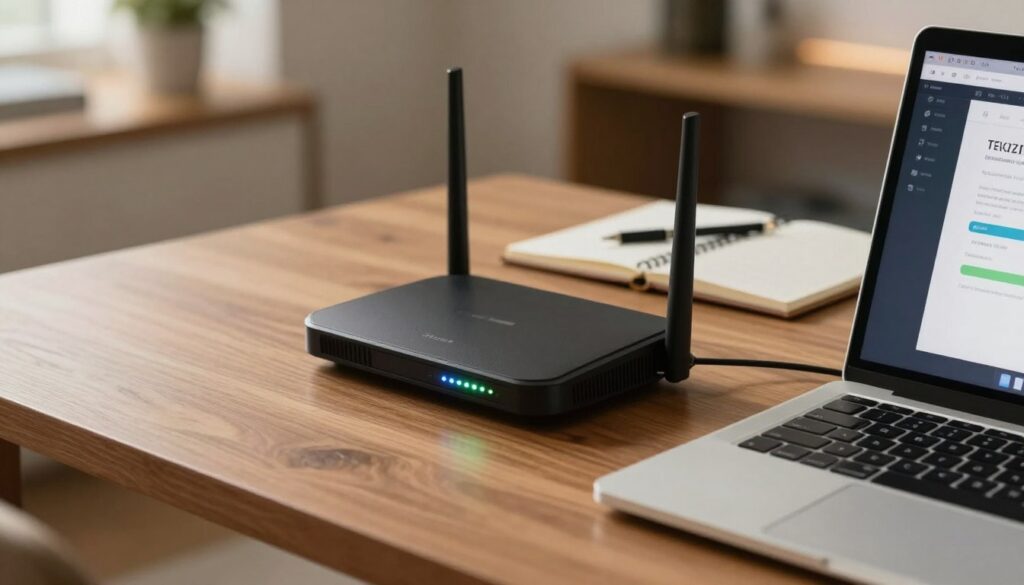
Think of the device as the gate for your Wi‑Fi devices. If its internal software is old, new threats can pass through and devices may drop connections more often.
At a high level: firmware is the device’s built‑in software, not the simple Wi‑Fi settings you change from a phone. It patches security holes and can improve stability and speed.
The basic browser path is familiar: enter the device IP, log in, find the Firmware/Update area, download the correct file from the maker’s support page, upload it, then reboot.
Expect brand and model screens to look different, but the workflow is consistent for most devices with a WebGUI. Some vendors offer auto‑apply or mobile app options, which many users find easier and safer.
Safe mindset: pick the exact file for your hardware version, avoid interruptions during the process, and confirm the version after the procedure.
What Else Would You Like to Know?
Choose below:
Key Takeaways
- Keeping device software current reduces dropouts and blocks known threats.
- Firmware handles security patches and performance fixes, unlike Wi‑Fi settings.
- Follow the browser path: IP → login → find update → download → upload → reboot.
- Use the exact file for your model and avoid power loss while applying changes.
- Auto‑apply and mobile app options can be safer for many home users.
When Firmware Updates Help Your Router’s Security and Performance
Keeping the device’s built-in software current helps stop new threats before they reach your home devices.
Why systems need patches to block new threats
Security fixes close vulnerabilities attackers use to access your home network. When a device is internet-facing, a single flaw can let malware redirect traffic or allow unauthorized access.
Signs you should apply an update now
Watch for recurring disconnects, sudden slowdowns, or unstable behavior after adding new devices. If the manufacturer posts a security advisory or release notes show a fix you need, plan to install the new version promptly.
When a release becomes required
Vendors sometimes mark a release as required because it fixes bugs that break stable operation on specific models. In those cases, some manufacturers push the required package automatically or show a prompt in the admin app.
| Issue | Observed symptom | What the new version can do |
|---|---|---|
| Security hole | Unauthorized access or redirects | Patch reduces risk of intrusion and malware |
| Performance bugs | Frequent reboots or slow Wi‑Fi | Stability fixes and better device handling |
| Compatibility | New devices fail to connect | Improved device support and protocol fixes |
| Critical stability | System crashes or unusable features | Required release to restore normal operation |
Tip: Always read release notes on the manufacturer support page before applying a new firmware or new version. That helps you weigh security gains against any changes that might affect stability.
Before You Start a Router Firmware Update: Prep for a Safe Upgrade
Good preparation cuts the chance of problems and makes the process faster.
Confirm model and hardware version
Make sure you have the exact model and hardware revision. Check the label on the device, then match that ID on the manufacturer’s support page or manufacturer website.
Download only the file that matches the hardware version. Using the wrong version can damage the device.
Plan a stable connection and block interruptions
Use a wired Ethernet link from your PC when possible. That gives a reliable connection and lowers the risk of loss mid-process.
Set aside enough time and avoid power-saving sleep or planned outages during the procedure.
Gather access and current version details
Write down the router IP address (default gateway), admin username, and password. If you changed the username password, use the current credentials.
Open the admin settings and note the current firmware version. Save a screenshot or copy the version so you can verify the new version later.
“Confirm the exact model on the manufacturer’s website before downloading any files.”
| Prep step | What to check | Why it matters |
|---|---|---|
| Model & hardware | Label ID and support page match | Prevents wrong file and device failure |
| Connection | Wired Ethernet and power stable | Reduces interruption risk |
| Access info | router IP address, username, password | Needed to sign in and apply changes |
| Current version | Record firmware version in settings | Verify the process completed successfully |
Checklist: model matched on support site, correct download source, stable connection, enough time, and verified access credentials.
How to Perform a Router Firmware Update via Web Browser and Web GUI
Follow these clear steps from a computer on the same network to safely apply the vendor’s package.
Access the admin page
Open a web browser on a computer connected to your LAN and type the gateway IP to reach the local admin page. This is the device’s management interface, not a public site.
Sign in
Enter the admin username and password from the label or manual. Note that these credentials often differ from the Wi‑Fi passphrase.
Locate the update area
Find the Firmware or Update section under Advanced, Administration, or Management. Confirm you are in the correct section before proceeding.
Download, extract, upload, and start
Get the latest firmware from the manufacturer website for your exact model. If the download is a ZIP, extract the file to an easy location.
Use Choose File/Browse on the admin page to select the firmware image, then click the on‑screen button to start the upgrade.
Wait and confirm
Do not unplug power or close the browser during the process. Interrupting the upgrade can cause irreversible damage.
After the device reboots, sign back into the web GUI and confirm the new version is active.
| Step | Action | Why it matters |
|---|---|---|
| 1 | Open web browser and enter gateway IP | Accesses local admin interface |
| 2 | Sign in with admin credentials | Required to apply changes |
| 3 | Download latest firmware from manufacturer website | Ensures correct and safe file |
| 4 | Extract file, upload via Choose File, click button to start | Starts the upgrade process |
| 5 | Wait for reboot and confirm version | Verifies success and restores service |
Troubleshooting and Safer Alternatives for Firmware Updates
Choosing the safest way to apply a new version depends on how reliably the device talks to its maker and how comfortable you are with web tools.
Auto‑apply and mobile apps versus manual WebGUI
Auto‑apply and vendor apps reduce steps and prevent wrong-file mistakes. They check model IDs and fetch the correct version automatically.
Manual WebUI uploads are useful when the app won’t connect or when you need a specific file from the maker’s download center. Use manual steps if you haven’t updated in a long time.
If the device can’t reach the manufacturer server
First checks: confirm the internet link, reboot the device, and verify DNS and gateway settings.
If issues persist, download the official firmware file on a PC and apply it via the WebUI following the vendor’s instructions.
Recovery when the web UI is unreachable after an upgrade
- Power‑cycle in a controlled way.
- Try a wired connection and the default IP address.
- Clear your browser cache and try another browser or device.
- Consult the manufacturer’s recovery mode or rescue utility if available.
Factory reset, failed upgrades, and when to replace
A factory reset can clear bad configs if the device boots but behaves oddly. Expect to re‑enter Wi‑Fi and ISP settings.
If repeated failures happen, the device is end‑of‑life with no security patches, or modern standards are missing, consider replacement rather than forcing another upgrade.
| Problem | Quick check | Safe action |
|---|---|---|
| Auto‑apply fails | No connection to maker server | Verify internet, DNS, reboot, then manual WebUI install |
| Web UI inaccessible post‑install | Blank admin page or timeout | Wired link, default IP, recovery mode or rescue utility |
| Persistent instability | Crashes or poor performance | Factory reset if it boots; replace if EOL or repeated failures |
Conclusion
Final takeaway: A careful, planned approach to applying new software reduces the risk of service loss and strengthens home network security.
Do this safely: confirm your device model and hardware ID, download the file only from the manufacturer website or support portal, use a stable wired link when possible, and do not interrupt power during the process.
After the device reboots, sign in and confirm the new version is active and that devices reconnect normally. Check for patches regularly, especially after security advisories. If automatic app installs work for you, use them; otherwise follow the WebGUI steps. Replace any end‑of‑life unit to keep security and performance current.
FAQ
Why do I need to install new device software to block emerging threats on my home network?
What are the clear signs I should perform an upgrade right away?
When is an upgrade considered required for certain models to stay stable?
How do I confirm my model and hardware version before downloading a new file?
What’s the best connection to use so the process won’t be interrupted?
Which access details should I gather before starting the process?
How can I find the currently installed version in the admin settings?
How do I access the admin page from a web browser?
What if I don’t remember the username and password from the label or manual?
Where is the correct section to upload the new file in the web interface?
How do I get the right file from the manufacturer website?
Do I need to extract the update from a ZIP folder first?
What steps should I follow to upload the file and start the process?
How long should I wait and what should I avoid doing during the apply process?
How do I confirm the new version is active after reboot?
What are safer alternatives to manual installations in the web interface?
What if the device can’t reach the manufacturer server for an automatic install?
How do I recover if I can’t access the admin page after installing a new version?
When should I consider replacing the device instead of forcing a new software version?
Router Overheating: How It Causes Drops and Slowdowns
» See exclusive tips for your home