Router Overheating: How It Causes Drops and Slowdowns
Is your router overheating causing wifi drops? Discover the causes and solutions to restore your network's performance and reliability.
Warm is normal, but hot is a warning. When a home device runs hotter than it should, performance can slip. You may see slow speeds, buffering, or unexpected disconnects that mimic ISP trouble.
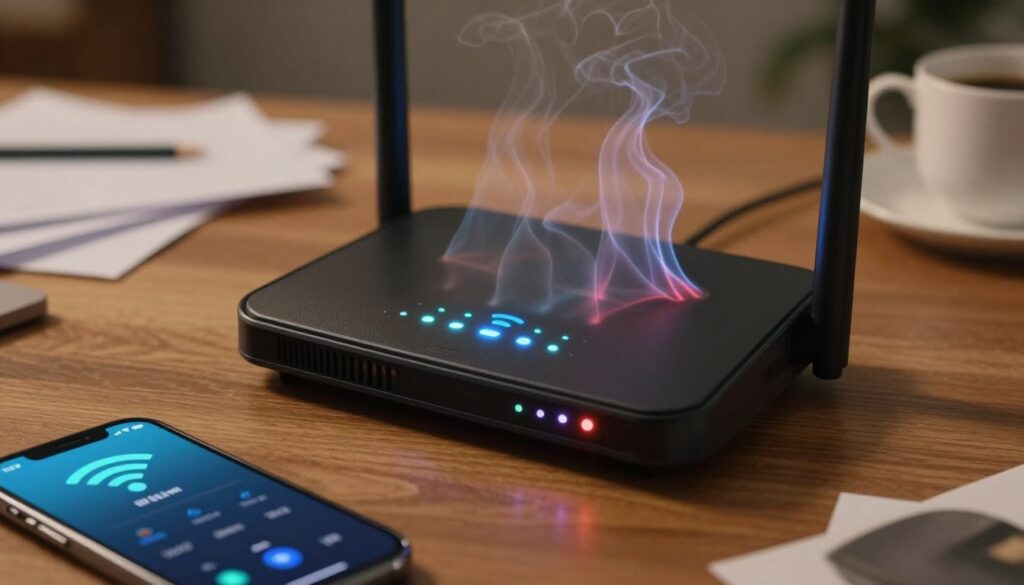
Too much heat affects the hardware. Internal parts may throttle, reboot, or fail during heavy use or firmware updates. Dust, blocked vents, and old equipment raise the risk.
This guide previews clear steps: what heat does to performance, how to spot signs, why this happens, quick ways to cool the unit, and simple maintenance and settings that prolong life. Expect practical outcomes: a steadier connection, fewer service interruptions, and better long-term performance.
Key Takeaways
- Warmth is normal; a device that’s hot to the touch needs attention.
- Local heat issues can mimic ISP or network service problems.
- Cooling and simple maintenance can restore stable internet connection.
- Check airflow, dust, and workload before buying new hardware.
- Following basic tips extends device life and improves performance.
Why an Overheating Router Can Trigger Slow Speeds and Disconnects
Heat inside a home network box can quietly sap speed and stability. As the unit handles internet traffic, processors and radio modules warm up. Too much heat makes memory and radios work less efficiently and can force restarts.
How heat impacts performance, stability, and uptime
Electronic components slow down when hot. That reduces throughput and causes choppy video, buffering, and lower speeds for every connected device.
Why this can look like ISP problems
When the local network becomes unstable, every computer and phone behaves as if the internet link is failing. The ISP may be fine, but the home connection appears unreliable.
What Else Would You Like to Know?
Choose below:
Normal warm vs. too hot to touch
It’s normal for the casing to feel warm after heavy use. If it’s too hot to touch for more than a few seconds, that is a practical warning sign that cooling or maintenance is needed to restore a stable connection.
- User-facing clues: choppy calls, sudden disconnects, and slow page loads.
- Network-wide effect: problems affect all devices, not just one gadget.
Signs Your Device Is Overheating (and Not Just Having a Bad Day)
Early signs of thermal stress often show up as odd noises, sudden reboots, or a case that’s warmer than expected. Spotting patterns matters: single glitches happen, but repeated faults point to real heat-related issues.
Physical clues
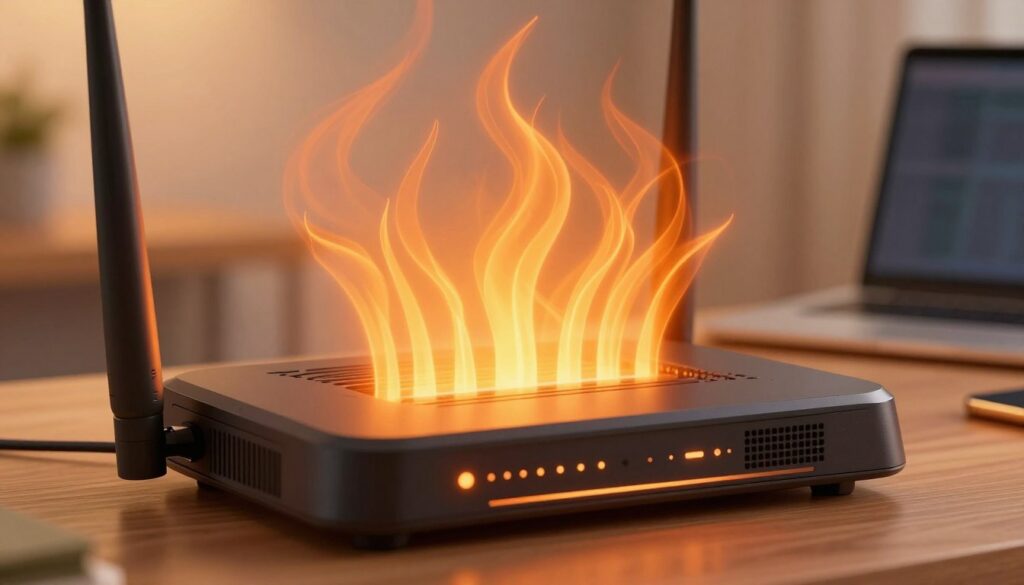
The casing feels hot to the touch, not just warm. Air flowing from vents may be noticeably warm and some units will hum as internal fans strain.
Connection symptoms
Streaming buffers more than usual, online games lag then drop, and the whole network can go down temporarily. These connection interruptions often occur during peak use.
Device behavior
Random restarts, repeated reboot loops, and system crashes under load are clear red flags. Persistent faults like these can cause permanent damage over time.
Pattern recognition and bad-hardware warning signs
Heat problems often get worse in the evenings when multiple devices and heavy streams run together. If issues repeat daily or continue after improving airflow, a bad router or failing hardware may be the cause.
“If faults happen regularly and fix only after cooling, treat them as a repeatable symptom, not a one-off glitch.”
- Quick checklist: hot-to-the-touch case, strong vent heat, strained fan noise.
- Connection clues: intermittent connectivity, slow speeds, full network outages.
- Behavioral clues: unprompted restarts, crashes, or loss of range despite normal placement.
Symptoms alone don’t prove the root cause. Check placement, dust, load, and settings next to confirm if heat is the real issue.
Common Causes of router overheating wifi drops in US Homes
Many heat-related connection problems trace back to simple, avoidable causes in the home.
Poor placement and blocked airflow
Devices hidden in cabinets, behind TVs, or crowded on tight shelves lack fresh air.
Placing equipment near game consoles or inside media centers traps heat and reduces cooling.
Dust buildup
Dust slowly clogs vents and holds heat against internal parts.
Even a year of neglected cleaning can make the unit run hotter and less stable.
High workload and aging hardware
Many connected devices streaming, gaming, or backing up for hours pushes processors hard.
Older routers and worn components struggle with modern loads and often heat more under sustained use.
Power settings and firmware activity
High transmit power and power-hungry settings increase consumption and internal temperature.
Firmware updates or long, always-on uptime can create short heat spikes that reveal poor placement.
| Cause | How it adds heat | Common symptom |
|---|---|---|
| Poor placement | Blocks ventilation, reduces airflow | Warm case, intermittent connection |
| Dust buildup | Clogs vents and fans | Frequent reboots, slow speeds |
| High workload | Continuous processor and radio use | Lag during streaming and gaming |
| Power/settings & firmware | Higher power draw and update spikes | Heat spikes, temporary instability |
“When internal temperatures rise, the network signal and connection stability suffer—even if the ISP is fine.”
Quick Fixes to Cool Down a Hot WiFi Router and Restore a Stable Connection
Simple, immediate actions can reduce internal temperature and bring back steady connectivity in minutes.
Power down safely. Turn the device off for 5–10 minutes so internal parts cool. Then power it back on to see if the connection and signal stabilize.
Clean vents and clear dust. Use compressed air or a soft brush to remove lint around vents. Clogged openings trap heat and force components to work harder.
Relocate for better coverage and cooling. Move the unit to open air, higher off the floor, and away from game consoles, AV receivers, and PCs that radiate heat. This improves both coverage and cooling.
Use active cooling when needed. A small USB fan or a cooling stand can speed heat removal if passive airflow isn’t enough.
Reduce workload quickly. Disconnect unused devices and pause large uploads or backups. Less load lowers power draw and steady-state temperature.
“After each fix, watch performance during the busiest part of the day to confirm the solution worked.”
Settings and Maintenance That Prevent Overheating Over Time
Tuning key options and staying current with updates prevents many performance and security problems tied to excess heat.
Check and apply firmware updates
Keep firmware current. Updates fix bugs, improve performance, and add security patches. If a device no longer receives updates, it becomes a risk and may show more faults over time.
Adjust transmit power and test stability
Lower transmit power to reduce power draw and heat. Test stability by turning wireless off briefly and watching temperature and behavior.
Compare 2.4 GHz vs. 5 GHz band usage
Run short tests on 2.4 ghz and 5 ghz bands. One band may keep signal steadier with less strain in your layout.
Smart restart habits and when to upgrade
Some setups benefit from a nightly power cycle; others run fine 24/7 with good ventilation. If the unit is several years old, repeated faults, or can’t handle many connected devices, consider WiFi 6 or mesh options for better coverage and lower long-term strain.
“Measure speeds and reliability before and after changes to confirm what fixed the issue.”
| Action | Why it helps | What to check |
|---|---|---|
| Firmware updates | Stability, security | Version date, changelog |
| Lower transmit power | Less heat, less interference | Signal range, device counts |
| Band testing | Find stable GHz band | 2.4 ghz vs 5 ghz performance |
| Upgrade to WiFi 6/mesh | Better coverage, efficiency | Device support, years in service |
Conclusion
Persistent overheating can quietly cut performance and shorten hardware life. Treat repeated heat problems as a real issue, not a one-off annoyance.
Start with quick relief: improve airflow, clear dust, reduce device load, and try active cooling to stabilize your connection fast. Keep firmware and security updates current and lower transmit power where practical.
If high temperatures and reboots continue after these steps, the fault may be failing hardware or a bad router. Replacing older equipment often proves the most cost-effective solution to restore reliable service and speed over time.
Test one change at a time, measure results, and keep the fixes that work. That repeatable approach protects performance and extends the life of your home network.
FAQ
How does a hot home network device cause slow speeds and disconnects?
What are clear signs my device is running too hot rather than just acting up?
Could placement in my home be causing the heating problem?
How does dust affect device temperature and performance?
Can too many connected devices cause overheating?
Is my unit just “warm” or actually too hot to use safely?
Will firmware updates help reduce heat-related problems?
Are there simple fixes I can try right away to get a stable connection?
Should I change settings to reduce heat and improve reliability?
When is replacement a better option than fixes?
Could power settings or usage patterns cause heat spikes?
How can I test whether the problem is my hardware or my internet service?
Are there affordable cooling accessories that actually help?
What maintenance schedule prevents long‑term heat damage?
Router Firmware Updates: When They Help and How to Do Them Safely
» See exclusive tips for your home