Best Router Placement for Strong Wi-Fi Coverage
Improve your Wi-Fi signal with expert tips on router placement best spot. Find out how to position your router for optimal coverage and minimal interference.
This short guide helps you find the router placement best spot that boosts everyday Wi‑Fi without buying new gear. The aim is practical: small moves can cut dead zones, speed up video calls, and make smart devices more reliable.
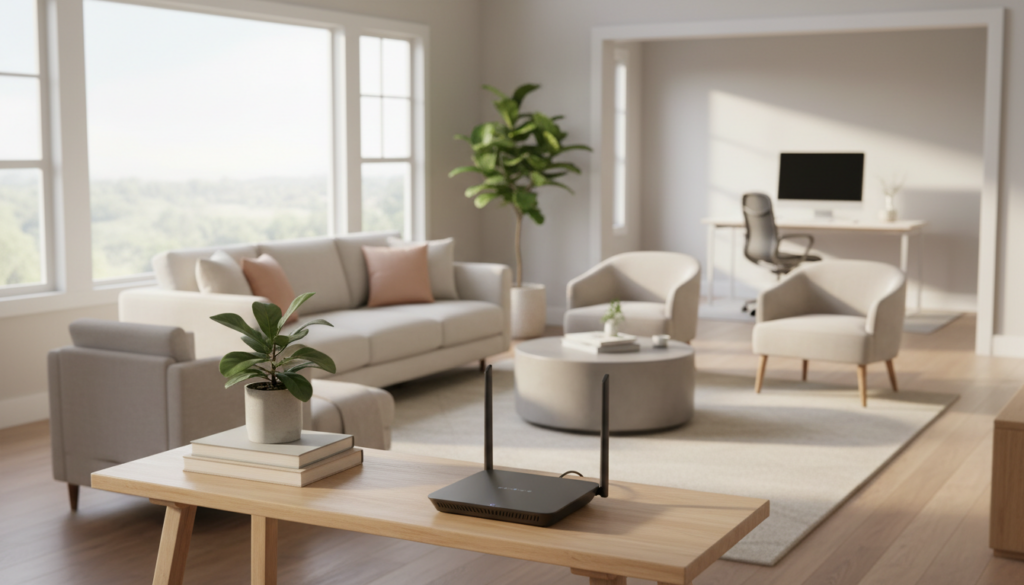
In a typical US home with many devices, simple changes often yield big gains. Try moving your unit to a more open, elevated area and test with a phone or laptop. Thoughtful placement can improve whole‑house coverage and reduce dropouts.
You will learn how signals travel through walls, where to avoid putting equipment, ways to cut interference, and when mesh or Ethernet makes sense. The best place depends on floor plan and materials, but proven principles apply to most homes.
Follow this article as a real‑time checklist while you walk your home. New systems and Wi‑Fi 7 help, yet correct placement remains the foundation for faster, steadier internet.
Key Takeaways
- Small moves often improve everyday Wi‑Fi without new hardware.
- Test with a phone or laptop while walking through your home.
- Open, elevated locations usually give better whole‑house coverage.
- Avoid dense materials and common interference sources.
- Mesh or Ethernet help when layout or materials limit signal reach.
- Placement is the foundation, even with modern gear.
Why router placement matters for Wi‑Fi signal strength throughout your home
Signal gaps and slowdowns usually trace back to where the network starts inside the house. Even with a fast ISP plan, poor in‑home signal can turn high speeds into buffering and dropped calls.
How distance, obstructions, and interference cut coverage and speed
Distance weakens the signal: the farther a device is from the Wi‑Fi hub, the lower the signal strength. That shows up as buffering, lag in games, and flaky video calls across rooms.
What Else Would You Like to Know?
Choose below:
Hard materials and common obstructions like thick walls, metal, and concrete absorb radio waves. Devices behind furniture or inside cabinets often fall back to slower links to stay connected.
Interference from microwaves, cordless phones, and baby monitors causes random slowdowns and higher latency. When many devices compete, the network can feel unreliable even if the internet plan is fast.
What better setup improves in everyday use
Move‑up gains are clear: smoother streaming in the living room, more stable work calls in a home office, and reliable smart devices such as cameras and speakers.
The first step to fix these issues is optimizing where the Wi‑Fi hub sits; after that, focus on reducing interference or adding extension tools if needed.
“A stronger, more even signal gives the whole household a better online experience.”
How Wi‑Fi signals travel inside a house
Wi‑Fi moves like invisible ripples through air, and what those ripples meet inside a home shapes performance. In open space, radio waves spread cleanly and reach farther. In a typical living area, many materials and objects change that behavior.
Why open air helps and hard materials do not
Open air gives radio waves the least resistance. They travel farther and keep a stronger signal. By contrast, dense materials such as brick, concrete, and metal absorb or block waves.
Metal reflects and often creates shadowed areas. Concrete and brick tend to soak up energy, leaving devices with weaker connection even if they remain connected.
How walls, furniture, and reflective surfaces reshape waves
Every wall a wave crosses reduces strength. More walls usually mean slower throughput and less consistent speeds.
Furniture and TVs can absorb or scatter waves. Shiny or reflective surfaces bounce signals unpredictably, causing dead zones in nearby rooms.
Why electronic “noise” weakens real‑world performance
Interference comes from household electronics and neighboring networks sharing the same frequencies. That “noise” raises errors and forces devices to retry transmissions, which feels like lag or buffering.
“Reduce obstructions and interference to get the most from your in‑home Wi‑Fi.”
Tie to action: Aim to give your wireless hub clear space, higher elevation, and fewer dense barriers between it and high‑use areas to turn these radio rules into a steadier connection.
Router placement best spot: the ideal location and height for most US homes
Think of your Wi‑Fi hub as a light bulb: put it central and a bit higher, and the “glow” reaches more rooms. This simple idea guides where to place router gear for smoother coverage and fewer dead zones.
Choose a central location to distribute coverage evenly
Work out a central location that shortens average distance to living areas, bedrooms, and offices. A central position reduces the number of walls signals cross and helps balance coverage across the home.
Elevate the unit off the floor for better range
Set the device on a table or shelf rather than the floor. Elevation increases line‑of‑sight and expands the usable signal footprint—like raising a lamp to brighten a room.
Keep it out in the open with breathing room
Avoid tucking the hub against a wall or inside furniture. Leave several feet of clear space so waves can spread without immediate blockage by thick surfaces or electronics.
Put Wi‑Fi where you use it most
Prioritize living rooms, home offices, and high‑traffic rooms. Place the unit near the areas that need steady signal to avoid wasting coverage in unused zones.
- Map key rooms and find the rough center of those spaces.
- Choose a shelf/table at head height or slightly above (3–5 ft).
- Leave 2–3 ft clearance from walls or big furniture.
- Verify signal in living and work rooms; adjust as needed.
| Factor | Recommended action | Why it helps |
|---|---|---|
| Central location | Place near center of key rooms | Shortens distances and evens coverage |
| Height | Table or shelf (3–5 ft) | Improves line‑of‑sight and reduces floor absorption |
| Open space | Keep clear area 2–3 ft around unit | Prevents immediate blockage from walls and furniture |
| Usage focus | Place near living rooms or home offices | Delivers strong signal where it matters most |
Sanity check: central + elevated + open + near usage = fewer dead zones and steadier signal.
Where not to place your router to avoid weak signals and overheating
Some indoor locations waste wireless energy or raise device temps. Avoid these common problem areas to protect signal strength and coverage in your home.

Corners, exterior walls, and windows
Putting gear in a corner or next to an exterior wall often broadcasts radio waves outdoors. That “wastes” coverage that should reach rooms inside the house.
On the floor or tucked behind furniture
Setting equipment on the floor reduces line‑of‑sight and lowers usable range. Behind a couch or heavy furniture is a hidden but common cause of weak signal in living areas.
Inside cabinets, closets, or entertainment centers
Enclosed spaces block waves and trap heat. A unit in a cabinet can slow speeds and increase overheating risk due to restricted airflow.
Near metal, large masonry, or fish tanks
Metal shelving, thick brick or concrete, and fish tanks absorb or reflect radio waves. Move the unit away from these materials to cut obstructions and interference.
Basements, attics, and other out‑of‑sight spots
Basements and attics often add floors, wiring, and piping between the hub and devices. That wiring and metalwork creates extra interference, so “out of sight” usually means “out of range.”
“Keep hardware in clear, ventilated locations inside living areas to preserve signal and prevent overheating.”
- Quick actions: put router off the floor, out of cabinets, and away from large metal or water features.
- If you must place router near equipment, check signal in key rooms and move it until the coverage improves.
Reduce interference for a stronger Wi‑Fi connection
A noisy radio environment often looks like random buffering, call glitches, and uneven speeds. Those are signs of interference, not just distance. Fixing it can restore steady connection without new gear.
Common household sources to keep away
Move the router at least a few feet from:
- Microwaves — they emit pulses on shared bands and cause brief drops.
- Cordless phones and baby monitors — they compete on the same frequencies.
- Wireless cameras — multiple video feeds raise local noise and errors.
Why multiple non‑mesh routers can hurt coverage
Two standalone routers run nearby often collide on the same channels. That competition forces devices to retry packets and lowers real‑world speed.
By contrast, mesh systems and coordinated gear share channels and handoffs. A properly designed mesh system reduces chaos and improves coverage across a home.
Avoid DIY reflectors and retest before upgrading
Aluminum‑foil “reflectors” and similar hacks scatter signal and can create new dead zones. They may help one corner while breaking another.
“Clear out interference, then re‑test your connection before buying new equipment.”
Practical step: move noisy devices, power cycle your router, run a speed test in key rooms, and only upgrade if problems persist.
Placement tips for multi‑story homes, antennas, and tricky layouts
Multi‑floor homes send Wi‑Fi up and down stairs in uneven patterns, so a single move can shift coverage dramatically.
Balancing upstairs and downstairs from the first floor
In a two‑story house, aim for a central first‑floor location. That shortens the average path to both levels and reduces walls between floors.
Tip: mounting the unit near the first‑floor ceiling helps the signal reach upstairs rooms without being blocked by furniture or dense walls.
Antennas: orientation for horizontal and multi‑floor reach
Start with antennas vertical to boost horizontal coverage across the main living area. Then tilt one antenna about 30° to help the floor above.
Experiment: small angle changes can improve performance in bedrooms and lofts.
When the modem limits where you can place the router
If the modem ties you to one location, use a short Ethernet extension, relocate the modem, or run a wired backhaul to move Wi‑Fi where it serves most of the home.
“Test and adjust: try small shifts in position and antenna angles, then recheck speeds in key rooms.”
Fix Wi‑Fi dead zones with mesh systems, extenders, and Ethernet backhaul
A single hub can cover many homes, but when dead zones persist a multi‑node approach often works better. Mesh systems add satellites that extend reliable coverage across large areas and through dense walls.
When to move beyond one device
Consider a mesh kit if your house has wide square footage, heavy masonry, or persistent dead zones after simple moves. These systems reduce handoffs and keep a steady connection for many devices.
How to place satellites for a solid link
Put satellites where they can “hear” a strong parent signal. Too far and the link is weak; too close and nodes can interfere. Aim for mid‑distance hallways or open rooms between the main unit and problem areas.
Extenders versus mesh in daily use
Extenders are cheaper but often share bandwidth with the main unit. Mesh systems coordinate channels and roaming, which gives steadier performance for many devices across larger homes.
Use Ethernet for high‑need rooms
Wired backhaul or direct Ethernet ports are best for gaming, home offices, and streaming gear. A wired link preserves top speeds and reduces wireless contention across the network.
Test and iterate
- Place nodes or an extender, then run speed and latency tests in key rooms.
- Move a node a few feet, repeat tests, and compare results.
- Use Ethernet when wireless tweaks don’t remove dead zones.
“Start small, test often, and use wired links for mission‑critical devices.”
Conclusion
, A few small adjustments can often fix weak signals and save you money on upgrades.
Remember the simple rules: aim for a central, elevated, open spot near the rooms you use most. That approach improves signal strength and home coverage with little effort.
Avoid corners, cabinets, basements, and close proximity to large metal or noisy electronics. These locations hurt performance and can cause overheating.
If layout or materials still block reliable coverage, consider mesh nodes, an extender, or Ethernet backhaul based on budget and needs. Test in multiple rooms, tweak the placement, and lock in the setup that gives steady internet for streaming, work, and gaming.
FAQ
Why does router placement matter for Wi‑Fi signal strength throughout my home?
How do distance, obstructions, and interference reduce coverage and speed?
What practical benefits does better placement deliver for everyday use?
How do Wi‑Fi signals travel inside a house?
Why do hard materials like brick, concrete, and metal block Wi‑Fi?
How do walls, furniture, and TVs reshape radio waves?
Why does “noise” from electronics and nearby networks weaken my connection?
Where is the ideal location and height for most US homes?
How much breathing room should I give the unit from walls and large objects?
Which rooms should I prioritize when placing my Wi‑Fi equipment?
Where should I avoid placing the device to prevent weak signals and overheating?
What common household items cause the most interference?
Are DIY Wi‑Fi reflector hacks helpful?
How should I position antennas for multi‑floor coverage?
What if my modem location limits where I can put the device?
When does a mesh Wi‑Fi system make more sense than moving a single unit?
How should I place mesh satellites so they “hear” a strong signal without causing interference?
What’s the difference between extenders and mesh systems for coverage and bandwidth?
When should I use Ethernet for hard‑to‑reach devices?
How do I test and iterate to find the optimal location?
Apartment Wi-Fi Problems: What Makes Signal and Speed Worse
» See exclusive tips for your home