Smart TV Wi-Fi Is Slow: Fixes That Actually Work
Struggling with slow Wi-Fi on your smart TV? Learn how to troubleshoot and fix smart TV Wi-Fi slow issues for a better viewing experience.
If your set shows buffering mid-show, menus that lag, or long loading screens, this guide will help you find the cause and apply fixes in the right order.
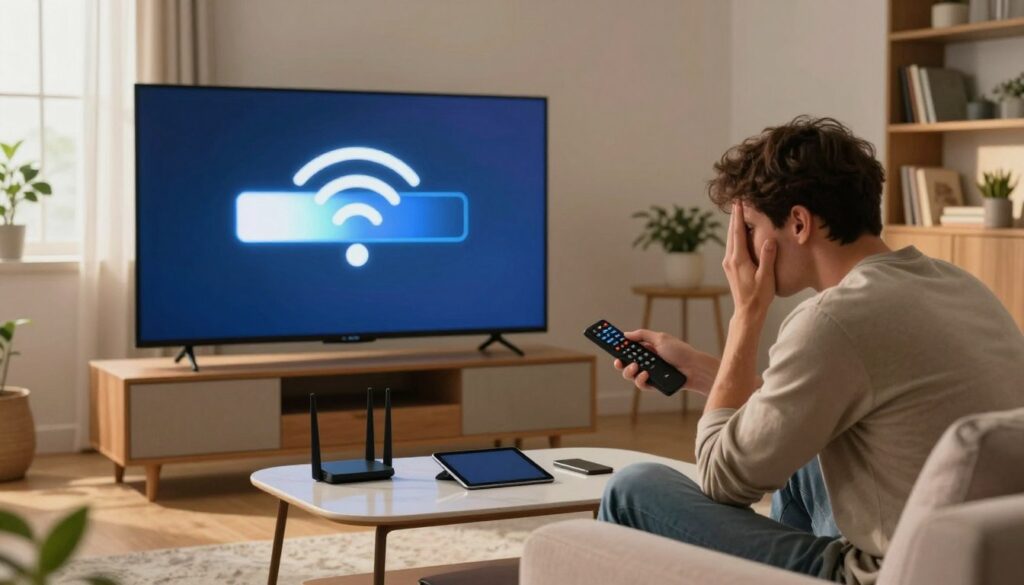
Many common symptoms — choppy streaming, delayed remote responses, and audio sync issues — come from either the network or the unit itself. We will separate symptoms from solutions so you can test and act with confidence.
Expect a step-by-step path: check speed, stabilize your router and signal, reduce device congestion, then clean up apps and storage on the set. If problems persist, update firmware or consider Ethernet or newer hardware.
Change one variable at a time and retest. That makes results repeatable and shows whether the issue is the internet or the device. Many devices recover with simple maintenance like a restart and cache cleanup, no purchase needed.
Key Takeaways
- Identify the symptom: buffering, laggy menus, or audio delay points to different fixes.
- Test connection speed first to rule in or out a network bottleneck.
- Reduce congestion and stabilize the router before deep device work.
- Clean apps, free storage, and restart to restore performance quickly.
- Update firmware and apps; use Ethernet or upgrade hardware if Wi‑Fi hardware fails.
How to Tell If Your Smart TV WiFi Slow Issue Is the TV or the Network
Start by measuring throughput on the set and on a nearby phone or laptop to isolate where the problem lives.
Run a speed test on each device
Open a browser or speed test app on the set and run the same test you use on a phone and a laptop. Do each test on the same Wi‑Fi band and in the same room to keep conditions consistent.
What Else Would You Like to Know?
Choose below:
How to interpret the results
If the phone and laptop show good speeds but the set reads very low (for example 0.27 Mbps vs 43.57 Mbps), the issue is likely the set’s wireless radio, band selection, or app behavior. If all devices show low Mbps, the problem points at the internet, router, or ISP.
| Device | Example Mbps | Likely Cause | Next Step |
|---|---|---|---|
| Set | 0.27 Mbps | Device Wi‑Fi receiver or software | Go to Section 5: TV optimization |
| Phone | 43.57 Mbps | Network healthy | Test other devices to confirm |
| All devices | <5 Mbps | Internet or router bottleneck | Jump to Section 3: router and signal fixes |
What speeds you need and symptom clues
For reliable HD streaming aim for at least 5 Mbps per stream. Buffering and dropped resolution usually mean throughput problems. Laggy menus often point to memory or background apps. Audio delay can show up when throughput dips or the player stutters.
Repeat tests at different times of day to spot peak-hour congestion before choosing the right next step.
Fix Router and Wi‑Fi Signal Problems That Kill Streaming Speed
Begin with the router and modem — many connection problems clear up after a quick hardware reset.
Power-cycle your router and modem to stabilize the internet connection
Unplug both devices for about 30 seconds, then plug the modem back in, wait until it finishes booting, then power the router. This simple step can reestablish a stable connection and often restores expected mbps.
Move the router closer or reduce interference from walls and electronics
Placement matters. Thick walls, floors, and large appliances block signal and cause buffering or drops.
Elevate the router, avoid closed cabinets, and keep it away from microwaves or cordless phones that add interference.
Switch bands and separate SSIDs so the set picks the right option
2.4 GHz travels farther but can be crowded; 5 GHz gives higher speeds at shorter range. Rename each band in router settings so devices connect to the intended network.
Many users report a fix by creating distinct SSIDs and forcing the set onto the faster band for its location.
Use an extender or try wired Ethernet for the most consistent speeds
If the room has weak signal or is on another floor, a vetted extender can stabilize speeds enough for smooth playback.
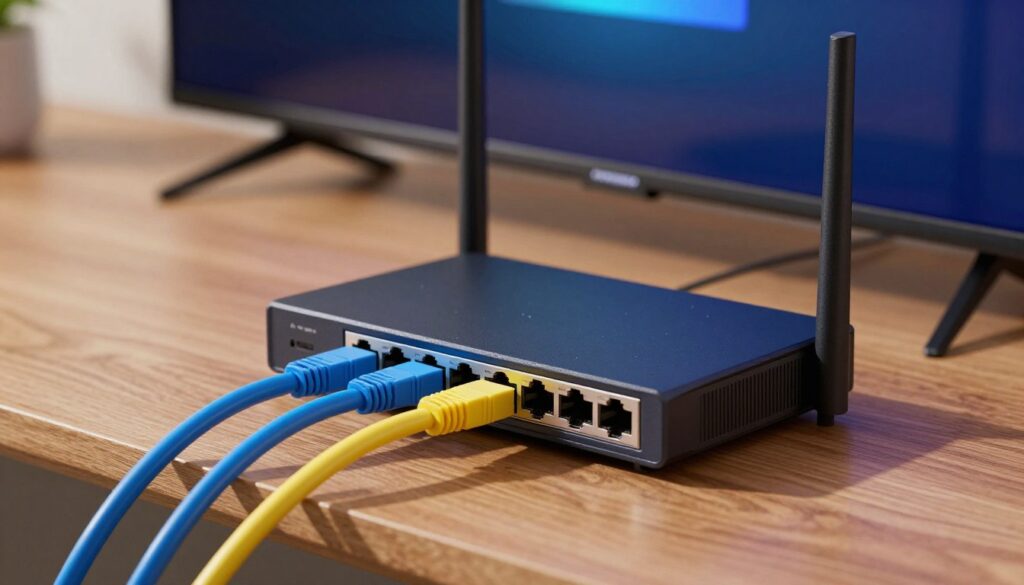
For the best result, run an ethernet cable directly to the set. A wired Ethernet connection avoids most interference and delivers steadier Mbps for 4K or crowded networks.
- Power-cycle, then retest speeds.
- Adjust placement and reduce interference.
- Choose the right band and separate SSIDs in settings.
- Use an extender or Ethernet cable as needed, then rerun a speed test to confirm improved speeds and fewer buffering issues.
Learn more about network basics on our about page.
Reduce Network Congestion From Too Many Devices
When several devices use your household connection at once, playback can stall even if signal icons show full bars.
Pause high-bandwidth activity during streaming
Stop big downloads and backups while watching a show. Pause console updates, PC OS patches, and cloud photo syncs. These tasks consume mbps and can make streaming buffer.
Check your plan and active devices
Open your router’s connected device list to see what’s online. Temporarily disconnect nonessential devices to test whether playback improves.
- Limit simultaneous streams during movie night.
- Ask others to delay game downloads or large uploads.
- Record when slowdowns happen; repeated peak-hour lag points to congestion.
| Symptom | Likely cause | Quick fix |
|---|---|---|
| Buffering with many users | Bandwidth shared across devices | Pause updates; disconnect extras |
| Stutters during 4K | Insufficient plan mbps | Upgrade plan or use Ethernet |
| Nightly slowdowns | ISP or neighborhood congestion | Document pattern; contact provider |
If pausing background usage helps, consider QoS on the router or a speed upgrade for a long-term solution.
Speed Up the TV: Restart, Close Apps, Clear Cache, and Free Storage
A quick device-level cleanup often restores menu snappiness and stops buffering without touching the router.
Restart and fully power down
Use the restart option in settings first. After the software reboot, unplug the unit for about 30 seconds to clear stuck background processes and discharge capacitors.
Force-close background apps
Switching between apps leaves many services running. Close unused apps to free RAM and speed up navigation.
Clear cache and manage storage
Cached files help load content faster, but too much cache can make menus lag. Clear cache for problem apps like Netflix or YouTube and run a system cache clear when available.
Uninstall unused apps and delete downloaded videos or games that take space. If the internal storage is near full, performance will suffer.
Use external storage and check results
- Move media to a USB drive or external HDD if the set supports it.
- After each change, reopen the same app and confirm the navigation and playback feel faster.
Update Software and Use Last-Resort Fixes When Nothing Else Works
If earlier steps did not help, focus on software and controlled resets before changing hardware. Regular updates can remove bugs that mimic network issues and restore fluid playback.
Install firmware and app updates to fix bugs and improve performance
Check system firmware in settings, then update streaming apps one at a time. Firmware and app patches often reduce crashes and free resources.
Consider a TV optimization app (and know the limits)
Optimization apps (for example, TV Optimization Guru, Fast Optimizer, THX Tune-Up) claim to clear cache and manage background processes. They can help, but they may require subscriptions and sometimes offer limited gains.
Factory reset to remove corrupted settings and data
Use a factory reset only as a last resort. A reset wipes logins, downloaded apps, and preferences, but it often clears stubborn, corrupted settings that cause recurring issues.
When the Wi‑Fi receiver or an outdated TV is the real problem
If speed tests show your set much slower than other devices after all fixes, the wireless receiver may be failing. In that case, try a wired ethernet connection or an external streaming stick as a practical option.
| Action | What it fixes | When to use |
|---|---|---|
| Firmware update | Bug fixes, security, performance | Before reset; check manufacturer site |
| App updates | Playback stability and compatibility | After firmware update; update problem apps first |
| Optimization app | Cache cleanup, process management | If storage or background apps cause lag |
| Factory reset | Removes corrupted settings/data | Last resort, backup accounts first |
Conclusion
Follow a simple, repeatable checklist: run a speed test on each device, stabilize the router and bands, reduce household congestion, then optimize the set with restarts, cache clears, and app management.
If only the set shows low rates while a phone or laptop is fast in the same room, focus on band selection, separate SSIDs, and software maintenance. Try a wired ethernet link for the most consistent results when high-bitrate playback matters.
If updates, cleanup, and network tweaks fail, the wireless receiver may be failing or the unit may be outdated. Pick one change, retest, and stop when performance is stable—this keeps fixes simple and repeatable.
FAQ
How do I tell if the issue is the TV or my home network?
What speeds do I need for smooth HD or 4K streaming?
Should I power-cycle my router and modem, and why?
Is 2.4 GHz or 5 GHz better for my television?
Will a wired Ethernet connection improve performance?
How can I reduce interference that weakens the signal?
Are Wi‑Fi extenders or mesh systems worth it for streaming rooms?
How do I reduce network congestion at home?
What quick steps can speed up the television itself?
Should I update the TV firmware and streaming apps?
When is a factory reset necessary?
Could the TV’s wireless receiver be the root cause?
How do I test for buffering, lagging menus, or audio delay specifically?
Are optimization apps helpful for improving playback?
How can I verify my ISP is delivering the advertised speed?
Why Wi-Fi Gets Slower at Night and What You Can Do
» See exclusive tips for your home