Static IP vs DHCP on Wi-Fi: When Assigning a Fixed Address Makes Sense
Most Wi-Fi problems that look like “bad internet” are really address problems, where devices keep losing track of where to send traffic on your home network. The static IP vs DHCP wifi debate matters because one choice favors convenience and the other favors predictability.
If you have ever had a printer that vanishes, a smart TV app that cannot find your media server, or a game console that flips between Open and Moderate NAT, you have seen this in action. The good news is you usually do not need to rewire anything, you just need to decide how your router hands out IP addresses.
DHCP is the default for a reason, and I leave it alone for most phones, laptops, and tablets. Still, there are a few cases where a fixed IP address home network setup saves time every single week.
When people argue about static versus dynamic, they often mix up local network IPs with public internet IPs. This article is about the addresses inside your home, the ones that decide whether devices can find each other reliably.
It also helps to remember that Wi-Fi is just the wireless link, while IP addressing is the map your devices use once they are connected. You can have perfect signal and still have chaos if the addressing plan is messy.
What DHCP does and why most devices use it
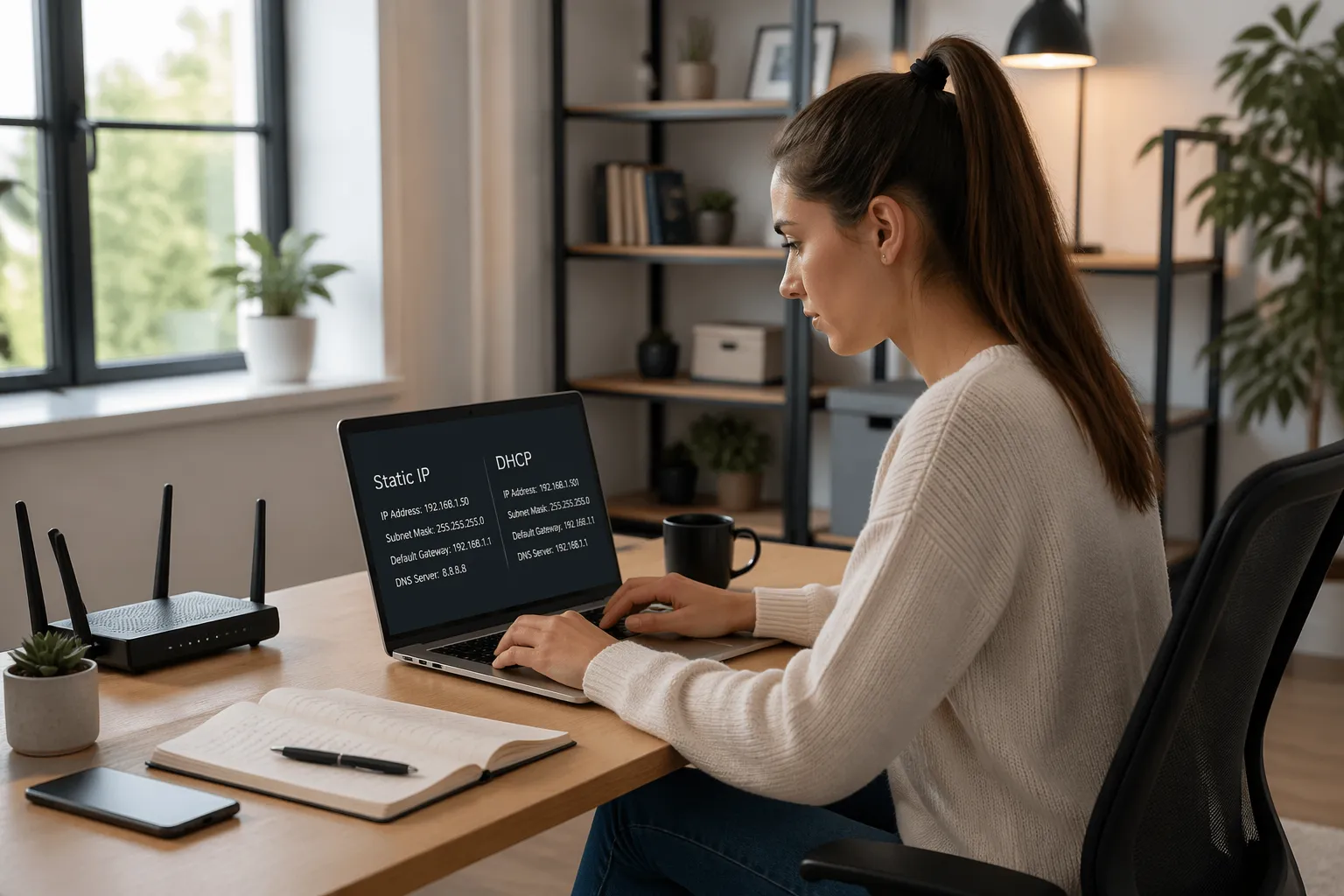
DHCP is the feature in your router that automatically assigns an IP address, subnet mask, gateway, and DNS settings to each device that joins Wi-Fi. Your phone connects, asks for network settings, and the router hands them out in seconds.
What Else Would You Like to Know?
Choose below:
Those addresses come from a pool, often something like 192.168.1.100 through 192.168.1.249 on typical consumer routers. The router tracks each device with a lease time, so it can reuse addresses when devices leave.
DHCP is popular because it prevents simple mistakes like duplicate addresses and wrong gateways. It also lets you swap routers or change your network range without touching every device.
On Wi-Fi, DHCP also plays nice with roaming and reconnects, because devices can drop off and come back without you noticing. If you want the least maintenance, DHCP is the answer for most clients.
Lease time is the part most people never see, but it matters for how “sticky” addresses feel. A long lease can make devices keep the same IP for days, while a short lease can reshuffle things more often after interruptions.
DHCP is also why you can hand your Wi-Fi password to a friend and their phone just works without extra steps. The router becomes the one place that knows how the network is configured, and clients simply accept the settings.
If you have multiple access points or a mesh system, DHCP is still usually handled by the main router or gateway. The satellites provide the radio coverage, but the central router is still the one assigning addresses and tracking leases.
Another quiet benefit is that DHCP can hand out updated DNS servers or a new gateway if you change your setup later. That is why a network-wide change can be as simple as updating one router setting and waiting for devices to renew.
When DHCP goes wrong, it is usually because the router is overloaded, misconfigured, or there are two routers both trying to run DHCP on the same network. That “two DHCP servers” situation creates the weirdest problems because devices end up on different subnets without anyone realizing.
In normal homes, DHCP is boring, and boring is good. If your network has a lot of mobile devices and you do not host anything internally, DHCP is the simplest and most reliable default.
What a static IP address actually means on a home network
A static IP on a home network means a device keeps the same local address every time, like 192.168.1.50. That address is only “static” inside your house, and it is different from the public IP your ISP gives your modem.
There are two ways people create a static address, and they are not equal in quality. You can set it manually on the device, or you can reserve it on the router so DHCP always gives that device the same IP.
When people say DHCP vs manual IP wifi, they are usually comparing those two approaches without realizing a reservation still uses DHCP. A reservation is basically DHCP with a memory, tied to the device MAC address.
Manual static settings can work, but they are the fastest way to create conflicts after a router reset or a network range change. If you want a fixed IP address home network setup that stays sane, router reservations are the cleaner method.
Static IP on a home LAN is not about locking your internet identity, it is about making a device easy to find. If your laptop always connects to your NAS at the same address, you avoid the “where did it go” problem after a reboot.
It also helps to separate the idea of an IP address from a device name, because names can be inconsistent. Some devices advertise names like “LivingRoomTV” while others show up as random strings, but an IP reservation gives you a stable target either way.
In practice, a static address is a promise you make to yourself that you will not change the network plan casually. That is why reservations are safer, because the router enforces the plan and keeps the details in one place.
Manual static IPs can also break quietly when you change DNS settings on the router. If the device is hardcoded to an old DNS server, it may look connected to Wi-Fi but fail to load apps, updates, or streaming catalogs.
Some devices have terrible network menus, and that is another reason reservations win. It is easier to click a checkbox in the router than to type subnet masks and gateways on a TV remote or a tiny printer screen.
When you hear people say “static IP,” they sometimes mean “public static IP” sold by an ISP for hosting services. That is a different product entirely, and it is not required for stable local networking inside your home.
Static IP vs DHCP on Wi-Fi, what changes in real life
The practical difference in static IP vs DHCP wifi is whether the address can change after reboots, power outages, or long idle periods. With plain DHCP, a device often gets the same address anyway, but “often” is not a plan.
When the address changes, anything that points to the old address breaks, and it usually fails in a way that looks random. That is why a camera feed works today, then your NVR says “offline” tomorrow even though the camera is powered and connected.
Some apps are smart and rediscover devices by name or broadcast traffic, but plenty of software is not. The more “appliance-like” the device is, the more likely it is to assume the IP never changes.
Wi-Fi makes this feel worse because devices reconnect more often than wired gear, especially if they sleep aggressively. A printer that powers down overnight can come back and grab a new lease, and suddenly your computer is still trying to print to yesterday’s address.
DHCP also affects troubleshooting because a changing address makes it hard to compare logs. If you are looking at router events and the same device appears under different IPs across days, it is harder to spot patterns.
There is also a human factor, where you end up bookmarking IPs in your browser for admin pages. If your access point or camera jumps addresses, your bookmarks become a pile of dead links.
On the flip side, DHCP is forgiving when you add new gadgets or reset something to factory defaults. You do not have to remember what IP you used last time, because the router will get it connected with no planning.
In real life, the best setup is usually a hybrid: DHCP for most clients and reservations for the few devices that act like servers. That way, you get the convenience of DHCP without sacrificing the predictability that certain devices need.
| Home device or feature | DHCP (dynamic) behavior | Static or reserved IP behavior |
|---|---|---|
| Printer and scanner discovery | May disappear after IP change, drivers keep old address | Keeps same target IP, fewer reconnect prompts |
| NAS, Plex, or SMB file shares | Bookmarks and mapped drives can fail after lease changes | Stable address for shares and media apps |
| Port forwarding for remote access | Forward points to wrong device if LAN IP changes | Forward stays correct as long as reservation stays |
| Home automation hubs and bridges | Integrations can break when controller IP changes | Automations keep working after reboots |
One more thing that changes is how confident you can be when you type an address into a browser or an app. If you know your NAS is always 192.168.1.20, you stop second-guessing whether the device is down or just moved.
Another subtle difference shows up with firewall rules and parental controls on some routers. If rules are tied to IP addresses instead of device identities, a dynamic address can accidentally apply the wrong rule to the wrong device later.
Even when a router tries to hand out the same IP repeatedly, it is not guaranteed after resets or firmware updates. A reservation is the way you turn “probably stable” into “actually stable.”
For people who run a home lab, the impact is even more obvious because services reference each other constantly. A single IP change can cascade into broken backups, failed monitoring alerts, and apps that refuse to authenticate.
When assigning a static IP solves a real problem
If you run anything that other devices must reliably find, a fixed address helps more than people expect. Printers, NAS boxes, Plex servers, Home Assistant, and IP cameras are the usual suspects.
Port forwarding is the big one, because it is literally a rule that points at a specific internal IP. If your router forwards TCP 32400 to your Plex server, and the server jumps from 192.168.1.120 to 192.168.1.143, the forward becomes useless.
Some Wi-Fi troubleshooting cases come down to flaky device discovery, especially with older printers and bargain smart home gear. A stable IP does not fix weak signal or interference, but it removes one entire category of “it worked yesterday” drama.
I also like reservations for devices that you monitor or manage, because logs and dashboards stay readable. When your router always shows the same IP for your access point, you can spot real outages instead of chasing address changes.
Another solid use case is anything that you access by typing an IP into another device, like a web UI or an SSH connection. If you have ever saved an address in a password manager or a browser bookmark, you want that address to stay put.
Backups are a big one that people forget until they fail quietly for weeks. If your computer backs up to a NAS overnight and the NAS address changes, you might not notice until you actually need the backup.
Home automation is full of brittle integrations that assume a controller is always at the same place. If your Home Assistant box changes IP, some devices will reconnect, but others will sit there until you repair the integration manually.
Streaming boxes and smart TVs can benefit too if you use local apps that connect to local servers. It is not always required, but it reduces the odds that an app claims the server is unavailable when it is really just at a new address.
If you run a VPN server at home, a reserved LAN IP for that server keeps your router rules clean. Even if your public IP changes, at least the internal target stays consistent and your configuration does not drift.
Finally, reservations help when you want to segment your network with VLANs or separate SSIDs later. A clean addressing plan makes it easier to move devices intentionally instead of accidentally breaking them during upgrades.
When you should not bother with a static address
Phones, tablets, and guest devices do not need fixed IPs, and pinning them down can cause more work than it saves. They roam, they forget networks, and they switch between Wi-Fi and cellular all day.
Gaming consoles usually do fine with DHCP, as long as you do not rely on port forwards and you use UPnP carefully. If you do forward ports for a console, a reservation is a better move than manual settings.
Internet speed does not increase because you set a static IP on Wi-Fi, and that myth refuses to die. Throughput depends on signal quality, channel congestion, router CPU, and your ISP plan, not whether your laptop is 192.168.1.101 or 192.168.1.102.
If your network is unstable because the router is overheating, firmware is buggy, or the modem is dropping connection, static settings just mask symptoms. Fix the root cause first, then use reservations to clean up the last bit of annoyance.
It is also not worth reserving addresses for devices you do not care about identifying later. A random smart bulb that you never access directly can stay on DHCP, because the hub or app usually finds it by other means.
If you frequently change routers, test different mesh systems, or travel with a portable router, manual static IPs will slow you down. DHCP keeps things flexible, and flexibility is the whole point for those scenarios.
Some corporate laptops come with VPN clients and security tools that assume standard DHCP behavior. You can still use reservations safely, but you usually do not need to, and it is better to avoid messing with managed devices.
Static settings can also be a headache on devices that move between networks, like a laptop you take to work and coffee shops. If you manually set an IP at home and forget about it, it can break connectivity elsewhere until you undo it.
Even for stationary devices, you do not need a reservation unless something depends on reaching it consistently. If nothing ever connects to your device directly, a changing IP is mostly harmless.
In other words, do not reserve everything just because you can. A small list of intentional reservations is easier to maintain than a giant spreadsheet of every gadget you have ever connected.
How to assign a static IP through your router (DHCP reservation)
The best way to assign static IP router style is DHCP reservation, which many routers label as “Address Reservation” or “Static Lease.” You pick a device, pick an IP, and the router always hands that device the same settings.
This keeps DHCP in charge of gateway and DNS, so you do not accidentally hardcode bad DNS on a smart TV for three years. It also prevents duplicate IPs, because the router knows which addresses are reserved.
To do it, open your router admin page, find the LAN or DHCP section, and look for a list of connected clients with names and MAC addresses. Choose the device, set the reserved IP, then reboot the device or renew its lease so it grabs the new address.
Pick an IP outside the normal DHCP pool if your router allows it, or at least at one end of the pool that you keep for reservations. A common setup is DHCP pool 192.168.1.100 to 192.168.1.199, then reservations in 192.168.1.2 to 192.168.1.50.
Before you reserve anything, make sure you are logged into the actual router that is doing DHCP. If you have an ISP modem/router plus your own router, you want the device that is acting as the main gateway, not a secondary box in bridge mode.
It helps to rename devices in the router client list if your router supports it. A reservation list that says “NAS” and “Printer” is easier to maintain than one that says “unknown” and a MAC address.
Some devices have multiple MAC addresses, especially if they support both Ethernet and Wi-Fi. If you reserve the wrong interface, the device will ignore the reservation because it is connecting with a different MAC.
After you create the reservation, verify it from the device side, not just the router side. Check the device network status page and confirm it received the expected IP, gateway, and DNS.
If the device keeps the old IP, force a DHCP renew or simply power cycle it. Some printers and smart TVs hold on to leases stubbornly until they fully reboot.
Once the reservation works, update anything that references the old address, like port forwards, apps, or bookmarks. This is the cleanup step that makes the change actually pay off.
When you are done, export your router settings if your model supports backups. A saved config file can turn a future router reset from a disaster into a five-minute restore.
Common mistakes when setting static addresses
Most problems happen when people confuse a router reservation with manual device settings, then mix both. If you set a manual IP on the printer and also reserve a different IP on the router, you will chase your tail.
The other classic mistake is picking an IP that sits inside the DHCP pool, so the router can hand it to a different device later. That creates an IP conflict, which looks like random disconnects, slow browsing, or devices that kick each other off Wi-Fi.
A quieter mistake is using the wrong subnet mask, especially when people copy settings from a screenshot they found online. Most homes use 255.255.255.0, but if you type something else manually, the device may not be able to reach the router even though Wi-Fi shows connected.
Gateway errors are also common on manual configurations, because people assume the gateway is the modem or the ISP. On a typical home network, the gateway is your router’s LAN IP, often 192.168.1.1.
DNS mistakes can be the most confusing because they partially work. A device with a bad DNS server might still reach some apps that use cached IPs, while web browsing fails in ways that look like the internet is down.
Another issue is forgetting that some devices randomize MAC addresses for privacy, especially phones and tablets. If the MAC changes, a reservation tied to the old MAC will not apply, which is one more reason reservations are best for stationary gear.
People also forget to document what they reserved, then later reserve the same IP for something else. The router might block it, but some routers allow overlapping reservations and let you create your own future headache.
Finally, many routers have both IPv4 and IPv6 settings, and users mix them up. This article is focused on IPv4 LAN addresses, so do not assume changing IPv4 settings will control IPv6 behavior on every device.
- Reserve outside the DHCP pool range
- Match the correct MAC address for the Wi-Fi interface
- Use the router as DNS unless you have a reason not to
- Keep subnet mask and gateway consistent with the router
- Document reserved IPs in a simple notes app
- Renew the lease or reboot after changes
If you are troubleshooting a suspected conflict, disconnect one of the devices and see if the other becomes stable. Conflicts are often intermittent because the devices take turns “winning” the address depending on who talks more.
If you inherit a network someone else set up, assume there are manual static IPs hiding on at least one printer or camera. The fastest way to find them is to check the device network menu and compare it to the router’s DHCP settings.
When in doubt, revert the device back to DHCP and then apply a reservation on the router. That one move eliminates three categories of mistakes at once.
Picking safe IP ranges and avoiding conflicts
Most home routers use 192.168.0.0/24 or 192.168.1.0/24, which means addresses from .1 to .254 on the local network. The router is often .1, so avoid assigning that to anything else.
Decide where your DHCP pool starts and ends, then keep your fixed addresses in a separate slice. If your pool is .100 to .199, reserving .20 for your NAS and .30 for your printer keeps things neat.
If you change routers, your new router may use a different default range, and that is where manual static settings get painful. With reservations, you can recreate the list quickly, and most devices will reconnect without you touching their menus.
When you see “duplicate IP address detected” on Windows or macOS, take it seriously, because it can wreck streaming and video calls. Fix it by removing any manual IPs first, then rebuilding reservations in the router.
A simple way to stay organized is to reserve low numbers for infrastructure and high numbers for regular clients. For example, you can keep .2 to .49 for routers, switches, APs, servers, and printers, then let DHCP handle .100 and up.
Try to avoid reserving addresses right next to the router if your router uses those for special features. Some routers like to use .2 for guest networks, extenders, or internal services, so check your router documentation if you see odd behavior.
If you run a mesh system, keep an eye on whether the mesh nodes use DHCP reservations automatically. Some systems self-assign addresses, and you do not want to fight the vendor’s design by forcing manual IPs on the nodes.
Do not overthink the exact numbers, but do be consistent. Consistency is what lets you glance at an IP and know what kind of device it probably is.
If you ever expand to multiple subnets, your old assumptions about what can talk to what may change. That is another reason to keep your addressing clean now, so future segmentation is a planned project instead of a surprise outage.
Also remember that some routers let you shrink the DHCP pool to make more room for reserved addresses. A pool of 50 dynamic addresses is plenty for many homes, and it reduces the chance you accidentally reserve inside the pool later.
DHCP vs manual IP Wi-Fi, which is better for printers, cameras, and NAS
For devices that sit still and provide services, I prefer DHCP reservation over manual settings almost every time. It gives you the stable address you want, while keeping the network settings centralized.
Printers are the poster child, because drivers and print servers often store a direct IP and never update it. If you reserve the printer address, you avoid the cycle of reinstalling drivers after a router reboot.
IP cameras and NVRs also behave better with reservations, especially when you use RTSP streams or vendor apps that cache endpoints. If your camera system is on Wi-Fi, stable addressing will not fix weak signal, but it will stop the “camera 3 swapped addresses with camera 4” confusion.
For a NAS, stable IPs make mapped drives, Time Machine targets, and media libraries more predictable. You can also pair a reserved IP with a local DNS name, so you connect to nas.local and keep the IP stable behind the scenes.
For printers specifically, a reservation also makes scanning workflows smoother. Many scanners are configured to send scans to a PC or a network folder, and those destinations often assume the printer stays at the same IP for management and status.
For cameras, stable IPs help when you add them to an NVR by address instead of by cloud pairing. If your NVR expects camera streams at fixed endpoints, a DHCP reshuffle can look like the cameras are failing when they are not.
For a NAS, a reservation helps with permissions and automation scripts too. If you run scheduled jobs, backups, or media indexers, they tend to store a target IP and then fail loudly when it changes.
Manual static IPs can still make sense for a NAS in a very controlled setup, like a small home lab with documented addressing. Even then, I still lean toward reservations because they survive device resets and reduce typing errors.
If you want the cleanest experience, combine reservations with a local DNS feature on your router if it has one. A stable name plus a stable IP is the least frustrating combo for day-to-day use.
Does a static IP improve Wi-Fi speed or reliability
A static IP does not make your Wi-Fi faster, and it will not fix buffering caused by interference, distance, or a crowded 2.4 GHz channel. It can make your network feel more reliable because fewer connections break after addresses change.
DHCP itself is not a performance bottleneck, because the lease process happens at connect time and then stays quiet. If your video call drops every 20 minutes, the cause is almost never DHCP, it is usually signal, router firmware, or ISP issues.
Where static addressing helps reliability is when devices depend on each other, like a Sonos speaker finding a Plex server or a laptop backing up to a NAS overnight. If the target address stays stable, your apps stop timing out and reconnecting.
If you want a real speed boost, start with WPA2 or WPA3 settings, 5 GHz or 6 GHz use, and a cleaner channel, then look at router placement. Treat static IPs as housekeeping, not horsepower.
Reliability also depends on how your router handles reconnect storms after a power outage. When everything boots at once, a stable reservation list can reduce the weirdness because your key devices come back exactly where the rest of the network expects them.
That said, if your router is struggling, too many reservations will not save it. A router that crashes or drops Wi-Fi under load needs firmware updates, better placement, or replacement, not more IP planning.
Some people notice a “faster connection” after setting static IPs because they also changed DNS at the same time. Faster DNS lookups can make websites feel snappier, but that is a DNS choice, not a static IP magic trick.
In terms of Wi-Fi stability, the biggest wins usually come from reducing interference and improving coverage. Once coverage is solid, reservations are the finishing touch that stops services from breaking when the network is otherwise healthy.
If your problem is that devices take a long time to connect after waking up, check power-saving settings and Wi-Fi signal first. DHCP negotiation is usually a tiny part of that delay compared to Wi-Fi association and authentication.
Conclusion
For most households, DHCP is the right default, and you can forget it exists until something breaks. The static IP vs DHCP wifi choice only matters when a device needs to be found reliably or when you use port forwarding.
If you decide to lock an address down, use DHCP reservation to assign static IP router style and keep the router in control of DNS and gateway settings. Manual static IPs belong in the “only if you have to” category, because they are easy to misconfigure and hard to remember later.
A good fixed IP address home network plan is small and intentional, with reservations for printers, NAS boxes, cameras, and hubs, and DHCP for everything else. Once you do that cleanup, Wi-Fi troubleshooting gets simpler because you stop chasing devices that keep moving targets.
If you are not sure where to start, reserve just one device that annoys you the most, usually a printer or a NAS. That single change is often enough to prove the point and reduce the weekly “why is it offline” routine.
After that, keep your reservation list tidy and documented, and avoid mixing manual static settings unless you have a clear reason. The goal is not to make your network complicated, it is to make it predictable.
How to Set Up a Guest Wi-Fi Network Without Slowing Down Your Main One
» See exclusive tips for your home