Is Wi-Fi 6 Worth It for Speed and Stability
Is WiFi 6 worth it? Explore the advantages and disadvantages of upgrading to WiFi 6, including its impact on speed and network stability.
If you are deciding whether to upgrade, start by separating raw speed from real-world reliability. Many buyers expect faster numbers, but improvements often show up as better handling of many devices and less lag during busy moments.
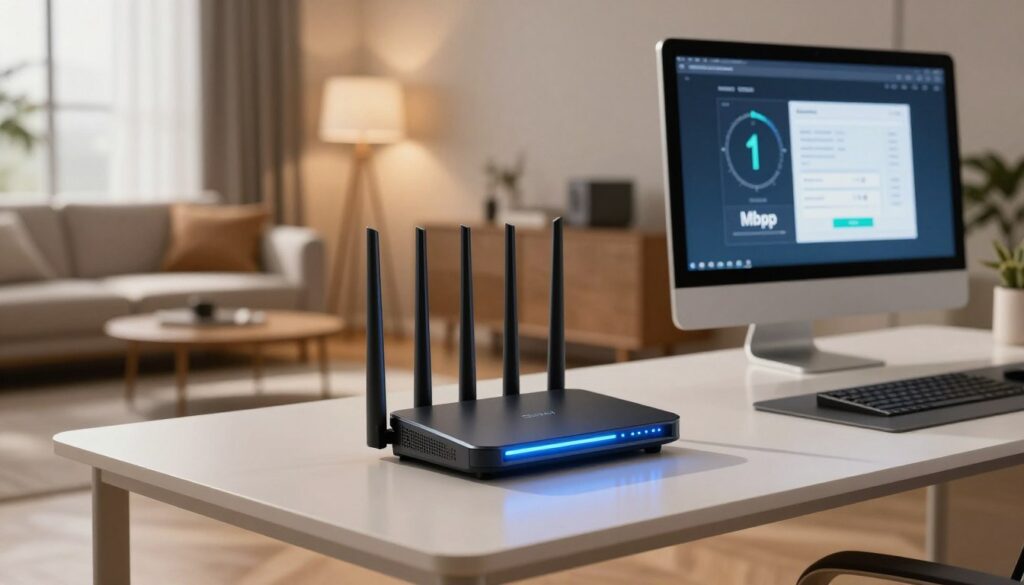
For a typical U.S. home, several phones, TVs, and smart gadgets share one router. The user experience depends on how the network manages traffic, not only the plan from your internet provider.
This introduction previews what you will learn: the practical speed ceiling of Wi‑Fi 6, how stability cuts lag, and when an upgrade is unnecessary. We will also weigh device age, home layout, and whether new hardware is already on your shopping list.
Quick decision promise: by the end, you can match the right router and setup to your needs—gaming, streaming, smart home or remote work—using clear, practical tests rather than box numbers.
Key Takeaways
- Faster top speeds are possible, but real gains often mean more stable connections under load.
- Many homes benefit from better traffic handling more than higher peak throughput.
- Device compatibility and house layout shape the upgrade value.
- Router box speeds are best-case; walls and ISP limits reduce everyday results.
- Read on to match a router and setup to your typical use: gaming, streaming, or work.
What Wi‑Fi 6 Is and What Changed Since Wi‑Fi 5
Standards change quietly, then suddenly reshape how our home networks behave.
In plain terms: the newer standard—802.11ax—focuses on efficiency and capacity rather than only pushing higher top speeds. It builds on 802.11ac by letting routers schedule and send data more smartly when many devices compete for airtime.
What Else Would You Like to Know?
Choose below:
802.11ax vs. 802.11ac: the standard shift
Think of the upgrade as better traffic control. Older gear treats each device like a separate lane. The updated standard groups and times transmissions so more devices stay responsive together.
Why this matters in U.S. homes
Modern households have phones, TVs, laptops, speakers, and cameras. These devices create contention that shows up as buffering and lag spikes.
- OFDMA: splits channels for simultaneous small transfers.
- MU‑MIMO: improves multi-user streams.
- BSS Coloring: reduces neighbor interference.
- TWT: schedules sleep/wake cycles to save power.
These technology changes mean more efficient airtime use, smarter channel sharing, and stronger resilience in crowded apartments. Expect steadier performance when multiple devices compete, not just higher peak numbers.
Speed Gains You Can Expect From Wi‑Fi 6
Theory and practice diverge: headline gbps matter, but real-world results depend on radios, channels, and range.
Theoretical vs. everyday numbers
Peak difference: the new standard tops out at about 9.6 gbps versus 6.9 gbps for the prior generation. These are theoretical link rates, not guaranteed throughput in a home.
Why boxes outpace your ISP plan
Router advertising shows summed link rates across bands and streams. Your ISP plan, device radios, and interference cap actual internet speed.
Channels, bands, and short-range gains
Wider channels (including 160 MHz) raise peak throughput, so faster speeds appear in short-range, low-interference setups with compatible devices.
- Wider channels boost LAN and NAS transfers even when WAN is capped.
- The 2.4 band gives range but lower peak speed; 5 band gives higher speed at shorter range.
Buyer tip: prioritize steady speeds across rooms and devices over chasing the largest number on the router box.
Stability and Low-Latency Upgrades That Reduce Lag
Stability means predictable performance: fewer spikes, fewer dropouts, and smoother real-time traffic when the home network is busy.
OFDMA: smarter multiple access for many small transfers
OFDMA acts like a scheduler that slices airtime so many small packets share a channel without blocking each other. This multiple access approach keeps short transfers from clogging the line.
MU‑MIMO: better multiple input and multiple output for many users
MU‑MIMO improves how the router talks to many devices at once. Multiple input and multiple output lets hardware send parallel data paths, raising responsiveness when many users stream or game.
BSS Coloring: less interference in crowded areas
BSS Coloring flags neighbor traffic so radios ignore harmless overlap and avoid collisions. In apartments, this reduces less interference and keeps local performance steadier.
What “up to 75% less latency” means
Under congestion, some tests show latency drops up to 75% with Wi‑Fi 6. That can translate to fewer lag spikes during gaming and fewer freezes in video calls.
| Feature | How it helps | Real-world effect |
|---|---|---|
| OFDMA (multiple access) | Slices airtime for small packets | More stable uploads from many smart devices |
| MU‑MIMO (multiple input / multiple output) | Parallel streams to multiple users | Improved responsiveness for simultaneous streams |
| BSS Coloring | Marks neighbor traffic to reduce collisions | Less interference in dense buildings |
| Latency gains | Lower jitter under load | Better gaming and video-call experience |
Guardrail: real gains depend on device support, signal quality, and overall load, so aim for consistent improvements rather than best-case numbers.
wifi 6 worth it for the average home network?
In a typical home, competing gadgets can create bottlenecks that no faster plan will fix.
When an upgrade helps: consider new gear if many devices slow or drop during peak hours. Upgrading fixes congestion inside the home network rather than adding raw internet bandwidth.
When Wi‑Fi 6 solves congestion better than paying for more internet speed
If streaming buffers while another person downloads, or video calls stutter when devices wake, the bottleneck is often local. A modern router manages many small transfers so latency and perceived speed improve.
How dual-band support balances coverage and performance
Use the 2.4 ghz band for long-range gadgets and the 5 ghz ghz band for phones, gaming, and streaming. Band steering helps move capable devices to the faster band without manual changes.
“This change is about smarter traffic control, not just peak numbers.”
Quick self-check: count devices, note home size, check neighbor density, and see if the router is older or underpowered. These clues will show if a new setup will bring real gains.
Wi‑Fi 5 vs. Wi‑Fi 6: Key Differences That Affect Everyday Use
What matters most to users is how a router manages many active connections, not raw headline speed. This section breaks down the practical differences that change range, responsiveness, and steady performance when homes are busy.
Frequency bands: range and throughput
The two main frequency bands are 2.4 ghz and 5 ghz. The 2.4 ghz band generally reaches farther through walls, while the 5 ghz band offers higher throughput at close range.
Using both bands gives the router flexibility to steer devices where they perform best. One clarifying note: the phrase 2.4 ghz ghz helps separate band names from channel widths.
Modulation upgrade: higher data density
1024‑QAM in the newer standard packs more data per transmission than 256‑QAM. That raises peak efficiency when signal quality is strong and boosts short-range throughput.
Streams and capacity: real gains for many devices
Improved OFDMA and MU‑MIMO let the standard handle more streams and devices at once.
Result: steadier responsiveness, fewer stalls, and better overall performance in multi-device homes rather than big single-device speed jumps.
Pros and Cons of Upgrading to a Wi‑Fi 6 Router
A router upgrade can change daily reliability more than raw peak throughput. Think about what you need: steadier connections for many devices, improved security, or longer battery life for phones and sensors.
Pros: efficiency, speed, reliability
Better efficiency under load lets many devices share bandwidth without big slowdowns. OFDMA and MU‑MIMO help keep streams smooth.
Higher short-range speed benefits fast transfers to local drives and nearby gadgets.
Pros: stronger security baseline
WPA3 is now common and raises overall security. Stronger wifi security matters in homes with guest access and many smart devices. This reduces risks from weak passwords and older encryption.
Pros: Target Wake Time and battery life
TWT lets compatible devices sleep more predictably. Phones, tablets, and sensors can see improved battery life when clients and routers coordinate wake cycles.
Cons: device support and pricing
Main limitation: full gains require devices that support the new standard. Older laptops and phones will not get the full benefits.
Routers range from budget models under $100 to premium gear that costs much more. Match price to the features you actually need.
“A balanced upgrade decision depends on budget, device mix, and the performance you actually use at home.”
| Factor | Pro | Con |
|---|---|---|
| Efficiency under load | More stable connections for many devices | Needs client support to maximize gains |
| Security | WPA3 standard improves protection | Older devices may lack modern encryption |
| Battery life | TWT can extend device battery life | Benefit only for TWT-compatible devices |
| Cost | Affordable options exist for basic needs | High-end routers command premium prices |
Buyer tip: if your current router is aging, an upgrade often pays off for longevity and improved security even when you don’t need maximum speed. Balance the benefits against your device mix and budget to decide.
Compatibility and Common Upgrade Problems to Check Before You Buy
Before you buy, check how new routers talk to legacy gear so surprises are rare.
Backward compatibility is straightforward in practice: older devices can still connect to a modern wifi router, but they use their own, older capabilities.
That means many clients will not gain scheduling features or the peak efficiency of the new standard. Expect smaller or no speed changes on those devices.
Client-side limits and how to spot the bottleneck
A single older laptop or phone can cap perceived performance for the whole household.
Run simple tests: connect a modern device and an older device to the same access point. Compare throughput and latency to see which device holds you back.
Adapter upgrades and chipset choices
An adapter is a lower-cost upgrade path when you cannot replace a device. Choose reputable chipsets for reliable access and driver support.
Driver and firmware: part of the setup checklist
Outdated drivers or router firmware can reduce stability or block advanced features. Update both before finalizing your setup.
| Check | Why it matters | Action |
|---|---|---|
| Client compatibility | Determines who benefits from new scheduling | Confirm device specs and OS support |
| Adapter option | Cost-effective path to modern access | Buy adapters with proven chipsets |
| Firmware/drivers | Fixes stability and throughput issues | Update router and client software before use |
| ISP modem mode & ports | Ensures full router functionality | Confirm modem passthrough and needed ports |
Pre-buy checklist: confirm client compatibility, verify modem/router mode, check available ports, and plan for updates after install.
Wi‑Fi 6E and the 6 GHz Band: When the Extra Channels Are Worth Paying For
The upgrade question shifts from peak speed to spectrum quality when a router gains access to 6 GHz. This expansion adds many clear channels and a cleaner frequency space than crowded 2.4 and 5 GHz bands.
What the 6 GHz expansion gives you
Definition: 6E is the same modern standard extended into the 6 GHz frequency range. The big change is access to wide, less-used channels rather than new modulation tricks.
Who benefits most in 2026
Best candidates: apartment residents, heavy streamers, competitive gamers, and homes with many modern clients that support 6E. More clean channels mean fewer collisions and more consistent throughput at close range.
Tradeoffs and future-proofing
The 6 GHz band has shorter wall penetration than 2.4 GHz, so placement matters. If you plan to buy premium gear and already use or will buy compatible devices, choosing 6E can be a practical step toward future-proofing versus jumping straight to the newer standard.
“6E is primarily a congestion and clean-spectrum play—keep Wi‑Fi 6 as a solid baseline if you have modest needs.”
Who Should Upgrade to Wi‑Fi 6 Based on How You Use the Internet
Look at real activities—gaming, streaming, smart home control, and work—to judge value. Match router features to the applications you use most so upgrades bring practical gains.
Gaming
Reduced contention lowers lag spikes during busy hours. OFDMA and MU‑MIMO help keep packets flowing when many devices compete, improving the competitive gaming experience.
If you play online while others stream, an upgrade can cut jitter and give steadier ping.
Streaming
For multi-room 4K streams, stability matters more than raw headline numbers. Better scheduling and more capacity mean fewer slowdowns and less buffering when several streams run at once.
Smart home
Many always-on devices benefit from smarter scheduling. Low-bandwidth sensors, locks, and cameras stay connected without crowding higher-bandwidth traffic.
This reduces random disconnects and improves overall device reliability.
Work and laptops
Faster file transfers and steadier video calls make remote work smoother. TWT can also extend battery life for laptops and mobile devices that stay connected all day.
“Pick an upgrade that matches your busiest applications, not the biggest number on the box.”
Who shouldn’t upgrade yet: light users with few devices and stable coverage will mainly see security benefits and little change in daily experience.
How to Choose and Set Up the Best Wi‑Fi 6 Router for Speed and Stability
A clear router choice begins with matching capacity to how many devices and rooms you actually use. Count active devices, note heavy users (gaming consoles, streaming boxes), and map dead spots. This simple audit narrows options faster than chasing peak numbers.
Dual-band vs. tri-band: reducing congestion
Dual-band models serve most homes by offering 2.4 GHz for range and 5 GHz for speed. A tri-band wifi router adds an extra 5 GHz band to spread load when many devices transmit at once.
Practical outcome: dedicate one band to work and gaming, keep smart home gadgets on 2.4 ghz, and use the spare band to offload guests or large transfers.
Hardware specs that matter
Don’t ignore the router CPU and RAM. A stronger processor and more memory keep routing tables, QoS, and security services running smoothly under heavy connection counts.
Look for multi-core CPUs, 512MB+ RAM in midrange models, and clearly listed QoS and firewall features for sustained performance.
Placement basics
Put your wifi router centrally and elevated, away from metal and kitchen appliances. Antenna orientation and a short clear line of sight reduce dead spots.
Test signal per room and adjust placement rather than turning up transmit power. Small moves often fix the biggest coverage gaps.
Upgrade paths: adapters vs. new devices
If a laptop or desktop is the bottleneck, a modern USB or PCIe adapter can add support without replacing the whole device. For broad household gains, replace aging routers with a modern model.
Always update drivers and firmware after any hardware change to unlock full feature support and stability.
“Match capacity and placement to daily use, then tune security and channels for lasting stability.”
- Quick setup checklist: update firmware, enable WPA3 when available, separate SSIDs for guests, and run room-by-room band tests.
- Retune channels only if you see interference; often band steering and placement are enough.
Conclusion
Dive into an upgrade only after you watch how your home behaves at peak hours and test real performance across rooms and devices.
, In one sentence: Wi‑Fi 6 is worth upgrading to when your current network struggles under multi-device load or when you want better security and longer hardware life from a new router purchase.
Focus on steady speeds across rooms rather than headline numbers. Practical gains come from consistent real-world throughput, not theoretical maximums.
Efficiency features deliver the biggest stability wins when many devices compete. If a single device is alone, benefits are small.
Final path: confirm device compatibility, pick dual-band or tri-band based on congestion, place the router centrally, and update firmware after install. Upgrade hierarchy: Wi‑Fi 6 for most homes, Wi‑Fi 6E for crowded spaces that need cleaner spectrum, and Wi‑Fi 7 only for buyers chasing cutting-edge bandwidth now.
FAQ
Is Wi‑Fi 6 worth it for speed and stability?
What changed between 802.11ax and 802.11ac that affects real-world performance?
Why does Wi‑Fi 6 matter more now with more connected devices in U.S. homes?
What speed gains can I realistically expect from Wi‑Fi 6?
Why don’t advertised router speeds match my internet plan speeds?
How do wider channels, including 160 MHz, affect faster speeds?
How does OFDMA reduce lag with multiple devices?
What does MU‑MIMO add to performance with many users and streams?
How does BSS Coloring help in crowded neighborhoods?
What could “up to 75% less latency” mean for gaming and video calls?
When does upgrading solve congestion better than buying more internet speed?
How do dual‑band (2.4 GHz and 5 GHz) setups help balance coverage and performance?
What are the key frequency differences that affect range between Wi‑Fi 5 and Wi‑Fi 6?
How does 1024‑QAM improve efficiency over 256‑QAM?
Why does Wi‑Fi 6 handle more devices more consistently?
What are the main pros of upgrading to a Wi‑Fi 6 router?
What are common cons or limits when upgrading?
How does backward compatibility work with older devices?
Why might my phone or laptop be the bottleneck after an upgrade?
How important are driver and firmware updates?
What does Wi‑Fi 6E add with the 6 GHz band?
Who benefits most from the extra 6 GHz channels in 2026?
When does Wi‑Fi 6E make more sense than waiting for Wi‑Fi 7?
Who should upgrade based on usage like gaming or streaming?
Should I pick a dual‑band or tri‑band router for performance?
What hardware specs matter when choosing a router?
How should I place a router to improve coverage and reduce dead spots?
Are there upgrade paths besides buying a new router?
Why Wi-Fi Gets Slower at Night and What You Can Do
» See exclusive tips for your home