Wi-Fi Adapter Keeps Disabling Itself: What Causes It
Troubleshoot why your wifi adapter keeps disabling itself. Discover common causes and effective solutions to this frustrating issue.
Noticing your wireless connection drop and then return after a few seconds? That loop—where the network link appears to turn off and then comes back—feels random but usually has clear causes. Many Windows users see this pattern: the device shows as disabled, the signal drops, and the connection often restores itself moments later.
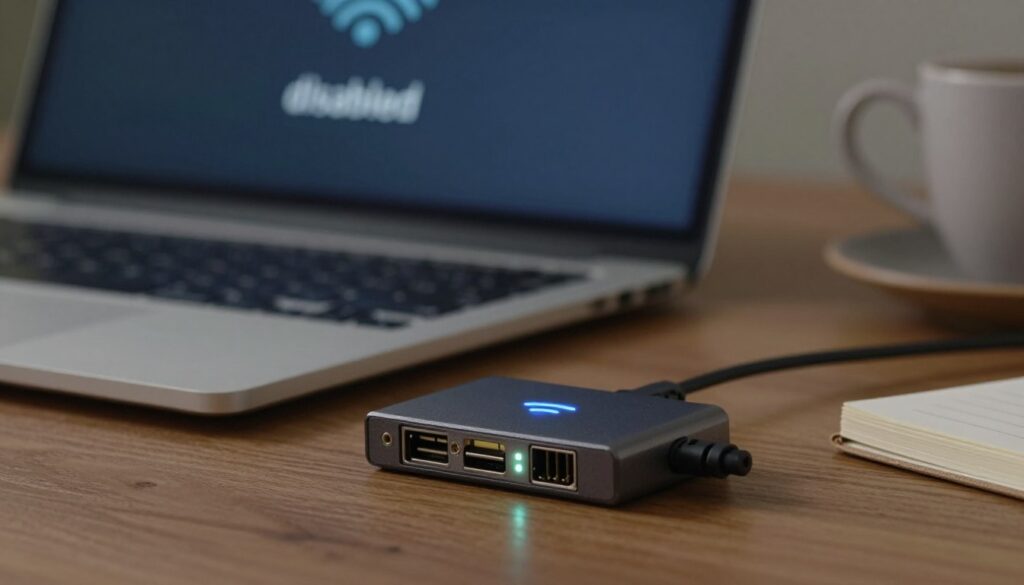
In simple terms: the component may be turned off by power settings, a driver can crash and reset the device, or the network stack may briefly fail and re-establish the link. These events create repeated interruptions that look like the hardware is switching off.
This guide will walk you from fast checks to deeper fixes. Start with quick inspections, then review power management and Windows services. If needed, move on to driver updates and router or compatibility isolation. Before you begin, note your Windows version, adapter model, router model, and whether the issue happens on battery, AC power, or both. That info speeds diagnosis and helps decide if the problem is local or affects the whole network.
Key Takeaways
- Symptom: the wireless link drops and often returns after seconds, creating a loop.
- Common causes include power settings, driver crashes, and network stack resets.
- Begin with quick checks, then adjust power management and Windows services.
- Gather Windows version, device and router models, and power state details first.
- Decide if the issue is isolated to one PC or affects other devices on the network.
How to tell if the issue is the adapter, Windows, or your network
A short test across devices and networks will usually point to the true source of the interruption. Watch the pattern before changing settings. Note whether the connection drops, shows limited or no Internet, then returns within seconds.
Common symptoms
The typical pattern is simple: the wifi disconnects, the system reports limited access, and the link restores in a few seconds. That loop can repeat for minutes or hours.
Quick isolation
Try these steps to separate a device problem from a router or ISP issue:
What Else Would You Like to Know?
Choose below:
- Test other devices on the same router — phone, tablet, or another computer. If they drop too, the network or router is likely at fault.
- Connect the same computer to a phone hotspot or a different network. If the problem follows the computer, focus on Windows, drivers, and the device settings.
- Document timing and triggers: specific times, after sleep/wake, when moving rooms, or when starting VPN or proxy tools.
Decision rule: if only one computer drops while others stay stable, troubleshoot the computer. If multiple devices lose connection together, check the router, modem, or ISP line.
Keep a brief log of occurrences and times. Remember that a driver reset or a windows-level power behavior can mimic a router drop from the user’s view.
Quick checks that fix many wireless connection problems fast
Before changing settings, run a short set of baseline tests to spot easy fixes. These steps take minutes and often stop the interruption without deep troubleshooting.
Restart the computer and confirm the adapter is enabled in Windows
Restart the computer to clear temporary glitches. After reboot, open Network & Internet settings and make sure the wireless adapter is enabled in Device Manager or the Control Panel.
Move closer to the router to check signal quality
Weak signal through walls or in crowded buildings can mimic hardware failure. Move your computer within a few feet of the router or modem for 5–10 minutes and see if the connection stabilizes.
Disable VPN or proxy and power cycle modem and router
Temporarily turn off any VPN or proxy, then retest the network. If issues persist, unplug the router and modem for 30 seconds, plug them back in, and wait a few minutes for services to restore.
Confirm results by loading several websites, streaming video, or running a large download. If the connection stays steady, you’ve likely resolved the common causes.
wifi adapter keeps disabling due to Windows power management settings
If your connection drops after sleep or while on battery, a Windows power rule is a likely suspect. Changing the power setting for the network device is one of the highest-impact fixes for repeated disconnect/reconnect cycles.
Find the Power Management tab:
- Press Run → type control and open the Control Panel.
- Go to Network and Sharing Center → Change adapter settings.
- Right-click the wifi device → Properties → Configure → Power Management tab.
Turn off “Allow the computer to turn off this device to save power”
Open the power management tab and untick Allow the computer to turn off this device to save power. This stops Windows from powering down the network device during idle, sleep transitions, or battery optimization.
Why device save power can affect an entire household
When Windows powers down a laptop radio during a heavy save-power event, it can produce traffic anomalies the router or modem misinterpret. In one real case, disabling the laptop power saver fixed drops on a Motorola Surfboard router that affected all devices in the home.
What to check after changing the setting
- Reconnect to the network and test stability for 10–15 minutes.
- Verify behavior on battery and on AC power if you use a laptop.
- Watch sleep/wake transitions; those moments often reveal lingering power rules.
Note: The change is reversible and safe to test. If problems persist, proceed to service and driver checks in the next section.
Reset WLAN AutoConfig when WiFi keeps turning off and on
A quick service reset in Windows can stop short cycling of your wireless link. The WLAN AutoConfig service manages wireless profiles, negotiation, and the state of the radio. If it’s disabled or set to manual, the network can drop or reconnect unpredictably.

Open Services and locate WLAN AutoConfig
Press Windows key + R, type services.msc, and press Enter. Scroll the list to find WLAN AutoConfig. Verify the service shows as running.
Set Startup type to Automatic and apply changes
Right-click the service, select Properties, and set Startup type to Automatic. Click the Apply button, then OK. If the service is stopped, click Start.
Test the wireless connection after the service reset
Run a continuous task—video call, streaming, or a ping test—for at least 10–15 minutes to confirm the connection stays stable. Success means the link no longer drops in short bursts.
If the change helps but problems return, the next steps are to check driver stability or inspect the router for drops at the same time.
Fix driver and Device Manager issues that disable the wireless adapter
Many connection loops trace back to faulty or mismatched driver software. A corrupted driver can crash the radio, causing the device to reset and appear as if it turned off.
Why drivers matter: the driver links the operating system to the hardware. If the driver is wrong for your network card or Windows build, the system may drop and then reinitialize the device repeatedly.
Update drivers the right way for your Windows version
Use the exact model and OS build when you download a driver. Check the PC maker first—Dell, HP, or Asus support pages often publish tested packages for their systems.
Reinstall the driver and let Windows detect new hardware
Open Device Manager, right-click the network device, and choose Uninstall. If offered, remove driver files, then reboot.
Windows will detect the hardware on restart and install a suitable driver. This often restores stability without extra steps.
Prefer OEM drivers and consider WHQL-certified packages
OEM drivers from your laptop or motherboard maker can be more compatible than generic vendor builds. For example, use Asus downloads for onboard Wi‑Fi or Dell/HP bundles for their laptops.
WHQL-certified drivers may be older but are tested for Windows compatibility and can reduce random disconnects versus the newest release.
After any change, test the connection for 10–15 minutes, check Device Manager for warnings, and confirm the device stays enabled through sleep and wake cycles. These steps should produce a stable network and stop recurring disable events.
Router and modem factors that can look like a computer problem
Before you assume the PC is at fault, inspect the gear that serves your home. A router or modem reboot, overload, or firmware bug can make every device appear to lose service at the same time.
Why the router or modem can mimic a computer issue: when the central device drops clients or restarts, a single computer will show a sudden disconnect and fast reconnect. That pattern looks like a local fault even though the network is the root cause.
Update firmware and check client drops
Log in to the router interface and check for firmware updates. Apply updates carefully; many stability fixes arrive as firmware patches.
Household test method
Watch other phones, tablets, and smart TVs during an event. If multiple devices lose connection at the same time, prioritize the router or modem over the computer.
What to look for and post-reboot checks
Inspect logs for deauth or disconnect events, scheduled reboots, or CPU/bandwidth spikes that match drop times. Power-cycle the router and modem (unplug 30 seconds) and then test the connection for 15–30 minutes.
Diagnostic logic: if the whole network drops, focus on router/modem or ISP. If only one system disconnects, continue with Windows power, services, and driver checks.
Advanced isolation steps for persistent adapter disabling
When basic fixes fail, use targeted tests to separate radio, Windows, and router faults.
AX-to-AC compatibility test: Temporarily force the wireless mode to AC (Wi‑Fi 5) in the device’s advanced settings and run a stability check for 10–15 minutes. If the connection stabilizes, the router’s Wi‑Fi 6 features, channel width, or firmware likely contribute to the problem.
Review Control Panel and Device Manager
Open Control Panel → Network Connections, then inspect the device properties in Device Manager. Look for conflicting advanced settings such as roaming aggressiveness, power-saving profiles, or throughput boosts.
- Temporarily set roaming and power options to conservative values.
- Disable experimental features one at a time and retest.
Why “restart computer daily” is only a bandage
“A daily reboot hides the symptom but does not fix drivers, power rules, or protocol mismatches.”
Instead of routine restarts, install a stable WHQL or OEM driver, disable aggressive power-saving, and use the AC/AX test to pinpoint triggers. Document each change and the time it was applied so you can trace which setting resolves the issue.
Conclusion
Conclude by working down a checklist that moves from easy resets to driver and modem-level isolation.
Start with the most likely root causes in priority order: Windows power management, a misconfigured WLAN AutoConfig service, unstable drivers, then router or modem firmware and compatibility problems.
Quick wins include power-cycling your router and modem, turning off VPN or proxy for a test, unticking “Allow the computer to turn off this device to save power,” and setting WLAN AutoConfig to Automatic.
Prefer OEM or WHQL driver packages for stability before trying newer vendor releases. Use isolation tests—check other devices, join a different network, and try AC vs AX mode—to find where the problem lives.
If the adapter still disables after these steps, treat it as possible hardware failure and contact the PC maker or consider replacing the radio. Share your Windows version, computer model, and router model below for more precise help. Thanks.
FAQ
What causes a wireless adapter to disable itself?
How can I tell if the problem is the adapter, Windows, or my network?
What common symptoms show this disabling issue?
What quick checks can fix many connection problems fast?
Where is the Power Management tab to stop Windows from turning off the device?
Why can power-saving features disable the wireless and affect the whole network?
What should I check after changing the power management setting?
How do I reset WLAN AutoConfig when connections keep turning off and on?
How do I update network drivers correctly for my Windows version?
When should I reinstall the adapter driver and let Windows detect new hardware?
Should I prefer OEM drivers over Windows-provided ones?
When is a WHQL-signed driver better than the newest release?
How can router or modem issues mimic a computer problem?
How do I check whether only one computer is affected or the whole household loses connectivity?
What advanced steps help isolate persistent disabling?
Is restarting the computer daily a real solution?
What else should I try if the problem continues after these steps?
Smart Home Devices That Crowd Your Wi-Fi
» See exclusive tips for your home