Wi-Fi Channel Width (20/40/80/160 MHz): Speed vs Stability
Maximize your Wi-Fi potential by choosing the correct wifi channel width 20 40 80. Our step-by-step guide helps you achieve optimal speed and stability.
What this means: wifi channel width describes how much spectrum a band uses for data. Wider MHz can boost raw throughput, but wider paths also raise the chance of interference. The best setting depends on your home, devices, and band choice.
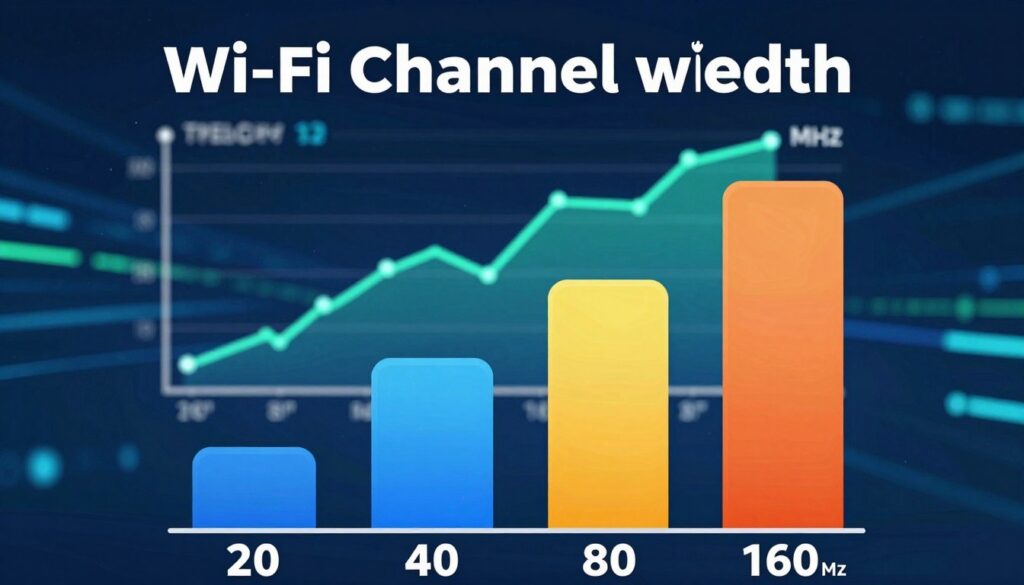
This US-focused guide will walk you through a step-by-step decision path. First pick the right band (2.4, 5, or 6 GHz). Next set the channel width. Then validate with tests across rooms and different times of day.
The real goals are simple: stable video calls, low-latency gaming, faster file transfers, or whole-home coverage. Each goal favors a different tradeoff between speed and stability. Remember, maximum theoretical speeds rarely match real-world results because interference and neighbor congestion shape user experience more.
Key Takeaways
- Wider settings can increase throughput but may reduce stability in crowded areas.
- Match settings to goals: stability for calls, lower latency for games, speed for transfers.
- Pick band first, then adjust channel width, then test across rooms and times.
- Manual settings help in congested neighborhoods; Auto can be fine for most homes.
- Real-world performance beats theoretical specs—measure before you assume.
What Wi-Fi Channel Width Means and Why It Affects Speed vs Stability
Think of spectrum like a road: some setups give a single lane while others open multiple lanes so more data moves at once.
Single-lane operation favors orderly sharing and better coexistence with neighbors. Multi-lane bonding lets an access point combine adjacent 20 MHz blocks into 40, 80, or 160 MHz layouts so more subcarriers (OFDM tones) carry data simultaneously.
What Else Would You Like to Know?
Choose below:
How bonding evolved
802.11n introduced 40 MHz bonding. 802.11ac expanded practical options to 80 and 160, and newer standards extend into the 6 GHz band and beyond.
“Wider bands can nearly double peak throughput in clean RF conditions because there are simply more subcarriers to carry bits.”
- Throughput: Wider spectrum increases peak data transfer potential when signal strength and contention are favorable.
- Stability: Wider blocks consume more frequency, so overlap and interference rise in busy environments.
- Device mismatch: An AP may support wide settings, but many client devices will use narrower modes based on their radios.
In short, larger groupings of MHz help most when the client supports the same size, the signal is strong, and the air is not congested. Otherwise, staying narrower can produce steadier performance in crowded U.S. homes and apartments.
Understand Wi‑Fi Bands and Channels in the United States Before You Change MHz
Before changing MHz settings, know which radio bands and legal limits shape what’s actually available at your address.
2.4 GHz basics and overlap
The 2.4 ghz band includes 14 defined frequencies globally, but only channels 1–11 are usable in the United States.
Those frequencies sit close together, so most channels overlap. That overlap means devices contend more, retransmit, and slow down even when signal bars look strong.
5 GHz reality and DFS
The 5 ghz range is split into UNII blocks. What you can use depends on local rules and the size of the block you want to bond.
Some parts require DFS radar detection. If your radio must avoid radar, it can move suddenly and cause brief dropouts.
6 GHz in the U.S.: bigger, cleaner spectrum
The FCC opened 1,200 MHz (5.925–7.125 ghz), which changes planning for wide setups.
- 59 × 20 MHz non-overlapping channels
- 29 × 40 MHz non-overlapping channels
- 14 × 80 MHz non-overlapping channels
- 7 × 160 MHz non-overlapping channels
Practical tip: Ground your settings in what channels are actually available where you live. In dense housing, the 2.4 ghz frequency has very few truly non-overlapping channels, so wider bonding there often backfires.
How Channel Width Impacts Throughput, Range, and Interference in Real Networks
Wider MHz settings can boost peak data rates, but real networks rarely behave like lab tests. In ideal conditions, doubling MHz gives roughly double the PHY capacity because there are more subcarriers carrying bits at once.
Best-case math: more subcarriers translate into higher peak throughput when signal quality and airtime are available. That gain assumes clients and the access point both support the larger bandwidth and face little contention.

Noise floor and the hidden tradeoff
Widening to 40, 80, or 160 MHz raises the noise floor by about +3 dB per doubling versus a 20 MHz baseline: ~+3 dB (40), +6 dB (80), +9 dB (160). A higher noise floor lowers SNR and forces rate adaptation.
High-order modulation needs strong SNR: 1024‑QAM ~35 dB and 256‑QAM ~32 dB. As mhz increase, fewer clients meet those SNR thresholds, so the area that sees peak speeds shrinks and range drops.
Interference, contention, and practical risk
Wider blocks increase the odds of co‑network overlap. In dense neighborhoods, that creates more waiting and reduces consistent throughput. Using 160 MHz can help in very clean conditions, but it carries higher risk in crowded housing.
Practical goal: pick the narrowest setting that meets your throughput needs while keeping latency and stability across your rooms.
wifi channel width 20 40 80: How to Choose the Right Setting for Your Router
Deciding how wide to make your radio bands starts with what you need from your network. Define stable as steady latency and few dropouts. Define fast as higher burst throughput for large file transfers.
Prioritize stability or bandwidth
In dense housing, favor narrow settings to cut overlap, retransmits, and congestion. In low-density homes, wider settings can boost peak speeds when devices sit close and SNR is strong.
Match settings to device capability
Older devices often use narrower modes. Newer clients that support 802.11ax or 6E handle wider bands better. Your router can advertise wide options but clients will negotiate the mode that fits them.
Quick decision checklist
- Count neighboring networks visible on a scan.
- Note walls and distance between AP and devices.
- Decide if you need whole-home coverage or single-room throughput.
- Confirm how many clean channels available for your band.
Tradeoff reminder: choosing wider bands raises peak performance but reduces available clear blocks. Choose the narrowest setting that meets your goals, then test performance across rooms.
Best Channel Width for 2.4 GHz: When 20 MHz Is the Right Call
Most U.S. homes get better day-to-day reliability by keeping the 2.4 ghz band set to a single standard block. This avoids overlap and keeps legacy devices working without fuss.
Why bandwidth 2.4 ghz doesn’t scale beyond 20 MHz in most conditions
The 2.4 ghz band has very few non-overlapping channels. Bonding adjacent mhz blocks simply increases overlap with neighbors.
That overlap raises interference and retransmits. In dense housing this often cuts real throughput and adds random lag spikes.
When wider channels might work (rare low-interference, rural conditions)
In isolated homes with almost no nearby networks, wider allocation can show gains. Treat this as an experiment: test throughput and stability across rooms and at different times.
Also watch for non‑Wi‑Fi interferers like microwaves and cordless devices. They can degrade performance even when signal strength looks strong.
Practical recommendation: use 20 MHz on 2.4 ghz for the broadest compatibility, fewer disconnects, and steadier range for smart devices.
| Setting | Typical Use Case | Risk |
|---|---|---|
| 20 MHz | Best for homes, IoT, and crowded apartments | Low interference; highest compatibility |
| Wider (experimental) | Rural sites with few networks | Higher overlap risk; validate across rooms |
| Validation steps | Throughput, latency, multi-room tests, time-of-day checks | Ensures stable choice for your network and devices |
Best Channel Width for 5 GHz: 20 MHz vs 40 MHz vs 80 MHz vs 160 MHz
5 ghz offers more non-overlapping mhz blocks than lower bands, so choices here change real-world performance more than on 2.4 ghz.
When to use 20 MHz on 5 GHz for maximum stability
Pick 20 MHz in crowded buildings or shared housing. It gives the most non-overlapping channels and reduces interference and congestion.
This setting favors stable latency for calls and small sensors that need steady links.
Why 40 MHz is the practical default for many homes
Forty MHz often boosts throughput without consuming too many blocks. It’s a good balance for small offices and busy living rooms.
Most clients gain measurable speed while keeping enough clean channels for coexistence with nearby networks.
When 80 MHz fits high-throughput needs
Use 80 MHz for 4K video streaming, fast backups, or large data transfer when devices sit close to the access point and neighbor traffic is low.
Expect shorter range; consider better AP placement or another AP for whole-home coverage.
160 MHz on 5 GHz: strict conditions for gains
Use 160 mhz only if SNR is very high, the radio environment is clean, and you accept possible DFS-driven interruptions.
Reality check: in many U.S. neighborhoods, narrower settings beat wider ones because contention and retransmits destroy apparent throughput.
| Setting | Best for | Trade-offs |
|---|---|---|
| 20 MHz | Maximum stability in dense areas | Lower peak throughput; more non-overlapping channels |
| 40 MHz | Balanced speed and coexistence | Good throughput with moderate channel use |
| 80 MHz | High-throughput single-room use | Shorter range; higher interference risk |
| 160 MHz | Peak speed in very clean environments | Needs high SNR; DFS may cause interruptions |
Best Channel Width for 6 GHz (Wi‑Fi 6E / Wi‑Fi 7): When Wide Channels Shine
The 6 ghz band brings unusually wide, mostly clean spectrum that changes how you plan high‑speed home networks.
Why it stands out: The FCC opened 1,200 MHz (5.925–7.125 ghz) for unlicensed use in the United States. That block yields multiple non‑overlapping 160 mhz blocks, so using 160 mhz is far less likely to overlap neighbors than on older bands.
DFS and predictability
6 ghz does not carry the same DFS obligations that affect parts of 5 ghz. That means fewer radar‑triggered moves and steadier operation when you use wide allocations. Predictability improves for time‑sensitive tasks.
Range and placement tradeoffs
Higher frequencies attenuate more. The 6 ghz band has shorter range and worse wall penetration than lower bands. To realize peak throughput you will likely need APs or mesh nodes closer to active devices.
Ultra‑wide future (Wi‑Fi 7)
“Wi‑Fi 7 introduces 320 MHz operation in 6 GHz, but it is a best‑case feature—ideal in clean RF, short links, and when client devices support it.”
320 mhz promises higher peak rates, but its practical gains depend on very low interference and short distance.
- Device support: Only 6E/7 devices use the band. Confirm client capability before optimizing around 6 ghz.
- When it shines: single‑room media centers, home offices, and mesh backhaul in clean RF are prime candidates.
| Factor | Impact | Recommendation |
|---|---|---|
| Available spectrum | 1,200 MHz contiguous (US) | Good for multiple 160 mhz blocks |
| DFS | No DFS constraints in most 6 ghz segments | More stable wide allocations vs 5 ghz |
| Range | Shorter distance, higher attenuation | Place APs closer to devices for best performance |
| Device support | Requires 6E or Wi‑Fi 7 clients | Verify devices before prioritizing this band |
Step-by-Step: How to Set Channel Width for Better Performance on Your Network
Start by inventorying your router and key devices so you know what MHZ options they actually support.
Check hardware and client support
Step 1: Open your router spec sheet and confirm support for 802.11ac/ax/be and whether it can do 160 MHz. Note if the unit is dual‑band or tri‑band.
Step 2: Verify primary devices—work laptop, gaming PC, phone—support the same bands and MHZ so you get real gains.
Scan the environment
Use a scanner app to measure nearby networks and sources of interference. Tools like NetSpot or SweetSpots give a quick picture of congestion and clean MHZ blocks.
Choose band first, then set width
Pick the best band for the task: 2.4 GHz for range and legacy devices, 5 GHz for balanced speed, 6 GHz for short‑range high throughput. Then select a channel width that fits available non‑overlapping channels.
Handle DFS on 5 GHz
Note:Using wide allocations on 5 GHz raises the chance of hitting DFS ranges. Watch for sudden moves or brief drops—these are DFS events.
Test, validate, and iterate
- Change one setting at a time and record it.
- Measure throughput, latency, and consistency in different rooms and at different times.
- If results vary, try vendor auto modes or revert to narrower settings for stable performance.
Conclusion
Real performance depends on how settings behave in your home, not the biggest number on the router page. Wider mhz can raise peak throughput, but stability falls if interference and congestion are high or clean channels are scarce.
Practical rules of thumb for U.S. homes: keep 2.4 GHz at 20 MHz for broad compatibility; use 40 MHz on 5 GHz as a balanced default; try 80 MHz for close‑range, high‑throughput needs; treat 160 MHz as situational and test carefully. When you own 6 GHz devices, wider allocations become far more realistic, though range and wall attenuation matter.
How to decide: check device capability, scan the environment, change one setting at a time, and validate throughput, latency, and consistency across rooms and times. If widening makes things worse, narrowing is often the correct stability choice in busy neighborhoods and multi‑dwelling buildings.
Keep testing and tune to your conditions—stable data and steady signals win over raw specs every time.
FAQ
What does channel width mean and how does it affect speed versus stability?
How did channel bonding evolve from 802.11n to Wi‑Fi 6E and Wi‑Fi 7?
How many channels are available in the 2.4 GHz frequency band in the United States?
Why do overlapping channels on 2.4 GHz cause interference?
What is the reality of 5 GHz spectrum and UNII blocks for channel availability?
How does the 6 GHz band change the wide‑channel landscape in the US?
Will doubling the MHz always double my data rates?
What is the hidden tradeoff when increasing channel span to 40, 80, or 160 MHz?
How do SNR and modulation interact with wider segments?
What is co‑channel interference and how does it affect crowded neighborhoods?
How should I choose the right setting on my router for best performance?
When is 20 MHz the best choice on the 2.4 GHz band?
When should I use 20, 40, 80, or 160 MHz on 5 GHz?
Is 160 MHz useful on 6 GHz and Wi‑Fi 6E/7?
What steps should I take to set the best span for my network?
Why Wi-Fi Gets Slower at Night and What You Can Do
» See exclusive tips for your home