How to Get Reliable Wi-Fi Coverage in a Large Home
Achieve seamless wifi coverage for large house with our expert guide. Learn the best solutions for reliable internet throughout your home.
Reliable wireless signal means steady connections, smooth roaming, and usable speeds in every room — not just near the main router. In big U.S. homes, the radio signal weakens with distance, so a single box often cannot deliver consistent range and performance.
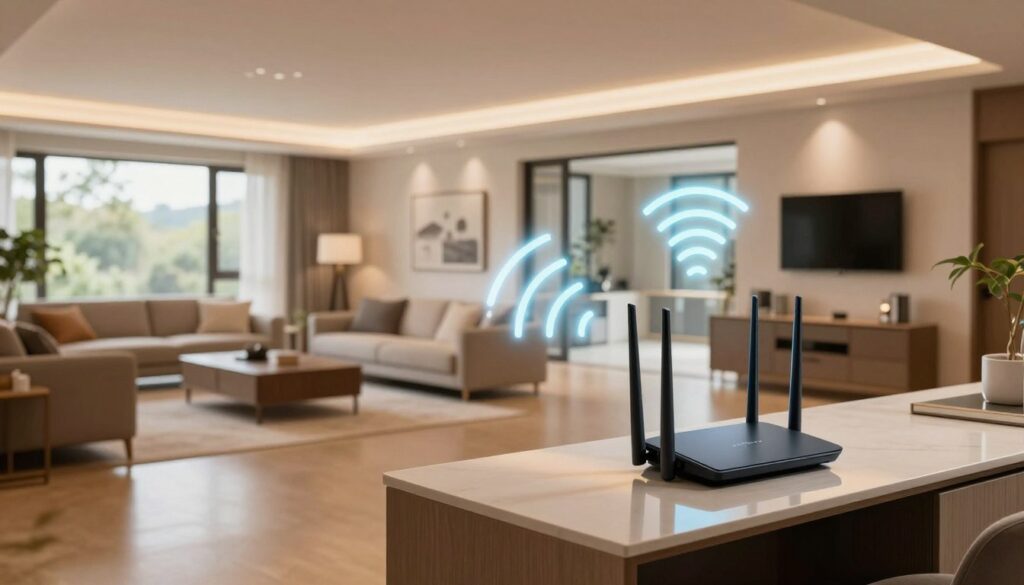
Start by diagnosing whether the problem is signal spread, interference, or an internet plan bottleneck. Match fixes to your budget and floor plan: placement tweaks, an extender, powerline adapters, or a mesh system each suit different footprints and multi-story layouts.
Remember: the internet that comes into your house from an ISP is separate from how that service is distributed on your internal network. This guide aims at whole-home performance for streaming, gaming, and video calls across multiple rooms and floors.
The article also includes a practical buying checklist — standards, bands, backhaul, Ethernet ports, and device handling — plus U.S.-available examples like Eero, Deco, and Orbi to help you choose the right system.
Key Takeaways
- Reliable signal equals steady connectivity and usable speeds in every room.
- Diagnose whether issues are signal, interference, or ISP limits first.
- Placement, extenders, powerline, and mesh each fit different layouts.
- ISP service and internal network distribution are distinct concerns.
- Use the buying checklist and consider known brands like Eero, Deco, and Orbi.
Why Large Homes Struggle With Consistent Wi-Fi Coverage
Long hallways, basements, and multi-level layouts make it hard for one device to keep steady connections everywhere. A single main router weakens as distance grows, so rooms far from the unit often get poor signal and unstable connectivity.
Distance, floors, and a single access point
Floors and walls absorb or reflect radio waves. That creates the familiar strong-downstairs, weak-upstairs effect in many homes.
What Else Would You Like to Know?
Choose below:
In long ranch plans or finished basements, the router’s range drops off before reaching distant rooms. That is why homeowners add an extra access point or move to mesh systems.
Bandwidth and device demand
Multiple streams, game downloads, video calls, and smart devices compete on the same network. Even if the modem delivers high speeds at the router, a weak signal to a remote room will still throttle performance.
Capacity vs coverage: coverage can exist but busy devices cause congestion and uneven speeds. That trade-off is why mesh systems are common in extended layouts.
| Approach | Best for | Strength | Limit |
|---|---|---|---|
| Single main router | Small to medium layouts | Simple setup | Range drops with distance |
| Access point | Targeted dead rooms | Improves local signal | Needs wired backhaul |
| Mesh systems | Multi-floor and long plans | Coordinated nodes, better connectivity | Higher cost, more devices to manage |
What Your Internet Service Provider Covers vs What Your Home Network Needs
Your ISP delivers the internet service to your property, but it rarely designs the in-home distribution. The provider’s role is to bring the pipe and set up a modem or gateway where the line enters. Monthly billing and uptime are their focus.
Upgrading speed alone usually won’t fix weak signal inside rooms. A faster plan raises the maximum at the modem, yet walls, distance, and a poor internal layout still limit usable signal where devices live.
How to think about the split responsibilities
- Separate the incoming internet service and modem from your home’s wireless distribution and equipment.
- ISPs often install gear in basements or closets where the signal cannot radiate well.
- Pay attention to ROI: sometimes a better system or node layout beats another monthly speed upgrade.
| Item | What the ISP provides | What you must provide |
|---|---|---|
| Connection | Line, modem/gateway, plan | Internal network design, placement |
| Speed | Plan tiers up to modem limits | Actual room throughput and real-world speed |
| When to upgrade | Multi-gig plans; DOCSIS 3.1 modem needs | When dead zones or weak signal exist, improve architecture |
Before you pay for extra service, measure where the problem is. Confirm whether the bottleneck is the incoming link or the in-home setup. That step saves money and points you to the right fix.
Common Wi-Fi Killers That Create Dead Zones in a House
Physical barriers and nearby networks can turn a fast plan into a spotty experience in specific rooms.
Construction materials that block or reflect radio
Dense walls such as concrete, brick, and old plaster with metal lath shrink usable range. Reflective insulation, asphalt layers, and metal frameworks also scatter signal and create shadowed areas.
Neighbor signals and crowded channels
Nearby networks can bleed into your home and force crowded channels. That leads to collisions, retries, and inconsistent throughput even when the ISP plan is fast.
Poor access point placement
Routers hidden in basements, closets, or tucked at one end of the home often guarantee dead zones. A simple rule: if you can see the access point from a room, you likely have better performance.
Symptoms include buffering in one room, dropped voice/video calls, smart devices losing connection, and slow page loads at the edges of the network.
| Root cause | Common examples | Fix |
|---|---|---|
| Structural blockers | Concrete, brick, metal lath | Move AP or add nodes |
| Neighbor interference | Crowded channels, overlapping SSIDs | Change channels, reduce interference |
| Poor placement | Basement, closet, corner | Central, elevated access point or mesh |
Next step: try channel cleanup and placement fixes first. If materials still limit reach, plan additional hardware or a mesh layout to overcome the issue.
How to Confirm It’s a Coverage Problem and Not a Speed Plan Issue
Run a quick room-by-room scan with a signal analyzer to separate a distribution issue from an ISP speed problem.
Mapping dead spots and reading dBm
Use a Wi‑Fi analyzer such as InSSIDerLite and walk through each room while taking readings. Log results so you can map where the signal falls off.
Think in dBm: aim for roughly -67 dBm or better for reliable connectivity. Performance often drops near -67 to -70 dBm, and anything below -80 dBm is usually unreliable.
Separating coverage from plan limits
Run a speed test beside the router to set a baseline. Then test the same site in weak rooms. If speeds are high near the modem but low only in certain rooms, the distribution is the issue.
Test the devices that matter — your work laptop, gaming console, or streaming TV — because radios differ and affect perceived performance. Weak signal causes packet loss and retransmits, which feels like slow internet even when the ISP plan is fine.
- If signal strength is good housewide but speeds are poor everywhere, investigate the modem or ISP plan.
- If only some rooms show weak signal, plan a placement fix, additional access, or a mesh upgrade.
wifi coverage for large house: Choosing the Right Whole-Home Approach
Decide whether a quick placement tweak or new hardware will actually fix your weak signal before buying anything. Start with simple checks: move the router higher, change channels, and test one room at a time. These steps often fix an isolated dead spot without added costs.
When a simple placement fix is enough
Placement fixes fit small problems: a single weak room, a router hidden in a closet, or minor obstructions that block line-of-sight.
Try central, elevated positions and avoid appliances that cause interference. If signal and speeds improve across most rooms, you’re done.
When you need to add hardware to extend range
Add hardware when the layout is complex: multi-level plans, long wings, or thick walls that block radio signals. High device counts also call for more capacity.
Mesh systems are the best choice for consistent whole-home performance, offering seamless SSID roaming and coordinated handoffs. Budget alternatives like extenders or powerline adapters can help narrow needs but may add extra network names or slow links.
“Measure first, upgrade second — that saves money and gives better results.”
- Test placement and settings.
- If narrow weak spots persist, try extenders or powerline for targeted fixes.
- Choose a mesh system when you need seamless roaming, higher capacity, and top reliability.
| Scenario | Best first step | When to add hardware | Recommended solution |
|---|---|---|---|
| Single weak room | Relocate router, tweak channels | If still weak after placement | Extender or powerline adapter |
| Multi-level or long floor plan | Test signal room-by-room | Persistent dead zones or many devices | Mesh system with nodes |
| Thick walls / old construction | Measure dBm in each room | Signal blocked through materials | Wired backhaul mesh or additional access point |
Goal: one seamless network name and smooth handoff so devices stay connected as you move through the home. In the next sections, we’ll compare extenders, powerline adapters, and mesh systems so you can weigh tradeoffs and pick the right route.
Optimize Your Main Router and Access Point Placement Before You Buy Anything
A few strategic moves with your main router and access point can fix many weak-room problems without buying new gear. Try a quick relocation and simple orientation checks before shopping.
Central, elevated placement and antenna orientation
Place the main router and any access point near the center of the home and up on a shelf rather than on the floor. This helps equalize reach and improves the usable range in more rooms.
Point external antennas vertically. Vertical orientation encourages side-to-side radiation, which matches how most devices sit in a room. Small adjustments often change perceived connectivity quickly.
Reducing obstructions and competing electronics
Avoid closets, basements, and corners where walls and furniture absorb signal. Keep the network gear away from large metal objects, TV cabinets, and major appliances that cause interference.
- Move devices toward a central, open spot.
- Separate routers from cordless phones and microwaves.
- Balance node placement if you plan a mesh setup later.
Re-test the same rooms and devices after each change to confirm better connections before spending on new hardware.
Wi-Fi Range Extenders and Boosters: When They Work and When They Don’t
An extender can be a fast, low-cost way to patch a single problematic room without reworking your entire network. Use one when the main unit still reaches partway into the weak area and you only need a small boost to restore reliable connectivity.
Best-case use: filling a single weak room
Ideal scenario: one room near the edge of the router’s signal. The extender catches a usable signal and pushes it the last few feet, giving devices a stable connection.
Tradeoffs: reduced bandwidth, extra network names, and roaming friction
Most extenders cut effective bandwidth, which can lower speeds and add latency. Some create a second SSID that forces manual switching.
Expect roaming issues: extenders rarely hand off smoothly like a mesh. Calls or streaming can drop during movement between devices.
Where to place an extender for the strongest connection
Place the extender halfway between the access point and the dead zone. It must receive a strong signal itself, not sit deep inside the weak area.
- Test performance at the target spot before and after install.
- Watch whether devices cling to the router instead of switching to the extender.
- If problems persist, consider a mesh upgrade for seamless roaming.
| Use case | Benefit | Limit |
|---|---|---|
| Single weak room | Quick, low-cost fix | Lower effective bandwidth |
| Temporary need | Easy setup | Second SSID and roaming friction |
| Long-term whole-home | Not ideal | Mesh offers better handoffs |
“Extenders can be a quick bridge, but they are often a stepping stone before adopting a full mesh system.”
Powerline Adapters: A Budget-Friendly Alternative for Hard-to-Reach Areas
A pair of powerline units can give a distant room near-Ethernet performance without new cabling.
How it works: plug one adapter by your router and another in the target outlet. The two adapters send data over the home’s electrical wiring to create wired-like connections to the remote room.
Where powerline fits best
Use it when running Ethernet is impractical but you need steadier access than a wireless extender provides.
Good spots include a home office, garage, or back room where a reliable connection helps work or streaming.
Key limits and realistic expectations
Performance varies with wiring quality. Adapters may struggle across different circuit phases or separate electrical feeds, which can cause an unexpected problem in older buildings.
Powerline often handles web work and video streaming well, but actual internet speeds depend on the outlets you pick. Test before you buy.
Note: some kits include a local access point at the remote adapter, adding wireless connectivity near the outlet without relying on distant signals.
Bottom line: powerline is a cost-effective bridge when mesh is out of budget, but a wired-backhaul mesh system is usually more consistent long term.
| Use case | Benefit | Limit |
|---|---|---|
| Home office | Stable wired-like connection | Depends on wiring quality |
| Garage or outbuilding | No new cable runs | May fail across separate feeds |
| Budget upgrade | Lower cost than mesh | Less consistent than mesh system |
Mesh Systems Explained: The Most Reliable Solution for Large Homes
A mesh approach replaces signal repeating with coordinated nodes that act as a single, smart network. This design ties multiple access point devices together so they behave as one unified network. Devices roam between nodes without the clunky handoffs common with extenders.
How coordinated nodes differ from repeaters
Nodes share routing and client state so a phone or laptop moves smoothly from room to room. That coordination reduces drops and keeps connections steady across long halls and multiple floors.
Typical kits and adding satellites later
Most kits begin with two or three nodes sized to your square footage. You can add satellites later if a specific room still shows weak signal. More nodes increase reach, but placement matters more than raw count.
Why Ethernet backhaul helps speeds
Running ethernet to nodes removes wireless backhaul traffic and can dramatically raise real-world speeds and stability. When possible, wire each node to the main gateway to avoid congestion and preserve throughput for streaming and calls.
Bottom line:a mesh system is the most reliable default for homes with many devices and steady streaming needs.
Mesh System Buying Checklist for Reliable Speeds and Coverage
Start with a short checklist to compare options quickly and avoid paying for unused features. Use it to weigh standards, backhaul, ports, and how the system handles many devices.

Wi‑Fi standards to prioritize
Prefer the newest standard you can afford: Wi‑Fi 6 is a solid choice today. Wi‑Fi 6E adds the 6 GHz band and helps busy homes. If you want future-proofing, consider Wi‑Fi 7 where budget allows.
Bands and backhaul made simple
Dual-band systems share airtime between clients and backhaul. Tri‑band or quad‑band kits can reserve a band for backhaul, improving real-world speeds and consistency.
Antennas, node size, and penetration
Larger nodes often hide more antennas and more transmit power. That matters when signals must pass through walls and floors. Look for reviews that measure real throughput, not just headline range.
Ethernet ports and multi‑gig support
Count the LAN jacks. Multi‑gig ports are useful for gaming, streaming, and wiring nodes with Ethernet backhaul. If you have wired devices, prioritize a system with enough ports.
Handling many devices
Check for MU‑MIMO and OFDMA support to reduce congestion when many devices run at once. Also confirm whether parental controls and guest access are included or require a subscription.
- Prioritize standard (6 / 6E / 7) based on devices and longevity.
- Prefer dedicated backhaul if you need steady speeds across the network.
- Choose nodes with strong antennas and enough ethernet jacks.
- Verify capacity tech (MU‑MIMO, OFDMA) and family features.
Wi-Fi 7 Features That Can Improve Coverage and Responsiveness in Busy Homes
Modern protocol changes focus on real-world responsiveness, not just headline throughput numbers. Wi‑Fi 7 introduces features that help a mesh system keep many users and devices responsive when the network is under load.
Multi‑Link Operation (MLO): more stable connections
MLO lets a device send and receive across multiple links at once. If one band grows noisy, the system shifts traffic to another band without a big drop in performance.
This improves roaming and reduces stutter during gaming or video calls by keeping paths open across bands and nodes in a mesh.
Wider channels and higher QAM for higher throughput
Support for 320 MHz channels (mainly in 6 GHz) raises peak speeds for compatible devices at short to mid range. Paired with 4096‑QAM, more bits move per transmission when signal conditions are good.
That means faster downloads and smoother high‑bitrate streams when your devices and system both support the newer bands.
Preamble puncturing: work around interference
Preamble puncturing lets radios avoid portions of a channel that legacy gear or local noise occupies. Instead of abandoning the whole channel, the mesh can skip the noisy slice and keep the rest online.
These benefits depend on device compatibility and proper node placement. Wi‑Fi 7 helps most when the overall network design is already strong.
Top Mesh System Picks for Large Homes in the United States
Pick a mesh system that matches your layout and device load rather than chasing headline speeds alone. Below are three practical options by shopper type: easy setup, best value, and premium multi‑gig performance.
Eero 7 — easy setup and steady performance
Eero 7 installs quickly (often 5–20 minutes) and tests near the base at ~806 Mbps. Real-world throughput through a second node ranges roughly 56–560 Mbps, enough for multiple 4K streams in many U.S. homes.
Limitations: it is a dual‑band Wi‑Fi 7 design with fewer ethernet ports, and advanced parental controls and anti‑malware need an Eero Plus subscription.
TP‑Link Deco — value-focused mesh option
TP‑Link Deco wins on price and product variety. Deco kits give solid mesh performance at lower cost and offer models with built‑in parental controls without high subscription fees.
Netgear Orbi / Orbi 970 — premium multi‑gig and backhaul horsepower
Netgear Orbi and the Orbi 970 target large square footage and heavy device counts. The Orbi 970 quad‑band design uses a dedicated backhaul and includes 10Gbps and 2.5Gbps ethernet ports for multi‑gig internet plans.
Choose Orbi when you need wired flexibility, high sustained speeds, and expandable node counts across a demanding network.
Security and Parental Controls to Look For in Whole-Home Wi-Fi Systems
A single weak account or outdated firmware can expose every device on your network. Whole-home mesh and multi-node systems increase the number of endpoints, which raises the attack surface. Plan basic protections before adding more nodes or smart gear.
WPA3, guest networks, and keeping connected devices protected
WPA3 is the current standard and should be a baseline. Use a separate guest network for visitors and IoT items you don’t fully trust.
Keep firmware current across the system and enable automatic updates when available. Consider optional security suites like NETGEAR Armor if you want bundled threat detection.
Parental controls and family management features
Look for per-device rules: profiles, schedules, category filtering, and a one-tap pause for homework or bedtime. These controls make it easy to manage screen time without reshaping the whole network.
- Check whether parental controls are free or require a subscription; that affects lifetime cost.
- Prefer systems that show all connected devices clearly so you can spot unknown hardware fast.
- Decide if management via local app or cloud service fits your privacy needs and convenience.
Don’t Bottleneck Your Mesh: Modem and Plan Considerations
Even top-tier mesh systems can only perform as well as the modem that feeds them.
The weakest-link idea: a premium mesh may offer multi‑gig LAN ports, but an aging modem or gateway with a 1 Gbps WAN cap will limit end-to-end throughput. Check the modem, gateway, and router port speeds together.
Matching gear to your ISP type
Cable customers should evaluate DOCSIS 3.1 modems when they buy faster tiers. A DOCSIS 3.1 modem like a multi‑gig Nighthawk CM2000 pairs well with advanced mesh kits.
When to upgrade
If your paid plan exceeds what the modem or gateway can pass on, an equipment upgrade is the real fix. Fiber users must confirm the ONT handoff speed and the router WAN port to avoid surprises.
“Pairing Orbi orbi 970 class systems with a multi‑gig DOCSIS 3.1 modem helps you realize the speeds you pay for.”
| ISP Type | Key check | Recommended modem/gateway |
|---|---|---|
| Cable | DOCSIS standard, max WAN | DOCSIS 3.1 multi‑gig modem (example: Nighthawk CM2000) |
| Fiber | ONT handoff, WAN port speed | Gateway with multi‑gig WAN or router supporting multi‑gig |
| General | Wired test to verify | Ethernet speed test before blaming mesh |
- Confirm plan speeds and modem specs.
- Match modem ports to your mesh system needs.
- Run a wired Ethernet test to verify true throughput.
Installation Tips for Strong Coverage Throughout a Large Home
Begin installation by sketching a simple floor map that marks key rooms and any existing Ethernet drops. This quick map makes placement decisions clearer and saves trial-and-error time.
Node placement strategy for multi-story homes
Place the primary node near the home’s center and elevated on a shelf. Put the next node one floor up or down, but avoid stacking it above concrete or metal-heavy areas.
Spacing rule: each node should sit where it still sees a strong link to the main node — not pushed all the way into the dead zone.
Channel selection basics to reduce interference
When your system allows it, pick less crowded channels to lower interference. If manual tuning is limited, enable auto-optimization and check results after a day of normal use.
Testing performance room-by-room and adjusting node locations
Use an analyzer app and aim for about -67 dBm or better in important rooms like an office and bedrooms. Move nodes incrementally and re-test.
“Small shifts yield big gains — validate with dBm and real app tests.”
- Prefer Ethernet backhaul when cables exist to stabilize connections and preserve speeds.
- Test voice calls, streaming start times, and latency to confirm practical improvement.
What to Expect to Spend and How to Get the Best Value
Buying a reliable mesh setup begins with a simple budget ladder. Small fixes cost little: move the router, tweak channels, or add a basic extender. Mid-tier options like powerline adapters run a bit higher but often give steadier links to a remote room.
Budget solutions vs investing in a mesh system
Low-cost choices address a single weak spot quickly. They work well when the main unit still reaches the area partially.
Mid-cost choices, such as powerline kits, usually give more stable performance and support a home office or streaming TV without rewiring.
Higher upfront investment in a mesh system pays off over time with smooth roaming, fewer dead zones, and stronger real-world speeds for a busy family.
Choosing the right number of nodes
Start kits usually include two or three nodes. Add more if you have multiple floors, dense walls, or long wings. Focus on layout complexity, not square footage alone.
Rule of thumb: one node per main floor plus one extra for long wings or obstructed wings. Use Ethernet to backhaul nodes when possible to boost sustained throughput.
| Spend tier | Typical cost | Best use |
|---|---|---|
| Low | $0–$75 | Placement tweaks, single extender |
| Mid | $75–$200 | Powerline kits or entry mesh (example: TP‑Link Deco) |
| High | $200–$800+ | Premium mesh systems with multi‑gig ports and added nodes |
Watch hidden costs: subscriptions for security or parental controls, extra nodes, and the value of Ethernet wiring all add up. A modestly stronger purchase now can avoid repeated buys and give a better long-term experience.
Conclusion
, Conclusion: Confirm problem spots, then follow a clear path: diagnose, adjust placement, and pick hardware that solves real-room limits.
Prefer a mesh system when you need steady network reach across a multi-room home. Aim for about -67 dBm in key rooms to ensure reliable connectivity and a smoother everyday experience.
Remember the ISP handles the internet pipe, not in-home distribution. Extenders can fix one room but may cut bandwidth and complicate roaming. Powerline is budget-friendly yet depends on wiring quality.
Roll out practically: place the base unit well, add nodes where signals drop, and use Ethernet backhaul if possible. Shop by bands, backhaul options, Ethernet ports, and built-in security or parental controls. Map dead zones, pick the tier that fits your layout and budget, and validate results room-by-room.
FAQ
Why do large homes often have unreliable Wi-Fi?
If I have a faster internet service plan, will that fix weak signal areas?
How can I tell if the problem is signal strength and not my ISP plan?
When should I try a simple router placement fix versus adding hardware?
Do range extenders work well in large, multi-story homes?
What are the benefits of mesh systems compared with extenders?
Are powerline adapters a good budget option for hard-to-reach areas?
Which mesh systems are worth considering for a big home?
What Wi-Fi standard should I choose when buying a mesh system?
How important is wired backhaul and ethernet ports on mesh nodes?
Can building materials and neighbor networks truly kill signal strength?
What basic router placement tips improve whole-home performance?
How many nodes do I need for my square footage?
What security and parental controls should I look for?
Could my modem be limiting my mesh system’s performance?
How do I test performance room-by-room after installation?
What common mistakes reduce mesh network performance?
Apartment Wi-Fi Problems: What Makes Signal and Speed Worse
» See exclusive tips for your home