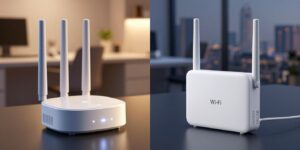
Where to Place a Wi-Fi Extender for Best Results
Discover how to improve your Wi-Fi signal with optimal wifi extender placement. Follow our step-by-step guide to enhance your network's performance.
Finding the right spot for a device that boosts signal often fixed dead zones without buying new gear. In many homes, the simple rule was to set the unit halfway between the main router and the weak area. That rule worked because the device needed a solid input to share a stable connection farther away.
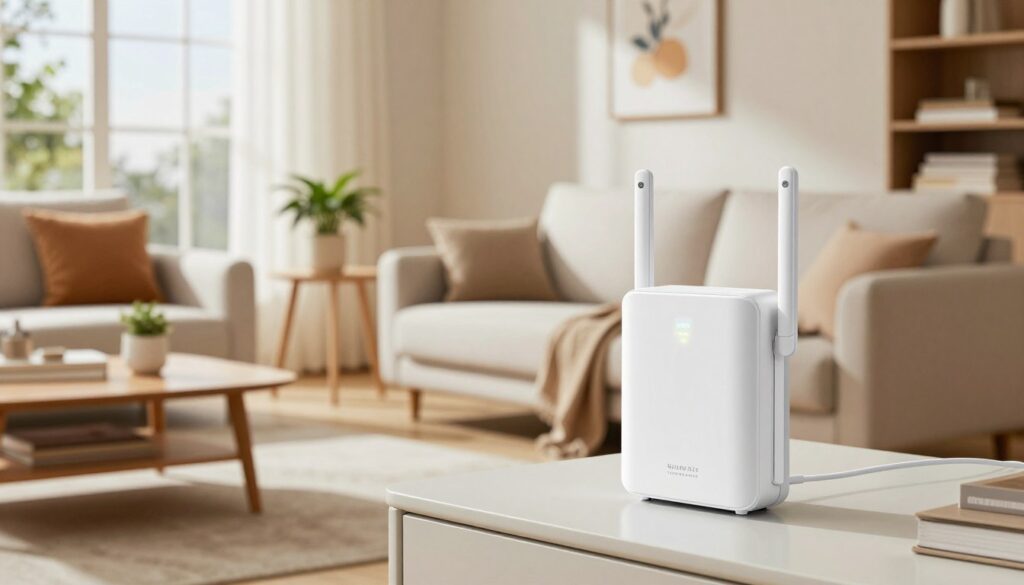
This guide explained what an extender could and could not solve. It was meant for US households with dead spots in bedrooms, basements, garages, or patios, and for renters who could not move their router. It clarified that coverage improvement meant usable speeds in the weak area — not just more bars near the router.
Different models had extra features, so readers were urged to follow model-specific steps after finding the sweet spot. The article walked through how the device worked, how to map coverage with a phone, avoid interference, account for layout and floors, then test and fine-tune. Often a small move improved performance more than buying new internet or replacing a router.
Key Takeaways
- Place the device where it still gets a good signal from the router, often midway to the dead zone.
- Aim for reliable coverage in the weak area, not just stronger bars near your router.
- Test with your phone to map signal and to find the true sweet spot.
- Model features vary — follow the maker’s guidance after optimizing position.
- Small moves often fixed problems faster and cheaper than buying new hardware.
Why extender location matters for your Wi‑Fi signal and network performance
Signal quality at the extender’s input sets the ceiling for what it can share across the house.
The unit listens to the router, then rebroadcasts that feed to nearby devices. If the input is weak, the rebroadcast is weak too. Think of it like someone repeating a whisper: the quieter the input, the quieter the repeat.
Real users saw this in practice. In one consumer survey, 65% of first-time users noticed no change until they moved the unit. After repositioning, 80% reported a clear boost in performance.
What Else Would You Like to Know?
Choose below:
What placement changes affect
- Throughput: Max download/upload speeds drop when input is poor.
- Latency: Ping and lag rise, hurting calls and games.
- Device variability: Phones, laptops, and smart TVs react differently to weak signal strength.
Small moves often fixed buffering and dropped calls more than changing plans or buying new gear. The next step is finding the sweet spot between the router and the dead zone.
| Placement | Input Quality | Typical Result | Best For |
|---|---|---|---|
| Close to router | High | Strong rebroadcast, limited range | Rooms near router |
| Midway to dead zone | Moderate to high | Balanced range and speed | Remote rooms |
| Inside dead zone | Low | Poor speeds, buffering | Not recommended |
Find the sweet spot between your main router and the weak-signal area
The best location is usually the point that still gets a clear signal from the main router while leaning toward the dead area. Think of it as a midpoint that keeps a usable feed and can push a stronger signal into the room that needs it.
Why “halfway to the dead zone” often works
In most homes the midway point—hallway, stair landing, or open room—keeps about half the signal from the router. That gives the device enough headroom to rebroadcast a reliable link into the far area.
How to confirm the device is getting a usable signal
Look for a strong connection indicator or app status that shows around 50% or better. If the unit reports a clear link, it will extend useful speed rather than repeating a weak feed.
Too close or inside the dead zone?
Too close to the router often duplicates coverage near the router and brings no real benefit to distant rooms. Placing it inside the dead zone usually yields an unstable connection and slow speeds.
Treat this as a small tuning task: move a few feet along the path and test. The halfway rule is a guideline—your best spot depends on walls and furniture.
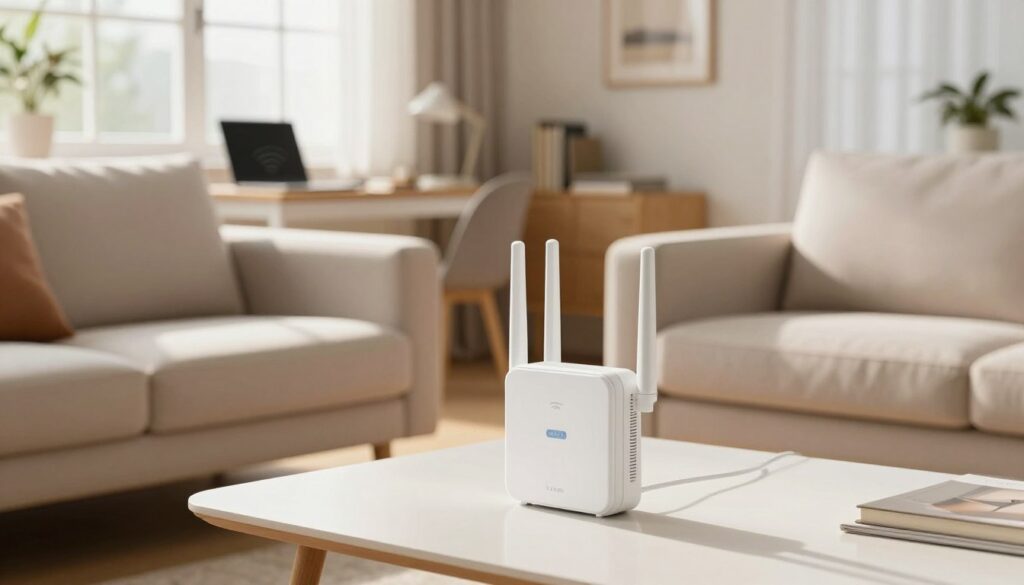
How to map Wi‑Fi coverage in your house using your phone
Start by measuring real signal in dBm with a smartphone analyzer. This turns vague bars into objective numbers and makes room-by-room comparison simple.
Take baseline signal readings near the router and compare room-by-room
Stand next to the router and record the baseline value. Then walk through each room and note readings at eye level. Repeat at the exact spots where devices lost speed or calls failed.
Identify exact spots where devices drop connection or speed
Mark the spots where a phone, laptop, or smart TV showed failures. These are the locations to test and to record in a quick sketch or notes app. Save the data for before-and-after tests later.
Mark transition points where signal strength sharply declines
Pay attention to hallways and doorways where signal strength falls fast. These transition points often make the best point to boost coverage because the signal there is still stable enough to extend.
Different devices may read differently, so use your phone as the consistent reference for the network. Next, we’ll cover interference and line-of-sight rules that can still undermine a good reading.
wifi extender placement rules that prevent interference and blocked line of sight
A clear path and few electronics nearby make the difference between a stable link and dropped connections.
Choose an open location rather than hiding the unit behind furniture or inside cabinets. Enclosing the device often weakens the wi‑fi signal and limits how far it can help the next room.
Raise it off the ground
Set the extender on a shelf or table instead of the ground. Higher location helps the signal clear sofas, TVs, and entertainment centers.
Avoid common blockers
- Brick, concrete, and mirrors reflect or absorb the signal.
- Large metal appliances like refrigerators block and scatter radio waves.
Keep distance from interfering electronics
Microwaves and some cordless phones create noise. Move the device away from those things to protect both the router-to-extender and extender-to-device links.
“Fewer walls and better sight between units give the most consistent performance.”
| Rule | Why it matters | Quick fix |
|---|---|---|
| Open location | Prevents signal loss from enclosed spaces | Move to a shelf or hallway |
| Off the ground | Clears common low obstructions | Place on table or high shelf |
| Keep away from electronics | Reduces interference and noise | Shift 3–6 feet from microwaves |
Placement tips for common home layouts and multi-floor coverage
Homes with multiple levels often lose much of the signal as it travels through floors and open stairwells. Treat each floor as its own coverage challenge and pick a point that keeps a solid link back to the main router.
Two-story and split-level homes
Floors often block more than a wall. A stair landing or upper-hallway spot usually keeps a reliable connection to the router while serving the rooms above.
Try a midpoint on the stair run and test in bedrooms and the office to confirm consistent coverage.
L-shaped and long layouts
Corners create signal shadows. Place the unit just before the bend so the second leg gets a stronger feed.
For long hallways, a midpoint spot beats an end point that struggles to talk back to the main router.
Apartments and smaller spaces
In small homes, oversaturation near the router can mask true dead spots. Keep a little distance so the device helps the far room instead of duplicating the same area.
Test before adding more hardware: some houses needed multiple extenders, but most rooms saw real gains after a single, well-tested move.
“Aim for better coverage where you use devices most — office, bedroom, or patio — then fine-tune with short tests.”
Distance and band considerations for stable internet speed
Radio bands and simple distance rules often decide the real-world speed you get. 2.4 GHz travels farther and handles walls better. 5 GHz carries more data but fades sooner through floors and concrete.
Typical distance guidance for 2.4 GHz versus 5 GHz
As a rule of thumb, keep router-to-unit spacing under about 30 meters for 2.4 GHz and under ~15 meters for 5 GHz. Construction materials can shorten those ranges markedly.
When a closer point gives better real-world speed
An unit placed too far may reach the dead area but deliver worse internet speed if its backhaul to the router is weak. If performance in the remote room is inconsistent, move the device a few feet closer to the router.
- Decision rule: prioritize a solid router-to-extender link over theoretical reach.
- Usage note: streaming tolerates mild drops; gaming and calls need stronger links and lower latency.
“A slightly closer location often raises real throughput more than a far-off position that barely holds a link.”
Use these distance guidelines as a starting point and confirm with speed tests to find the best point for your home network.
Test, fine-tune, and validate extender performance in your dead zone
Begin testing by recording a repeatable speed result at the stubborn spot before you move anything.
Run before-and-after speed tests from the same spot
Use the same device and the same location each time. Record download, upload, and ping so you can compare real results.
Read the results that matter
Download shows streaming quality. Upload matters for calls and uploads. Ping shows responsiveness for games and video calls.
Make small moves and retest
Move the unit a few feet and run the test again. Walls, furniture, and reflections can change results quickly.
Confirm you’re on the extender network
Make sure the device is connected to the extender network, not the main router. Devices may cling to the router name even when a better link exists.
Power and final checks
Plug directly into a wall outlet rather than a power strip when possible. That often reduces electrical noise and gives cleaner performance.
“Stop tuning once the dead zone reaches usable speed; chasing tiny gains wastes time.”
| Step | What to check | Why it matters |
|---|---|---|
| Baseline test | Download / Upload / Ping | Creates a fair before value |
| Reconnect check | Network name shown | Prevents false results from main router |
| Power test | Wall vs. strip | Cleaner power often gives steadier speed |
Conclusion
Wrap up your tuning by focusing on consistent, usable coverage where you use devices most.
Identify the weak room, pick a midpoint that still has a usable link to the router, and keep the unit in an open spot free of major blockers. Validate gains with short speed and latency tests instead of trusting icons or LEDs.
Quick best‑way checklist: map coverage, choose a clear line of sight, set the extender off the floor, and retest after small moves.
When a single unit can’t reach across a large two‑story home, L‑shaped layout, or dense construction, a mesh system often provides a better long‑term solution. Check your model’s support pages and firmware notes for the latest data and features.
Goal: stable, usable coverage for the devices that matter — not just more bars.
FAQ
Where should I place a Wi‑Fi extender for the best results?
Why does the extender location matter for my signal and network performance?
How does an extender rebroadcast a router signal, and why does a weak input create weak coverage?
What real-world results can I expect when I reposition the unit for a better connection?
Why is “halfway to the dead zone” a good placement rule for most homes?
How can I confirm the device is receiving at least a usable signal before extending it?
What happens if I place the unit too close to the router?
What happens if I place the unit inside the dead zone?
How do I map signal coverage in my house using my phone?
How do I identify exact spots where devices drop connection or speed?
What are transition points and why should I mark them?
Should I hide the device behind furniture or inside cabinets?
Is it better to place the device off the ground?
Which materials commonly block or weaken the signal the most?
What electronics cause interference and where should I keep the unit relative to them?
How important is line of sight and reducing the number of walls between router and the device?
How should I place the device in two-story or split-level homes?
What about L-shaped or long layouts—how do I extend coverage around corners?
How do I avoid oversaturation in apartments and smaller spaces?
What are typical distance guidelines for 2.4 GHz versus 5 GHz connections?
When is a closer placement better than a farther placement for real-world speed?
How do I test and validate performance after moving the unit?
Which test results matter most: download, upload, or ping?
How fine-grained should my adjustments be when tuning placement?
Should I plug the device into a wall outlet or a power strip?
How can I confirm I’m connected to the extender network when testing?
Apartment Wi-Fi Problems: What Makes Signal and Speed Worse
» See exclusive tips for your home