Neighbor Wi-Fi Interference: How It Slows You Down
Learn how to identify and resolve wifi interference neighbors causing slow internet speeds. Discover simple steps to improve your wifi connection today.
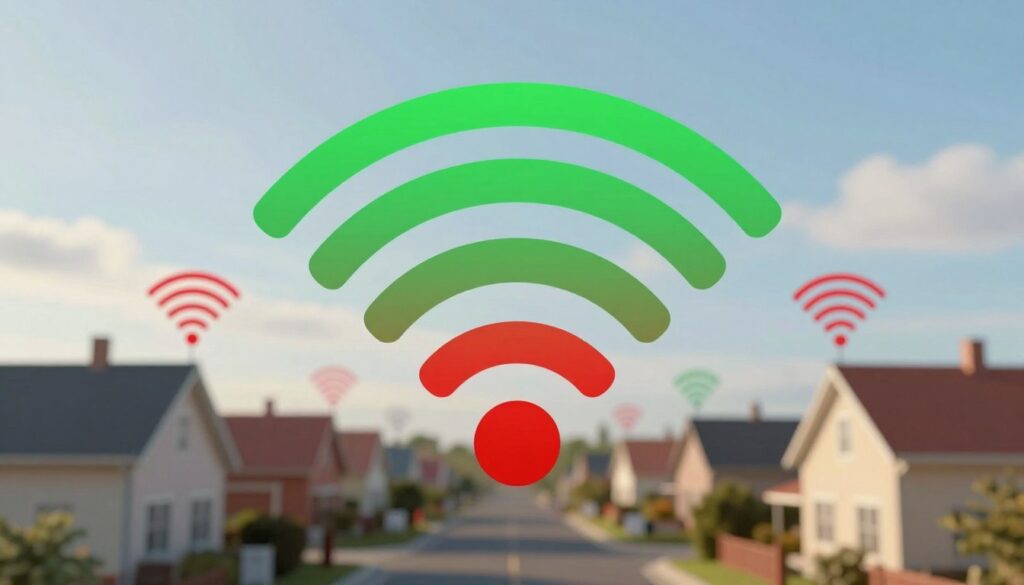
Neighbor wifi interference happens when nearby wireless networks and everyday gadgets share the same airwaves. In dense U.S. housing—apartments and close-built homes—overlapping signals on 2.4 GHz can weaken or destabilize your connection. That is why your internet may feel randomly slow even when your plan has not changed.
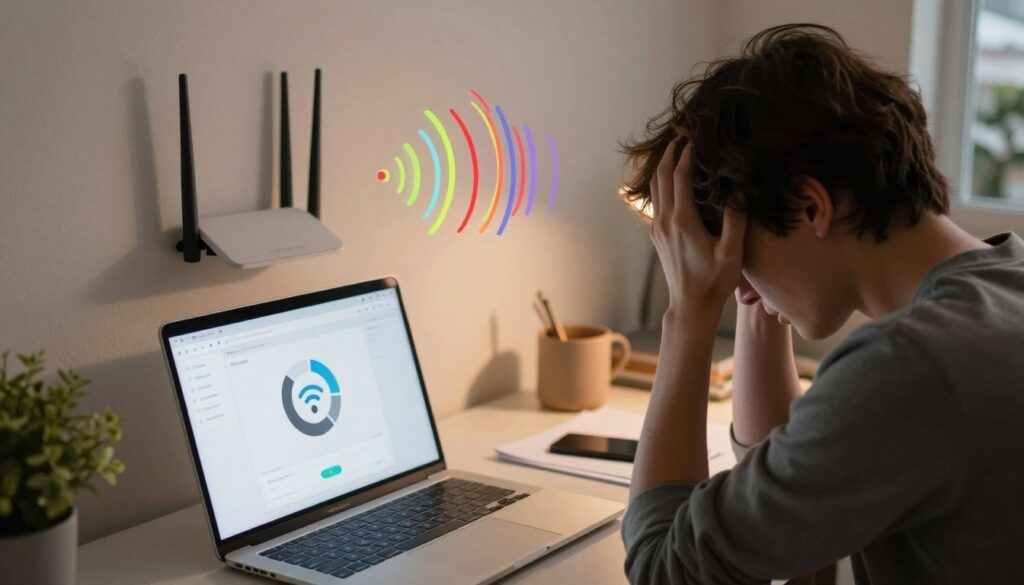
Think of Wi‑Fi as radio, not a private wire. A neighbor’s router, cordless phones, and smart devices all use radio channels that can clash. This reduces real-world speed and can cause dropouts.
This guide shows how to tell a local wireless problem from an ISP outage. You will learn quick checks and built-in tools to confirm the cause. Later sections cover channel choice, 5 GHz vs 2.4 GHz, router placement, firmware updates, and when to plug in Ethernet.
With more people and smart devices online these days, contention rises and the issue becomes more noticeable. Most fixes work at the home network layer, so switching providers is rarely needed.
Key Takeaways
- Overlapping signals in dense areas often cause slow or unstable service.
- Wireless works like radio—nearby networks and devices can clash.
- Simple checks can separate a local problem from an ISP outage.
- Quick fixes include channel changes, using 5 GHz, and better placement.
- Most improvements happen without changing your internet provider.
Why neighbor Wi‑Fi can slow your internet in apartments and dense neighborhoods
Apartment living often puts dozens of local wireless networks into a small airspace, creating a crowded signal environment. In that shared radio spectrum, devices and routers must wait to transmit, so overall throughput drops as contention rises.
2.4 GHz vs 5 GHz: The 2.4 GHz frequency travels farther and penetrates walls in a house or apartment, but it also fills up fast. The 5 GHz band usually has more channels and less congestion, so it performs better in dense areas.
What Else Would You Like to Know?
Choose below:
The local medium behaves like a congested highway. Even when each neighbor pays for their own plan, competing networks force retransmissions and airtime delays that slow real-world speed.
Co‑channel vs adjacent‑channel effects
In the U.S., 2.4 GHz commonly uses 11 channels. Co‑channel occurs when multiple networks share one channel; devices take turns but can still work acceptably. Adjacent‑channel overlap happens when networks use overlapping channels and their signals collide, often causing worse performance.
Simple actions—picking non‑overlapping channels and placing your router away from shared walls—reduce contention and give your devices more clean airtime.
Symptoms that point to interference instead of an ISP outage
You can spot local signal congestion by the times your apps slow down the most. These signs help you tell a local problem from a provider outage.
Speed drops tied to predictable times
Speeds that fall on evenings or weekends often match peak household time windows. When many devices compete, overall throughput falls and latency rises.
Streaming buffers, stalled pages, and reconnect loops
If videos buffer, websites pause mid-load, or a single device keeps reconnecting, the issue is usually local. Retransmissions can create “connected but no internet” messages and poor performance in apps.
Dead zones and sudden signal strength changes
Walking from room to room and seeing the signal strength jump or drop quickly points to local blockage, multipath, or nearby radios. Wired devices still working is a key clue that the provider is not down.
- Measurable outcomes: lower speed numbers, higher latency, and inconsistent performance across devices.
- Quick check: if Ethernet devices stay online while wireless devices struggle, the fault is local.
| Symptom | Likely local cause | Measurable sign |
|---|---|---|
| Evening slowdowns | Many nearby devices active at the same time | Lower speed tests and higher ping |
| Buffering video | Retransmissions and airtime contention | Spikes in latency and dropped packets |
| Sudden signal drops | Local obstruction or multipath | Rapid changes in signal strength indicator |
| Only wireless affected | Local radio problems | Wired connection remains stable |
How to confirm wifi interference neighbors are the problem
Begin with a simple distance test: measure speed at the router and again in distant rooms. Use the same device and the same test server for both runs to get comparable data.
If near-router numbers are strong but fall sharply across rooms, the likely problem is local radio congestion, an obstruction, or both. That rules out a plan-wide outage.
Visualize crowded channels
Install a Wi‑Fi analyzer to map overlapping networks and see which channels are busiest. Focus on 2.4 GHz first; it fills up fast.
Windows workflow
Run WifiInfoView, scan nearby networks, and sort by the Channel column. Look for heavily used channels that overlap your SSID.
Mac workflow
Option-click the Wi‑Fi icon → Open Wireless Diagnostics → Window → Scan → Scan Now. Follow the recommended 2.4 GHz and 5 GHz channels.
“Capture before/after numbers so you can prove a change helped.”
Check your own devices for backups or streams that hog bandwidth. Also verify antennas, placement, and router updates; loose or blocked antennae cut link strength and throughput.
| Check | Action | What it shows |
|---|---|---|
| Baseline speed | Test near router, then farther | Distance vs local signal issues |
| Channel scan | Use analyzer or OS tools | Crowded vs free channels |
| Device audit | Stop backups/streams briefly | Internal congestion vs external |
Quick fixes that usually improve signal strength and network performance
Small changes at the router can often deliver the biggest boosts to a struggling home network. Start with the highest-impact steps and measure after each so you know what helped.
Switch channels (or enable auto-select)
Change your router’s channel or let it auto-select to avoid crowded airspace. A better channel reduces co‑channel and adjacent‑channel problems and often shows immediate gains on a speed test.
Move compatible devices to 5 GHz
Shift phones, laptops, and streaming boxes that support 5 GHz to that band. 5 GHz sees less congestion and can improve connection consistency, though range is shorter.
Router placement that improves coverage
Place the router centrally and elevated, with antennas upright when applicable. Keep it away from large metal things like filing cabinets and AV racks that cut signal strength.
Update firmware for stability and security
Check router updates regularly. New firmware often fixes bugs that mimic drops and poor performance.
Use wired Ethernet for stationary devices
Whenever possible, connect desktops, smart TVs, and game consoles by Ethernet. This is the most reliable way to bypass wireless issues and stabilize the network.
“Measure results after each change so you can identify which step made the biggest real‑world improvement.”
- Order of impact: channels → 5 GHz moves → placement → firmware → Ethernet
- Verify each change with the same speed test and location
Non‑Wi‑Fi sources that interfere with wireless signals inside your home
Not all signal problems come from routers—common household gear often shares the same radio space. This section lists frequent culprits and simple tests you can run to find the root cause.
Microwaves and Bluetooth on 2.4 GHz
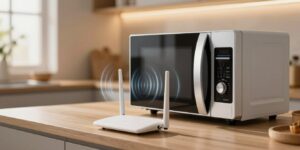
Microwave ovens and Bluetooth both operate near the 2.4 GHz frequency, so they can crowd the band and cause momentary slowdowns. Quick test: run a speed test, then start the microwave and repeat. If speeds drop, the appliance is the likely cause.
Cordless phones, monitors, and other radio emitters
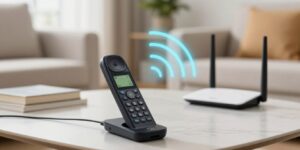
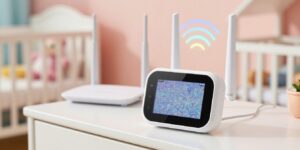
Older 2.4 GHz cordless phones, baby monitors, and some wireless cameras can create sporadic drops. A practical fix is to replace cordless handsets with DECT (1.9 GHz) or 900 MHz models to reduce overlap.
Building materials and structures
Concrete, brick, metal, and tinted glass block or weaken signals more than drywall. Elevators and large metal cabinets can act as near-total blockers in some layouts.
Example: move the router a few feet from metal surfaces, raise it higher, then re-test to see if the wall or material is the main problem.
Environmental factors
Trees, heavy rain, snow, and strong winds can absorb or scatter signals during outdoor links or longer hops. These effects grow more noticeable over distance.
- Check antennas: a blocked or misaligned antenna on a client or router lowers link quality and magnifies other radio issues.
- Actionable steps: relocate equipment a few feet, change bands where possible, and keep known emitters—like monitors and ovens—away from access points.
Conclusion
,When many people and devices share close quarters, small adjustments can restore reliable performance.
Core takeaway: neighbor networks in dense U.S. buildings often cause congestion, but targeted steps usually improve speed and performance.
Diagnose first: run baseline tests near and far, scan channels, then change one setting at a time and record the data. This approach shows what truly helps.
Most reliable fixes: pick less crowded channels, move compatible kit to 5 GHz, place the router centrally and away from metal, keep firmware current, and use Ethernet for key devices.
If those steps don’t solve the issue, consider a mesh system, an extender, or a professional survey for multi‑unit buildings. Small changes—raising a router, switching a busy channel, or wiring a smart TV—often deliver immediate, measurable gains.
FAQ
What causes neighbor Wi-Fi to slow my internet in apartments and dense neighborhoods?
Why does the 2.4 GHz band get congested faster than 5 GHz?
What’s the difference between co-channel and adjacent-channel problems on 2.4 GHz?
How can I tell if the issue is interference and not my ISP?
What quick tests confirm nearby networks are the problem?
Could my own devices or router be causing the slowdowns?
What simple changes usually improve signal strength and performance?
Are there non‑wireless sources inside the home that can degrade wireless signals?
When should I consider replacing my router or adding hardware to help?
Can adjusting antenna placement really make a difference?
Is it safe to ask neighbors to change settings or share channels?
How can I prioritize important devices or traffic to reduce interruptions?
What role do firmware and driver updates play in performance?
When is professional help or an ISP tech visit warranted?
Bluetooth Interference With Wi-Fi: When It Happens and How to Avoid It
» See exclusive tips for your home