Wi-Fi Lag in Games: How to Reduce Ping Spikes and Jitter
Eliminate wifi lag in games and enjoy seamless gaming. Our guide provides actionable advice on reducing ping spikes and jitter.
Lag is the delay between your action and the server’s response. It shows up as freezing, rubber-banding, delayed shots, or sudden ping spikes that change what happens on-screen after you press a button.

This guide focuses on real fixes for typical U.S. home networks, not just buying faster internet. You will learn how to tell whether the problem comes from your wireless, router settings, household congestion, server distance, or your ISP.
Ping is measured in milliseconds (ms); lower numbers mean a more responsive match. In close fights, the server that registers an action first wins — so stable ping often matters more than raw download speed.
We’ll walk through a clear path: measure your baseline, cut household congestion, optimize router placement and channel choices, and use Ethernet when consistent performance matters. Steps apply to PC, PlayStation, Xbox, and Switch setups.
Key Takeaways
- Lag and ping affect outcomes in competitive play; lower ping improves responsiveness.
- Start by measuring your connection to find spikes and jitter.
- Household congestion and router placement are common causes you can fix.
- Optimize bands, channels, and settings before upgrading service.
- Use wired Ethernet for the most consistent results when possible.
What lag, ping, latency, and jitter mean for your gaming experience
The core of real-time play is a round trip: your input travels to a server and then back to your screen.
Ping measures that round-trip time in milliseconds. Latency is the delay you feel, and jitter is how much that delay jumps around. All three shape your actual play.
What Else Would You Like to Know?
Choose below:
Why online matches lag: the action → server → response loop
When you press a button, your device sends a packet to the server. The server processes actions and sends updates back. The total time for that trip is what matters for responsiveness.
What good ping looks like
| Category | Ping (ms) | Player experience |
|---|---|---|
| Excellent | ~20 ms | Very responsive; hits and movement feel instant |
| Good | Under ~50 ms | Smooth play for most players |
| Noticeable | ~100 ms | Delayed reactions; missed timing common |
Why fast internet speed alone won’t fix high latency
High Mbps helps downloads, but routing distance, device hardware, and household congestion often drive latency more than raw internet speed. You can have high throughput but still see spikes and multi-second delays that ruin your match.
Why you get wifi lag in games in the first place
Common household causes usually create sudden spikes or jitter that feel like delays. Many of these are easy to spot once you know the usual culprits.
Bandwidth strain and device contention
Streaming video, video calls, and big downloads can use far more bandwidth than a match needs. When someone watches HD video or runs backups, ping and jitter can jump and actions feel delayed.
Too many active devices also matter. Every phone, streaming stick, and smart gadget competes for airtime, creating contention that raises packet loss and spikes.
Interference and physical signal blockage
Walls, floors, and dense furniture weaken wireless signal and increase packet retries. That loss shows up as rubber-banding or sudden stutters during play.
Household electronics—microwaves, cordless phones, and some speakers—add noise that causes packet corruption and higher latency.
Distance, routing, and server location
Data takes more time when it must travel farther or through many network hops. The farther the game server, the higher the baseline ping and the more likely you’ll see spikes.
Old or overloaded networking gear
Outdated routers or firmware can fail under modern device counts. Aging hardware often creates inconsistent performance even on fast broadband plans.
Symptoms to watch for: sudden ping spikes, rubber-banding, and delayed actions often point to one of the issues above.
| Cause | Common symptom | Quick fix |
|---|---|---|
| Streaming/downloads from another device | High ping spikes during play | Pause or schedule heavy transfers; limit quality |
| Many connected devices | Inconsistent jitter and packet loss | Disconnect unused devices; prioritize gaming traffic |
| Signal blockage or electrical interference | Weak signal, sudden drops, packet retries | Move device closer; relocate router away from appliances |
| Faraway or poorly routed server | Consistently high base ping | Try a closer server or use a wired link; contact ISP if routing is poor |
| Old router or outdated firmware | Random disconnects and unstable performance | Update firmware or replace hardware (≈5 years) |
Diagnose the problem before you change settings
Start by measuring your internet connection so you can see patterns instead of guessing at causes.
Run speed tests and track results at different times of day
Run a speed test that shows download, upload, and ping. Record the number and the time of day so you can spot peak-hour slowdowns.
Test multiple times: morning, afternoon, and evening. Peak household use often causes worse performance than off hours.
Compare wireless vs Ethernet to pinpoint issues
Repeat the same test on a wired link using an ethernet cable. If the wired result is stable but the wireless one spikes, the problem is likely the router, bands, or interference.
Check for ISP or regional service disruptions
If both wired and wireless tests show low internet speed and high latency, check your ISP outage page or regional service notices. Many problems are upstream and require provider action.
- Baseline process: run tests, note download/upload/ping, and save results.
- Device checklist: test from the same device or console, close background downloads, and pick the same server region.
Reduce network congestion at home to lower ping and reduce lag
A quick way to make online play steadier is to cut competing traffic on your home network. Fewer simultaneous heavy transfers often gives a more consistent ping than higher raw download speed.
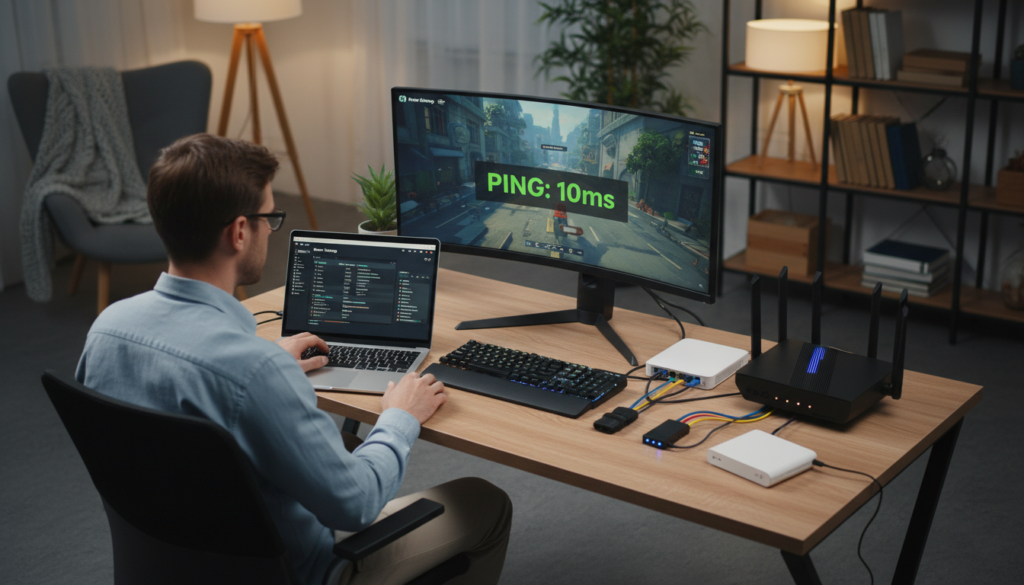
Close bandwidth-heavy programs and paused downloads
On PC, quit streaming apps, pause cloud sync, and stop large downloads before matches. Paused files can resume and spike your internet connection without warning.
On consoles, check for game and system updates. Background updates can silently use bandwidth and create mid-match spikes.
Disconnect unused devices and IoT gear
Remove extra phones, tablets, smart TVs, and cameras from the network when you play. Each active device adds airtime contention and raises packet retries.
Schedule updates and big transfers outside play
Set OS, console, and app updates to run overnight or during work hours. Large file transfers and backups should not overlap with peak gaming sessions.
| Action | What it fixes | Outcome |
|---|---|---|
| Close streaming/cloud apps | Reduces sustained bandwidth use | Fewer ping spikes; steadier performance |
| Disconnect idle devices | Lowers contention for airtime | More consistent connections and fewer packet drops |
| Schedule updates | Prevents surprise background downloads | Predictable sessions and better hit registration |
Optimize your router and Wi‑Fi signal for more stable gaming
A few simple tweaks to placement and settings can make your home network far more reliable for play.
Move the console or PC closer when possible. Shorter distance means a stronger connection and fewer retransmits that cause high ping.
Place the router where it can breathe
Put the router on a high, open shelf—not inside a cabinet. Signals tend to angle downward, so elevation helps coverage and overall performance.
Use 5 GHz and tune channels
Switch to 5 GHz if your device is near the router. It usually faces less interference than 2.4 GHz and can cut spikes. Try different channels to avoid neighbors and noisy electronics.
Restart, update, and maintain
Unplug the router for about 30 seconds, then plug it back in to clear cache and refresh the internet connection. Check for firmware updates via the maker or your ISP app.
Clean vents, aim antennas toward your gaming area, and keep the unit cool to maintain steady performance.
“Regular maintenance and smart placement often fix more issues than upgrading service.”
| Action | Why it helps | Expected result |
|---|---|---|
| Move device closer | Stronger signal, fewer retries | Lower ping and fewer drops |
| Switch to 5 GHz / change channel | Less interference from neighbors | Smoother gameplay and steadier speed |
| Restart and update firmware | Clears cache and improves routing | Fixes transient problems and boosts reliability |
| Clean/aim antennas | Better directional signal | Improved coverage to the device |
| Replace >5-year-old router & enable QoS | Modern hardware handles more data; QoS prioritizes game traffic | Consistent low ping and better gaming performance |
Use a wired connection when you need the most consistent performance
When consistency matters most, a wired link removes a lot of home-network guesswork.
Why go wired for competitive play
Ethernet and an ethernet cable cut out radio interference and provide far fewer drops than wireless. That usually yields lower ping and steadier latency for your console or PC.
Use a cable if you play ranked matches or shooters where timing decides outcomes. A direct connection often fixes the most common in-home performance problems quickly.
Practical benefits and quick setup
Benefits are clear: fewer disconnects, less interference, fewer spikes, and typically reduced latency because the link isn’t competing for airtime.
Setup is simple: run an ethernet cable from your device to the router, pick a LAN port, then retest ping and play a few rounds to confirm improvement.
Powerline adapters when running cable isn’t practical
Powerline adapters use your home electrical wiring to carry network traffic and can reach roughly ~200 Mbps on many installs. They often beat wireless for stability when a long cable isn’t an option.
Expect variation: performance depends on wiring quality and whether outlets share the same circuit. Still, they reduce many interference-related issues common with wireless links.
“Switching to a wired link removes the most common in-home causes of unstable performance.”
| Option | Typical benefit | When to choose |
|---|---|---|
| Ethernet cable | Lowest interference; steady latency | Competitive play or dedicated gaming setup |
| Powerline adapter | Better than wireless in many homes; easy install | No practical way to run a long cable |
| Wireless (for reference) | Convenience; flexible placement | Casual play or mobile devices |
After switching, monitor a few matches and log your ping. Wired setups still face distant server or ISP routing issues, but you will have removed the most common in-home variables.
Conclusion
Stable matches come from predictable network habits, not chasing raw numbers.
Most lag stems from jitter and unstable latency caused by congestion, interference, distance to a server, or aging gear.
Measure first: compare ping over wireless and Ethernet to see whether you should tune local settings or contact your ISP about routing to the server.
Top wins are simple: cut background traffic, place gear sensibly, use 5 GHz or a wired link, keep firmware current, and restart equipment when needed. Use Ethernet or powerline when you need truly consistent results.
Pick the closest game server when possible. The goal is reliable, responsive play—not perfect scores. Stable ping makes matches feel fair and consistent.
FAQ
What do ping, latency, and jitter mean for my gaming experience?
Why does my online game show a delay between my action and the server response?
What is considered a good ping value and why does lower ping matter in competitive matches?
If I have fast internet speed, why do I still experience high latency?
What common home causes produce network problems during play?
How does distance to the game server affect my ping?
What steps should I take to diagnose network issues before changing settings?
How do I compare wireless versus wired performance effectively?
How can I reduce congestion at home to improve responsiveness?
What router optimizations help stabilize connections for gaming?
When should I replace my router to get better results?
Is a wired connection always better for consistent performance?
What if I can’t run an Ethernet cable to my gaming setup?
How can I check whether my ISP is causing high latency?
Why Wi-Fi Gets Slower at Night and What You Can Do
» See exclusive tips for your home