Why Wi-Fi Signal Strength Fluctuates
Learn why your wifi signal fluctuates and discover simple steps to stabilize your wireless connection for a smoother online experience.
Intermittent bars, sudden buffering, and dropped calls are signs your home network is not steady. Many people assume plan speed is the culprit, but often the root cause is local — router placement, competing networks, or radio interference.

Run repeat speed tests on wired versus wireless connections and at different times of day. That simple habit reveals patterns and helps isolate whether the issue sits with your ISP or inside your home.
Home wireless radios react to distance, walls, and nearby devices. Co‑channel and adjacent‑channel interference, plus non‑Wi‑Fi sources like Bluetooth and microwaves, can change performance minute to minute.
This article lays out fixes in priority order: placement and layout, interference and congestion, channel and band tuning, router firmware and settings, device checks, and ISP limits. Change one thing at a time, re‑test, and document results to prove where the problem lives.
Key Takeaways
- Test wired vs. wireless repeatedly to spot patterns.
- Router placement and firmware often fix more than higher plan speed.
- Interference from neighbors and appliances can harm performance.
- Adjust channels and bands before buying new hardware.
- Change one variable at a time and record results for clear diagnosis.
Spot the Difference Between Wi‑Fi Signal Issues and Internet Speed Issues
First, run multiple tests from a wired device and from the same device on wireless to map patterns. Record timestamps and whether the test used Ethernet or a wireless connection. This creates a clear baseline you can compare later.
Run speed tests on Wi‑Fi vs Ethernet to isolate the problem
Do at least three tests on wireless, then repeat them on Ethernet. If the wired connection stays steady while the wireless swings, the router, placement, channels, or interference are likely causing the issue.
What Else Would You Like to Know?
Choose below:
Look for time-of-day patterns that point to peak-hour congestion
Repeat tests morning, afternoon, and evening for several days. Consistent slowdowns at similar times often mean ISP congestion or shared neighborhood bandwidth.
Check whether the slowdown is site/server-related vs your home network
Test multiple services — a streaming app, a VPN, and a speed test. If only one service lags, the overloaded server is the culprit, not your network. Capture screenshots and notes to share with support.
Quick interpretation table
| Test Pattern | Likely Cause | Next Step | Evidence to Capture |
|---|---|---|---|
| Ethernet stable, wireless variable | Router placement / interference | Move router, change channels | Wired vs wireless test screenshots |
| Both wired and wireless slow at same times | ISP or neighborhood congestion | Contact ISP; test at different hours | Timestamps showing repeated slow periods |
| One app slow, others fine | Server/site overload | Try alternate server or wait | App performance logs and test results |
| High download but high latency | Bandwidth vs responsiveness mismatch | Check latency, switch to wired for critical apps | Ping and jitter values |
Router Placement and Home Layout Factors That Weaken Signal Strength
Before tweaking firmware or channels, try moving the router to a better spot in the home. A quick relocation often improves range and performance across multiple areas.
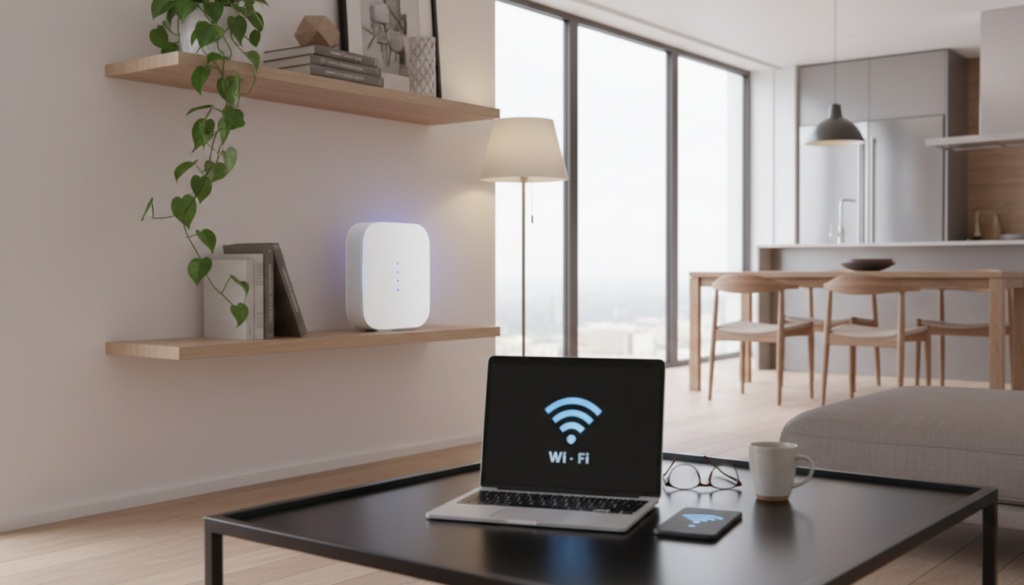
Choose a central, elevated, open location for better range
Place the router on a shelf or table near the center of the house. Elevation helps reach more rooms and reduces dead spots on other floors.
Avoid signal blockers like thick walls, concrete, metal, mirrors, and furniture
Building materials are major factors that reduce signal strength. Concrete, metal studs, and large mirrors reflect or absorb waves and create pockets with poor performance.
Reduce kitchen and appliance interference, including microwave disruption
Keep routers out of kitchens and away from large electronics. Microwaves and some appliances create short bursts of interference that feel random.
Adjust router antennas for more consistent wireless coverage
Point external antennas vertically for broad horizontal coverage. For homes with multiple floors, try one vertical and one angled to spread the range up and down.
Move it first: after relocating, run the same tests in each room to confirm improvements. In large or multi-level homes, adding access points or a mesh system is the usual next step.
Why wifi signal fluctuates in Crowded Areas: Interference and Wireless Congestion
When dozens of networks overlap in a small area, performance can swing wildly even with good hardware.
Interference is simply other transmitters sharing the same airwaves. In dense places, competing networks and many wireless devices make connections jumpy. This creates short drops, higher latency, and uneven speeds.
Co‑channel interference
Co‑channel interference happens when nearby networks use the same channel. Devices must “take turns” to transmit. That reduces reliability and increases delays, even if bars look decent.
Adjacent‑channel interference
Adjacent channels overlap. Think of two radio stations bleeding together. Overlap causes errors and retransmits, which make the connection unstable.
Non‑Wi‑Fi interference and dense housing
Bluetooth, cordless phones, some lighting, and kitchen appliances can disrupt transmission because they operate near the same frequency ranges.
Apartment buildings and dense neighborhoods amplify congestion. Dozens of routers crowd limited channels, so the best first step is choosing better channels and bands before buying new gear.
Optimize Router Channels and Bands for More Stable Connectivity
Pick the best frequency band and channel to cut interference and steady your home network. Choosing the right band and channel reduces congestion and improves speed reliability for everyday tasks such as streaming and downloads.
Understand 2.4 GHz vs 5 GHz tradeoffs
Use 2.4 ghz when you need longer range through walls. It travels farther but has only three non-overlapping channels, so it often faces heavy congestion.
Prefer 5 GHz for better speeds and reliability at close range. It offers many more non-overlapping channels and typically reduces interference in crowded neighborhoods.
Find the least crowded channel and change it
Install a Wi‑Fi analyzer (Microsoft Store or NirSoft WifiInfoView) to view channel overlap. Pick the clearest channel shown and note whether devices improve.
Log into your router admin page (example: routerlogin.net, tplinklogin.net, or 192.168.1.1). In Wireless or Advanced settings, set the router channel, save, and reboot for a clean restart.
Troubleshoot band steering and expectations
If devices keep bouncing between bands, disable band steering so 2.4 GHz and 5 GHz appear as separate SSIDs. Then connect devices intentionally for better stability.
Success looks like fewer disconnects and steadier latency, not just a higher peak download number.
Check Router Settings, Firmware, and Hardware Limits
Start by logging into your router dashboard — updates and tweaks often restore steady network performance.
Treat firmware like any other system update. Outdated firmware can cause bugs, drops, and security gaps that reduce overall performance.
Update firmware and confirm basic settings
Log into the admin page, check for firmware updates, install the latest version, and restart the device to apply changes cleanly.
Also review wireless and QoS settings so the router prioritizes critical devices and avoids misconfigurations that harm the network.
Verify hardware can support your plan
Compare your internet plan’s rated speeds with the router’s real throughput and Wi‑Fi standard. If the router tops out below your plan, it becomes the bottleneck.
Spot aging hardware and decide on upgrades
Signs of an old router include frequent reboots, overheating, poor multi-device performance, or weak 5 GHz throughput. Try settings and firmware first.
If limits remain, consider newer routers that support modern standards; Wi‑Fi 6/6E gear can help in dense homes but upgrading should follow confirmed testing as the final solution.
| Check | Why it matters | Action |
|---|---|---|
| Firmware | Fixes bugs, improves stability | Update log in admin → install → restart |
| Settings | Misconfigs reduce throughput | Review SSID, channels, QoS, band selection |
| Hardware limits | Router max throughput may be lower than plan | Compare specs to plan; test wired vs wireless |
| Age signs | Overheating or frequent drops indicate failure | Test performance; replace if proven bottleneck |
Device and Cable Culprits That Cause Fluctuating Wireless Performance
Many household devices quietly compete for the same bandwidth and can make connections feel unreliable.
How too many connected devices strain bandwidth and raise latency
As more devices join the network—TVs, phones, cameras, and smart speakers—the router must share capacity. That contention raises latency and can make performance uneven even when plan speeds stay the same.
Quick isolation step: temporarily disconnect heavy-usage devices. If performance steadies, use QoS or limit simultaneous streams as a long-term solution.
Malware and background processes that quietly steal internet
Hidden apps and malware can consume bandwidth without obvious signs. Watch for constant CPU use, overheating, or fans running when idle. These are clues that a device is using the connection in the background.
Action: run reputable antivirus and malware scans, update the OS, and change weak router passwords to reduce repeat slowdowns.
USB 3.0 devices and unshielded cables that emit interference
Unshielded USB 3.0 ports and cheap cables can radiate in the 2.4 GHz band and cause local interference. Move dongles away from antennas, use shielded cables, or add short extension cables to increase distance and avoid interference.
When to switch to Ethernet for the most stable connection
For gaming PCs, workstations, and streaming boxes that stay put, wired Ethernet is the most reliable choice. It delivers lower latency, higher stability, and removes many device and cable interference variables instantly.
| Problem | Likely Culprit | Quick Fix | When to Upgrade |
|---|---|---|---|
| High latency with many devices | Bandwidth contention | Disconnect or pause heavy devices | Enable QoS or add access points |
| Slow internet on one computer | Malware or background process | Run scans; close background apps | Reinstall OS or replace failing device |
| Intermittent drops near USB gear | Unshielded USB 3.0 cables | Move devices; use shielded cable | Replace noisy peripherals |
| Need steady low-latency connection | Wireless variability | Switch to Ethernet | Hardwire critical devices |
When the Problem Isn’t Your Router: ISP Throttling, Network Congestion, and Service Type
If wired tests still show large swings, the cause often sits with your service provider or the local backbone. That is when you stop chasing home gear and start tracing the issue upstream.
How different service types affect stability
DSL depends on copper quality and distance; performance drops with long loops. Cable is shared, so local congestion at peak hours is common. Satellite adds weather-related drops and high latency. Fixed wireless needs clear line of sight. Fiber is usually the most stable where available.
Signs of throttling or data caps
Look for repeat slowdowns at the same evening times, streaming quality drops, or softened speeds after heavy use. Check your contract for “traffic management” or cap clauses.
What to collect and ask before calling
- Collect timestamped speed tests (note wired vs. wifi and device used).
- Take screenshots and record multiple tests across days.
- Ask the ISP to confirm your provisioned plan, run a line test, and check for local outages or congestion in your area.
Set expectations: fixes may require a higher tier, new provider equipment, or switching to fiber or another access type if available in your area.
Conclusion
Conclude diagnostics with a clear wired-versus-wireless comparison to pinpoint where issues begin.
Follow this order: test Ethernet then wireless, improve router placement and layout, reduce interference, tune channels and bands, update firmware and settings, and check hardware limits. Move one factor at a time and record results.
If Ethernet stays steady but wireless drops, the cause is likely local interference, placement, or congestion. If both link types falter, collect timestamped tests and contact your provider with evidence.
Keep firmware current, re-check channels in dense areas, and reassess as you add devices. For critical systems, use Ethernet or consider modern routers or a mesh system to lock in reliable connectivity and better overall performance.
FAQ
Why does my Wi‑Fi signal strength change throughout the day?
How can I tell if the issue is my network or my internet service?
What router placement helps improve range and reliability?
Which household items commonly block or disrupt wireless performance?
How does interference in crowded areas cause problems?
When should I use 2.4 GHz versus 5 GHz?
How do I pick the best wireless channel for my router?
What router settings and maintenance steps improve stability?
Could my router hardware be the reason for poor performance?
How do connected devices and cables affect wireless performance?
When should I switch to Ethernet for a device?
How do different ISP technologies affect connection stability?
What are signs my ISP might be throttling my connection?
What should I ask my ISP when reporting issues?
Apartment Wi-Fi Problems: What Makes Signal and Speed Worse
» See exclusive tips for your home