Why Wi-Fi Gets Worse Near TVs and Entertainment Centers
Improve your wifi signal near TV with our expert guide. Learn how to minimize interference and optimize your wireless network for better performance.
Modern living rooms often host a router, smart devices, and a mounted screen all in one spot. This cluster creates interference and physical barriers that cut wireless range and drop throughput. Smart sets and streaming apps show the problem first because they need steady bandwidth.
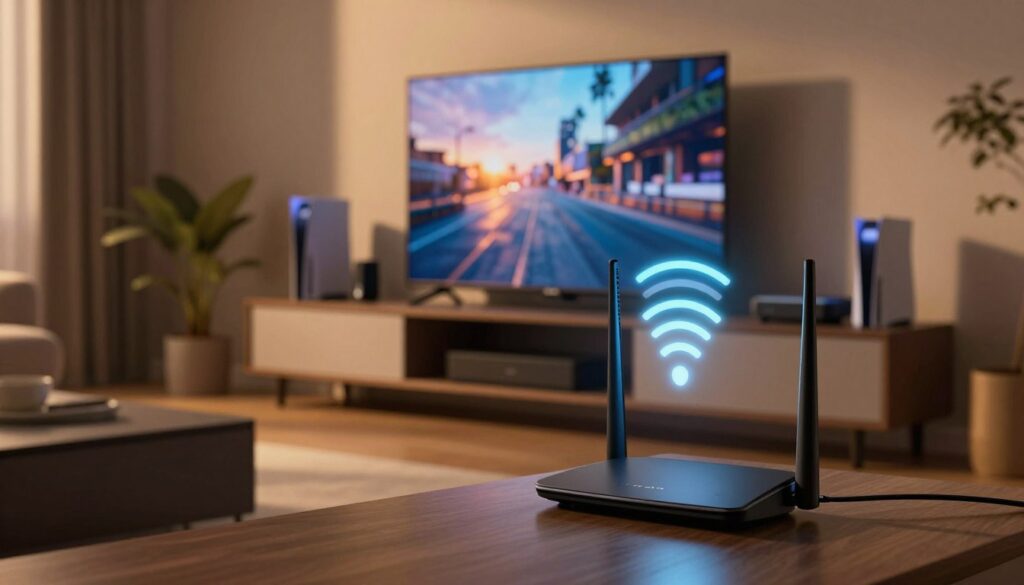
Think of the problem as layers: cabinets, wall mounts, and metal brackets block radio waves. Multiple gadgets and adapters add competing transmissions. The result is choppy playback, longer app loads, and random disconnects even when other rooms seem fine.
This short guide will help you confirm the issue, reduce interference, and improve router placement for better connection and performance in the home. You’ll get practical checks and simple fixes before buying new gear. The approach suits typical U.S. living rooms and uses only basic tools like a speed test and your router’s settings page.
Key Takeaways
- Entertainment centers concentrate electronics and materials that block wireless paths.
- Smart screens reveal instability first because streaming needs steady throughput.
- Start with placement and interference checks before upgrading hardware.
- Small moves—raising a router or opening a cabinet—often boost performance.
- Focus on stability as well as raw speed for smoother viewing.
Why TVs and entertainment centers can weaken Wi‑Fi performance
When many devices share the same space, the radio links that carry video and apps suffer from interference and dropouts.
How it works: Wi‑Fi sends data as radio waves between your router and devices. Distance, walls, and nearby electronics create noise that reduces throughput and degrades connection quality.
Electronics crowding and interference
Entertainment centers commonly host a smart set, streaming stick or box, soundbar, wireless subwoofer, game console, Bluetooth speaker, and smart-home hub. Those devices compete for airtime and add electromagnetic interference.
Why smart screens show problems first
Smart screens sit in one place and often have weaker receivers than phones or laptops. Streaming needs steady bandwidth, so buffering, low-resolution playback, app failures, and sudden disconnects appear sooner on these devices.
- Interference — competing electronics create noise.
- Attenuation — cabinets, walls, and metal absorb or reflect radio waves.
- Congestion — too many active devices share the same channels.
Before moving gear, confirm the issue is local to the entertainment area and not an ISP outage. The next section shows quick checks to compare in-room speeds and isolate the problem.
Quick checks to confirm the problem is local to the TV area
Confirming whether the issue is local saves time; simple speed tests on different devices will show where performance drops occur.
Compare speeds on the screen and a phone or laptop in the same room
Run a speed test on the smart set (if available) and then on a phone or laptop while standing in the same room. Note download and upload results. If the phone posts higher speeds but the screen lags, suspect receiver limits, band selection, or interference around the entertainment unit.
Watch for peak-hour slowdowns versus steady weak performance
Test at different times. If internet quality dips only at night, congestion from multiple devices or ISP peak load is likely. If rates remain low all day, physical barriers or placement are the probable cause.
- Track results for a couple of days to spot patterns.
- Count active devices to estimate bandwidth sharing during streaming.
| Device | Download (Mbps) | Upload (Mbps) | Interpretation / Action |
|---|---|---|---|
| Smart screen | e.g., 10 | e.g., 2 | Low on screen — check band, receiver, or nearby electronics |
| Phone/Laptop | e.g., 85 | e.g., 20 | Good — issue isolated to room area or device |
| Other areas | e.g., 60 | e.g., 15 | Wider network weakness — consider router placement or upgrades |
Next: once you confirm the problem is local to the entertainment area, proceed to reduce interference from nearby devices and adjust placement.
wifi signal near tv: reduce interference from nearby devices
The fastest route to smoother streaming is often clearing competing electronics around the entertainment area. Reducing interference lowers the room’s noise floor so the router and streaming device can exchange data more reliably.
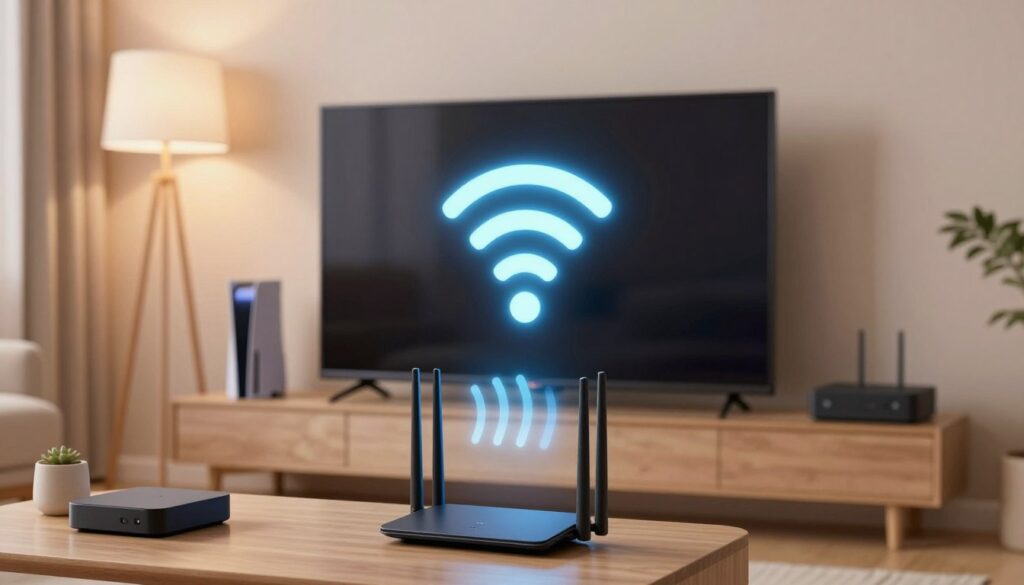
Create distance from soundbars, Bluetooth speakers, and wireless subwoofers
Place the TV’s networking device and streaming box at least a few feet from soundbars, Bluetooth speakers, and wireless subwoofers when possible. Even small distance reduces local interference and improves signal strength.
Keep the router and TV area away from microwaves and kitchen appliances
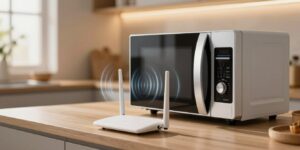
Microwave ovens operate around 2.4 GHz and can briefly disrupt wireless performance when active. Avoid siting the router or the main viewing wall directly adjacent to the kitchen.
Minimize interference from baby monitors, cordless phones, and wireless cameras
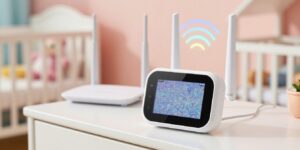
Old cordless phones and baby monitors can block transmissions, especially if placed between the router and the TV wall. Move or power down one device at a time to find the biggest culprit.
Reduce 2.4 GHz “crowding” from smart home devices when possible
Keep low-bandwidth sensors on 2.4 GHz but shift streaming gear to 5 GHz when the TV area is close enough. If a security camera sits near the screen, try relocating it or changing its band to cut constant local traffic.
- Quick test: power off one gadget, then recheck playback to isolate interference.
- Practical rule: maximize distance between noisy electronics and networking hardware.
Next step: after trimming interference, adjust router placement for the biggest overall improvement in home performance.
Router placement fixes that usually deliver the biggest improvement
Small changes in where you place your router often fix buffering and dropouts faster than buying new gear.
Core principle: choose a central, elevated location so coverage radiates evenly across the home. Aim for a spot that reaches the main living areas and devices, not just where the service line enters.
Place the router in a central location for even coverage
Positioning the router centrally reduces dead zones and keeps streaming devices in range. Coverage works best when the unit sits roughly midway between high-use rooms.
Keep the router elevated and out in the open
Put the router on a shelf or table, not on the floor. Elevation improves line-of-sight over furniture and cuts absorption by carpets and cabinets.
Avoid walls, corners, and enclosed spaces
Do not hide the router in a cabinet or entertainment stand. Walls, metal, mirrors, and large water features (like fish tanks) absorb or reflect signals and create obstacles.
Quick test: try two candidate placements for a week each and compare streaming stability and speeds at peak times. Better placement can also let you lower transmit power and reduce signal spill outside the home when used with strong security settings.
| Placement | Best for | Why it helps |
|---|---|---|
| Center of home | Even coverage | Reduces dead zones and evens distribution |
| High shelf or table | Line-of-sight | Limits absorption by furniture and floors |
| Away from metal/mirrors | Stable reception | Prevents reflections and signal distortion |
How walls and materials around the entertainment setup block Wi‑Fi signals
Dense building materials and fixtures matter more than distance.
Thick walls and metal fixtures create hidden barriers that reduce connection strength between your router and living-room areas.
Concrete, brick, and metal: the biggest signal killers
Concrete and brick absorb radio energy so much that even a nearby router will lose strength through them. Metal studs, metal-backed insulation, and fireplaces reflect and scatter signals, making coverage unreliable.
“Dense materials can turn an otherwise fine link into buffering and dropouts.”
Large furniture, cabinets, and appliances that quietly degrade connection quality
Bookcases, enclosed entertainment cabinets, and refrigerators act like extra walls. They can hide and block signals, even when the room looks open.
- Attenuation, simply: every wall or dense object between a router and a device reduces strength.
- Map which walls and floors sit between the router and your entertainment area.
- If the TV placement is fixed, improve router placement or add a node to avoid multiple obstacles.
| Material | Effect | Fix |
|---|---|---|
| Concrete / brick | High absorption, low strength | Move router to reduce intersecting walls or use wired node |
| Metal studs / fixtures | Reflection and scattering | Avoid direct line through metal; change placement |
| Large furniture / appliances | Partial blocking | Open cabinets, raise router, or add a mid-point node |
Optimize Wi‑Fi settings for better streaming near the TV
Tuning settings can restore steady playback without new hardware. Start with band choice, channel selection, and simple priority rules.
Choose the right band for range vs. speed
2.4 GHz gives better reach through walls but lower speeds. 5 GHz delivers higher throughput at shorter range.
Practical rule: if the screen buffers while 2.4 GHz reads strong, try 5 GHz for higher bandwidth. If 5 GHz drops through walls, switch back to 2.4 GHz for stability.
Pick a less congested channel
Channel crowding raises interference in dense neighborhoods. Use a channel scanner app to spot quiet channels.
Change the channel in your router settings and retest speeds after each change.
Enable QoS and keep software current
Turn on Quality of Service to prioritize the Smart TV or streaming device so video stays smooth when other devices load the network.
Also update router firmware and the TV’s system software. These updates fix bugs and often improve performance and compatibility.
| Action | Why it helps | Quick step |
|---|---|---|
| Switch band | Balances reach vs. throughput | Test 5 GHz, revert if drops |
| Change channel | Reduces local interference | Use scanner app, update router channel |
| Enable QoS & update | Prioritizes video and fixes bugs | Assign priority, apply firmware/OS updates |
Final steps: reboot router and the smart set after changes and recheck speeds so you know which steps improved the connection.
When placement isn’t enough: expand coverage the right way
If small moves and tuning don’t stop dropouts, widen your home’s reach with targeted hardware. Choose options that match layout, budget, and how many devices share service.
Wi‑Fi extenders placed halfway to the weak room
Extenders work best when you put them halfway between the router and the problem area. That location gives the extender a strong feed to rebroadcast, improving connection in rooms with poor reach.
Mesh systems with properly spaced nodes
Mesh systems use multiple nodes to deliver even coverage across floors. Space nodes so they can talk reliably; a practical guide is to keep nodes about 20–30 feet from major interference or large objects, per common vendor advice.
Powerline adapters and router upgrades
Powerline adapters carry an Ethernet-like connection over house wiring. Plug one adapter by the router and another by the screen for a stable link that bypasses walls.
If you stream 4K or run many devices, consider a modern router upgrade (Wi‑Fi 6/6E/7). A newer router and a proper system reduce dead zones and lift overall performance.
| Option | Best for | Why it helps |
|---|---|---|
| Extender | Single dead room | Extends reach without new backbone |
| Mesh system | Whole-home coverage | Consistent connections across floors |
| Powerline | Thick-wall homes | Stable wired-like link using outlets |
Make the TV setup more Wi‑Fi friendly
A few targeted tweaks to the screen’s setup will reduce obstacles and improve overall connection.
Avoid blocking the TV’s receiver with enclosed entertainment units
Focus on the immediate environment. Closed cabinets and stacked devices can cut reception and lower streaming quality. Open doors while testing and move set‑top boxes or streaming sticks out of tight compartments.
Watch for wall mounts and nearby metal that can degrade signal strength
Metal brackets and mounting plates can reflect and weaken the radio path. Keep the TV’s antennas and external streaming devices unobstructed by metal or large fixtures to preserve strength.
Prefer Ethernet for the most stable Smart TV connection
Wired ethernet delivers the most consistent speeds and avoids wireless interference. Run a flat Ethernet cable along baseboards or hide it in a cable raceway for a clean look when the router is in the same room.
If a cable run isn’t practical, consider powerline adapters as a fallback; they often give a more stable internet connection than a weak wireless feed. After any change, re-test playback on the apps that buffered to confirm the fix.
| Option | Best for | Why it helps |
|---|---|---|
| Ethernet | Stable high-bitrate streaming | Consistent connection and top throughput |
| Powerline | No cable route | Wired-like link using house wiring |
| Relocate devices | Minimal effort | Removes obstacles and boosts strength |
Conclusion
A few deliberate changes in placement and settings often restore steady playback within minutes.
Start by confirming the problem is local, then reduce competing electronics and reposition the router to a central, elevated, open spot. Account for walls and metal that block the signal.
Quick checklist: un-cabinet the router, separate noisy devices, switch bands or channels, enable QoS, and update firmware and software. If issues persist, add a mesh node, extender, powerline, or use Ethernet, or contact your service provider for line testing.
Choose reliability over hiding gear. Keep strong passwords and modern security. This guide follows placement and interference principles from trusted sources and pairs well with a router placement video for visual learners.
FAQ
Why does Wi-Fi get worse around TVs and entertainment centers?
How do other electronics in the TV area weaken performance?
Why do Smart TVs often show buffering or app failures first?
How can I check if the problem is only in the TV area?
What simple steps reduce interference from nearby devices?
Where should I place my router for the best home coverage?
Which building materials most block wireless performance?
Should I use 2.4 GHz or 5 GHz for the TV?
How do I choose a less congested channel?
What router settings help streaming stability?
When should I expand coverage instead of moving the router?
How do Wi‑Fi extenders and mesh systems differ?
Are powerline adapters a good choice for TV streaming?
Can mounting or furniture placement affect reception at the TV?
When should I consider a router upgrade?
Bluetooth Interference With Wi-Fi: When It Happens and How to Avoid It
» See exclusive tips for your home