Why Wi-Fi Signal Is Weak in Certain Rooms
Struggling with wifi signal weak in bedroom? This guide provides easy-to-follow tips to enhance your wifi signal strength and ensure a stable connection throughout your home.
Slow video, laggy games, or dropped calls are common signs that your home connection underperforms in one room. This guide begins with low-cost checks you can run now: simple placement tweaks, a quick router reboot, and choosing the right band.
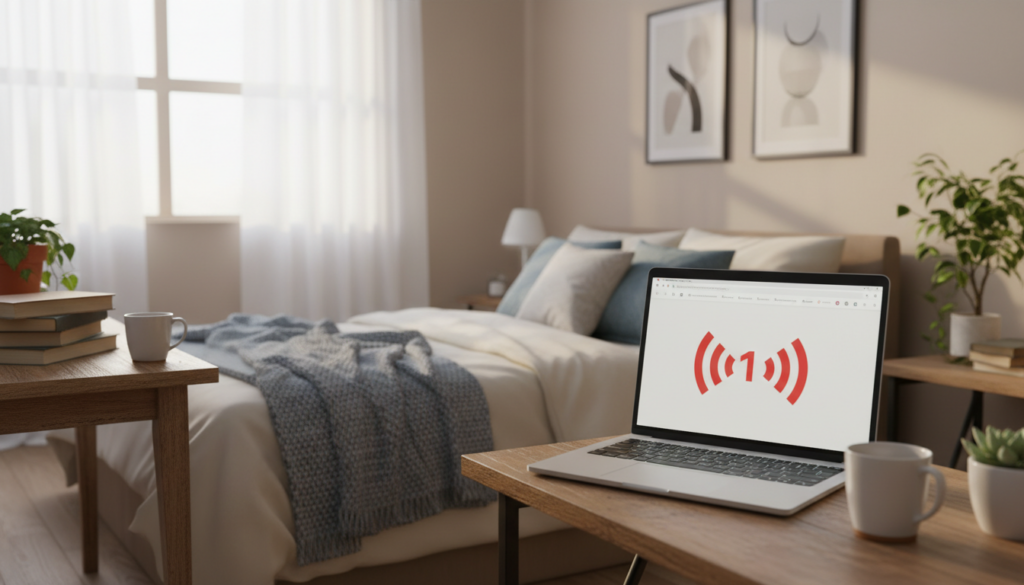
Bars on a device do not always match real speeds. We focus on measurable performance: speed tests, stability, and coverage rather than raw meter icons. That helps separate local coverage problems from an internet provider outage or peak-time congestion.
Common culprits include distance from the router, thick walls or metal, interference from other electronics, and many devices competing at once. Bedrooms often become dead zones because routers sit by TVs, tucked away, or blocked by furniture.
The goal is steady connections, not just peak numbers. Follow the step-by-step path ahead to improve coverage and reliability without buying new hardware right away.
Key Takeaways
- Identify symptoms: buffering, lag, and drops compared across rooms.
- Start with no-cost diagnostics: placement checks, reboots, and band selection.
- Use speed and stability tests to measure usable performance.
- Check physical barriers and interference before buying gear.
- Distinguish local coverage issues from ISP slowdowns.
What makes Wi‑Fi signal strength drop in specific rooms
Several physical and network factors can cause parts of your home to lose reliable coverage.
Distance and router placement
Devices far from the router see reduced performance. Hallways and closed doors make back areas prone to dead zones.
What Else Would You Like to Know?
Choose below:
Routers tucked in cabinets or at room edges often leave central spaces underserved. A more open, central location usually helps coverage.
Physical barriers and interference
Dense walls, brick, tile, and mirrors block transmissions and cut signal strength abruptly.
Metal ducts, large appliances, and common electronics like microwaves or cordless phones can reflect or absorb signals and cause sudden drops.
Congestion and ISP factors
When many devices are active throughout home, each one competes for bandwidth. High‑demand apps (4K streaming, backups) can slow a single room.
Also check internet speeds at peak time; provider congestion or throttling can mimic local coverage issues.
- Move the router to a central, open spot.
- Avoid metal and dense walls between devices.
- Test speeds during busy hours to rule out ISP limits.
| Cause | Typical effect | Easy check | Fix |
|---|---|---|---|
| Distance | Lower strength at range | Walk and test | Move router centrally |
| Walls/metal | Sharp drops, dead zones | Open doors test | Relocate or add node |
| Device congestion | Slower speeds under load | Check active apps | Limit heavy tasks or upgrade plan |
| ISP peak time | Overall slow internet | Run speed test at night | Contact provider or change plan |
wifi signal weak in bedroom: quick checks before you buy anything
Start with small, measurable steps that often restore normal internet performance quickly. These checks take minutes and narrow down whether the router, your device, or the provider is at fault.
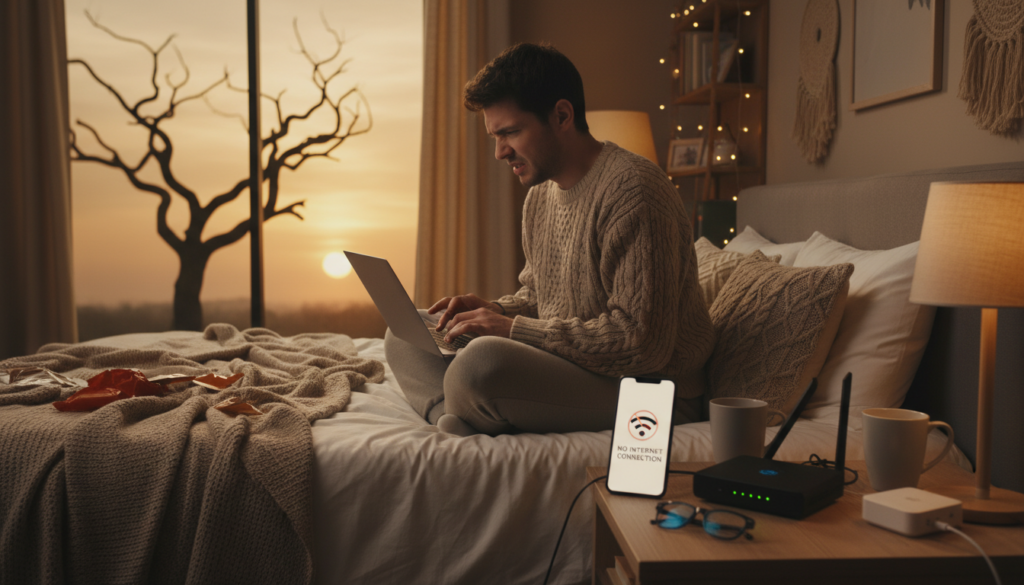
Restart modem and router
Five-minute reboot: unplug modem and router power, wait 60–90 seconds for a full power-down, then reconnect. Wait until lights stabilize before testing.
Run a speed test
Test from the affected room and again near the router to compare results. Use Speedtest.net or the router’s app and compare speeds to your plan to spot big gaps.
Check devices and security
Scan devices for spyware or viruses; background malware can hog bandwidth. Install pending OS, driver, and app updates that affect network performance.
- If slow across the home at the same time, suspect ISP congestion.
- Change the Wi‑Fi password and enable modern encryption to remove unauthorized users.
Decision point: if these steps don’t help the weak wifi signal in the bedroom, try placement changes before buying new hardware.
Optimize router placement for better coverage in the bedroom
The single highest-ROI change is moving your router to a better spot. A simple relocation can improve coverage across rooms without spending on new hardware.
Place the router in a central, open location with breathing room
Choose a central location so the connection has fewer walls to cross. Avoid closets, cabinets, and TV stands that trap signals.
Tip: even a few feet toward the home’s center can alter the path and reach more areas.
Position the router higher up and away from electronics
Mount on a shelf or wall so the range clears furniture and appliances. Keep it away from large speakers, TVs, and baby monitors that can interfere.
Adjust antennas and cut obstructions to boost range
Point external antennas upright for best general coverage and tweak one or two to favor problem rooms.
Reduce thick barriers between the router and the room. Then retest speed and connection stability from that room to confirm gains.
“Move, test, and repeat.” Small adjustments reveal what matters before you invest in new routers or mesh systems.
- Central location + height = biggest practical gain.
- Keep distance from other electronics and metal objects.
- After each change, run a speed and stability check in the affected area.
Next step: if placement improves range but performance still drops under load, switching bands or enabling advanced router features can help.
Use the right Wi‑Fi band and router features to improve performance
Match radio bands and modern router features to how you use devices. Choose range over raw speed when rooms are far, and favor higher-frequency bands for nearby devices that need faster throughput.
Band choice and a quick test
5GHz usually gives higher speeds with less interference but covers less distance. 2.4GHz travels farther and holds better through walls.
Test method: connect the same device to each band and run an identical speed test where performance matters. Pick the band with the best stable speed for that room.
Modern standards and helpful features
Upgrade to Wi‑Fi 6 or 6E for better bandwidth management when many devices are active. Look for beamforming and MU‑MIMO to keep multiple devices streaming or gaming smoothly.
Maintenance and larger homes
Keep router firmware current to fix bugs and improve security and performance. For large homes or heavy gaming, consider a long‑range router instead of older hardware.
“Small settings and newer standards often beat a costly replacement.”
| Feature | Benefit | When to use |
|---|---|---|
| 2.4GHz | Better range through obstacles | Far rooms or many walls |
| 5GHz | Higher speeds, less interference | Close rooms, gaming, 4K streaming |
| Wi‑Fi 6/6E | Improved efficiency with many devices | Homes with many smart devices |
| Beamforming / MU‑MIMO | Stronger focused coverage; simultaneous streams | Multiple users or devices active |
| Firmware updates | Performance fixes and security | Always, on a regular schedule |
Expand Wi‑Fi range into weak rooms with extenders, mesh, or wired options
For predictable trouble spots, adding an extender, mesh nodes, or a wired run usually fixes most performance gaps.
Use an extender or repeater for targeted dead zones
When it helps: an extender suits a single-room fix for browsing and casual streaming. Place the device halfway between the router and the affected area so it receives a solid feed before rebroadcasting.
Be realistic: extenders can cut available bandwidth. They are not ideal for heavy 4K streaming or competitive gaming.
Choose a mesh system for seamless whole‑home coverage
Mesh uses multiple nodes that share one network name so devices roam without drops. Common US options include Google Nest Wi‑Fi, Eero, TP‑Link Deco, and Netgear Orbi.
Use Ethernet or powerline adapters for the most stable link
Run Ethernet to consoles, smart TVs, or work desktops when stability matters most. When cable runs are impractical, powerline kits carry the network over home electrical wiring as a solid compromise.
“Pick extenders for single-room fixes; choose mesh for whole‑home roaming; wire critical gear.”
- Size of home, wall density, and number of devices determine the best choice.
- For a single dead zone, try an extender first; upgrade to mesh if coverage needs grow.
Conclusion
Conclude by confirming real-world speeds, prioritizing simple fixes, and picking the right upgrade path for your home.
Measure first: run tests near the router and inside the affected room, then compare results to your plan. Many U.S. households still record very low throughput; 25 Mbps is a workable baseline, while ~300 Mbps better supports multiple devices.
No-spend first: reboot gear, tidy devices, and update firmware. These small steps often restore usable performance without new hardware.
If placement or band changes help but don’t finish the job, choose an extender for a targeted fix, mesh for whole-home coverage, or Ethernet/powerline for maximum stability.
Keep maintenance regular and expect a stable, usable connection for streaming, calls, and gaming—not just higher numbers on paper.
FAQ
What causes poor Wi-Fi reception in certain rooms?
How does router placement affect coverage and dead zones?
Can building materials block my connection?
Will many connected devices slow down my home network?
What quick checks should I do before buying an extender or new router?
How do I run an effective speed test for troubleshooting?
What router placement steps improve coverage for a bedroom?
Which frequency band should I use for better range versus speed?
Is upgrading to Wi‑Fi 6 worth it for busy households?
What router features help when multiple people use the network?
When should I consider a long-range router?
Do extenders or repeaters fix dead zones effectively?
How does a mesh system differ from an extender?
Are wired connections better for gaming and streaming?
What are powerline adapters and when should I use them?
How often should I update router firmware and device drivers?
Can household electronics cause intermittent interference?
How can I monitor which devices use the most bandwidth?
Are there low-cost steps to improve coverage before buying new gear?
Apartment Wi-Fi Problems: What Makes Signal and Speed Worse
» See exclusive tips for your home